HotXLS, the Delphi and C++Builder Excel component, automatically splits a conditional formatting or data validation rule into two or more separate rule objects whenever a row or column insert or delete cuts the rule's covered range into pieces that need different relative formula anchors, then reassigns every conditional-format rule a fresh, unique priority number. The behavior shipped in version 2.196 of the XLSX engine and runs automatically, with no setting to opt out. The trigger is narrow but common: a cellIs or expression rule whose formula reads a cell relative to its own range, living on a worksheet that later gets a row inserted or removed somewhere in the middle of that exact range
Most write-ups of Excel automation stop at the formula-text problem: shift the row and column numbers inside every SUM() and every VLOOKUP() so the references still point at the right cells. That half of the story is real, and it is covered in the companion article on how HotXLS rewrites formula references when rows and columns move, but a conditional format or a data validation rule is not just a formula sitting in a cell. It pairs a formula with a range, sqref in ECMA-376 terms, and the two have to move together. When a structural edit slices that range into two pieces that would need two different relative offsets to stay correct, keeping one rule object with one formula string stops being an option, and pretending otherwise is how a highlight rule quietly starts comparing the wrong rows
Why does inserting a row split a conditional formatting rule instead of just moving it?
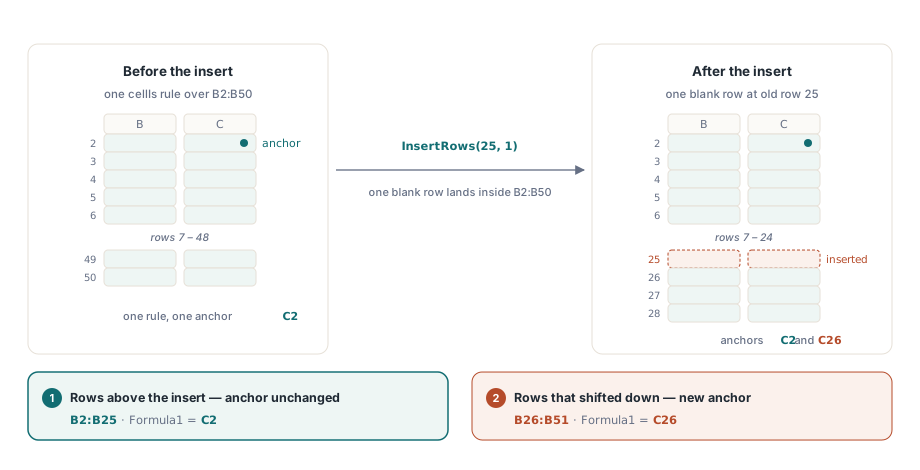
A conditional format or data validation rule keeps exactly one formula for its whole range, evaluated relative to a single anchor cell, so once an edit forces two parts of that range to need two different relative offsets, one formula can no longer describe both parts correctly. ECMA-376 expresses a rule's coverage as the sqref attribute on the conditionalFormatting or dataValidation element, and Excel evaluates Formula1 and Formula2 as though the text had been typed into the top-left cell of that sqref and filled across the rest of it, the same way an ordinary relative formula fills down a column. Picture a variance highlight over B2:B50 that flags any actual figure exceeding its budget, built as a cellIs rule whose Formula1 is the literal text C2, meaning compare the current row's B cell against that same row's C cell
Idx := Sheet.AddConditionalFormat('B2:B50', xlsxCfOpGreaterThan, 'C2');
Sheet.ConditionalFormats[Idx].Style.SetFillBgColor($FFFFC7CE);

Sheet.InsertRows(25, 1);   // one blank separator row, starting at old row 25
Insert that one separator row at old row 25 and the rows above the insertion point do not move, so their share of the rule still reads Formula1 as C2 correctly. The rows that used to be 25 through 50 slide down to 26 through 51, and for them C2 is now the wrong cell entirely, since row 26 needs to compare against C26, not against a budget figure two dozen rows above it
How HotXLS decides whether a rule needs to split
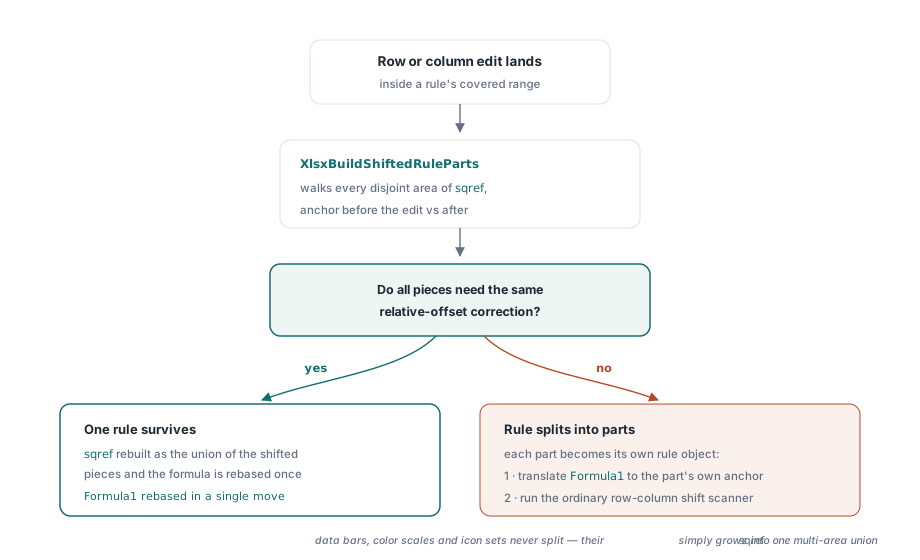
HotXLS only creates extra rule objects when the geometry genuinely requires it: an internal routine, XlsxBuildShiftedRuleParts, walks every disjoint area in the rule's sqref, works out what that area's anchor cell was before the edit and what it becomes after, and checks whether every resulting piece would need the same relative-offset correction. If all the pieces agree, one rule survives, its sqref rebuilt as the union of the shifted pieces and its formula rebased once. A genuine split happens only when the pieces disagree, exactly the B2:B50 case above, where the top block keeps its original anchor and the bottom block needs a new one
Rebasing a piece's formula is a two-step move that reuses machinery HotXLS already carries for OOXML shared formula groups: first the formula is translated as though it had originally been anchored at that piece's own top-left cell, using the same relative-offset math that expands a shared formula across its range, then the result runs through the same row-and-column shift scanner that rewrites ordinary worksheet formulas. That is how Formula1 goes from C2 to C26 in two moves rather than one hand-written special case: translate C2 forward by 23 rows to get C25, as if the rule had always started there, then let the ordinary shift at row 25 push it on to C26. Every other property, fill color, stop-if-true, the operator itself, rides along unchanged onto the new rule object, so both halves keep painting cells the color they always did
// ConditionalFormats now holds two rules instead of one:
//   B2:B25    Formula1 = 'C2'    (rows above the insert)
//   B26:B51   Formula1 = 'C26'   (rows that shifted down)
Do data bars and icon sets split the same way as cellIs rules?
No: HotXLS only partitions the rule kinds whose correctness actually depends on a per-region relative formula, cellIs comparisons and expression rules, and leaves every other conditional-format kind as a single rule object whose sqref simply grows to cover the shifted pieces as a multi-area union. Internally the branch is a plain Kind check, cf.Kind in [cfkCellIs, cfkExpression], nothing more exotic than that. Data bars, two- and three-color scales, icon sets, top and bottom rankings, and the duplicate, blank, and error detectors carry a payload, a bar color, a set of scale stops, an icon family, that describes the whole covered range at once rather than a per-cell relative comparison, so splitting them into several prioritized rule objects would not buy any correctness and would only add rules to manage. When an edit divides their range, HotXLS recombines the pieces into one rule with a multi-area sqref and re-anchors the payload as a single unit instead of cloning a new rule object per piece. The distinction lines up with the rule-kind taxonomy in the conditional formatting and rich text basics article: data bars, color scales, and icon sets already stand apart from cellIs rules by ignoring the Style property entirely, and now it turns out they stand apart from per-region re-anchoring for the same underlying reason
Why do rule priorities change after a structural edit?
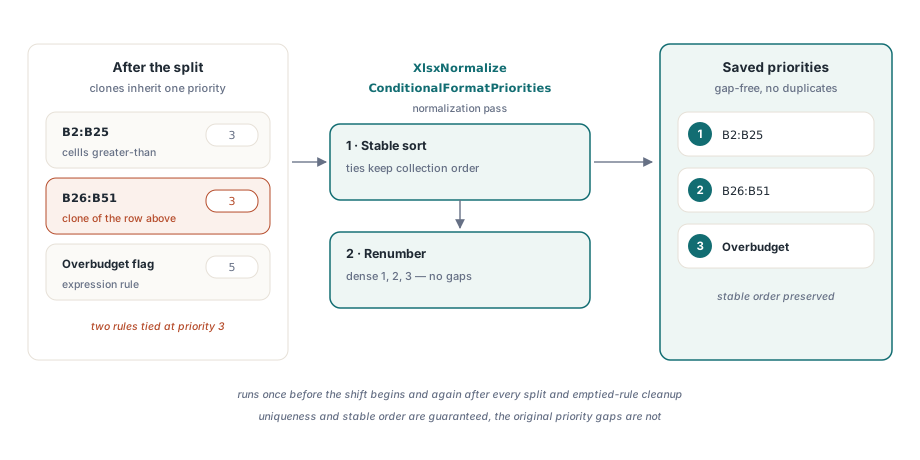
Priorities change because every clone starts out holding the exact same priority value as the rule it split from, and HotXLS runs a normalization pass afterward that resolves the resulting duplicates into a clean, gap-free ordering rather than leaving two rules tied for the same rank. A second internal routine, XlsxNormalizeConditionalFormatPriorities, takes every conditional format's current priority, falls back to that rule's position in the collection for any rule that never had one set explicitly, sorts the whole list stably so ties keep their original relative order, and renumbers the sorted result to a dense 1, 2, 3 sequence with no gaps and no repeats. HotXLS runs it once before a shift begins, so cloning starts from a clean baseline, and again after every split and every emptied-out rule is removed, so the file that gets saved never has two rule entries claiming the same priority. That matters if you followed the advice in the conditional formatting basics article to leave gaps between priority values so a later rule can slot in without renumbering the rest: the gaps survive until the next row or column edit touches that worksheet, then collapse, because normalization only guarantees uniqueness and stable order, not that your original numbering scheme comes back unchanged
Data validation rules split too, without a priority to renumber
Data validation rules go through the same range-partitioning logic as cellIs and expression conditional formats, and unlike conditional formatting, every validation type takes that path uniformly: HotXLS has no separate non-formula family for data validation the way data bars and icon sets are for conditional formatting, so a plain list or whole-number rule is partitioned by the identical routine that handles a relative custom formula. What differs is priority: ECMA-376 gives the dataValidation element no priority attribute at all, so there is no renumbering step for validations the way there is for conditional formats. Picture a custom-formula validation that keeps each row's actual amount from exceeding its own budget in the column beside it
Sheet.AddCustomValidation('D2:D400', 'D2<=C2');
Sheet.DeleteRows(150, 5);   // remove five rows out of the validated range
// DataValidations now holds two rules instead of one:
//   D2:D149    Formula1 = 'D2<=C2'      (rows above the deletion)
//   D150:D395  Formula1 = 'D150<=C150'  (rows that shifted up)
This matters for the same reason the data validation basics article warns against attaching a rule before the row count is final: a validation covers only the literal cells you gave it, and a later structural edit can leave two or more rules doing the job one used to do. Nothing breaks functionally: every cell in the original range is still validated by something, but code that assumes one DataValidations entry per column will start mis-indexing after the first edit touches it. There is a hard ceiling on how far this can go: if splitting would push a worksheet past 65,534 data-validation rules, HotXLS raises an exception rather than writing a file Excel would silently reject, which is the library declining to manufacture a corrupt workbook rather than a limit ordinary use is likely to reach
What to check after a bulk insert or delete
The two things worth verifying after a script runs a batch of row or column edits over a sheet full of conditional formats and validations are the total rule count and the priority order, since both can drift in ways that are easy to miss in code review and obvious the moment someone opens Manage Rules in Excel. One edit rarely does much damage: a single insert in the middle of one cellIs rule produces at most two rule objects where there was one. The risk compounds when a report-generation routine inserts rows one at a time in a loop over a sheet that already carries several formula-anchored rules: each pass can re-split rules a previous pass already split, and five original cellIs rules can end up as several times that many low-value fragments covering slivers of the original range. Batching structural edits, inserting the whole new block in one call instead of one row at a time, keeps the rule count tied to the number of genuinely distinct anchors rather than the number of edits performed
Rule partitioning and priority normalization ship as standard behavior of the XLSX engine in the HotXLS Delphi Excel Component for Delphi and C++Builder; the product page carries the full worksheet-editing API reference, including the conditional formatting and data validation methods described here