Three features in HotXLS share a worksheet but operate on entirely different objects, and the trouble starts when you assume they do similar things. Data validation attaches a rule to a range that constrains what a user may type into it. An AutoFilter attaches a stored criteria definition to a region and changes which rows a viewer shows. A table wraps a range in a named, typed structure with banded styling. One constrains input, one records a view, one imposes a schema. None of them moves a single cell value on its own, and the AutoFilter in particular fools people, because the word suggests an action when it stores only a definition. Knowing which object each call touches, and when the effect actually materializes, is what separates a workbook that behaves the same in Excel as it did in your tests from one that quietly diverges
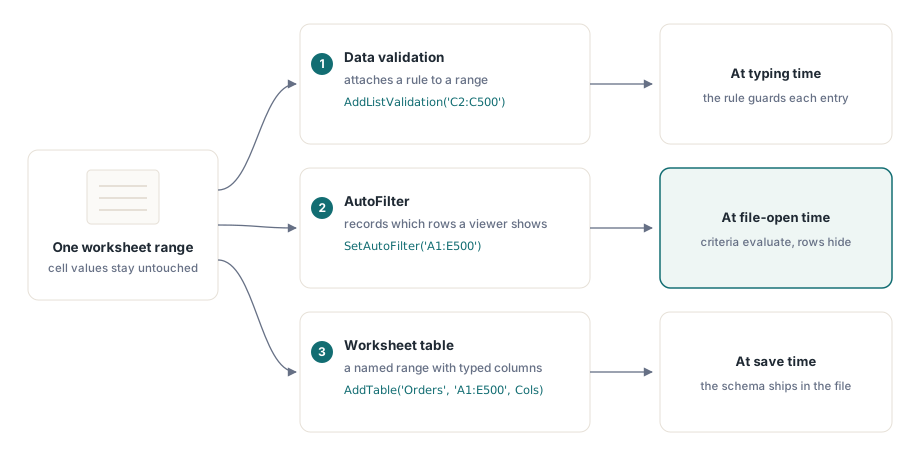
AutoFilter stores a definition, it does not crop rows
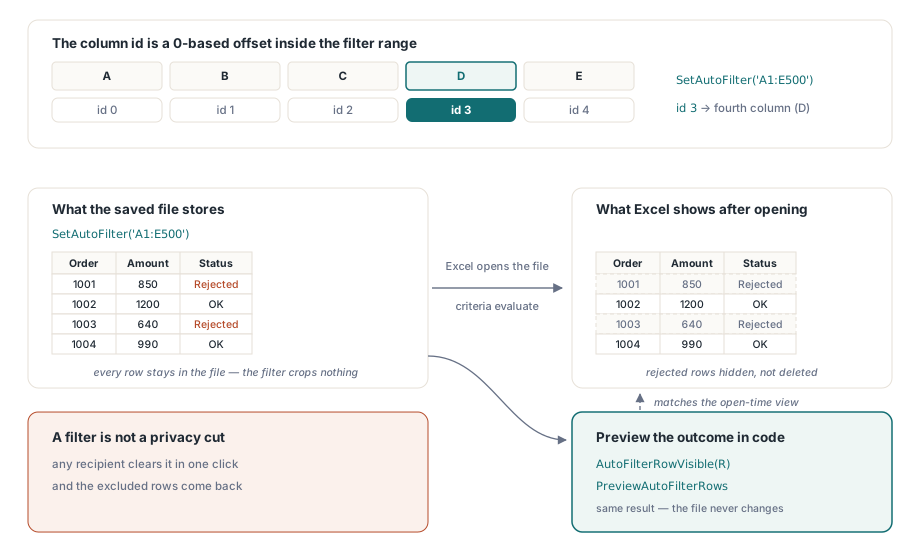
An AutoFilter in a saved file is a criteria record. The row hiding happens later, when Excel opens the workbook and evaluates the criteria against the data. HotXLS writes that record faithfully and crops nothing: every row you filtered is still physically present in the file. A pipeline that applies a filter to drop rejected orders and then reads the workbook back will see all of them, rejected ones included, and the code is correct by the API while wrong by the author's mental model. On the XLSX worksheet, SetAutoFilter declares the filtered region and AddAutoFilterColumn attaches criteria to one column of it. When server-side code needs the actual outcome, for a row count in a summary or to forward only matching rows, the library evaluates the criteria for you rather than pretending the file changed:
var
  Book: TXLSXWorkbook;
  Sheet: TXLSXWorksheet;
  R, Visible: Integer;
begin
  Book := TXLSXWorkbook.Create;
  try
    Book.Open('orders.xlsx');
    Sheet := Book.Sheets[0];

    Sheet.SetAutoFilter('A1:E500');
    // Column id 3 = fourth column INSIDE the filter range (0-based offset)
    Sheet.AddAutoFilterColumn(3, xlsxAfOpGreaterOrEqual, '1000');

    Visible := 0;
    for R := 2 to 500 do
      if Sheet.AutoFilterRowVisible(R) then
        Inc(Visible);
    // Visible now matches what Excel will show after opening the file

    Book.SaveAs('orders-filtered.xlsx');
  finally
    Book.Free;
  end;
end;
AutoFilterRowVisible answers per row, and PreviewAutoFilterRows walks the whole region through a callback when you need the matching set in one pass. There is a case where neither is the right answer: if the requirement is that excluded rows must not exist in the file at all, a privacy cut rather than a view, delete the rows outright. A filter is the wrong tool there, because any recipient clears it with one click and the data you meant to withhold is back on screen
The column id is an offset, not a column number
The comment in the snippet above flags the trap that costs the most debugging time in this API. AddAutoFilterColumn identifies its target by the 0-based position within the filter range, not by the worksheet column. For a filter on A1:E500 the two numbering systems happen to differ by one, which is exactly the kind of near-miss that survives a quick test and breaks the moment a colleague filters a different column. For a filter that starts at column C, id 0 means column C, and the mismatch becomes obvious fast. When the filter range is computed at runtime, derive the column id from the same variable that built the range string, never from a worksheet column constant. Each column accepts a second condition through the overload that takes two operators, two criteria, and an and/or connector, which mirrors Excel's custom filter dialog. The XLS facade covers the same ground with SetAutoFilter plus ApplyAutoFilter, whose criteria and operator parameters follow the older COM-style conventions and number the field from 1. Switching facades means switching index bases, so the call site deserves a comment saying which one is in play
Validation rules are the contract your users edit under
Of the three features, validation is the only one that actively constrains future input, and it earns the most design attention in workbooks that go out for completion and come back for processing. The list variant carries most of that work:
var
  Idx: Integer;
begin
  Idx := Sheet.AddListValidation('C2:C500', 'New,Approved,Blocked');
  Sheet.DataValidations[Idx].SetPrompt('Status',
    'Pick one of the listed states');
  Sheet.DataValidations[Idx].SetError('Invalid status',
    'Type or paste only listed values', xlsxDvErrStop);
  Sheet.DataValidations[Idx].AllowBlank := False;

  // Quantities: whole numbers, zero or more
  Sheet.AddWholeNumberValidation('D2:D500', xlsxDvOpGreaterOrEqual, '0');
end;
Beyond lists and whole numbers, the same family covers decimals, dates, times, text length, and free-form formulas through AddCustomValidation, and the generic AddDataValidation exposes the full type-and-operator matrix for rule builders driven by configuration. The error style matters more than its name suggests. xlsxDvErrStop rejects bad input outright; the warning and information styles let the value through after a single click. Choose per column based on whether the code that reads the workbook back can tolerate a value outside the rule. Two boundaries belong in the prompt text or the README you ship with the file. Validation in Excel guards typing, but pasting a block over a validated range slips past the rule, so any code that reads the data back has to validate again rather than trust the cells. And a rule covers the literal range you handed it, which means attaching validation before you know the final row count leaves the appended tail unguarded. Write the data first, then size the rules to the actual extent
The legacy facade offers the same rule families with one ergonomic difference. The XLS-side creators, namely AddWholeNumberValidation, AddDecimalValidation, AddDateValidation, AddTimeValidation, AddTextLengthValidation, and AddCustomValidation, return the TDataValidation object directly rather than an index, so prompt and error configuration chains off the returned reference instead of a lookup. The operator enumeration (xlsDvBetween, xlsDvGreaterThan, and the rest) mirrors the XLSX set, so rule-building code ports between facades apart from that return-style difference. The prompt text itself deserves as much thought as the rule. A dropdown that rejects input with a blank error box teaches users to email IT; one that names the legal states teaches them to fix the cell and move on
One polarity flip the library absorbs for you
Anyone who has hand-read OOXML validation XML has met the inverted showDropDown attribute: in ISO/IEC 29500 a true value means "suppress the dropdown arrow," the opposite of what the name reads as. HotXLS flips this internally, so the ShowDropDown property on a validation rule means what it says, with true showing the dropdown. The only way to get burned is to mix levels of truth, setting the property from code while a colleague audits the saved XML and "corrects" the attribute that looks backwards to them. Decide whether the property or the raw XML is authoritative for review tooling, and write the inversion down where that decision lives
Tables give a range a schema and a name
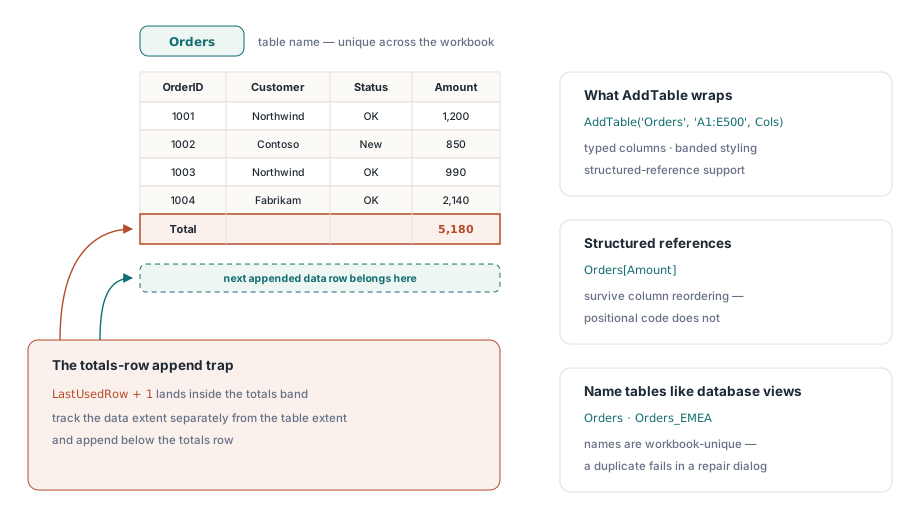
A worksheet table, the ListObject in Excel terms, wraps a range in a name, typed columns, banded styling, and structured-reference support. It is the feature that makes a generated workbook feel finished once users start sorting and extending it. Creation is symmetrical across facades, with AddTable taking a name, a range, and a column list:
var
  Cols: TStringList;
begin
  Cols := TStringList.Create;
  try
    Cols.CommaText := 'OrderId,Customer,Status,Amount,Owner';
    Sheet.AddTable('Orders', 'A1:E500', Cols);
  finally
    Cols.Free;
  end;
end;
On the XLSX side the resulting table object exposes StyleName (the built-in TableStyleMedium2 family and its siblings), stripe toggles, and a totals-row flag, so applying house styling is a property assignment rather than a manual formatting pass. In legacy .xls files the same call writes the BIFF8 table records, and the facade also offers AddPivotTable for summary views built from row, column, and data fields, a reminder that "tables" in the older format reach further than the OOXML ListObject does. Name tables the way you name database views. Downstream code that reads Orders[Amount] by structured reference survives the column reordering that breaks positional code
Two conventions save cleanup later. Excel requires table names to be unique across the whole workbook, so a generator that emits one sheet per region needs a scheme like Orders_EMEA rather than reusing Orders. A duplicate does not fail at write time; it surfaces as a repair dialog when the user opens the file, which is the worst place to discover it. The other convention concerns the totals row: when enabled, it sits directly below the data range, so any code that later appends by "last used row plus one" writes into the totals band instead of after it. Track the data extent separately from the table extent and the appends land where you expect
The three features compose naturally in data-entry deliverables. A table defines the editable region, validation constrains the columns users type into, and a pre-set filter spares the recipient the first few clicks. There is a fair argument for shipping a filter already applied so the workbook opens focused on the rows that matter, as long as you remember the excluded rows are still in the file and a curious recipient can reveal them. Getting query results into the sheet efficiently, the upstream half of this pipeline, is covered in exporting database results to Excel from Delphi, and workbooks where formulas summarize the validated data benefit from defined names for stable cross-sheet references
Validation, filters, and tables are the difference between shipping a grid of values and shipping a small application. The complete rule, filter, and table reference is on the HotXLS Delphi Component product page