A conditional formatting rule in OOXML is two separate things wearing one name. The condition (a comparison, a formula, a text match) decides which cells qualify. The appearance (a differential format record, dxf in ECMA-376 terms) decides what those cells look like. Excel's dialog hides the seam by making you fill in both at once. HotXLS does not. Create a cellIs rule from Delphi and skip the style, and the rule is valid, the range is correct, the formula evaluates to true on exactly the right cells, and nothing changes color, because the rule's instruction was "true, paint nothing." That gap between condition and consequence is the first thing to get right, and it accounts for most of the rules that look correct in Manage Rules yet highlight nothing
HotXLS writes conditional formatting natively into both BIFF8 .xls and OOXML .xlsx files, and it does the same for rich text runs and a pooled cell-style model. The three features share more wiring than the flat API surface suggests, and the places where output drifts from intent are usually the joints between them
A condition needs a consequence: the dxf style
On the XLSX worksheet, comparison rules come from AddConditionalFormat, which takes a range, an operator from TXLSXCfOperator, and a formula or literal, then returns the index of the new rule inside the sheet's ConditionalFormats collection. The rule object at that index exposes a Style property, and that is where the highlight lives. Set a fill on it and qualifying cells take the fill. Leave it untouched and you have built the invisible rule described above
![Diagram of a HotXLS cellIs rule built from Delphi in two halves: AddConditionalFormat returns a rule index for the condition, ConditionalFormats[Idx].Style.SetFillBgColor supplies the dxf consequence, and a rule whose style is never set validates fine while painting nothing](../../assets/media/CfRuleConditionConsequence.svg)
var
  Book: TXLSXWorkbook;
  Sheet: TXLSXWorksheet;
  Idx: Integer;
begin
  Book := TXLSXWorkbook.Create;
  try
    Book.Open('kpi.xlsx');
    Sheet := Book.Sheets[0];

    // Negative variance: light red fill
    Idx := Sheet.AddConditionalFormat('D2:D200', xlsxCfOpLessThan, '0');
    Sheet.ConditionalFormats[Idx].Style.SetFillBgColor($FFFFC7CE);

    // Duplicate order IDs get flagged the same way
    Idx := Sheet.AddCondFormatDuplicateValues('A2:A200');
    Sheet.ConditionalFormats[Idx].Style.SetFillBgColor($FFFFEB9C);

    // Custom formula rule: highlight rows where actual misses 90% of target
    Idx := Sheet.AddCondFormatExpression('B2:B200', '$C2<$B2*0.9');
    Sheet.ConditionalFormats[Idx].Style.SetFillBgColor($FFFFC7CE);

    Book.SaveAs('kpi-flagged.xlsx');
  finally
    Book.Free;
  end;
end;
Colors here are 32-bit ARGB values, so $FFFFC7CE is the Excel "light red" you know from the dialog, with a fully opaque alpha byte sitting in front of the RGB. Every rule kind that fires on a per-cell condition follows the same create-then-style shape. The text matchers (AddCondFormatContainsText, AddCondFormatBeginsWith, AddCondFormatEndsWith) return an index you style afterward, and so do AddCondFormatTop10, AddCondFormatAboveAverage, and the blank and error detectors. Learn the pattern once and the whole text-and-comparison family behaves the same
Data bars, color scales, and icon sets paint themselves
The visual rule kinds work the opposite way. They carry their appearance inside the rule definition and ignore the Style property completely. Assign a fill to a data bar rule and nothing happens, which reads like a bug until the taxonomy clicks: AddCondFormatDataBar takes the bar color as a direct argument, the two- and three-point color scales take their endpoint colors the same way, and AddCondFormatIconSet selects one of 26 icon set types such as icsTrafficLights3. There is no separate style record to forget here, because there is no separate style record at all
The parameters worth thinking about on these calls are the value anchors, typed as TXLSCfValueKind. A bar or scale endpoint can sit at the range minimum or maximum, at a literal number, at a percent or a percentile, or at the result of a formula. The defaults, min-of-range and max-of-range, behave on tidy demo data and then betray you on real data with outliers: one runaway value stretches the scale and flattens every other bar to a stub. When a dashboard is meant to be read across periods, anchor the endpoints to fixed numbers or percentiles instead, so that half a bar in March means the same quantity as half a bar in April. An auto-scaled bar is only comparable to itself
The XLS writer covers four rule kinds, no more
The legacy BIFF8 side is not a smaller mirror of the XLSX side; it is a deliberate subset. The XLS facade can create exactly four conditional rule shapes, data bars, two-color scales, three-color scales, and icon sets, emitted as CF12 records into the stream. It has no creation API for cellIs, expression, or text rules. Rules of those kinds that already live in a file you open are read, kept, and written back unchanged, so opening and resaving a customer's .xls never damages formatting it carried in. What you cannot do is generate threshold highlighting from scratch into a .xls. The choices there are to fake it with ordinary cell fills computed in code, or to make the deliverable a .xlsx, where the full rule family is on the table
This is a constraint to settle before the data layer exists, not after, because it changes the file-format decision for anything dashboard-shaped. A team that picked .xls for compatibility and then specs a KPI report with cellIs thresholds has chosen two things that do not fit together, and the cheaper time to notice is at the format decision rather than three weeks into the build
Rule stacking, priority, and overlapping ranges
Real dashboards rarely run one rule per range. A variance column might carry a data bar for magnitude, a cellIs rule for the hard threshold, and a row-level expression rule above both for escalations. Each TXLSXConditionalFormat exposes a Priority value, and Excel resolves competing rules in priority order. When two rules want to paint the same cell, the winner is decided by a number you set, not by whatever order a reviewer happens to scroll through in the Manage Rules dialog
Treat priority the way a drawing program treats z-order. Assign it on purpose wherever two rules can reach the same cells, and leave gaps between the values so a later rule slots in without renumbering the rest. Where rules cannot collide, say a data bar confined to column E and a text rule confined to column G, creation order is fine and priority is not worth the attention. Spend that attention on range boundaries instead, because the expensive bugs here are almost never priority inversions. They are ranges like B2:B200 on a report that grew to 350 rows, where the uncovered tail renders as plain cells that look exactly like healthy data. Derive every rule range from the same final-row-count value that drives chart series and validation ranges elsewhere in the workbook, and the tail stops falling off
One verification habit earns its keep. After generation, open the file in Excel, select the formatted range, and walk Manage Rules once for every template change. Conditional formatting is one of the few areas where the only authoritative renderer is the application that consumes the file, so a unit test over the XML proves the rule was written, not that Excel paints it the way you meant. A minute of eyeballing closes that gap
Rich text: many formats inside one cell
A rich-text cell in the XLSX model holds a list of runs, where each run is a span of text plus its own font attributes. You build the list off to the side as a TXLSXRichText object, add runs to it, and then attach the whole thing to a cell. The ownership rule is the part that bites. Assigning to Cell.RichText hands ownership of that object to the cell, and the cell frees it during its own destruction. Free it yourself as well and you have a double-free, the kind that stays silent through the run that caused it and surfaces as a crash somewhere unrelated much later
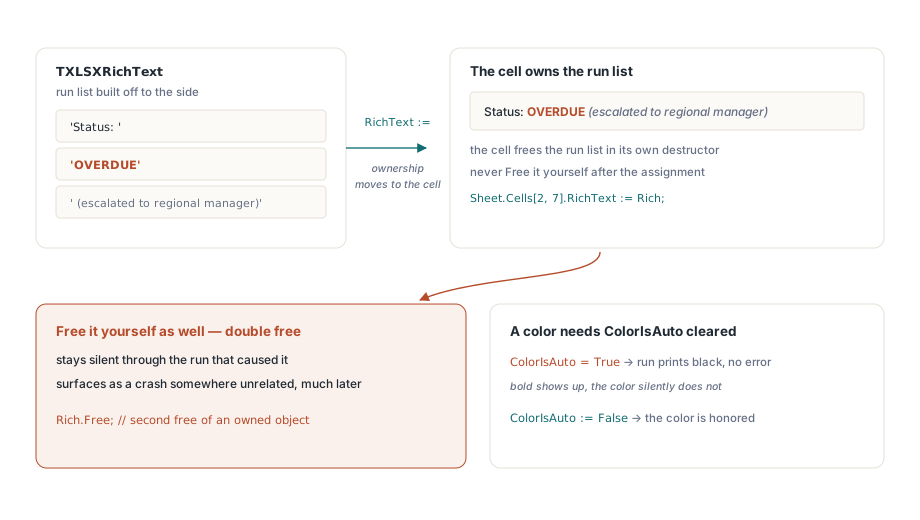
var
  Rich: TXLSXRichText;
  Run: TXLSXRichTextRun;
begin
  Rich := TXLSXRichText.Create;
  Rich.AddRunText('Status: ');
  Run := Rich.AddRunText('OVERDUE');
  Run.Bold := True;
  Run.Color := $FFC00000;
  Run.ColorIsAuto := False;
  Run := Rich.AddRunText(' (escalated to regional manager)');
  Run.Italic := True;
  Sheet.Cells[2, 7].RichText := Rich;   // ownership moves to the cell: do not Free
end;
The explicit ColorIsAuto := False is not optional decoration. A run carries an automatic-color flag, and a color assignment is honored only once that flag is cleared. Set Color and forget ColorIsAuto and the run comes out bold but stubbornly black, with no error to point at the cause. Runs also support strikethrough, the underline variants, and vertical alignment for superscript and subscript, while PlainText flattens the whole list back to a single string when you need to export or diff the text content
Cell-level rich text is XLSX-only. The XLS facade has no public API for writing it, though runs are available there on comments and text boxes through TextRuns, and rich strings read from an existing .xls survive a round-trip intact. The pull is the same as with conditional formatting: anything that mixes formats inside a cell belongs in the XLSX writer
The style pool and the off-by-one that ships
Plain cell styling in the XLSX model runs through pooled collections on the workbook. Fonts.Add, Fills.AddSolid, and Borders.Add each register a definition and return its index in the pool. Those indexes are 0-based. The cell-side properties that consume them, such as FontIndex, reserve 0 for "default", so the value you assign to a cell is the pool index plus one:
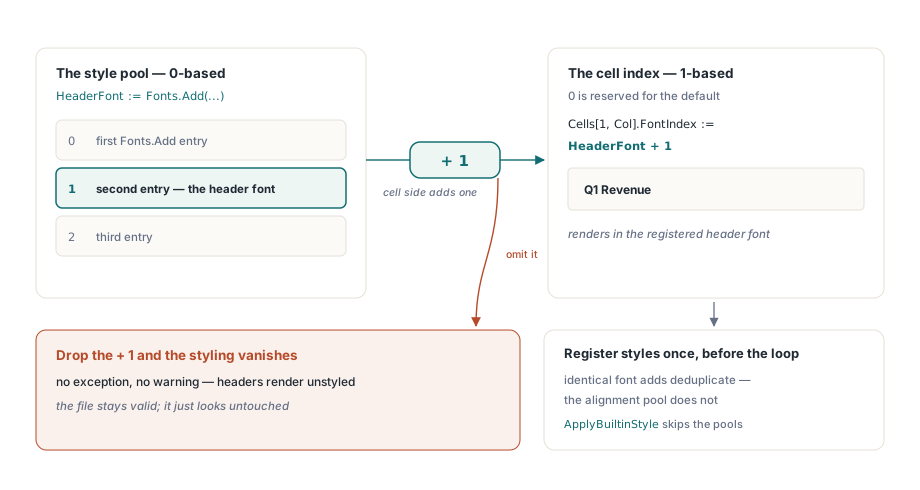
HeaderFont := Book.Fonts.Add('Calibri', 11, True, False);  // pool index, 0-based
for Col := 1 to 6 do
  Sheet.Cells[1, Col].FontIndex := HeaderFont + 1;          // cell index, 1-based
Drop the + 1 and every header falls back to the default font. There is no exception and no warning, only a workbook that looks like nobody styled it. The second-order mistake hides in the loop: calling Fonts.Add once per row. Identical font definitions are deduplicated, so the file is not corrupted, but the work is wasted, and the alignment pool in particular hands back a fresh object on each call rather than folding duplicates. Build the handful of styles once before the loop and reuse their indexes. On hundred-thousand-row reports that single change is one of the levers covered in large workbook performance tuning for HotXLS. When you only need a stock semantic look, both facades expose ApplyBuiltinStyle on ranges, which maps to Excel's built-in Good, Bad, Neutral, and accent styles without your touching the pools at all
Conditional formatting, rich text, and pooled styles are the last mile of a report, applied after the data model and the layout are settled, and those earlier stages are the subject of template-based report generation with HotXLS. The full rule, run, and style reference lives on the HotXLS Delphi Component product page