A claims-processing team had thirty years of paper files going through a sheet-fed scanner. The scanner spat out one JPEG per page into a folder, named 0001.jpg, 0002.jpg, and so on. What the archive actually needed was one PDF per case file, with the pages in order, so a reviewer could open a single document instead of clicking through a hundred image thumbnails. That last step, turning a numbered pile of scans into a single ordered PDF, is the job here
PDFium Component handles it directly. Beyond rendering and text extraction, the component can build a PDF from scratch: create an empty document, add a blank page sized however you like, drop an image onto that page in user-space coordinates, then save. The whole pipeline lives on the TPdf component, so a batch converter is a loop over filenames plus a handful of calls
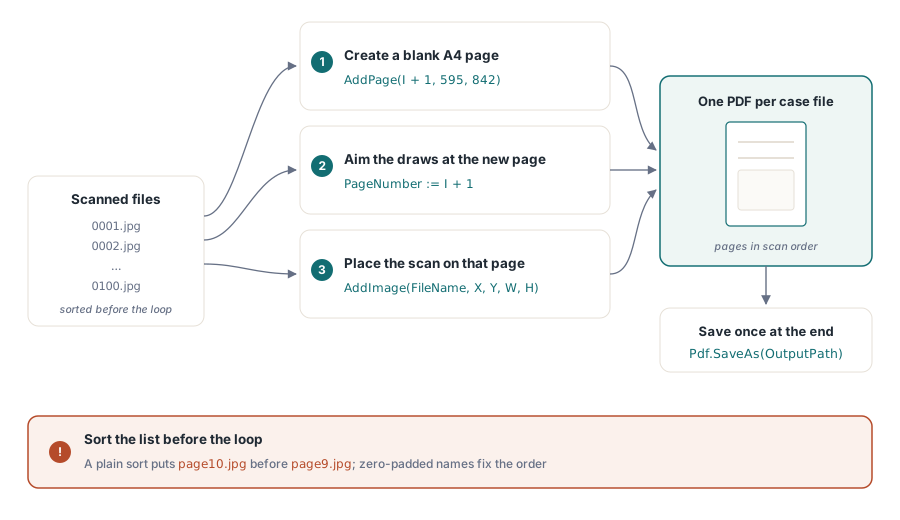
The shape of the conversion
Three things have to happen for each scan. You decide the page size, you place the image inside the page leaving a margin, and you advance to the next page. PDFium Component gives you one method for each: AddPage creates a blank page at a given size, AddImage (or AddPicture if you already hold a TPicture) draws the bitmap into the current page, and PageNumber tells the component which page subsequent draw calls target
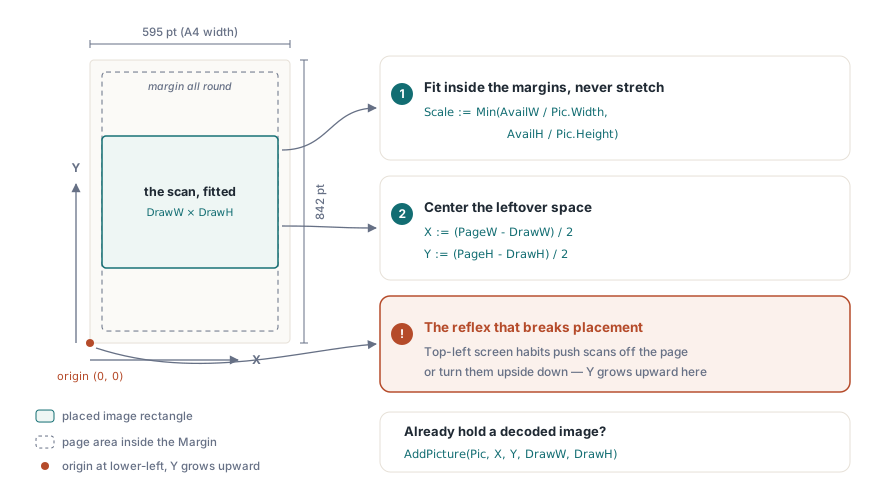
The one detail that trips people up is the coordinate system. PDF user space puts the origin at the lower-left corner of the page, with Y increasing upward, the opposite of the screen coordinates Delphi developers reach for by reflex. The X, Y you pass to AddImage is the lower-left corner of the image rectangle, and Width, Height are the placement size in points, not the pixel size of the source file. Get that backwards and your scans land off the page or upside down relative to where you expected them
Creating the document and a page per scan
Start with an empty document. CreateDocument allocates a fresh PDF and leaves the component active, so there is no separate open step. From there you walk the list of scanned files, and for each one you add a page, make it current, and place the image. Page dimensions here are A4 in points (595 × 842 portrait), the standard sheet size for archived correspondence
procedure TArchiveForm.ScansToPdf(const Files: TStrings; const OutputPath: string);
const
  PageW = 595.0;   // A4 width in points
  PageH = 842.0;   // A4 height in points
  Margin = 36.0;   // half-inch border around each scan
var
  I: Integer;
  Pdf: TPdf;
begin
  Pdf := TPdf.Create(nil);
  try
    Pdf.CreateDocument;                       // new, empty, already active
    for I := 0 to Files.Count - 1 do
    begin
      Pdf.AddPage(I + 1, PageW, PageH);       // 1-based page index
      Pdf.PageNumber := I + 1;                // make the new page current
      PlaceScan(Pdf, Files[I], PageW, PageH, Margin);
    end;
    Pdf.SaveAs(OutputPath);
  finally
    Pdf.Free;
  end;
end;
Each iteration creates a page and immediately sets PageNumber to it. That second line matters: AddPage inserts the page but the draw methods act on whichever page is current, so setting PageNumber is what aims AddImage at the page you just made. Skip it and your images stack onto whatever page happened to be loaded before
One assumption hides in that loop: the order of Files. A scanner names pages 0001.jpg through 0100.jpg, but a directory enumeration does not always return them sorted, and the moment you hit page9.jpg next to page10.jpg a plain string sort puts page 10 before page 9. Sort the list explicitly before the loop, and prefer zero-padded names at scan time so lexical order matches page order. Page sequence is the one thing a reviewer notices immediately, and it is the cheapest mistake to prevent
Placing a scan and keeping its aspect ratio
A scan is rarely the same shape as the page. If you stretch it to fill the sheet you distort the text; if you place it at full pixel size it overflows. The fix is to scale by the smaller of the two ratios, width-fit or height-fit, and center what is left over. Because the origin sits at the lower-left, centering means splitting the leftover space evenly and adding it to both X and Y
procedure TArchiveForm.PlaceScan(Pdf: TPdf; const FileName: string;
  PageW, PageH, Margin: Double);
var
  Pic: TPicture;
  AvailW, AvailH, Scale, DrawW, DrawH, X, Y: Double;
begin
  Pic := TPicture.Create;
  try
    Pic.LoadFromFile(FileName);              // BMP, JPG, PNG, etc. via the VCL graphics units

    AvailW := PageW - 2 * Margin;
    AvailH := PageH - 2 * Margin;

    // Fit inside the margins without distorting the scan.
    Scale := Min(AvailW / Pic.Width, AvailH / Pic.Height);
    DrawW := Pic.Width * Scale;
    DrawH := Pic.Height * Scale;

    // Center: leftover space split evenly. Y measured from the page bottom.
    X := (PageW - DrawW) / 2;
    Y := (PageH - DrawH) / 2;

    Pdf.AddImage(FileName, X, Y, DrawW, DrawH);
  finally
    Pic.Free;
  end;
end;
This loads the file once to read its pixel dimensions, computes a single uniform scale, and passes the placement rectangle to AddImage. AddImage accepts a file path directly and routes it through the same image pipeline as AddPicture, so any format the VCL graphics units recognize works without special-casing. If you already have the image decoded in a TPicture from a preview pane, call AddPicture(Pic, X, Y, DrawW, DrawH) with the same rectangle and skip the second file read
Skipping the decode for JPEG scans
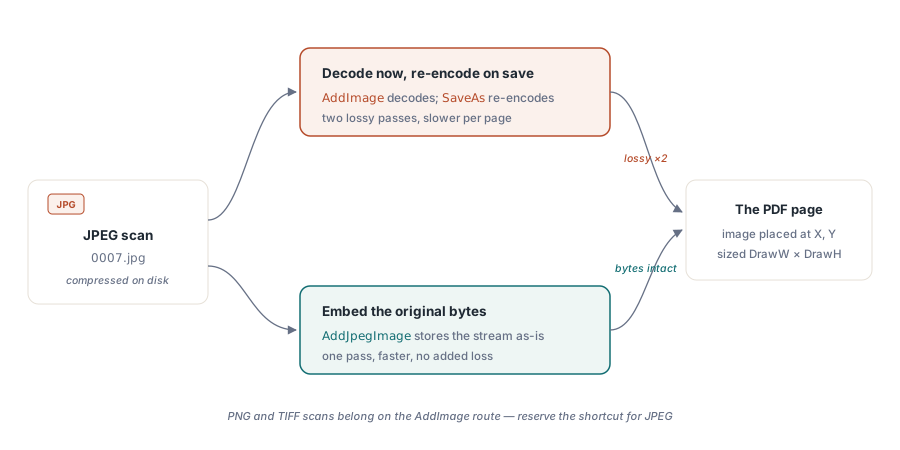
Scanners almost always emit JPEG. Loading a JPEG into a TPicture decodes it to a bitmap, and then PDFium re-encodes it on save, two lossy round trips you do not need. AddJpegImage embeds the original compressed bytes straight into the page from a stream, which is both faster and visually cleaner for a high-volume batch
var
  Stream: TFileStream;
begin
  // ... after AddPage + PageNumber for the current page ...
  Stream := TFileStream.Create(FileName, fmOpenRead);
  try
    // Embeds the JPEG bytes as-is; no decode/re-encode cycle.
    Pdf.AddJpegImage(Stream, X, Y, DrawW, DrawH);
  finally
    Stream.Free;
  end;
end;
You still compute X, Y, DrawW, and DrawH the same way, since you need the pixel dimensions to scale. Read those from the file or a quick header parse, then hand the raw stream to AddJpegImage. For PNG or TIFF scans the AddImage path is the right one; reserve the JPEG shortcut for the format it actually applies to
Labeling each page
Archived scans are easier to audit when each page carries its source filename. AddText draws a string at a user-space coordinate, so a caption sits just under the image. Remember the inverted Y axis: to put a label below the scan, you subtract from the image's bottom edge rather than add to it
// Caption below the scan: Y decreases toward the page bottom.
Pdf.AddText('File: ' + ExtractFileName(FileName), 'Helvetica', 9,
  X, Y - 14, clGray);
One last point about saving. SaveAs is a function that returns a Boolean, so in production code check its result rather than assuming the write succeeded; a full disk or a locked output path fails quietly otherwise. Once the loop finishes and the file is written, you have exactly what the archive needed: one ordered PDF per case file, pages scaled to fit, ready to read in any viewer
The same building blocks cover related jobs. Swap the per-page sizing rule and you get a photo book with one image per sheet; keep the loop but read from a TIFF multi-page source and you have a fax-archive converter. If you want the wider picture of building PDFs programmatically, see creating PDF documents from scratch with PDFium Component; to render the result back to screen later, see converting PDF pages to JPEG images with PDFium Component
PDFium Component from loslab.com bundles the document-creation, rendering, and text APIs used throughout this series