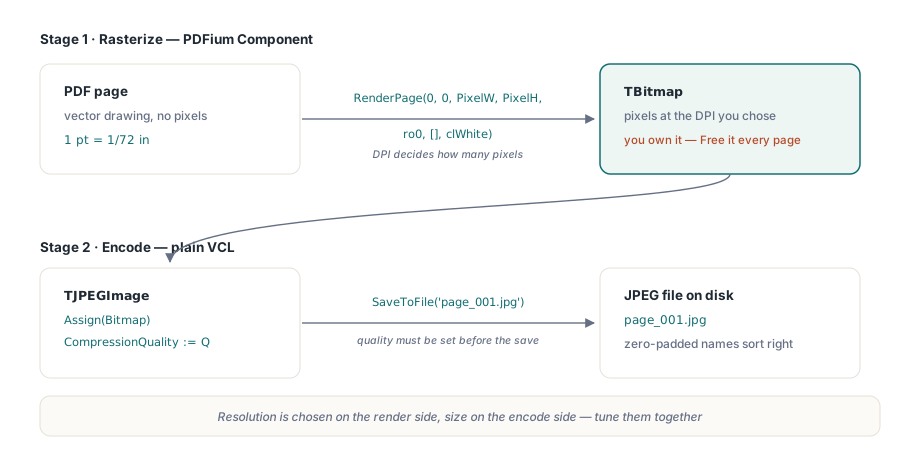
Rendering a PDF page to a JPEG is two operations that people tend to run together and then debug separately. First you rasterize the page into a pixel bitmap at a resolution you choose. Then you hand that bitmap to a JPEG encoder and pick a quality. PDFium Component owns the first half through RenderPage; the second half is plain VCL, TJPEGImage from Vcl.Imaging.jpeg. The seam between them is where the interesting decisions live, because the resolution you pick on the render side and the quality you pick on the encode side trade off against each other and against file size in ways that are easy to get wrong
The thing to internalize before any code: a PDF page has no pixels. It is described in points, where one point is 1/72 inch, and the page is a vector drawing measured in those points. When you ask PDFium to render, you are choosing how many pixels to project that drawing onto, and that choice is the DPI. Get the arithmetic wrong and you either render a blurry thumbnail when you wanted a print master, or you allocate a 200-megapixel bitmap for something destined to be a 120-pixel preview
From DPI to pixel dimensions
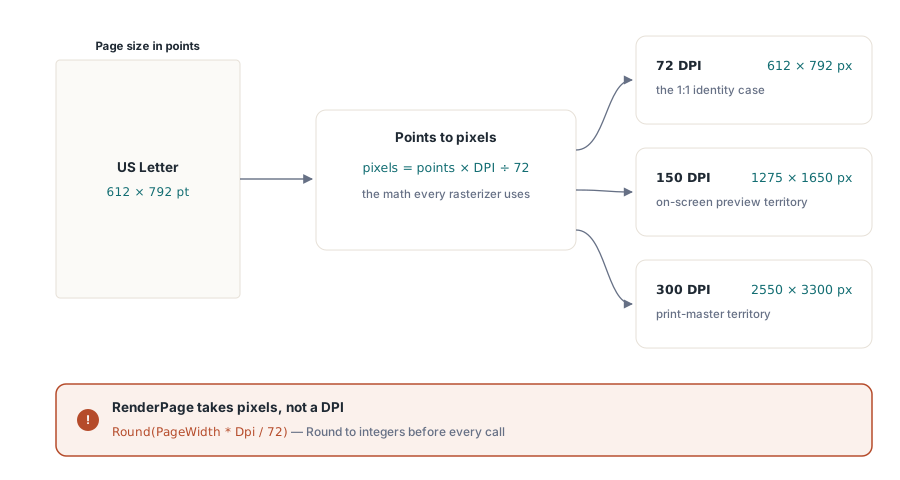
RenderPage wants integer pixel Width and Height, not a DPI. So the first job is converting. A page reports its size in points through PageWidth and PageHeight (both Double), and the conversion is the same one every rasterizer uses: pixels equal points times target DPI divided by 72. A US Letter page is 612 by 792 points. At 150 DPI that becomes 1275 by 1650 pixels; at 72 DPI it stays 612 by 792, one pixel per point, which is the case people forget is just the identity
// Pdf.PageNumber must already point at the page you want.
PixelW := Round(Pdf.PageWidth  * Dpi / 72);
PixelH := Round(Pdf.PageHeight * Dpi / 72);
Bitmap := Pdf.RenderPage(0, 0, PixelW, PixelH, ro0, [], clWhite);
// ... use Bitmap ...
Bitmap.Free;   // the function-form RenderPage hands you ownership
Two details in those four lines decide whether the code is correct. The first is that the function form of RenderPage returns a TBitmap that you own. PDFium allocated it and walked away; if you do not Free it on every iteration, a batch over a few hundred pages leaks a few hundred bitmaps and the process bloats until something falls over. The second is the Color argument, clWhite here. PDF pages are usually drawn assuming an opaque white substrate, and a page with transparency rendered onto the wrong background color produces muddy edges or stray dark halos. White is the right default for almost every document; the parameter exists for the rare case where it is not
The 0, 0 are the Left and Top offsets into the page, in the scaled coordinate space, and you leave them at zero unless you are cropping. The ro0 is rotation: leave it at zero and PDFium honors whatever rotation the page already declares in its /Rotate entry, so a page authored landscape comes out landscape without you doing anything
Encoding the bitmap as JPEG
Once the bitmap exists, JPEG is the easy part, and it is pure Delphi. TJPEGImage.Assign copies the bitmap in, CompressionQuality sets the quality on a 1 to 100 scale, and SaveToFile writes the file. The only ordering rule is that quality has to be set before you save, because it governs the encode that SaveToFile triggers
uses
  Vcl.Graphics, Vcl.Imaging.jpeg, PDFium;

procedure SavePageAsJpeg(Pdf: TPdf; PageNumber, Dpi, Quality: Integer;
  const FileName: string);
var
  Bitmap: TBitmap;
  Jpeg: TJPEGImage;
begin
  Pdf.PageNumber := PageNumber;
  Bitmap := Pdf.RenderPage(0, 0,
    Round(Pdf.PageWidth  * Dpi / 72),
    Round(Pdf.PageHeight * Dpi / 72),
    ro0, [], clWhite);
  try
    Jpeg := TJPEGImage.Create;
    try
      Jpeg.Assign(Bitmap);
      Jpeg.CompressionQuality := Quality;   // 1..100
      Jpeg.SaveToFile(FileName);
    finally
      Jpeg.Free;
    end;
  finally
    Bitmap.Free;
  end;
end;
That nested try/finally looks fussy for a one-page helper, and it is exactly right for a batch. The inner block frees the encoder, the outer block frees the bitmap, and either one firing on an exception still releases what it owns. Collapse them into one and an exception during encoding can strand the bitmap. Over a long run that is the difference between a converter that finishes and one that dies on page 300 with a corrupt file and an out-of-memory dialog
Choosing DPI and quality together
The two knobs are not independent of the output's purpose, and the common mistake is turning both up out of caution. A web thumbnail rendered at 300 DPI and saved at quality 95 is several hundred kilobytes pretending to be a 120-pixel image; the browser throws away almost all of it on the downscale. Match the resolution to the pixels the output actually needs, then pick a quality that survives JPEG's lossy compression without visible artifacts
| Output | DPI | JPEG quality |
|---|---|---|
| List thumbnail | 72 | 60-70 |
| On-screen preview | 96-150 | 80-85 |
| High-detail viewing | 200-300 | 85-95 |
| Print master | 300-600 | 90-100 |
JPEG quality is worth a word of caution on its own. It is not a linear dial. The jump from 70 to 85 buys a real visual improvement for modest file growth; the jump from 95 to 100 roughly doubles the file for a difference almost nobody can see, because quality 100 still is not lossless, it just stops discarding much. For text-heavy pages, JPEG's block-based compression smears the sharp edges of glyphs into faint ringing, which is why quality below about 80 makes scanned-looking text on what should be crisp output. If the pages are mostly text and you can change formats, PNG renders that text without the ringing; JPEG earns its place on photographic and mixed content where its compression is genuinely smaller
Faster, smaller thumbnails
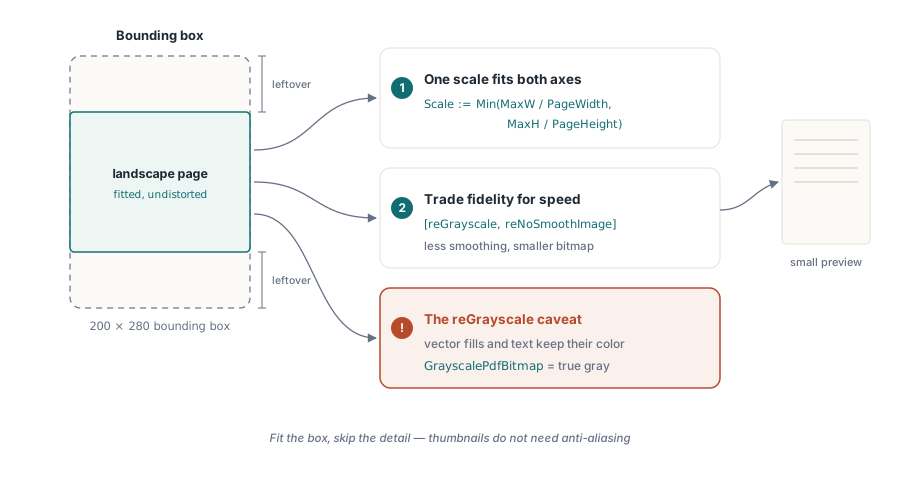
When the target is a thumbnail rather than a faithful reproduction, you can tell the renderer to do less work. The Options parameter takes a set of TRenderOption flags, and a few of them trade fidelity for speed in exactly the way a small preview wants. reGrayscale drops color, which both renders faster and produces a smaller bitmap to encode. reNoSmoothImage and reNoSmoothPath skip anti-aliasing that is invisible at thumbnail scale anyway
function RenderThumbnail(Pdf: TPdf; PageNumber, MaxW, MaxH: Integer): TBitmap;
var
  Scale: Double;
begin
  Pdf.PageNumber := PageNumber;
  // Fit the page inside MaxW x MaxH while preserving aspect ratio.
  Scale := Min(MaxW / Pdf.PageWidth, MaxH / Pdf.PageHeight);
  Result := Pdf.RenderPage(0, 0,
    Round(Pdf.PageWidth  * Scale),
    Round(Pdf.PageHeight * Scale),
    ro0, [reGrayscale, reNoSmoothImage], clWhite);
end;
The thumbnail case also shows the cleaner way to think about sizing. Instead of going through DPI, compute a single scale factor that fits the page inside a bounding box and preserves the aspect ratio, which is what the Min of the two ratios does. A portrait page and a landscape page both end up inside the same box without distortion, and you never have to reason about what DPI corresponds to "fit in 200 by 280." One caveat with reGrayscale: it converts raster image content to gray, but vector fills and text keep their color values in the engine, so a page that is mostly vector art may come back less monochrome than the flag's name suggests. For a true full-grayscale result, converting the rendered bitmap with GrayscalePdfBitmap is the reliable path
Batching a whole document
Putting it together for a full document is a loop over PageCount, with PageNumber moved one page at a time. Pages are 1-based: page one is PageNumber := 1, and the loop runs to PageCount inclusive, not PageCount - 1. The other thing the batch must respect is the silent-load contract. Setting Active := True never raises on a damaged file or a wrong password; it just leaves Active at False. Check it before you render a single page, or the first RenderPage works against a document that was never opened
procedure ExportAllPages(const PdfPath, OutDir: string; Dpi, Quality: Integer);
var
  Pdf: TPdf;
  I, Digits: Integer;
begin
  Pdf := TPdf.Create(nil);
  try
    Pdf.FileName := PdfPath;
    Pdf.Active := True;
    if not Pdf.Active then
      raise Exception.Create('Could not open ' + PdfPath);

    Digits := Length(IntToStr(Pdf.PageCount));   // zero-pad so files sort right
    for I := 1 to Pdf.PageCount do
      SavePageAsJpeg(Pdf, I, Dpi, Quality,
        Format('%s\page_%.*d.jpg', [OutDir, Digits, I]));
  finally
    Pdf.Active := False;
    Pdf.Free;
  end;
end;
The zero-padding through Digits is a small thing that saves an afternoon later. Name the files page_1.jpg through page_10.jpg and any tool that sorts them as strings puts page_10 right after page_1, scrambling the order. Padding to the width of the highest page number, so a 300-page document yields page_001.jpg, keeps lexical order and page order identical everywhere downstream
For documents large enough that the conversion takes noticeable time, run it off the UI thread or pump messages between pages so the application stays responsive, and give the user a way to stop. If you are rendering very large pages and want cancellation that bites mid-page rather than only between pages, PDFium Component has a progressive render path with a cancellation token; that is a heavier mechanism than most batch exports need, but it is there when a single page at 600 DPI is itself slow enough to block
One last pairing worth knowing. Rasterizing a page discards its text layer: the JPEG is pixels, and the words in it are no longer selectable or searchable. When you need both an image and the underlying text, render for the image and pull the text separately, which the companion piece on extracting text from PDF documents with PDFium Component covers. The RenderPage overloads and render options shown here are part of the PDFium Component for Delphi and C++Builder