PDFium has a reputation as a viewer engine, the renderer behind Chrome's PDF tab, so the first thing to clear up is that PDFium Component can also build a document that never existed before. The authoring side wraps PDFium's page-object API: you make an empty document, add pages with explicit dimensions, and drop text, vector paths, and images onto each page at coordinates you choose. There is no page description language to learn and no print driver in the loop. You call methods, the library assembles PDF objects, and SaveAs serializes the result
What you do not get is a layout engine. This matters enough to say up front, because it shapes every example below. PDFium Component places content where you tell it to, in absolute coordinates, and nowhere else. It will not wrap a paragraph, flow text across a page break, or compute a table from rows and columns. Those are your job. If you arrived expecting something that reflows prose the way a word processor does, calibrate now: this is a precise, low-level placement API, closer to drawing on a canvas than typesetting a document. For generated invoices, certificates, labels, and report pages where you already know where every element belongs, that precision is exactly what you want
The minimum that produces a file
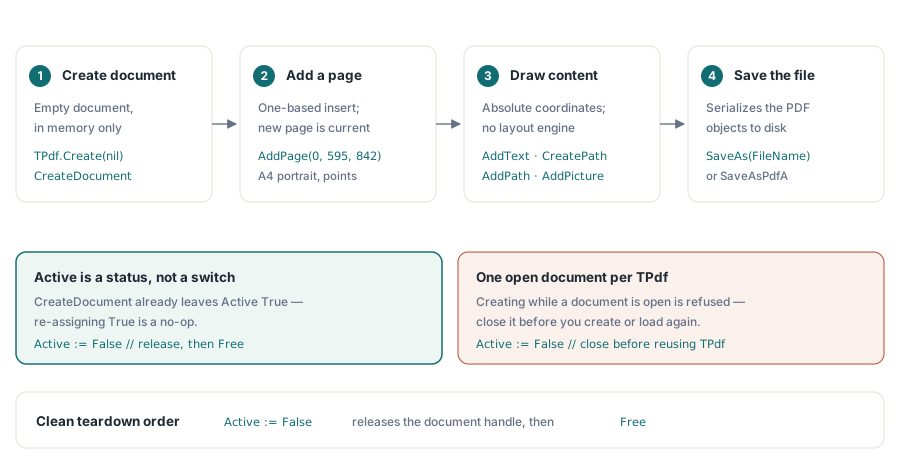
Three calls stand between an empty TPdf and a saved PDF: create the document, add a page, write it out. Everything else is content you layer in between
uses
  Vcl.Graphics,   // for clBlack and TColor
  PDFium;         // TPdf lives here

procedure CreateBlankPdf(const FileName: string);
var
  Pdf: TPdf;
begin
  Pdf := TPdf.Create(nil);
  try
    Pdf.CreateDocument;                 // empty in-memory document
    Pdf.AddPage(0, 595, 842);           // A4 portrait, in points
    Pdf.AddText('First page', 'Arial', 18, 50, 780);
    Pdf.SaveAs(FileName);               // serialize to disk
  finally
    Pdf.Active := False;
    Pdf.Free;
  end;
end;
One detail trips people who have seen older snippets: you do not assign Pdf.Active := True after CreateDocument. The Active property reports whether a document handle exists, and CreateDocument has already created one, so the property is True the moment that call returns. Setting it again is a no-op at best and misleading to the next reader at worst. Active earns its keep on the way out: assigning False releases the underlying document before Free, which is the clean teardown order. Treat CreateDocument and a file-loading open as mutually exclusive. The library refuses to create a new document on a TPdf that already has one open, so reuse means closing the current document first
Coordinates start at the bottom-left
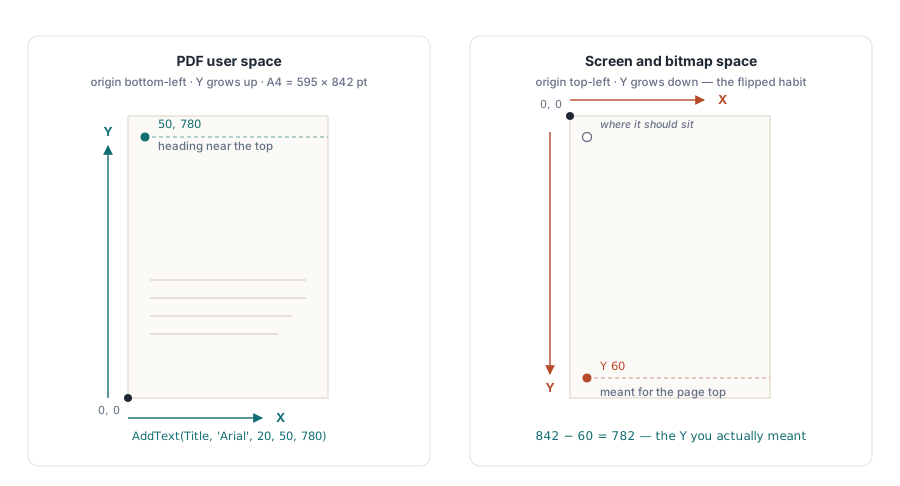
The second argument pair to AddText, and to every placement call, is a point in PDF user space. The origin sits at the lower-left corner of the page, X runs right, and Y runs up. One unit is one point, 1/72 of an inch, so an A4 page is 595 by 842 units and US Letter is 612 by 792. That upward Y is the single most common source of "my text is off the page" confusion, because screen and bitmap coordinates put the origin at the top with Y growing downward. On an 842-point-tall page, a heading near the top sits around Y 780, not Y 60. When a run lands somewhere unexpected, the page height minus your Y is almost always the number you actually meant
AddPage takes an insertion position as its first argument, expressed one-based, with 0 as a convenient "start of document" shorthand. Pass 0 or 1 for the first page and the page is inserted at the front; pass the value matching the count you are appending to in order to add at the end. The newly added page also becomes the current page, the one subsequent drawing calls target, so there is no separate "select this page" step after adding it. If you add several pages and later need to draw back onto an earlier one, set PageNumber to move the cursor; while you are filling pages in order as you create them, you can leave it alone
Writing text, and the font rule that bites silently
The AddText signature carries everything a single run needs: the string, a font name, a size in points, the X and Y anchor, then optional color, an alpha byte for transparency, and a rotation angle in degrees
procedure WriteHeader(Pdf: TPdf; const Title, Author: string);
begin
  // Title in black, default opacity, no rotation
  Pdf.AddText(Title, 'Arial', 20, 50, 780);
  // A lighter byline 24 points below it
  Pdf.AddText('By ' + Author, 'Arial', 11, 50, 756, clGray);
  // A faint diagonal draft stamp across the page
  Pdf.AddText('DRAFT', 'Arial', 64, 180, 380, clGray, $30, 45.0);
end;
The alpha byte runs from $00 (invisible) to $FF (opaque), which is what makes the draft stamp a watermark rather than a solid block: $30 is roughly nineteen percent opacity, enough to read through. The angle rotates the run counterclockwise around its anchor, so 45 degrees gives the classic corner-to-corner stamp. None of this needs a separate watermark feature. A watermark is just a large, semi-transparent, rotated AddText call, and drawing it before or after the body decides whether it sits behind or on top of the content
Fonts deserve a careful sentence, because the failure mode is quiet. When you pass a font name, PDFium Component asks the operating system for that font's TrueType data and embeds it in the document, which is why a file built on your machine renders identically on one that has never had the font installed. The catch is what happens when the name does not resolve: a typo, or a face that simply is not present on the build machine. There is no exception. The library falls back to creating a text object that carries the name as a label only, with nothing embedded, and leaves the viewer to substitute whatever it considers close. The text appears in your tests, looks plausible, and shifts metrics or glyphs the moment the file opens somewhere with different fonts installed. Use names you know are present on the generating machine, treat the font list as a deployment dependency, and open a sample in a viewer on a clean system before you trust the output
Vector shapes: build a path, then commit it
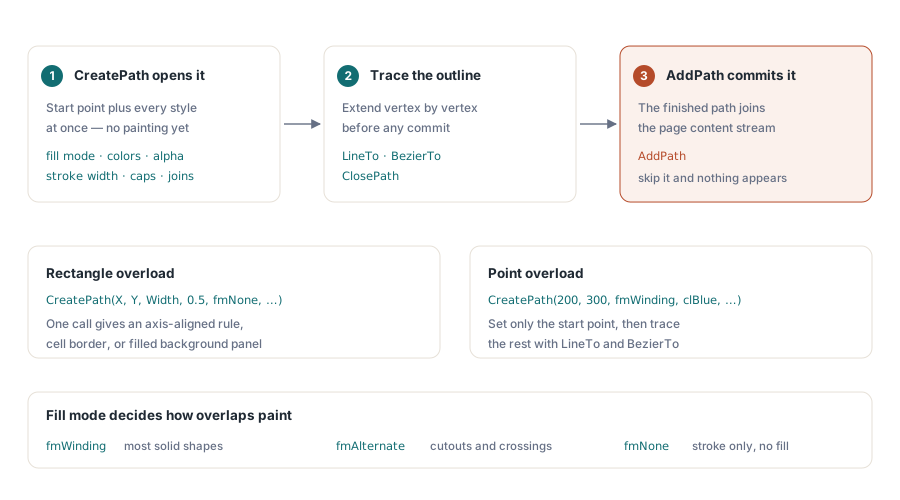
Lines, rectangles, and filled regions go through a path. You open one with CreatePath, which sets the start point and all the styling at once, fill mode, fill and stroke colors with their own alpha bytes, stroke width, line caps and joins. Then you extend it with LineTo, BezierTo, and ClosePath, and finally AddPath commits the finished path onto the page. The commit step is easy to forget and produces nothing if you skip it
procedure DrawDivider(Pdf: TPdf; X, Y, Width: Single);
begin
  // A thin horizontal rule. The rectangle overload sets a box directly:
  // X, Y, Width, Height, then fill mode and colors.
  Pdf.CreatePath(X, Y, Width, 0.5, fmNone, clBlack, $FF,
    True, clBlack, $FF, 1.0);
  Pdf.AddPath;
end;

procedure DrawTriangle(Pdf: TPdf);
begin
  // Point overload: start at the first vertex, line to the rest, close.
  Pdf.CreatePath(200, 300, fmWinding, clBlue, $80, True, clNavy, $FF, 2.0);
  Pdf.LineTo(300, 300);
  Pdf.LineTo(250, 400);
  Pdf.ClosePath;
  Pdf.AddPath;          // nothing is drawn until this runs
end;
Two overloads cover the common cases. The four-coordinate form takes X, Y, width, and height and gives you an axis-aligned rectangle in one call, which is what you reach for to draw a rule, a cell border, or a filled background panel. The two-coordinate form sets only a start point, and you trace the rest of the outline yourself with LineTo and BezierTo. Fill mode controls how overlapping regions are painted: fmWinding (nonzero winding) suits most solid shapes, fmAlternate (even-odd) handles cutouts and self-intersecting outlines, and fmNone leaves a stroked-only path with no fill, which is what the divider above uses
Tables are paths and text, assembled by hand
Because there is no table primitive, a table is a loop. You decide the column X offsets and the row height, write each cell with AddText, and draw the rules with rectangle paths. The arithmetic is yours, but it is plain, and once written it generalizes to any grid you need
procedure DrawTable(Pdf: TPdf; Left, Top: Double);
const
  ColX: array[0..2] of Double = (0, 110, 210);  // column offsets
  RowH = 20;
var
  Y: Double;
  Row: Integer;
begin
  // Header row
  Pdf.AddText('Item', 'Arial', 10, Left + ColX[0], Top);
  Pdf.AddText('Qty', 'Arial', 10, Left + ColX[1], Top);
  Pdf.AddText('Price', 'Arial', 10, Left + ColX[2], Top);

  // Rule under the header
  Pdf.CreatePath(Left, Top - 5, 260, 0.5, fmNone, clBlack, $FF);
  Pdf.AddPath;

  // Data rows, stepping Y downward each iteration
  Y := Top;
  for Row := 1 to 3 do
  begin
    Y := Y - RowH;
    Pdf.AddText('Item ' + IntToStr(Row), 'Arial', 9, Left + ColX[0], Y);
    Pdf.AddText(IntToStr(Row * 2), 'Arial', 9, Left + ColX[1], Y);
    Pdf.AddText('$' + IntToStr(Row * 10) + '.00', 'Arial', 9, Left + ColX[2], Y);
  end;
end;
Notice the Y stepping downward by the row height each pass, again because up is positive. This is also where the absence of text measurement shows: nothing stops a long item name from overrunning into the next column, because the library does not know how wide your string rendered. For fixed-format output where you control the data, you size columns generously and move on. For genuinely variable content, you either constrain inputs or measure glyph widths yourself before placing them, which is the point at which a dedicated composition library starts to pay for itself
Images and multiple pages
Raster content comes in through the image helpers. AddPicture takes a loaded TPicture and places it at a point, with an optional width and height to scale it; AddImage accepts a file path or a TBitmap directly, and AddJpegImage streams JPEG bytes without a round trip through a bitmap. As with everything else, the placement coordinates are the lower-left corner of the image in user space, and the width and height are the on-page size in points, not the pixel dimensions of the source
procedure CreateMultiPageReport(const FileName: string; PageCount: Integer);
var
  Pdf: TPdf;
  P: Integer;
begin
  Pdf := TPdf.Create(nil);
  try
    Pdf.CreateDocument;
    for P := 1 to PageCount do
    begin
      Pdf.AddPage(P, 595, 842);     // append; the new page becomes current
      Pdf.AddText('Page ' + IntToStr(P) + ' of ' + IntToStr(PageCount),
        'Arial', 10, 50, 30);       // footer near the bottom edge
      // ... draw this page's body here ...
    end;
    Pdf.SaveAs(FileName);
  finally
    Pdf.Active := False;
    Pdf.Free;
  end;
end;
A multi-page document is the single-page pattern in a loop. Each AddPage appends a page and makes it current, so the body and footer you draw next land on the page you just added. You do not reassign PageNumber inside this loop, because adding a page already moved the cursor there; you only need PageNumber when you go back to a page out of creation order. Call SaveAs once at the end, after the last page is filled. If you need an archival profile rather than a plain file, the same document object exposes SaveAsPdfA and the other conformance variants, so the choice of output standard is a different save call, not a different build path
Where this fits
The honest framing is that PDFium Component's authoring API is a faithful, thin layer over PDFium's page-object model: real document creation, real embedded fonts, real vector and raster content, serialized to a standards-conforming file. It is not, and does not pretend to be, a reflowing document engine. The dividing line is text layout. If your output is templated, invoices, certificates, labels, dashboards rendered to a fixed grid, the absolute-coordinate model is direct and fast and the code stays readable. If your output is long-form prose that must wrap and paginate on its own, you will be rebuilding a layout engine on top of these calls, and that is the wrong tool for the job. Knowing which side of that line you are on is most of the decision
The creation methods described here are part of the PDFium Component for Delphi, which pairs this authoring path with the rendering and text-extraction features PDFium is better known for