A list rule in an XLSX template looks easy to read straight out of the sheet XML: <formula1>"Draft,Review,Final"</formula1>. Strip the outer quotes, split on commas, done. The next template from the same team carries <formula1>ProductList</formula1> in that slot, and the same split returns one item called ProductList, because the choices now live in a defined name that points at a range on a hidden sheet. A third template marks its Status column with showDropDown="1", and Excel draws no arrow on it at all
Hand-parsing formula1 falls over on the second template, and hard-coding the allowed values falls over the first time someone edits the list in Excel. An import job or web form writing into such a workbook needs three answers from the file itself: which strings sit behind a dropdown, how to store one the way Excel would, and whether typed text passes the rule
Why do code writes ignore Excel data validation?
Because data validation is metadata attached to a range, and enforcing it is the job of whichever editor the user types into. In XLSX the rule is a dataValidation element (ECMA-376 Part 1, §18.3.1.32) carrying the type, the operator, formula1 and formula2, the input prompt and the error alert. A Classic XLS file keeps the same information in the DV record described in [MS-XLS]. Neither format marks the cell itself. Excel is no stricter than the format: it checks keystrokes, and an out-of-range value that arrived through a paste, a macro or an external tool shows up only when someone runs Circle Invalid Data
HotXLS follows the same model, and we think that is the right default for a library that loads and re-saves workbooks it did not create. Sheet.Cells[3, 2].Value := 250 stores 250 under a 1-to-100 whole-number rule without complaint. The bundled DataValidation demo does exactly that, then calls ValidateCellValue(3, 2) and gets False back. Checking is opt-in, placed at the point where untrusted text enters your program
Reading the dropdown items behind a cell
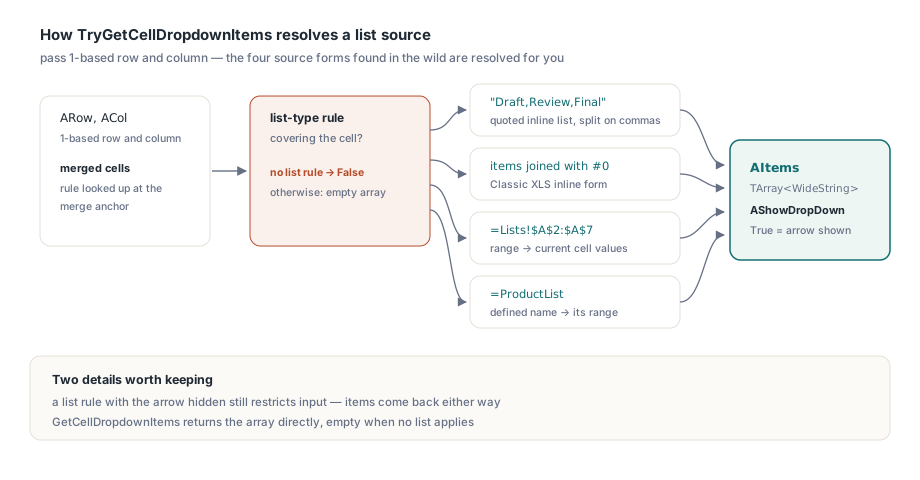
TXLSXWorksheet.TryGetCellDropdownItems(ARow, ACol, AItems, AShowDropDown) returns True only when a list-type rule covers the cell, and fills AItems with a TArray<WideString> of candidates. TXLSWorksheet carries the same method for Classic XLS files. Row and column are 1-based on both classes, and so is the index into Sheets. The method resolves the four ways a list source is written in real templates, so the caller never parses formula1:
- A quoted inline list such as
"Draft,Review,Final", split on commas; doubled quotes inside an item come back as single ones - An inline list whose items are separated by NUL (
#0) characters, the form BIFF8 uses for explicit lists in the DV record - A range on the same sheet or on another one, such as
=$G$2:$G$10or=Lists!$A$2:$A$7, evaluated to current values, skipping empty and error cells - A defined name such as
=ProductListthat points at one of those ranges
Merged cells resolve to the merge anchor. Ask about C5 inside a C4:C6 merge and you get the items of C4, where Excel keeps both rule and value. Range sources are evaluated with external references switched off, so a list that points into another workbook is not followed and produces no items
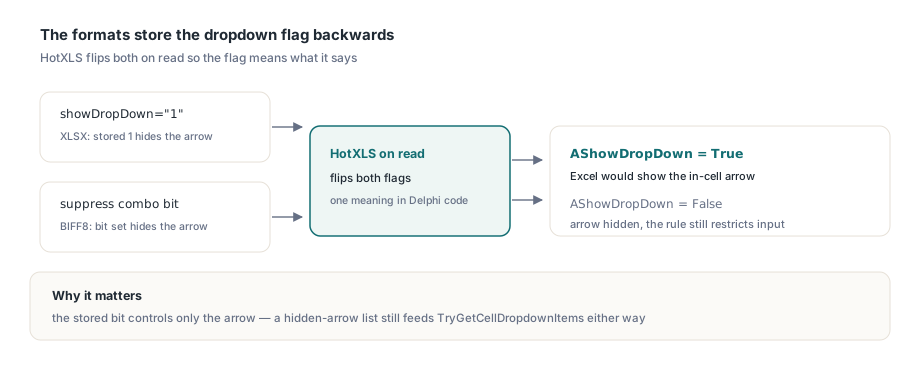
The AShowDropDown flag needs care, because both file formats store it inverted. The XLSX attribute is called showDropDown, yet a value of 1 suppresses the in-cell arrow, and BIFF8 calls its bit fSuppressCombo. HotXLS normalizes both on read, so AShowDropDown = True means Excel would draw the arrow. The items come back either way. A list rule with a hidden arrow still restricts what the user may type, and an import job has to honor it just the same
The routine below lists the items behind F2, fills two dropdown cells and saves a copy. With TXLSWorkbook and TXLSWorksheet from lxHandle the dropdown calls stay identical
uses
  SysUtils, lxHandleX;

procedure FillFromTemplate(const FileName, OutName: WideString);
var
  Book: TXLSXWorkbook;
  Sheet: TXLSXWorksheet;
  Items: TArray<WideString>;
  ShowArrow: Boolean;
  I: Integer;
begin
  Book := TXLSXWorkbook.Create;
  try
    if Book.Open(FileName) <> 1 then
      raise Exception.Create('Cannot open ' + FileName);
    Sheet := Book.Sheets[1];  // Sheets is 1-based
    // F2: row 2, column 6, both 1-based
    if Sheet.TryGetCellDropdownItems(2, 6, Items, ShowArrow) then
    begin
      Writeln(Length(Items), ' items, arrow visible: ', BoolToStr(ShowArrow, True));
      for I := 0 to High(Items) do
        Writeln('  [', I, '] ', Items[I]);
    end
    else
      Writeln('F2 has no list validation');

    // Text overload: exact match first, then case-insensitive
    if not Sheet.SelectCellDropdownItem(2, 1, 'review') then
      Writeln('A2: "review" is not in the list');
    // Index overload: 0-based position in the Items array
    if not Sheet.SelectCellDropdownItem(2, 6, 3) then
      Writeln('F2: index 3 is out of range');

    if Book.SaveAs(OutName) <> 1 then
      raise Exception.Create('Cannot save ' + OutName);
  finally
    Book.Free;
  end;
end;
When only the strings matter, GetCellDropdownItems(ARow, ACol) returns the array directly and yields an empty one when no list applies. TryGetCellValidationPrompt returns the input-message title and text the template author wrote, which is the hint to put next to the matching field on a web form
Selecting an item by index or by text
SelectCellDropdownItem stores a list entry and returns False when the cell has no list rule or the requested entry does not exist. The integer overload takes a 0-based index into the array that TryGetCellDropdownItems returned. The text overload tries an exact match first and then a case-insensitive one, which is why 'review' in the routine above lands in A2 as Review. The cell gets the list's spelling, not the caller's
Both overloads store through WriteAutoValue, and that matters for range-backed lists of numbers. In the DataValidation demo the F column is fed by =$G$2:$G$10, which holds 0 through 8. The items come back as the strings '0' to '8', but selecting index 3 stores the number 3. That is what Excel stores when a user picks from the arrow, and what a formula such as =F2*10 elsewhere in the template expects to find. A plain string assignment would leave the text '3' in F2, and SUM(F2:F11) skips text. When the target cell is part of a merge, the value goes to the merge anchor
How do you validate typed input before writing it?
Pass the raw text to ValidateCellInput(ARow, ACol, AText) and store it with WriteAutoValue only when it passes. ValidateCellInput never modifies the cell, returns True when no rule applies or the candidate passes, and converts the text with the same rules WriteAutoValue uses. On an XLSX worksheet that conversion recognizes TRUE and FALSE, error literals such as #N/A, ISO dates, m/d/yyyy and d.m.yyyy dates that form a real calendar date, and invariant-format numbers, while 0123 stays text the way it does when someone types it into Excel. The Classic XLS engine has its own converter, matched to its own WriteAutoValue
Two companions complete the set. ValidateCellValue(ARow, ACol) checks what is already stored and reports blank cells as valid. TryGetCellValidationError returns the rule's error-alert title, text and style, and returns False when the rule shows no error alert at all. The style type follows the worksheet class: TXLSDvErrorStyle from lxDataCheck, with xlsDvErrStop, xlsDvErrWarning and xlsDvErrInformation, for TXLSWorksheet; TXLSXDvErrorStyle, with the same names under an xlsxDvErr prefix, for TXLSXWorksheet
Excel adds two exceptions of its own: it never validates a cleared cell, and it never validates an entry that starts with =. HotXLS applies both in the viewer's edit path and keeps ValidateCellInput literal, so a server-side gate has to skip those cases before calling it. The gate below is written for this article; the three worksheet calls inside it are the library's
uses
  lxDataCheck, lxHandle;

// AcceptTypedValue is a helper you add to your own code.
// Returns True when AText may be written, mirroring Excel's alert styles
function AcceptTypedValue(Sheet: TXLSWorksheet; ARow, ACol: Integer;
  const AText: WideString; out AMessage: WideString): Boolean;
var
  Title, Text: WideString;
  Style: TXLSDvErrorStyle;
begin
  AMessage := '';
  Result := True;
  // Excel skips validation for cleared cells and formulas
  if (AText = '') or (AText[1] = '=') then
    Exit;
  // No error alert on the rule: Excel lets anything through
  if not Sheet.TryGetCellValidationError(ARow, ACol, Title, Text, Style) then
    Exit;
  if Sheet.ValidateCellInput(ARow, ACol, AText) then
    Exit;
  AMessage := Title + ': ' + Text;
  // Stop rejects; Warning and Information leave the decision to the caller
  Result := Style <> xlsDvErrStop;
end;

// Caller: validate, then store with the same conversion
function StoreTypedValue(Sheet: TXLSWorksheet; ARow, ACol: Integer;
  const AText: WideString; out AMessage: WideString): Boolean;
begin
  Result := AcceptTypedValue(Sheet, ARow, ACol, AText, AMessage);
  if Result then
    Sheet.WriteAutoValue(ARow, ACol, AText);
end;
Mirroring the alert styles beats treating every failure as fatal. Stop is the only style under which Excel refuses an entry outright; Warning asks the user to confirm, and Information shows its message and keeps the value. A rule with no error alert accepts anything in Excel, which is why the gate exits early when TryGetCellValidationError returns False
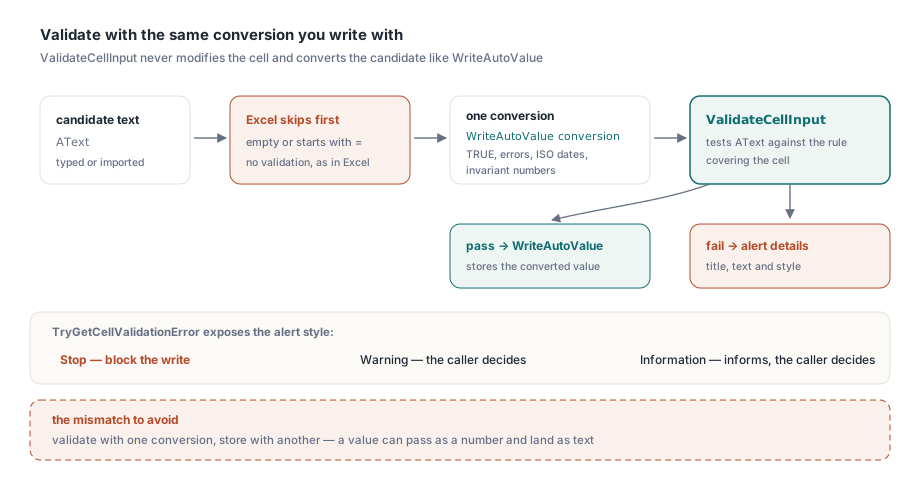
Keep the pair together. Validate '42' with ValidateCellInput and then store it with a plain string assignment, and the check approves the number 42 while B2 receives the text '42' — which a 1-to-100 whole-number rule rejects the next time anybody runs Circle Invalid Data or calls ValidateCellValue(2, 2)
Quotes and commas inside list captions
An inline list is stored as a formula string, and a formula string escapes an embedded double quote by doubling it. Wrap the items in quotes without doubling the inner ones and a caption such as He said "hi" ends the literal early: the formula no longer compiles, and the rule, together with its dropdown, never gets built. AddListValidation on both TXLSWorksheet and TXLSXWorksheet doubles embedded quotes before the formula is compiled. After a save and reopen in XLS, XLSX, XLSB or ODS, TryGetCellDropdownItems on H2 still returns He said "hi" with its quotes intact
Commas are where the format itself draws the line. The array of WideString overload of AddListValidation joins its items with commas and hands the result to the string overload, and an inline list has no escape for a comma, so 'Smith, John' turns into two items. A source string that contains ! is read as a sheet-qualified reference rather than an inline list, on both engines. For captions like those, put the values in cells and point the rule at the range. That is the better form for any list beyond a few short words anyway, because the template owner then edits cells instead of a formula string
uses
  SysUtils, lxHandle;

procedure BuildCaptionLists(const FileName: WideString);
var
  Book: IXLSWorkbook;
  Sheet: TXLSWorksheet;
begin
  Book := TXLSWorkbook.Create;
  Sheet := Book.Sheets.Add;
  // Embedded quotes are doubled for you
  Sheet.AddListValidation('H2:H11', ['He said "hi"', 'Plain option']);
  // Captions with commas go into cells, and the rule points at the range
  Sheet.Cells.Item[2, 10].Value := 'Smith, John';
  Sheet.Cells.Item[3, 10].Value := 'Doe, Jane';
  Sheet.AddListValidation('I2:I11', '=$J$2:$J$3');
  // Confirm a rule exists before relying on it
  if Sheet.FindDataValidationAt(2, 8) = nil then
    raise Exception.Create('List rule for H2:H11 was not created');
  if Book.SaveAs(FileName) <> 1 then
    raise Exception.Create('Cannot save ' + FileName);
end;
Letting TXLSWorkbookViewer enforce the rules on screen
When users edit cells on screen, TXLSWorkbookViewer runs the same checks for you. Editable defaults to False; set it to True and leave EnforceDataValidation at its default of True, and a typed edit that breaks a rule with an error alert is checked before it is written: Stop rejects it, Warning asks, Information informs. The viewer also draws the dropdown arrow on the active cell when the rule shows one, opens the list on a click or Alt+Down, and shows the input prompt in a yellow box under the cell; ShowValidationDropdown and ShowValidationPrompt switch those two off. The grid itself is covered in the article on building a custom spreadsheet grid with TXLSWorkbookViewer
Setting CircleInvalidData to True draws red circles around stored values that violate their rule, like Excel's command of the same name. Only the visible part of the sheet is scanned, and an empty cell is never circled
procedure TMainForm.FormCreate(Sender: TObject);
begin
  Viewer.Editable := True;
  Viewer.EnforceDataValidation := True;
  Viewer.CircleInvalidData := True;
  Viewer.OnValidationError := ViewerValidationError;
end;

procedure TMainForm.ViewerValidationError(Sender: TObject; Row, Col: Integer;
  const Text: WideString; Style: TXLSViewerValidationErrorStyle;
  const AlertTitle, AlertText: WideString;
  var Action: TXLSViewerValidationAction; var Handled: Boolean);
begin
  StatusBar.SimpleText := AlertTitle + ': ' + AlertText;
  if Style = xveStop then
    Action := xvaRetry    // reopen the editor with the rejected text
  else
    Action := xvaAccept;
  Handled := True;        // suppress the built-in dialog
end;
Leave Handled at False and the viewer shows its own alert dialog, under VCL and LCL alike. That default bites in automated UI tests: a test that drives edits without an OnValidationError handler setting Handled stops on a modal dialog nobody will close. Before the handler runs, Action is preset to xvaRetry for Stop and Warning and to xvaAccept for Information. The viewer's style enum is a third type, TXLSViewerValidationErrorStyle with xveStop, xveWarning and xveInformation, separate from the two worksheet enums
Where the XLS and XLSX engines differ
List, number, date, time and text-length rules behave the same on both worksheet classes. The remaining differences are small, and each has a direct way around it:
- On Classic XLS worksheets,
ValidateCellInputreports custom-formula rules as valid for typed candidates.ValidateCellValuedoes evaluate the custom formula against the stored value, so write first and check afterwards, or use the XLSX engine, which evaluates custom rules for candidates too - List matching ignores case on both engines, and on Classic XLS numerically equal values count as the same item, so
5and5.0both match an entry of 5 - In the viewer, pasted content is not validated, as in Excel.
EditSelectedCellhas no editor to reopen, so only an Accept result writes there and a Retry result behaves like Cancel - Plain
Cells[...].Valueassignments are never checked; validation happens only where your code asks for it
Creating the rules in the first place, including whole-number, date, text-length and custom types, is covered in the HotXLS guide to data validation, AutoFilter and tables. XLSB workbooks load into TXLSXWorkbook, so every TXLSXWorksheet call shown here works on them unchanged, as described in the article on reading and writing XLSB binary workbooks in Delphi
The dropdown and validation calls above are part of the HotXLS Delphi Excel component for Delphi, C++Builder and Lazarus. Its DataValidation demo builds the Status, Quantity and Channel columns used throughout this article, so every call can be stepped through against a real file