HotXLS maps arbitrary RGB and theme colors onto the 56-slot BIFF8 color palette in two layers: NearestIndexedColor finds the perceptually closest existing palette entry in OKLab space, and BuildBiffPalettePlan with ApplyBiffPalettePlan rewrites the free palette slots so a true-color workbook survives a save to classic XLS. The trigger is always the same support ticket. Someone builds a report in XLSX with corporate navy headers and a soft teal accent, saves it as .xls for a legacy consumer, and the headers come back pure black while the teal turns into a loud turquoise. Nothing crashed and no warning fired. The color model of the old format simply cannot hold what the new one described, and the library had to pick something
Why can an XLS file only hold 56 colors?
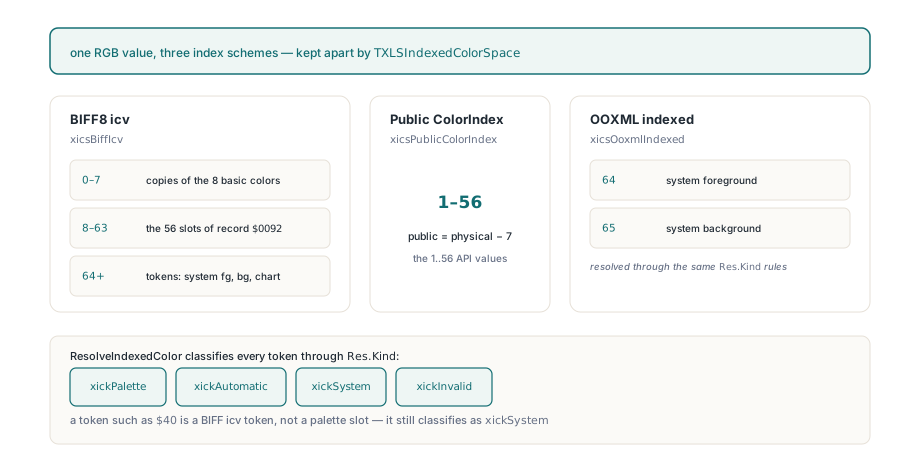
Because a BIFF8 cell format never stores an RGB value: fonts, fills and borders carry a color index, and the workbook-global Palette record ($0092, [MS-XLS] §2.4.188) supplies exactly 56 opaque RGB entries for indexes 8 through 63. Indexes 0 to 7 are fixed copies of the eight basic colors, and the values above 63 are not colors at all but tokens such as system foreground, system background and chart text. HotXLS exposes the palette through a public ColorIndex of 1 to 56, which is the physical index minus 7, and ResolveIndexedColor keeps the three numbering schemes apart through TXLSIndexedColorSpace: xicsPublicColorIndex for the 1..56 API values, xicsBiffIcv for raw on-disk indexes, which are validated against the IcvFont, IcvXF or IcvChart subset for the role you pass, and xicsOoxmlIndexed, where 64 and 65 mean system foreground and background
var
  Res: TXLSIndexedColorResolution;
begin
  // $40 is a BIFF icv token, not a palette slot
  Workbook.ResolveIndexedColor($40, xicsBiffIcv, Res);
  case Res.Kind of
    xickPalette:   UseArgb(Res.ARGB);   // palette slot, if resolved
    xickAutomatic,
    xickSystem:    UseSystemColor(Res.SystemColorRole);
    xickInvalid:   RejectToken(Res.RawIndex);
  end;
end;
Note that the example switches on Res.Kind and ignores the Boolean return value. ResolveIndexedColor returns True only when it obtained a concrete ARGB, and the short overload never reads the Windows desktop, so an automatic or system token legitimately comes back False while still classified as xickSystem. HotXLS hit this in its own workbook serializer: code that treats False as "no color" silently throws away the Automatic and System meaning of the token. If you need real RGB values for those tokens, call the long overload and supply a TXLSTryResolveSystemColor callback that applies your own UI, export or headless policy
Why does HotXLS match colors in OKLab instead of RGB?
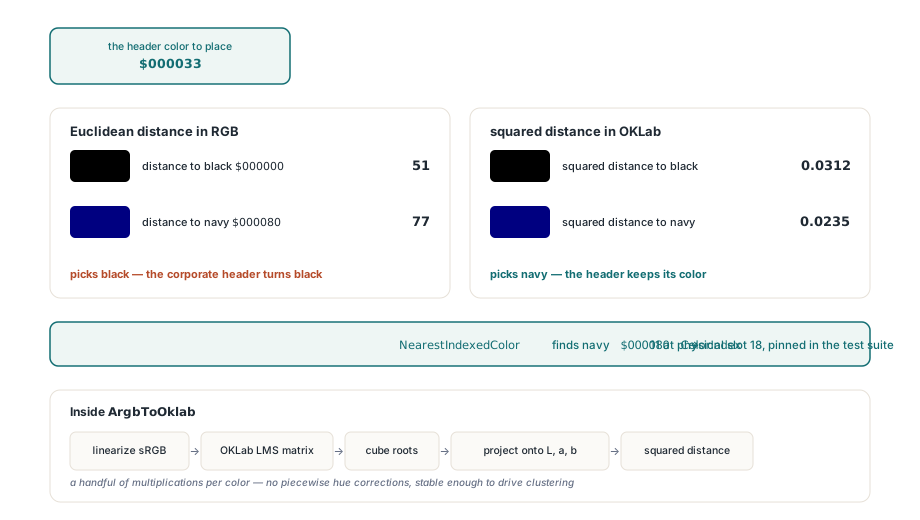
Because sRGB channel values are gamma-encoded, so Euclidean distance in RGB does not track what a person sees, and the error is worst in exactly the dark, saturated tones that corporate palettes love. Take the dark blue $000033. In RGB the distance to black is 51 and the distance to the default navy entry $000080 is 77, so an RGB matcher confidently paints your header black. In OKLab the squared distances are about 0.0312 to black and 0.0235 to navy, and HotXLS picks navy, ColorIndex 11 at physical slot 18; that exact case is pinned in the test suite for both the Classic and the XLSX engine. The conversion inside ArgbToOklab linearizes each sRGB channel, applies the OKLab LMS matrix, takes cube roots and projects onto L, a and b, after which a plain squared Euclidean distance is a reasonable proxy for perceived difference. OKLab is not CIEDE2000 and does not pretend to be, but it has no piecewise hue corrections, costs a handful of multiplications per color, and is stable enough to drive a clustering loop, which is where it really earns its place
What does NearestIndexedColor guarantee?
NearestIndexedColor guarantees a deterministic, read-only answer: one input conversion, one fixed scan over 56 cached entries, and the lowest public index whenever two entries are equally close. Each workbook caches the normalized ARGB and the OKLab coordinates of all 56 physical slots together with a palette generation counter. A palette reset rebuilds the cache, a single-slot change updates only that slot, and a query against a stale generation returns False instead of guessing. The scan uses a strict less-than comparison starting at slot 8, which is why a palette containing the same color twice always answers with the lower index; that matters when you diff two generated files and expect byte-identical output. Input alpha follows a narrow contract: a zero alpha byte is treated as opaque, and a partially transparent value is rejected with ColorIndex 0 and PaletteSlot -1, since palette entries have no alpha. The Classic engine's fill and border writers convert RGB and theme colors to an index with the same OKLab matching routine at save time, so the API and the stored file agree on which slot a color lands in
var
  Match: TXLSNearestIndexedColorMatch;
begin
  if Workbook.NearestIndexedColor($FF000033, Match) then
  begin
    // Match.ColorIndex = 11, Match.PaletteSlot = 18, Match.ARGB = $FF000080
    if not Match.ExactMatch then
      LogApproximation(Match.InputARGB, Match.ARGB, Match.DistanceSquared);
  end;
end;
How does BuildBiffPalettePlan fit true colors into 56 slots?
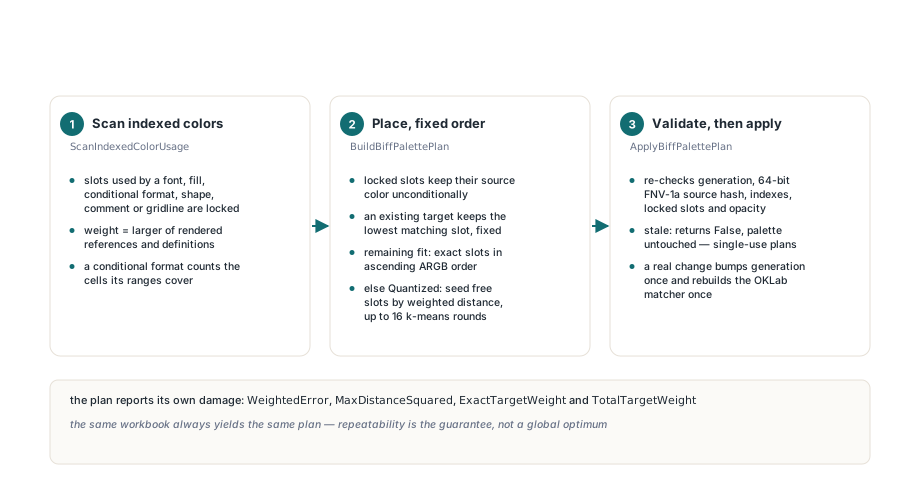
BuildBiffPalettePlan computes a complete proposal for all 56 slots without touching the workbook, so you can inspect, log or discard it. The planner first calls ScanIndexedColorUsage: any slot that a font, fill, border, conditional format, shape, comment or worksheet gridline references by index is locked, because changing a palette entry recolors every consumer of that index at once. Targets are the direct RGB and resolved theme colors from fonts, fills, borders, differential styles, data bars and color scales. Each target is weighted by the larger of its rendered reference count and its definition count, and a conditional format counts the cells its ranges cover, so a color painted across a whole column outweighs one used in a single note. The placement then proceeds in a fixed order:
- Locked slots keep their source color unconditionally
- A target that already exists in the palette is retained at its lowest matching slot and that slot becomes fixed
- If the remaining unique targets fit into the free slots, each one gets an exact slot, assigned in ascending ARGB order
- Otherwise
Quantizedis set, each free slot is seeded with the target whose distance to its nearest existing center, multiplied by its weight, is largest, and up to 16 rounds of frequency-weighted k-means in OKLab move only the free centers until assignments stop changing
Be honest with yourself about what the overflow path delivers. The clustering is a bounded local optimization, not a global optimum, and a free slot ends up holding a centroid converted back to sRGB with clamping, which may be a color that no cell used verbatim. What you do get is repeatability: the same workbook always yields the same plan, and the plan reports its own damage through WeightedError, MaxDistanceSquared, ExactTargetWeight and TotalTargetWeight, so a batch job can refuse to save when the approximation gets too coarse for a brand guideline
var
  Plan: TXLSBiffPalettePlan;
  I: Integer;
begin
  Plan := Workbook.BuildBiffPalettePlan;   // read-only
  if Plan.Quantized and (Plan.MaxDistanceSquared > MaxAcceptedError) then
    raise Exception.Create('Too many distinct colors for a BIFF8 palette');
  for I := 0 to High(Plan.Slots) do
    if Plan.Slots[I].Changed then
      LogSlot(Plan.Slots[I].ColorIndex, Plan.Slots[I].SourceARGB,
        Plan.Slots[I].TargetARGB);
  if not Workbook.ApplyBiffPalettePlan(Plan) then
    raise Exception.Create('The palette changed after planning');
end;
How does ApplyBiffPalettePlan reject a stale plan?
ApplyBiffPalettePlan validates the entire plan before it writes a single slot, and returns False with the palette untouched if anything disagrees with the current workbook. The plan carries SourcePaletteGeneration and SourcePaletteHash, a 64-bit FNV-1a hash over the 56 source colors; validation also re-checks every public and physical index, every source color, that no locked slot is marked as changed, the locked and changed counts, and that every target is opaque. Any effective palette change in between, including a successful earlier application of the same plan, makes the plan stale, so plans are effectively single-use. A valid plan with no changed slots succeeds without advancing the generation, and a real change bumps the generation once and rebuilds the OKLab matcher once, on the Classic engine by rewriting the fixed palette array and on the XLSX engine by swapping in a prepared indexed-color override list
Turning it on for BIFF8 saves and XLSX-to-XLS conversion
The BiffPaletteSavePolicy property defaults to xbpsPreserve, so upgrading HotXLS never rewrites anyone's palette behind their back. Setting it to xbpsOptimizeTrueColors makes a Classic workbook build and apply a fresh plan inside SaveAs, but only when the target format is xlExcel97; BIFF5, CSV, HTML, PDF, XLSX and the other writers ignore the setting. After a successful save the optimized palette stays in the workbook model, so later queries and saves see the same mapping. If the save fails or is cancelled, the original 56 colors and the original generation are restored. For XLSX sources, SaveXLSXWorkbookAsXLS in lxXlsxExport builds one plan from the loaded workbook and writes it into the destination palette before any style is converted, which is the deterministic bridge the workbook audit and conversion workbench demo exercises. Theme colors pass through the same planner after their tint is resolved to RGB; if you would rather keep themes live in chart fills, the GelFrame theme color chart fills article covers how binary XLS stores a scheme index instead of a flattened color
// Classic workbook: opt in, BIFF8 only
Workbook.BiffPaletteSavePolicy := xbpsOptimizeTrueColors;
if Workbook.SaveAs('report.xls', xlExcel97) <> 1 then
  HandleSaveFailure;   // palette already restored

// XLSX model to BIFF8 with one deterministic palette plan
XWorkbook := TXLSXWorkbook.Create;
try
  if XWorkbook.Open('report.xlsx') = 1 then
    SaveXLSXWorkbookAsXLS(XWorkbook, 'report.xls');
finally
  XWorkbook.Free;
end;
The HotXLS palette APIs work the same way on IXLSWorkbook and TXLSXWorkbook, from Delphi and C++Builder alike. Download the trial and point it at your most colorful spreadsheet from the HotXLS Delphi Excel component page