Set a Japanese novel on the page and the first thing you notice is that the text runs down the column, not across the line, and that the columns advance from the right edge of the sheet toward the left. A reader raised on it finds horizontal text faintly clinical. The engineering problem is that PDF, like nearly every digital text system, was built around a horizontal baseline that grows left to right, and a content stream has no notion of "write this paragraph downward instead." So when a Delphi application has to produce a certificate, a poem, a piece of signage, or a traditional-format legal document for a Taiwanese, Japanese, or Korean reader, the layout has to be assembled by hand: one character below the next, one column to the left of the last
HotPDF gives you a switch that does the per-character bookkeeping for you. The font you set carries an IsVertical flag, and once it is on, a single TextOut call stacks an entire string into a vertical column instead of running it along a baseline. The column placement, the right-to-left order, and one quietly important glyph substitution are what the rest of this page works through
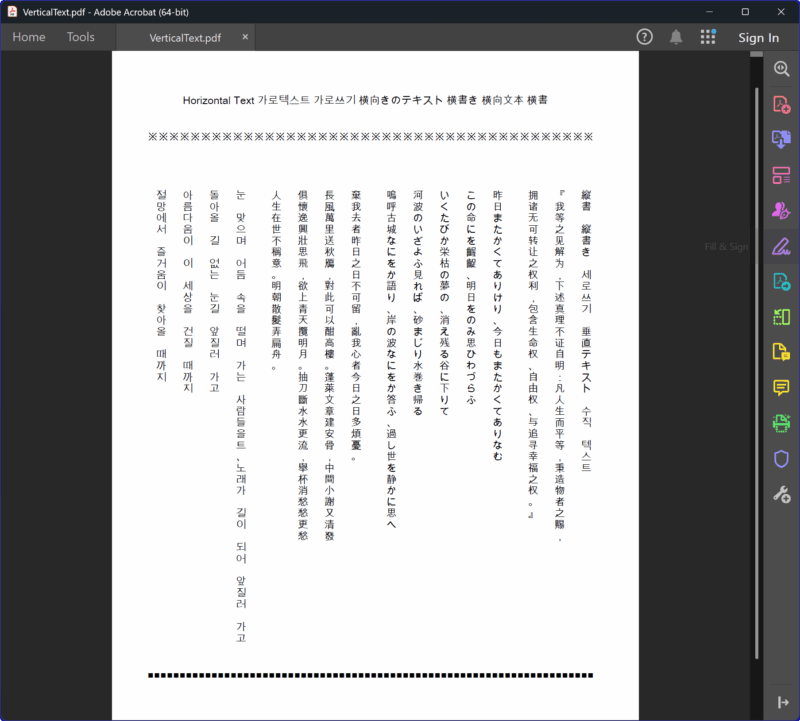
The switch lives on SetFont
Vertical layout is not a property of the page or the document. It is a property of the font you draw with, and you turn it on with the fifth argument of SetFont:
// SetFont(FontName, FontStyle, Size, FontCharset, IsVertical)
// The 5th argument flips the current font into vertical mode.
Pdf.CurrentPage.SetFont('Arial Unicode MS', [], 12, DEFAULT_CHARSET, False); // horizontal
Pdf.CurrentPage.SetFont('Arial Unicode MS', [], 12, DEFAULT_CHARSET, True);  // vertical
Because the flag rides on the font, you switch between horizontal and vertical writing simply by calling SetFont again with a different last argument. A page can hold a horizontal title across the top and vertical body text below it, and HotPDF keeps the two modes apart per font object rather than per page. That is what makes mixed layouts possible without any special mode handling on your side: every TextOut after a vertical SetFont stacks, every TextOut after a horizontal one runs along the baseline, and the last SetFont wins
The fourth argument is the Windows character set, the same one a horizontal call takes. Passing DEFAULT_CHARSET lets the system resolve glyphs per string, which matters here because a vertical document often mixes scripts. Everything else about the font still applies: it has to be installed on the build machine, and you almost always want FontEmbedding := True so the file renders the same CJK glyphs on a reader that never had Arial Unicode MS
One TextOut call is one column
With a vertical font active, a TextOut call no longer spreads its string sideways from the given point. It plants the first character at the top and walks the rest straight down, advancing by the font's line height for each glyph. The X you pass fixes the column; the Y you pass fixes where the top of the column begins. To lay out a real passage you therefore issue one TextOut per column and step X leftward between calls, because CJK columns are read right to left
var
  Pdf: THotPDF;
const
  ColTop = 760;   // y of the first glyph in every column (points)
  ColGap = 28;    // horizontal distance between columns
begin
  Pdf := THotPDF.Create(nil);
  try
    Pdf.FileName := 'VerticalText.pdf';
    Pdf.FontEmbedding := True;       // embed the CJK face for portable rendering
    Pdf.BeginDoc;
    Pdf.CurrentPage.Size := psA4;

    // A horizontal heading first, in the ordinary writing mode.
    Pdf.CurrentPage.SetFont('Arial Unicode MS', [], 16, DEFAULT_CHARSET, False);
    Pdf.CurrentPage.TextOut(60, 800, 0, 'Tang poem, vertical layout');

    // Switch the font into vertical mode; every TextOut below now stacks.
    Pdf.CurrentPage.SetFont('Arial Unicode MS', [], 18, DEFAULT_CHARSET, True);

    // Columns advance right to left, so X decreases with each call.
    Pdf.CurrentPage.TextOut(520, ColTop, 0, '床前明月光');
    Pdf.CurrentPage.TextOut(520 - ColGap,     ColTop, 0, '疑是地上霜');
    Pdf.CurrentPage.TextOut(520 - ColGap * 2, ColTop, 0, '舉頭望明月');
    Pdf.CurrentPage.TextOut(520 - ColGap * 3, ColTop, 0, '低頭思故鄉');

    Pdf.EndDoc;
  finally
    Pdf.Free;
  end;
end;
The poem reads as it should: the rightmost column first, top to bottom, then the eye jumps left to the next column. Nothing about the string itself encodes that order. You encode it in the X coordinates, decreasing them call by call. Get the direction backwards and the verse comes out reversed, which is the single most common mistake when porting a horizontal layout to vertical
Coordinates: down the page, right to left
Two axes are in play and they pull in opposite directions, so it is worth being precise. HotPDF measures from the bottom-left corner of the page, with Y increasing upward, in points. A vertical column therefore starts at a high Y (near the top of the sheet) and the characters descend from there as HotPDF subtracts a line height for each one. You set that starting Y once per column and the component handles the descent
The horizontal axis is the one you drive manually. Each column sits at its own X, and successive columns step to smaller X values because the reading order is right to left. A sensible rhythm is to pick the X of the rightmost column, then subtract a fixed column gap for each subsequent call, as the example does with ColGap. The gap is yours to choose; too tight and adjacent columns touch, too loose and the block looks sparse. For body text at 12 to 18 points a gap a little larger than the font size reads comfortably
Glyphs that have to change shape
A few characters are not simply rotated copies of their horizontal selves; they have to be substituted when the text turns vertical. The one HotPDF handles for you is the Japanese prolonged sound mark ー (U+30FC), the long-vowel bar that appears in katakana words like コーヒー. Drawn horizontally it is a short dash on the baseline. If you stacked that same glyph into a column it would lie flat across the column, which is wrong: in vertical Japanese the mark becomes a vertical stroke connecting the two characters it sits between. HotPDF detects U+30FC in the vertical path and renders it as a vertical bar (U+007C) so the long-vowel mark points the right way without any work from you
That single substitution covers the case that breaks most naive implementations, but it is worth knowing where the general problem goes deeper. Full vertical typography also rotates Latin letters and Western punctuation ninety degrees, shifts small kana, and repositions brackets and commas to their vertical forms, and a complete implementation of that lives in a font's OpenType vertical features rather than in fixed rules. HotPDF can tap those features when the font carries them: vertical alternates (the vert and vrt2 GSUB features) and vertical kerning (vkrn and vpal GPOS lookups) are opt-in, applied along the vertical path only when the active font actually defines them. For mixed CJK text in a single broad-coverage face like Arial Unicode MS, the built-in U+30FC handling plus an even line-height step is enough to produce correct, readable columns; the OpenType features matter when you move to a font designed for fine vertical setting and want its native kana positioning and inter-glyph spacing
Mixing scripts and orientations on one page
Real documents are rarely pure. A vertical Japanese page might carry a horizontal English caption, a page number along the bottom, or a block of Korean set vertically beside the Japanese. Because the vertical flag is a font-level switch, you compose these by alternating SetFont calls rather than by managing any page-wide state. Set a horizontal font, write the running header and folio, set a vertical font, lay the columns, set a horizontal font again for a footer. Each region picks up the mode of the most recent SetFont, so the only discipline required is to call it whenever you change direction
One detail to plan for when scripts mix: Chinese, Japanese, and Korean ideographs are close to square and stack on an even step, but Latin runs embedded in a vertical column do not have that uniform advance. If you need a few Latin words inside otherwise-vertical text, decide deliberately whether they should be rotated to run down the column or set upright as a short horizontal inset, and position that fragment with its own TextOut rather than letting it ride the vertical step meant for ideographs. Treating the mixed run as its own placement problem keeps the column rhythm intact
From sample to production
The pieces are small and they compose predictably. Turn on the vertical flag in SetFont, issue one TextOut per column from a fixed top Y, and decrease X across calls so the columns read right to left. Embed the font so the CJK glyphs survive the trip to a reader's machine, and let the component handle the U+30FC long-vowel mark and, where the font supports them, the OpenType vertical features. From there, productionizing the layout is mostly arithmetic: deriving column X positions from a measured block width, breaking long passages into columns that fit the page height, and reserving space for horizontal headers and folios
For the broader text and font surface this builds on, including the horizontal TextOut conventions and Unicode font registration, see the multilingual Hello World example and the TextOut sample. The SetFont vertical switch and the TextOut calls shown here are part of the HotPDF Delphi Component for Delphi and C++Builder