Every visible string in a HotPDF document arrives through one call: TextOut(X, Y, angle, Text). The Hello World example uses it at its plainest, font set once and four arguments left at sensible defaults. Past that first page the same four arguments carry the whole weight of layout. The third argument rotates the run. The font set just before it decides size and style. And the X, Y pair, measured from the page corner in points, is the only thing standing between a clean report and text that overlaps, clips, or drifts a line lower on someone else's printer. This is where TextOut earns its keep, and where the defaults stop being enough
The signature is worth fixing in mind before anything else: X and Y are Single in points, angle is an Extended in degrees, and Text is a WideString, so Unicode passes through without a separate call. A second overload takes a PWORD plus a length for when you already hold glyph codes, but for ordinary strings the WideString form is the one you reach for
Size and style come from SetFont, not TextOut
TextOut has no size parameter. The size, the weight, the slant, all of it lives in the SetFont call that precedes the run, and it stays in force until the next SetFont replaces it. That is the single fact that explains most first-day confusion: a line comes out bold because three calls earlier something set [fsBold] and nothing cleared it
Pdf.CurrentPage.SetFont('Times New Roman', [], 24);
Pdf.CurrentPage.TextOut(72, 740, 0, 'Quarterly Report');        // 24pt regular

Pdf.CurrentPage.SetFont('Times New Roman', [fsBold], 12);
Pdf.CurrentPage.TextOut(72, 712, 0, 'Revenue');                 // 12pt bold

Pdf.CurrentPage.SetFont('Times New Roman', [fsItalic], 11);
Pdf.CurrentPage.TextOut(72, 694, 0, 'figures in thousands');    // 11pt italic

Pdf.CurrentPage.SetFont('Courier New', [fsBold, fsItalic], 10);
Pdf.CurrentPage.TextOut(72, 676, 0, '  +18.4% YoY');            // styles combine
The second argument is a TFontStyles set, so [fsBold, fsItalic] is bold italic and [] is plain. Size is in points, the same unit as the coordinates, which makes vertical spacing easy to reason about: a 12-point line wants roughly 14 to 16 points of vertical step to breathe, so dropping Y by 14 per line is a reasonable starting leading. There is no automatic line advance. You compute each baseline yourself, which is tedious for a paragraph but exact for a form, where every field sits at a fixed coordinate
Two practical notes about the font name. It is resolved against the fonts installed on the build machine, and whatever the OS hands back is what gets embedded, so a name that resolves on your desktop and a name that resolves on a build server are not guaranteed to be the same face. And the font has to cover the scripts in the string. A run of Cyrillic or CJK text under a Latin-only face renders as missing-glyph boxes with no error, which is the reason the Hello World page reaches for a broad Unicode face when it mixes languages
The angle argument rotates around the anchor
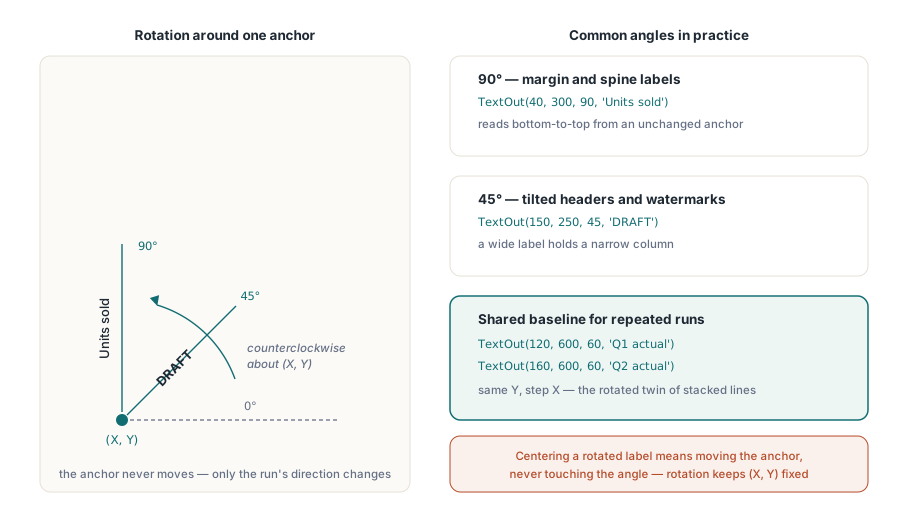
The third argument is the one most code leaves at zero forever. Pass a nonzero value and the run rotates counterclockwise about its own (X, Y) anchor, the bottom-left of the text, by that many degrees. The anchor itself does not move, so the same coordinate that placed a horizontal label places its rotated twin; only the direction the glyphs march changes
Pdf.CurrentPage.SetFont('Arial', [fsBold], 11);

// A vertical axis label down the left margin: 90 degrees reads bottom-to-top.
Pdf.CurrentPage.TextOut(40, 300, 90, 'Units sold');

// A diagonal DRAFT watermark across the page body.
Pdf.CurrentPage.SetFont('Arial', [fsBold], 60);
Pdf.CurrentPage.TextOut(150, 250, 45, 'DRAFT');

// Column headers tilted 60 degrees so long labels fit a narrow table.
Pdf.CurrentPage.SetFont('Arial', [], 9);
Pdf.CurrentPage.TextOut(120, 600, 60, 'Q1 actual');
Pdf.CurrentPage.TextOut(160, 600, 60, 'Q2 actual');
Ninety degrees is the common case, a label running up the side of a chart or a spine title. Forty-five degrees handles tilted column headers, the trick that lets a wide label sit over a narrow column without spilling into its neighbors. Rotation does not change how the anchor is interpreted, which trips people up: a 90-degree run still starts at (X, Y) and grows upward from there, so to center a rotated label you adjust the anchor, not the angle. When several rotated runs share a baseline, give them the same Y and step X, exactly as you would step Y for stacked horizontal lines
Placing coordinates without guessing
Coordinates are the part that survives review or quietly fails it. HotPDF measures from the bottom-left corner of the page, Y growing upward, in points at 72 to the inch. A US Letter page is 612 by 792 points; A4 is 595 by 842. A one-inch top margin on Letter therefore puts your first baseline near Y = 792 minus 72 minus the font size, not at some small number near the top. Anyone arriving from screen coordinates, where Y grows downward from zero, writes the first line off the bottom edge and spends ten minutes wondering where it went
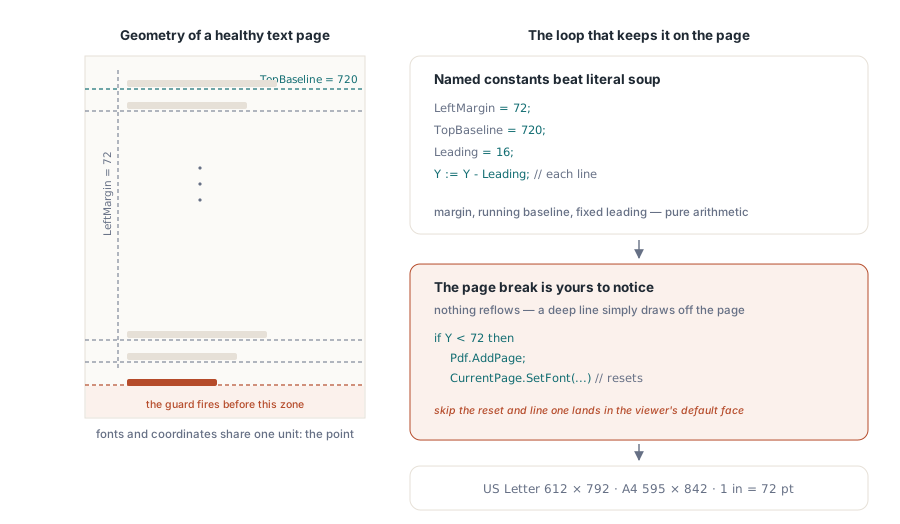
Treat layout as arithmetic against named anchors rather than a column of magic numbers. A left margin, a running baseline you decrement per line, and a fixed leading turn a block of labels into a short loop instead of a wall of literals:
const
  LeftMargin = 72;        // 1 inch in
  TopBaseline = 720;       // first line, ~1 inch down on Letter
  Leading = 16;            // vertical step between lines
var
  Y: Single;
  Line: string;
begin
  Pdf.CurrentPage.SetFont('Arial', [], 11);
  Y := TopBaseline;
  for Line in ReportLines do
  begin
    Pdf.CurrentPage.TextOut(LeftMargin, Y, 0, Line);
    Y := Y - Leading;
    if Y < 72 then            // bottom margin reached
    begin
      Pdf.AddPage;
      Pdf.CurrentPage.SetFont('Arial', [], 11);  // font resets on a new page
      Y := TopBaseline;
    end;
  end;
end;
The page-break guard is the line everyone forgets first and the field hits hardest. There is no flow layout underneath TextOut. Decrement past the bottom margin and the text keeps drawing into the gutter, off the page, into nothing, with no warning. So you watch Y yourself, call AddPage when it crosses the floor, and reset the baseline. The SetFont after AddPage is not optional padding: the current font does not survive a page break, and the first run on the new page comes out in the viewer's default face if you skip it
Character and word spacing for fit and alignment
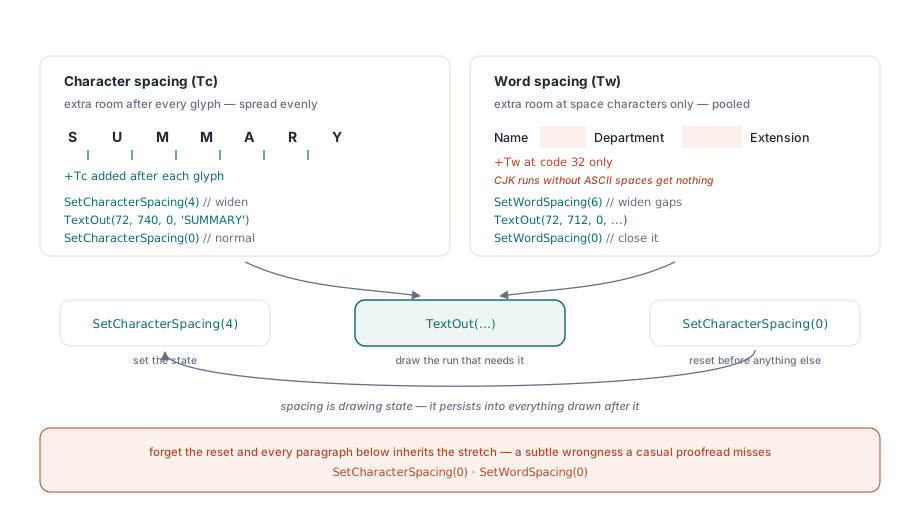
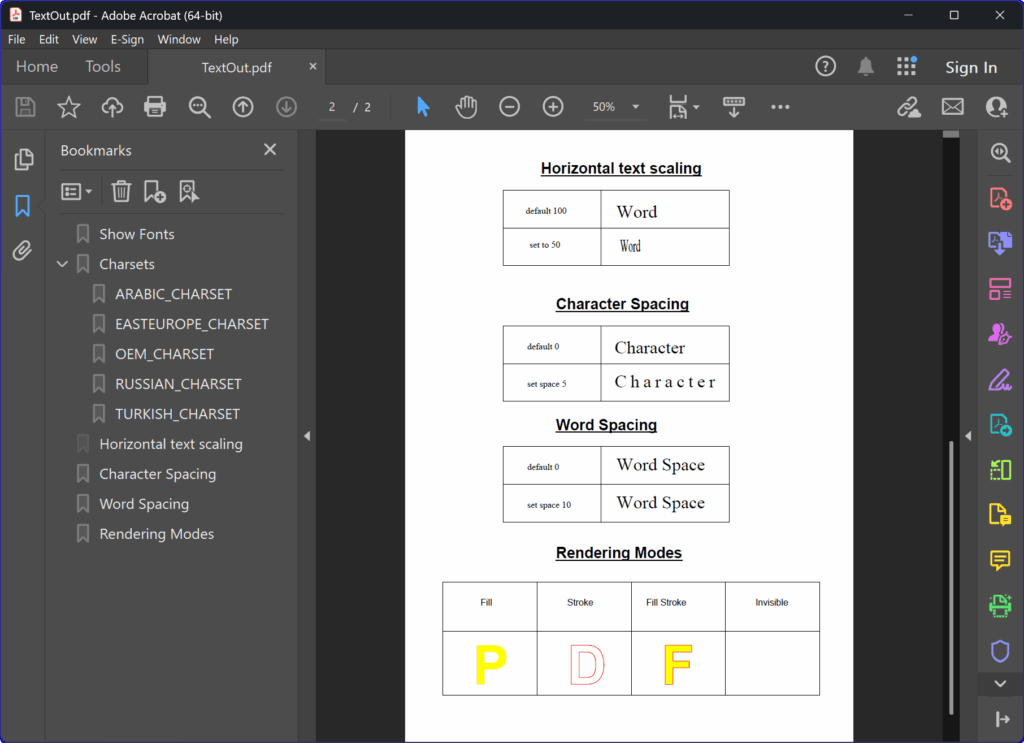
Sometimes a string is correct but the wrong width: a header that has to span a fixed rule, a code that should read with airier digits, a column that needs its values nudged to align. PDF carries two text-state operators for this, character spacing (Tc, extra space added after every glyph) and word spacing (Tw, extra space added at each space character), and both are expressed in unscaled text-space units, effectively points at the current font size. They are state, not arguments to TextOut, so you set them, draw, and set them back
// Letter-space a short heading so it stretches across a rule.
Pdf.CurrentPage.SetCharacterSpacing(4);
Pdf.CurrentPage.SetFont('Arial', [fsBold], 14);
Pdf.CurrentPage.TextOut(72, 740, 0, 'S U M M A R Y');
Pdf.CurrentPage.SetCharacterSpacing(0);   // reset before normal body text

// Open up the gaps between words on a single wide line.
Pdf.CurrentPage.SetWordSpacing(6);
Pdf.CurrentPage.SetFont('Arial', [], 11);
Pdf.CurrentPage.TextOut(72, 712, 0, 'Name        Department        Extension');
Pdf.CurrentPage.SetWordSpacing(0);
Word spacing only acts on the space character (code 32), which has a consequence worth knowing: it does nothing inside a CJK run that has no ASCII spaces, and it interacts oddly with text encoded as glyph indices rather than bytes. For Latin tabular output it is the cheap way to widen gaps without retyping the string. Character spacing is the better tool for a heading that must reach a target width, since it spreads the adjustment evenly across every glyph instead of pooling it at the spaces
The reset is the whole discipline. Spacing, like the font, is part of the page's drawing state, and state persists until you change it. Letter-space one heading and forget to zero it, and every paragraph below inherits the stretch, which reads as a subtle, hard-to-place wrongness that survives a casual proofread and fails a careful one. The reliable habit is to set a spacing value, draw the run that needs it, and set it back to zero in the next line, so no later code has to know what an earlier section did
Checking the output where it actually breaks
Text layout fails on the second machine, not the first, so the checks that matter happen away from your desk. Open the generated file on a system without your developer font set installed and confirm the embedded faces still render, including accented Latin, any non-Latin scripts, and punctuation, in one pass rather than spot-checking the easy characters. Select and copy a few lines to confirm the text is real text and not outlines, which matters the moment search or extraction is in scope. Feed the layout representative data, the longest German label and the widest number, not a tidy placeholder, because the run that overflows a field is always the one you did not type by hand. And if the page has to land on a preprinted form, print or rasterize one sample and lay it against the original; a quarter-millimeter baseline drift is invisible on screen and obvious on paper
If you have not written a single page yet, start with the HotPDF Hello World example, which sets up the document, font, and the bottom-left coordinate system everything above depends on. The TextOut, SetFont, and spacing calls shown here are part of the HotPDF Delphi Component for Delphi and C++Builder