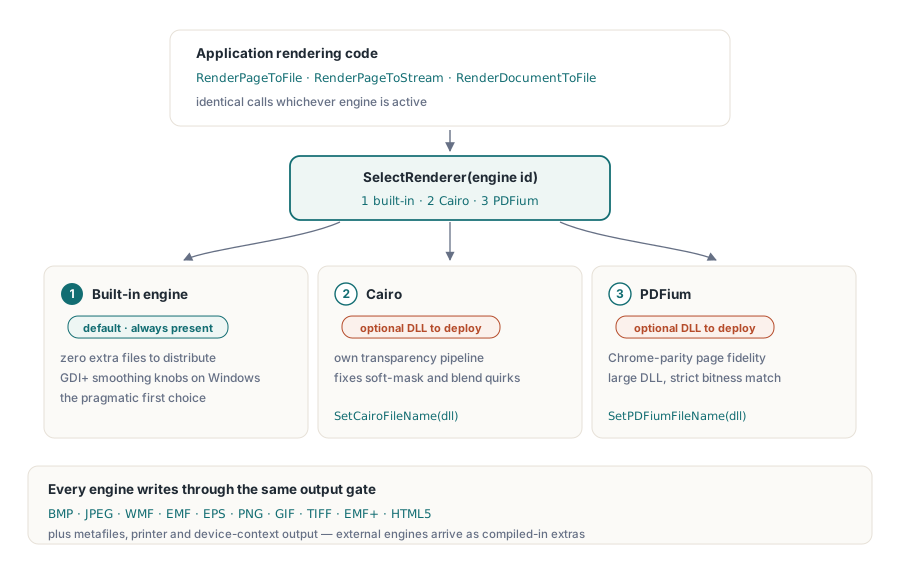
Three rasterizers can read the same PDF and disagree about what it says. The built-in engine in PDF Library for Delphi is the one that ships with no extra files and renders everything competently, which is why it earns the default slot. Cairo brings a different transparency and anti-aliasing pipeline, and tends to be the one people reach for when soft masks or blend modes come out wrong elsewhere. PDFium carries Chrome's rendering code, so a page that looks right in a browser usually looks right under PDFium too, at the cost of a sizable DLL and a bitness it insists on matching. None of the three is correct in the abstract. Correctness is per document, and the only honest way to learn which engine handles a given corpus is to run that corpus through each of them
That is the case for treating the engine as a runtime choice rather than a build-time one. PDF Library for Delphi, the Delphi and C++Builder PDF library from losLab, puts all three behind a single rendering surface so the decision costs one integer instead of a code branch. The rest of this comes down to selecting between them safely, confirming which engines a deployed binary actually carries, and keeping the rendering state from quietly poisoning the next job
Three rasterizers behind one call surface
The library numbers its engines. Engine 1 is the built-in renderer, the default, with GDI+ smoothing options on Windows. Engine 2 is Cairo and engine 3 is PDFium, both selected at runtime through SelectRenderer. The two external engines load from DLLs whose paths you supply with SetCairoFileName and SetPDFiumFileName before selecting them. Whatever engine is active, the work goes through the same calls: RenderPageToFile, RenderPageToStream, RenderDocumentToFile. Switching engines moves one number; the rest of your rendering code never notices
The destination model reaches well past bitmaps. The renderer class also targets metafiles (WMF, EMF, EMF+), EPS, direct device contexts, printers, and HTML5, with Cairo and PDFium showing up as extra destinations only when they were compiled in. Raster output is where the three engines diverge most visibly, so that is what the examples here use
Never assume an engine exists: probe at startup
Cairo and PDFium are conditional compilation features, which means a binary can be built entirely without them. When that happens, asking for engine 2 or 3 does not raise anything. SelectRenderer just returns a value other than the ID you requested, and code that ignores the return value keeps rendering with whatever engine was already active. The defense is a startup probe that asks each engine to identify itself and records the answer:
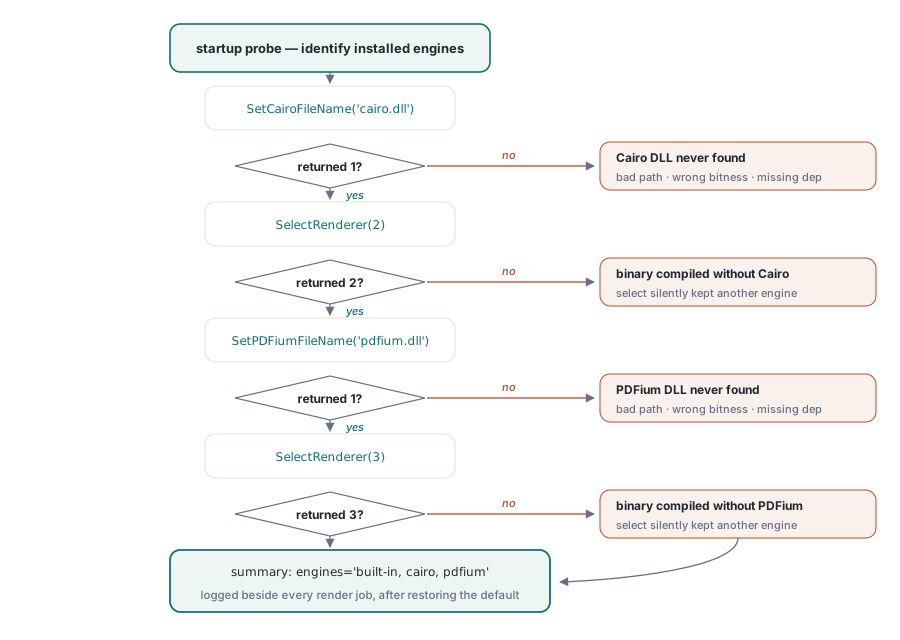
function ProbeEngines(PDF: TPDFlib): string;
begin
  Result := 'built-in';                        // engine 1 is always present
  if (PDF.SetCairoFileName('cairo.dll') = 1) and (PDF.SelectRenderer(2) = 2) then
    Result := Result + ', cairo';
  if (PDF.SetPDFiumFileName('pdfium.dll') = 1) and (PDF.SelectRenderer(3) = 3) then
    Result := Result + ', pdfium';
  PDF.SelectRenderer(1);                       // restore the default before real work
end;
Run that probe once at startup and write its result into the log alongside every render job. The single most common question when a customer reports a rendering difference is which engines their installation actually has, and a one-line answer sitting in the log settles it without a remote-desktop session. A useful side effect: if SetPDFiumFileName itself returns 0, you already know the DLL is the problem (wrong path, wrong bitness, a missing dependency) rather than a binary compiled without PDFium support, because the path call resolved nothing before SelectRenderer ever ran
Ten output formats behind one Options integer
The Options parameter on the render calls selects the output encoding: 0 is BMP, 1 JPEG, 2 WMF, 3 EMF, 4 EPS, 5 PNG, 6 GIF, 7 TIFF, 8 EMF+, and 9 HTML5. PNG (5) is the sensible default for previews and archival page images. JPEG (1), paired with SetJPEGQuality, is the better pick for photographic scans where file size matters more than crisp edges
One format hides a requirement about the target stream. The BMP path writes the image data first, then seeks back to offset 0x26 to patch the resolution fields in the header. Point that at a forward-only stream, a compression wrapper or a network socket, and the call fails in a way that reads like an engine fault but is not. When a non-seekable target is unavoidable, render PNG instead, or stage the BMP through a memory stream and copy it forward once it is complete
The DPI you pass is not the DPI you get
Every render call takes a DPI argument, but the resolution you actually get is that value multiplied by the global render scale. SetRenderScale starts at 1.0, and once you change it the new factor silently applies to every later render on that instance:
PDF.SetRenderScale(2.0);                    // every later render is doubled
PDF.RenderPageToFile(150, 1, 5, 'p1.png');  // effectively 300 DPI
PDF.SetRenderScale(1.0);                    // reset, or your thumbnails arrive huge
The same stickiness applies to SetRenderCropType and the JPEG quality setting. In a service that produces thumbnails, previews, and print-resolution images from one shared instance, these leftover settings are what is really behind the occasional "thumbnails are suddenly 40 MB" ticket. Two clean ways out: reset the relevant state at the top of every operation, or dedicate a separate instance to each output profile so nothing leaks across them
Tuning the default engine before reaching for another
A surprising share of "we need a different engine" requests turn out to be settings problems wearing a disguise. The built-in renderer exposes its smoothing behavior through SetGDIPlusOptions and the wider SetRenderOptions family, and SetGDIPlusFileName lets you aim it at a specific GDI+ runtime when a deployment environment ships an unusual one. Jagged line art at low DPI, fuzzy text in thumbnails, banding across gradients: all of these respond to those knobs, and turning them costs nothing in the installer. Adding Cairo or PDFium, by contrast, means shipping more DLLs, tracking a second or third bitness variant, and owning the obligation to update them
So a quality complaint has a natural order of operations. Reproduce it first at the customer's exact DPI and scale, since half the time the difference evaporates once those match. Try the built-in engine's smoothing options next. Only then put the page side by side across engines with every other variable held constant: render it to PNG through engines 1, 2, and 3 at identical DPI and attach all three. Usually two of the three agree, and that majority tells you whether the outlier is the document being interpreted differently or your own baseline expectation being off. Three concrete images settle a "renders wrong" dispute far faster than a paragraph of adjectives
A fallback chain that explains itself
Once probing and state discipline are in place, the fallback chain itself is short. Detecting a failure relies on LastRenderError, which holds the engine's own message text for the most recent render and is empty when the render succeeded:
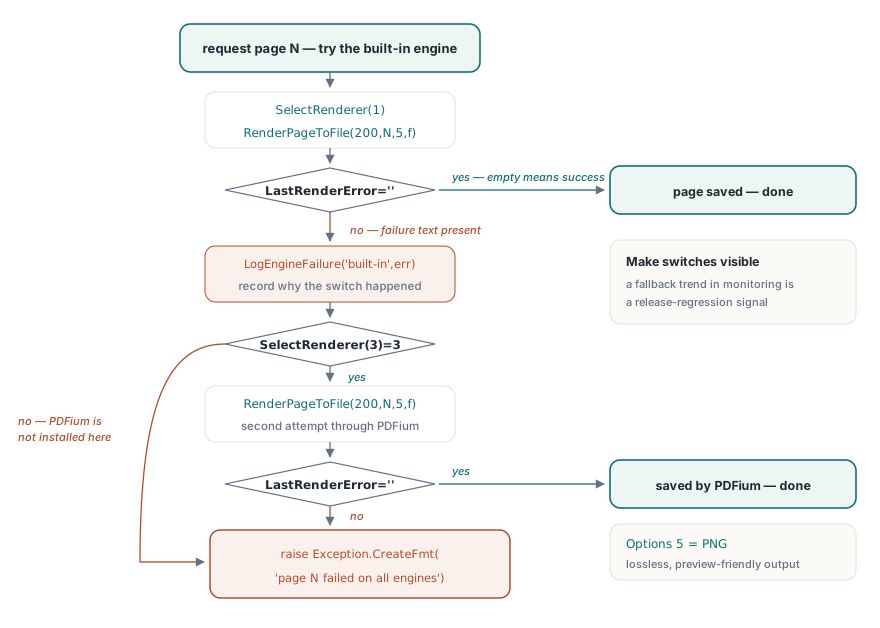
procedure RenderPageWithFallback(PDF: TPDFlib; Page: Integer; const OutFile: string);
begin
  PDF.SelectRenderer(1);                            // built-in first
  PDF.RenderPageToFile(200, Page, 5, OutFile);      // 5 = PNG
  if PDF.LastRenderError = '' then Exit;
  LogEngineFailure('built-in', Page, PDF.LastRenderError);
  if PDF.SelectRenderer(3) = 3 then                 // PDFium as the heavy fallback
  begin
    PDF.RenderPageToFile(200, Page, 5, OutFile);
    if PDF.LastRenderError = '' then Exit;
    LogEngineFailure('pdfium', Page, PDF.LastRenderError);
  end;
  raise Exception.CreateFmt('Page %d failed on all available engines', [Page]);
end;
Two design points carry weight here. The chain records why each switch happened, because a log line reading "this page fell back to PDFium since release 3.7" is a regression signal you want trending in monitoring rather than lost. The fallback order itself is a policy worth choosing per workload. The built-in engine deploys with no extra DLLs, which makes it the right first try in most installations, while documents heavy with transparency groups or unusual shading are the usual reason a team wires in an alternative engine at all. No engine is fastest in general, which is the whole point of choosing per call: benchmark each one against a sample of your real documents at your real DPI, and revisit that measurement whenever the engine DLLs or the document mix change. The corpus wins the argument every time
Past single pages: TIFF batches and live device contexts
Two neighbors of the per-page calls round out the toolbox. RenderAsMultipageTIFFToFile renders a page-range expression straight into a multi-page TIFF, the natural shape for archival hand-offs to document management systems that predate PDF. RenderPageToDC paints directly onto a Windows device context for preview controls, governed by its own trio of sticky settings (SetRenderDCOffset, SetRenderDCErasePage, plus the crop type) that need the same reset discipline as the scale factor. Screen preview and print-path rendering carry enough traps of their own to warrant a dedicated article, linked below
Where to go next
One habit worth carrying forward: because SelectRenderer takes effect for every later call on the instance, a single stubborn page can be retried on another engine while the rest of the document stays on the default. For preview painting, printer selection, and DevMode handling, continue with the print preview and device context article. When renders feed a high-volume pipeline over very large files, the handle-based approach in the direct-access guide pairs naturally with per-page rendering through DARenderPageToFile
Engine packaging, supported formats, and trial builds are detailed on the PDF Library for Delphi product page