A low-vision reader cannot make out black text on a white page at default contrast, so they ask for a dark mode. The naive answer is to invert every pixel of the rendered page. It ships in a week and breaks the next day: scanned photographs come back looking like film negatives, the reader's yellow highlighter marks turn into an illegible blue smear, and someone asks why the printout came out solid black. The feature is genuinely worth building and genuinely easy to get half right, and the gap between the two outcomes is one idea: each color decision belongs at a specific point in the render pipeline, and inversion is the wrong tool applied at the wrong stage. The code here uses PDFium Component, the PDFium-based viewer for Delphi, C++Builder, and Lazarus, whose rendering API exposes those stages separately
Filters are presentation state, never document state
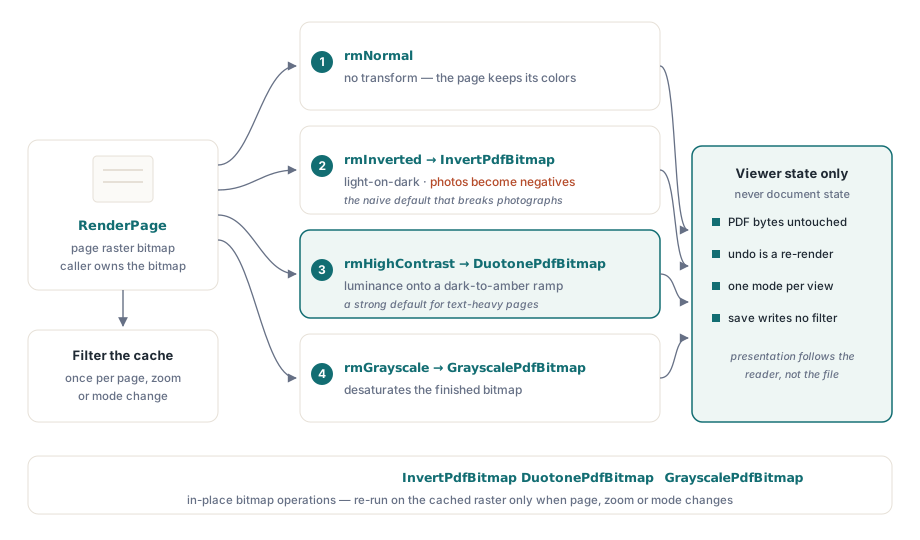
One rule prevents the worst category of bug here: a reading mode changes how the bitmap is produced or post-processed, and nothing else. The PDF bytes stay untouched, every mode is reversible by re-rendering, and "save" never writes a filtered appearance back into the file. This sounds obvious until a legal reviewer prints a contract under an active filter and files the inverted version. At that point the question "does printing use the document's own appearance or the screen's" turns out to deserve an explicit answer in your spec, not an accident of code path. Keep the filter setting in viewer state, apply it at render time, and make every export path declare which appearance it uses
The rule pays for itself twice. Reversibility comes free, because switching modes re-renders from the unchanged source: there is no undo stack to maintain and no way for a run of mode changes to degrade the page. Multi-window scenarios stay coherent for the same reason. Two views of one document can run different modes, since each view owns its presentation state while the document object stays shared
Render first, transform second
The supported pattern is post-render bitmap processing: RenderPage produces the page raster, then a transform pass adjusts it. The component ships three transforms as in-place bitmap operations, InvertPdfBitmap, DuotonePdfBitmap, and GrayscalePdfBitmap, which makes the mode switch a clean two-stage function:
function TViewerForm.RenderWithMode(W, H: Integer): TBitmap;
begin
  Result := Pdf.RenderPage(0, 0, W, H, ro0, [reAnnotations]);
  case FReadingMode of
    rmInverted:     InvertPdfBitmap(Result);
    rmHighContrast: DuotonePdfBitmap(Result, clBlack, $0000C8FF);  // dark bg, amber text
    rmGrayscale:    GrayscalePdfBitmap(Result);
  end;
  // rmNormal falls through: the document keeps its own colors
end;
Two things follow from this design. First, transform cost is proportional to bitmap size, so the work belongs wherever your render results are cached: filter the cached bitmap once, not on every paint. Second, because the transform runs on the finished raster, it hits text, vector art, images, and annotation appearances the same way. That uniformity is exactly what plain inversion gets wrong for photographs. It is the reason the duotone transform makes a better default for text-heavy documents, since it maps luminance onto a chosen dark-to-light color ramp instead of negating hues; inversion stays available as an explicit choice for readers who want it. Sharper glyph edges are a separate lever. The reNoSmoothText render option turns off text anti-aliasing at render time and pairs well with high-contrast mode at large zoom
Two grayscales that disagree
The render options include reGrayscale, which looks like a shortcut past the post-processing step. It is not the same operation:

// Engine-level: grayscale applied during rasterization
GrayA := Pdf.RenderPage(0, 0, W, H, ro0, [reGrayscale]);

// Post-process: render in color, convert the finished bitmap
GrayB := Pdf.RenderPage(0, 0, W, H);
GrayscalePdfBitmap(GrayB);
The engine-level option applies to the raster output of image content but does not reach vector fills or text colors, so a page with colored headings can come back with gray photographs and stubbornly blue headings. GrayscalePdfBitmap on the finished bitmap converts everything, unconditionally. The render option still earns its place when you want images desaturated while keeping text color as a signal, which some low-vision readers specifically prefer. But if the requirement reads "grayscale page", post-processing is the version that satisfies it. Whichever path you choose, keep both RenderPage overload styles in mind. The function form returns a bitmap the caller owns and must free, and that matters as soon as filters multiply the number of rendered bitmaps in flight
Backgrounds, selection marks, and the PageColor trap
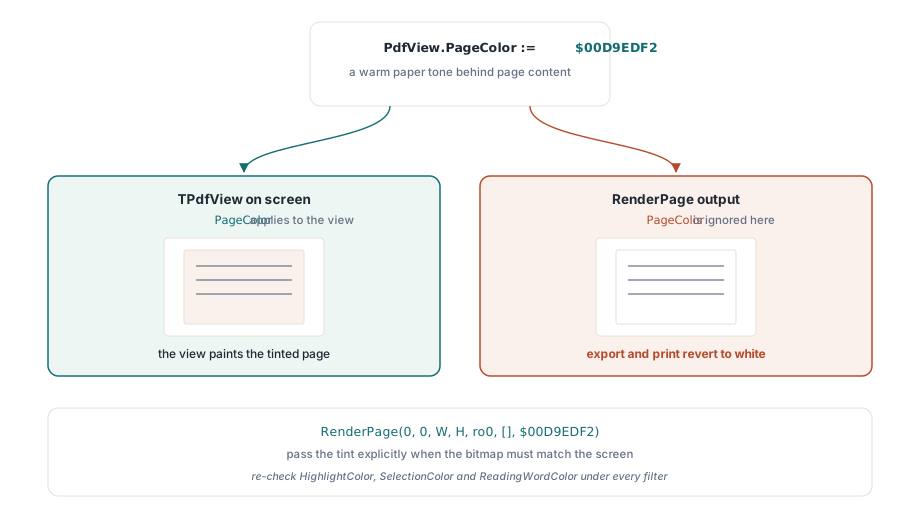
Not every comfort adjustment is a transform. Replacing the white page background with a warm tone is often enough on its own for glare-sensitive readers, and it has a dedicated property. The property carries a scope rule that catches people:
// Affects the on-screen view only
PdfView.PageColor := $00D9EDF2;  // warm paper tone behind page content

// RenderPage output ignores PageColor; pass the color explicitly
Bmp := Pdf.RenderPage(0, 0, W, H, ro0, [], $00D9EDF2);
PageColor changes what TPdfView displays, but bitmaps produced through RenderPage keep the default white unless the Color parameter says otherwise. The symptom is reliable: the screen shows the tinted page, the user exports or prints, and the output reverts to white. File that under the same export-policy decision from the first section
The remaining color properties define overlay marks: HighlightColor for search hits, SelectionColor for user text selection, ReadingWordColor for the spoken-word cursor. Every one of them has to be re-checked under every filter you offer. An amber reading cursor that works on white vanishes after inversion; a pale blue selection disappears into a high-contrast background. Maintain per-mode overlay palettes rather than one global set, and test the combinations on purpose. Filters plus text-to-speech is a normal configuration for the readers this feature serves, not an edge case. The overlay machinery itself is covered in the accessible reader article
Numbers, verification, and the printing question
WCAG 2.1 turns this feature into something you can measure. Success criterion 1.4.3 asks for a 4.5:1 contrast ratio for body text, and 1.4.6 raises it to 7:1 for enhanced contrast. Spot-check your high-contrast mode against those ratios with a contrast analyzer run on actual rendered output. Text over images and text in form fields are where the ratios quietly fail even when the body text passes
Printing deserves its own decision, and the defensible default is the document's own appearance, with "print as displayed" offered as an explicit user choice. A printed page is evidence in more workflows than viewer authors tend to expect, and an inverted printout of a contract is a support incident with legal flavoring. One more pairing matters for performance: filtered rendering doubles the bitmap work on every mode switch, so don't apply a transform on each paint message. Cache the filtered bitmap and re-run the transform only when the page, zoom, or mode actually changes. The caching strategy that makes this cheap lives in the render cache and zoom performance article
One thing to settle in your UI rather than your code: which mode is the right default. There isn't a single answer, so offer the set and let the reader pick. High contrast suits most text-heavy reading, inversion fits readers who specifically want light-on-dark, grayscale cuts color noise, and a background tint handles glare sensitivity. Persist the choice per user, restore it on startup, and keep a one-keystroke path back to normal, since a reader who lands in a mode they can't read needs a fast way out
The render options, bitmap transforms, and view color properties used here ship with PDFium Component for Delphi, C++Builder, and Lazarus/FPC, with full source so the transform implementations can be audited or extended