Press Tab in a PDF form your code built, and the cursor lands two fields away from where it should, or skips the second column entirely, or jumps back to the top after the third field instead of the fourth. The person filling out an invoice in your viewer expects the keyboard to walk the form the way it walks every web form they have ever used. When it does not, they reach for the mouse, hunt for the next box, and quietly decide your tool is unfinished. Predictable field traversal is the difference between a data-entry viewer people tolerate and one they trust, and it is almost entirely a matter of using the right focus API instead of faking keyboard input with simulated clicks
The examples below use PDFium Component, a PDFium-based VCL/LCL component for Delphi, C++Builder, and Lazarus. Navigation is one of three things a form viewer has to get right; the other two, opening the form correctly and saving filled values so they actually show up, are where most of the surprises hide, so all three are covered below
Opening a form: FormFill, FormType, and the XFA question
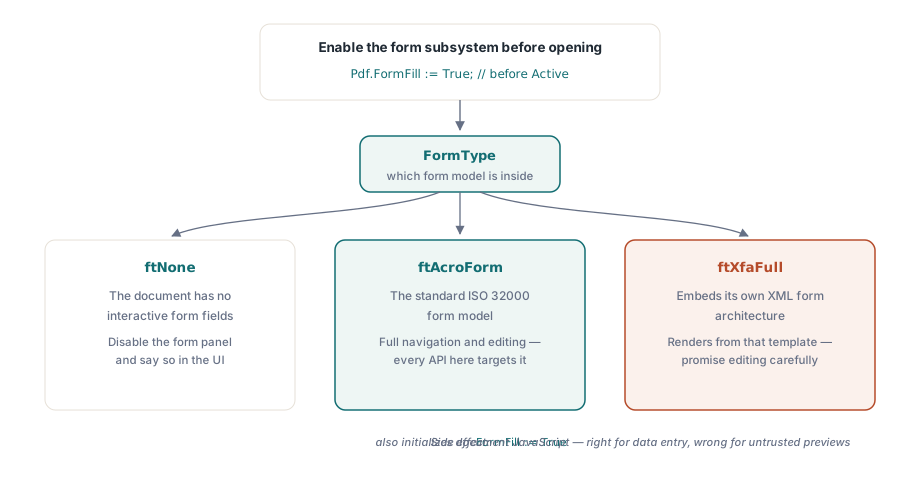
Field access requires the form-fill subsystem, controlled by the FormFill property, to be enabled before the document is opened. Once active, FormType tells you what kind of form you are facing, and the answer changes the feature set you can promise:
Pdf.FileName := FormPath;
Pdf.FormFill := True;   // enable before Active; required for any field access
Pdf.Active := True;

case Pdf.FormType of
  ftNone:
    DisableFormPanel('This document has no interactive form');
  ftAcroForm:
    BuildFieldList;     // full field navigation and editing available
  ftXfaFull:
    ShowXfaNotice;      // XFA renders from its own XML template;
                        // treat field editing as limited
end;
Two practical notes follow from that switch. AcroForm is the standard ISO 32000 form model, and it is what every API here targets. XFA documents embed their own XML form architecture, so promising a customer full XFA editing after a quick AcroForm demo is a commitment you will regret. The second note is about side effects: setting FormFill to True also initializes document JavaScript. In a data-entry viewer that is exactly right, because calculation scripts are what keep a running total current as someone types. In a preview window for files of unknown origin it is exactly wrong. The secure PDF preview article covers the FormFill := False side of that trade-off
Tab-key traversal that lands where users expect
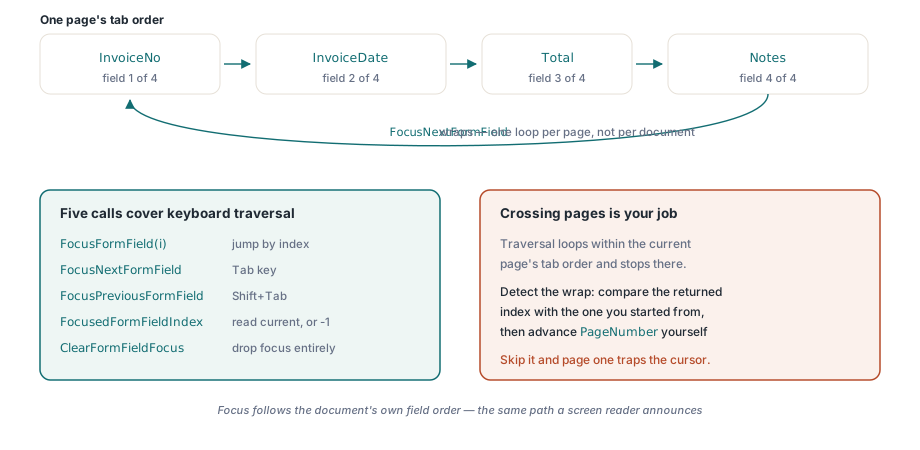
Back to the keyboard problem from the top. The temptation is to fake Tab by synthesizing a mouse click on the next widget's rectangle, which breaks the instant a field is scrolled off-screen or two widgets overlap. The focus API moves the form's own focus directly instead, with no geometry guesswork. Five calls cover it: FocusFormField by index, FocusNextFormField and FocusPreviousFormField for stepping, FocusedFormFieldIndex to read where you are, and ClearFormFieldFocus to drop focus entirely
procedure TFormViewer.HandleTabKey(Shift: TShiftState);
begin
  if ssShift in Shift then
    PdfView.FocusPreviousFormField
  else
    PdfView.FocusNextFormField;
  UpdateFieldStatus;  // e.g. "Field 4 of 17: InvoiceDate"
end;
The one piece of behavior that trips people up is the wrap. Traversal works through the current page's tab order and loops within it: step past the last field and you are back at the first. Both stepping functions return the new field index, or -1 when the page holds no fields at all. That looping is per page, not per document, which means crossing to the next page is your job, not the library's. Compare the returned index against the one you started from, notice when it has wrapped, and advance PageNumber yourself if the form is meant to read as one continuous sequence. Skip that check and a two-page form silently traps the cursor on page one, which is its own flavor of the broken-Tab complaint
Traversal becomes useful once the rest of the UI reacts to it. The OnFormFieldEnter event fires as focus arrives, and on the viewer OnFormFieldFocusChange reports the new field index, so a side panel can stay in step with whatever the keyboard just selected. When you need the reverse mapping, from a screen position to a field, the FormFieldAt indexed property does the hit-testing for tooltip previews and click-to-edit panels. There is a quiet accessibility payoff in all of this: because focus follows the document's own field order, the path you wire up for the Tab key is the same path a screen reader announces, with no extra work
Showing field names instead of raw index numbers takes one more property. FormFieldInfo[] returns a TPdfFormFieldInfo record per index, carrying the field name, type, font size, checked state, export value, and group membership, which is what a navigation list should display ("Field 4 of 17: InvoiceDate" rather than "4"). Radio groups are the case worth a dedicated test file. Several widgets can share a single field name, so a list assembled naively from widgets shows the same group several times and confuses everyone who reads it
Why filled values come out blank, and the call that fixes it
The other complaint that fills support queues is more alarming than a misbehaving Tab key: a form gets filled programmatically, the customer opens it in Acrobat, and every field looks empty. Click into a field and its value snaps into view. The data is in the file the whole time. What is missing is the picture of the data, and the reason is worth understanding once because it explains a whole family of bugs
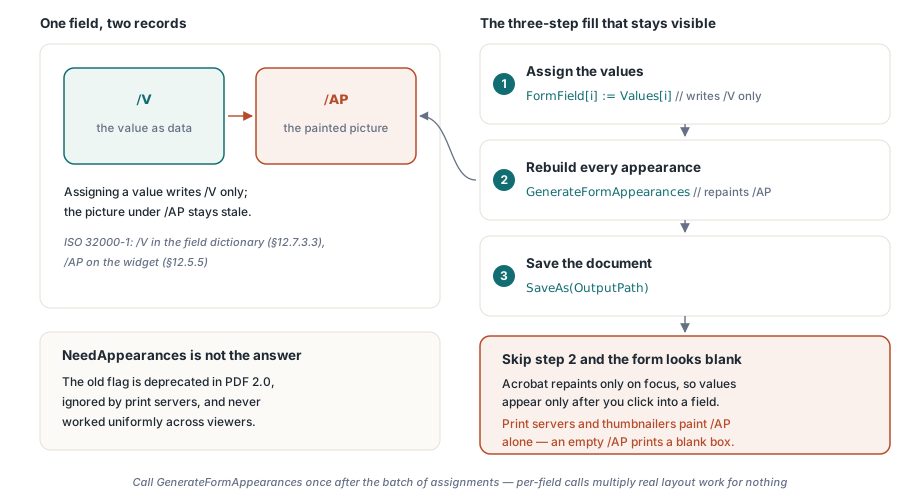
An AcroForm text field stores its value in the /V entry of the field dictionary (ISO 32000-1 §12.7.3.3). What a viewer actually paints is something separate: the widget's appearance stream under /AP (§12.5.5), a small pre-rendered snippet of content. Write /V and leave /AP alone, and the two drift apart. The value is there; the rendered version of it is stale or absent. Acrobat happens to rebuild a field's appearance when it gains focus, which is the entire explanation for values that appear only on click. The old NeedAppearances flag, which asked viewers to regenerate appearances for you, never worked uniformly and is deprecated in PDF 2.0, and print servers and thumbnail generators ignore it completely. They paint /AP and nothing else, so if /AP is empty they print a blank box
Assigning a value through FormField[i] writes /V only. That is why filling a form is a three-step sequence, and the step teams drop is the middle one:
procedure TFormViewer.FillAndSave(const Values: array of WString;
  const OutputPath: string);
var
  i: Integer;
begin
  for i := 0 to Pdf.FormFieldCount - 1 do
    Pdf.FormField[i] := Values[i];   // writes /V only

  // Rebuild the /AP appearance streams; without this the form
  // looks blank in Acrobat until each field is clicked
  Pdf.GenerateFormAppearances;

  Pdf.SaveAs(OutputPath);
end;
GenerateFormAppearances is the whole fix. It rebuilds every widget's appearance stream from the current values, fonts, and quadding, so a viewer that never runs a focus event, a print server or a thumbnailer, paints the filled state anyway. Call it once after the batch of assignments, not once per field. Appearance generation does real layout work, and per-field calls multiply that across a large form for nothing
Regenerating appearances is also the moment fonts and alignment assert themselves, which is the source of a second-order surprise. The new stream lays each value out inside the widget rectangle using the field's font, size, and quadding. A value that sits comfortably in your test form can clip or shrink in a customer's copy where the same field is narrower. Auto-sized fields (font size zero) shrink the text to fit; fixed-size fields just clip it. Both are legal, and the only honest way to know which one a given form does is to look at the regenerated output rather than the string you wrote. When someone reports text cut off at the edge of a box, this is almost always the reason
Treat verification as part of finishing the work, not an afterthought. Open the saved file in Acrobat and confirm the values are visible before you touch any field. Then print it to PDF or to an image from a different viewer, one that ignores form logic entirely, and confirm the values survive that path too. Between them, those two checks catch every variant of the /V-versus-/AP drift
Field configurations that pass the demo and fail in the field
Clean demo forms hide a set of edge cases that customer files do not. Four of them account for most of the "it worked on my machine" reports
- Checkbox export values. The "on" state is not always
Yes. A form is free to define its own export value, and writing the wrong string leaves the box visually unchecked while your code is convinced it set it. Read the export value fromFormFieldInfo[]rather than assuming one - Shared-name radio groups. One field, several widgets. The value you assign decides which widget reads as selected, so UI code that assumes one name maps to one rectangle ends up drawing the focus ring on the wrong button
- Calculated fields. Totals maintained by document JavaScript update in response to field events. A programmatic fill that bypasses those events has to either trigger recalculation or overwrite the calculated fields directly. A form where the line items and the total disagree is worse than either fix
- Hidden required fields. Conditional forms hide fields that are still flagged required. Decide up front whether your validation respects visibility or the raw required flag, then write that decision down somewhere support can find it
One distinction is worth settling before it bites you: generating appearances is not flattening. GenerateFormAppearances makes values visible everywhere while leaving the fields editable. Flattening bakes the appearance into static page content and strips the interactivity for good, which is right for an archival copy and wrong for a form the next person still has to fill. If FormType reports ftXfaFull rather than ftAcroForm, none of the editing surface here applies cleanly anyway, since the document renders from its own XML template; detect that case and tell the user, rather than letting them find the limit on their own
The form-fill subsystem, focus traversal, and appearance generation shown here are part of PDFium Component for Delphi, C++Builder, and Lazarus/FPC. If your viewer also handles reviewer markup alongside form data, the annotation review article covers that adjacent model