A read-aloud button demos in an afternoon and then eats a week. The afternoon version extracts the page text, hands it to SAPI, and gets audio. The week goes into what makes the feature usable: the voice must not freeze the window, the spoken word has to light up on the page in time with the audio, and the Space key has to pause the whole thing. This article builds that pipeline in Delphi against the raw PDFium text API and the Windows Speech API, with working code for the three pieces the quick version skips: COM lifetime done once instead of per utterance, real word-boundary events, and the coordinate math that turns a PDF-space word box into a rectangle you can paint
The regulatory context fits in one sentence: synchronized read-aloud is the viewer-side half of what WCAG 2.1 asks of document software, and ISO 14289-1 (PDF/UA) defines the tagged-file half it works best against. If you are building on PDFium Component you may not need this pipeline at all: the viewer ships a built-in tracking cursor that maps a character offset to a painted word highlight in one call, covered in the word-by-word TTS highlighting article. What follows is for when you own the whole viewer application and want the pipeline itself
One thread renders, one thread speaks
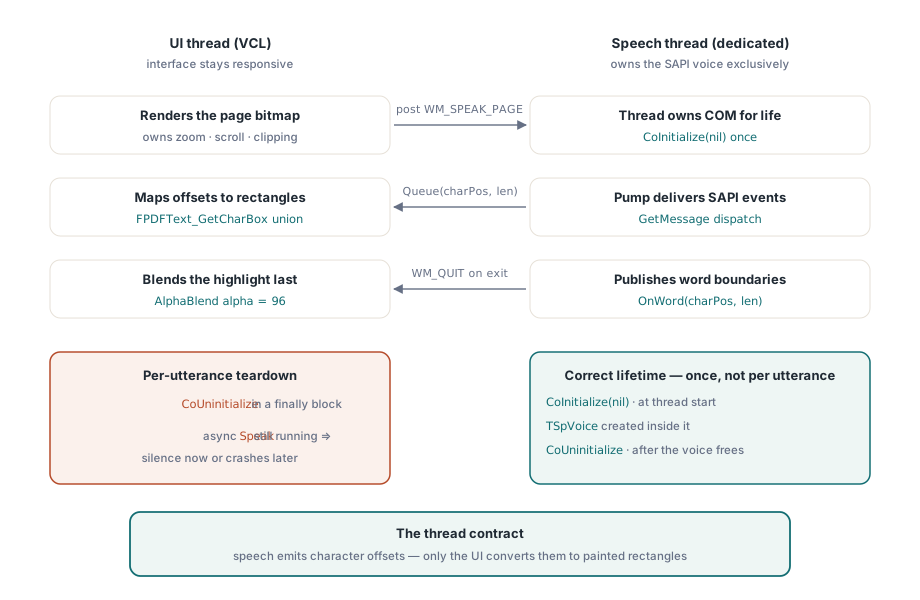
The architecture is two threads and one contract. The UI thread renders the page bitmap, owns zoom and scroll state, and paints the highlight overlay. A dedicated speech thread owns the SAPI voice, and nothing else touches it. The contract is thin: the speech thread reports progress as character offsets, and the UI thread turns offsets into rectangles
Most SAPI samples wrap every utterance in CoInitialize and CoUninitialize, and a viewer shows why that is wrong immediately. Speak with SVSFlagsAsync returns as soon as the text is queued, so a CoUninitialize in the same procedure's finally block runs while the voice is still speaking, tearing down the COM apartment that owns it. Depending on timing you get silence, a truncated utterance, or an access violation minutes later. The correct lifetime is boring: CoInitialize once when the speech thread starts, create the voice inside that apartment, and CoUninitialize once when the thread exits, after the voice has been freed. Never per utterance
The voice also needs a message pump, which decides where it can live. The SpVoice automation object delivers its events through the message queue of the thread that created it. Create it on the UI thread and events do arrive, because the VCL pumps messages, but every slow paint then delays your word boundaries; create it on a worker thread with no pump and the events never arrive at all. A dedicated thread with its own GetMessage loop keeps boundary latency flat no matter what the UI is doing
uses
  System.Classes, System.SyncObjs, Winapi.Windows, Winapi.Messages,
  Winapi.ActiveX, SpeechLib_TLB;

const
  WM_SPEAK_PAGE = WM_APP + 1;

type
  TSpeechThread = class(TThread)
  private
    FVoice: TSpVoice;
    FLock: TCriticalSection;
    FText: string;
    function NextUtterance: string;   // reads FText under FLock
    procedure VoiceWord(ASender: TObject; StreamNumber: Integer;
      StreamPosition: OleVariant; CharacterPosition, WordLength: Integer);
  protected
    procedure Execute; override;
    procedure TerminatedSet; override;
  public
    procedure SpeakPage(const AText: string);   // safe from the UI thread
  end;

procedure TSpeechThread.Execute;
var
  Msg: TMsg;
begin
  CoInitialize(nil);                       // once, when the thread starts
  try
    FVoice := TSpVoice.Create(nil);
    try
      FVoice.EventInterests := SVEWordBoundary or SVEEndInputStream;
      FVoice.OnWord := VoiceWord;
      // Force creation of this thread's message queue before anyone posts to it
      PeekMessage(Msg, 0, WM_USER, WM_USER, PM_NOREMOVE);
      while GetMessage(Msg, 0, 0, 0) do    // exits when WM_QUIT arrives
        if Msg.message = WM_SPEAK_PAGE then
          FVoice.Speak(NextUtterance, SVSFlagsAsync or SVSFPurgeBeforeSpeak)
        else
          DispatchMessage(Msg);            // delivers the SAPI event callbacks
    finally
      FVoice.Free;
    end;
  finally
    CoUninitialize;                        // once, when the thread exits
  end;
end;

procedure TSpeechThread.TerminatedSet;
begin
  inherited;
  PostThreadMessage(ThreadID, WM_QUIT, 0, 0);   // unblock GetMessage
end;
TerminatedSet posts WM_QUIT so the pump unblocks when the viewer shuts down. SpeakPage, called from the UI thread, stores the text in a lock-guarded field and posts WM_SPEAK_PAGE, because calling a method on FVoice directly from another thread would be a cross-apartment COM call on an unmarshaled interface. The one-line PeekMessage before the loop forces Windows to create the thread's message queue, closing the startup race where an early post from the UI thread would fail
Word boundaries arrive as character offsets
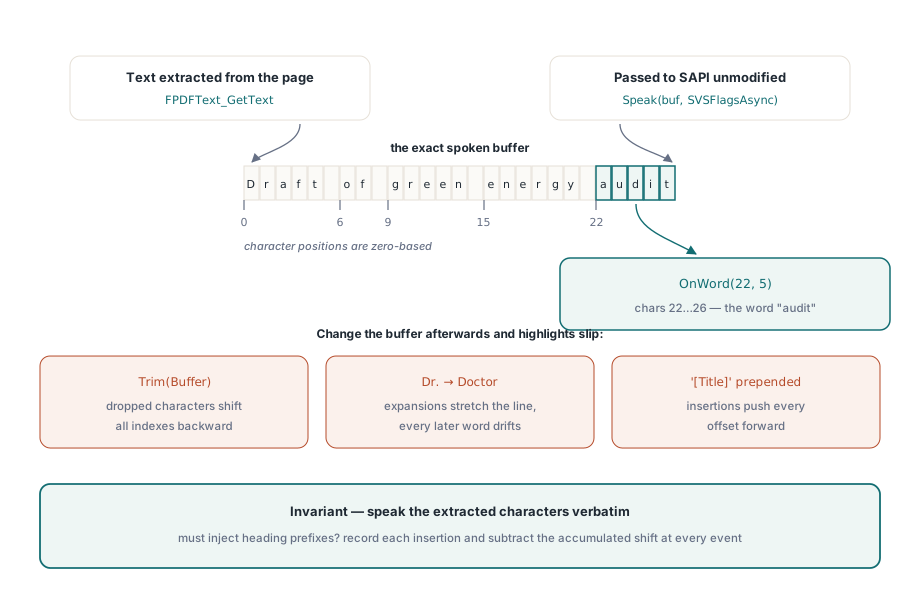
Import the Microsoft Speech Object Library once through the IDE's type library importer and you get SpeechLib_TLB with the TSpVoice wrapper and its typed events. Two settings matter. EventInterests should be narrowed to the events you actually consume, because every interest left switched on is cross-thread event traffic for every word of every page; SVEWordBoundary drives the highlight and SVEEndInputStream tells you the utterance finished. And the OnWord handler receives CharacterPosition and a length, which index into the exact string you passed to Speak — an offset into the speech buffer, not into anything else
That last clause is the invariant the feature hangs on: offsets are only meaningful against the string the voice is reading, so speak exactly the text you extracted, character for character. Trim whitespace, collapse line breaks, or expand an abbreviation for nicer pronunciation, and every highlight after the first edit lands one word off. If the UI must inject spoken material — page announcements, heading prefixes — record each insertion's position and length, and subtract the accumulated shift from every offset before mapping it
procedure TSpeechThread.SpeakPage(const AText: string);
begin
  FLock.Enter;
  try
    FText := AText;
  finally
    FLock.Leave;
  end;
  PostThreadMessage(ThreadID, WM_SPEAK_PAGE, 0, 0);
end;

procedure TSpeechThread.VoiceWord(ASender: TObject; StreamNumber: Integer;
  StreamPosition: OleVariant; CharacterPosition, WordLength: Integer);
begin
  // Runs on the speech thread; hand the offsets to the UI without blocking
  TThread.Queue(nil,
    procedure
    begin
      ViewerForm.HighlightWordAt(CharacterPosition, WordLength);
    end);
end;
TThread.Queue is the right marshal here, not Synchronize: the handler must not park the speech thread while the UI repaints, and if boundary events arrive faster than the screen draws, a stale highlight update is harmless because the next one overwrites it. Wire OnEndStream the same way to clear the highlight, and in a continuous-reading mode, to load the next page's text and post the next utterance
From character offsets to pixels on screen
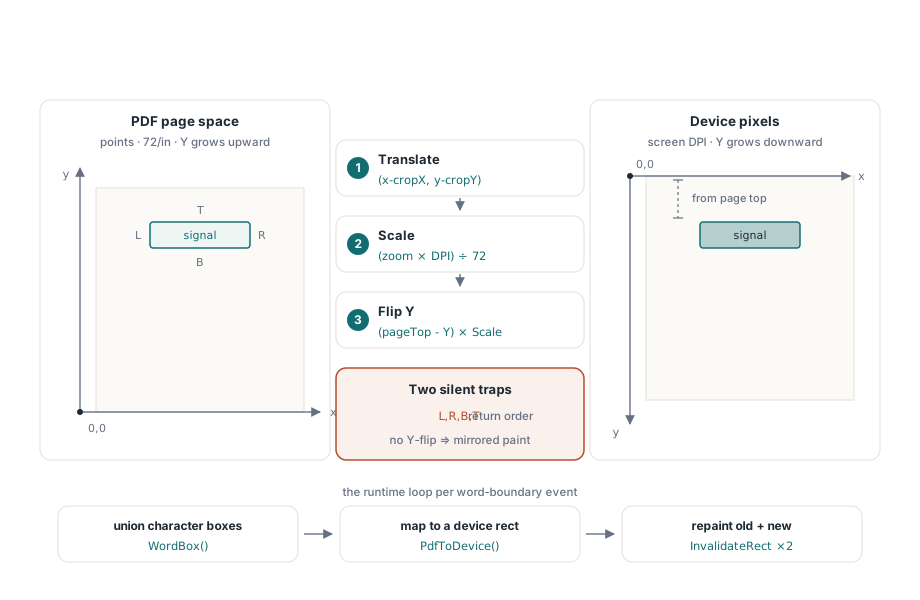
PDFium reports geometry per character. FPDFText_GetCharBox fills four doubles in an order that has caused more silent bugs than anything else in the text API — left, right, bottom, top, not the Windows left, top, right, bottom — and it reports them in page space: PDF points, 72 to the inch, origin at the bottom-left corner with Y growing upward. A word's box is the union of its characters' boxes, and the transform to device pixels is three steps: translate by the page origin, scale by zoom times screen DPI over 72, and flip the Y axis
uses
  System.Math;

type
  TPdfRectF = record
    Left, Top, Right, Bottom: Double;    // PDF points, origin bottom-left
  end;

function TViewerForm.WordBox(CharIndex, CharCount: Integer): TPdfRectF;
var
  i, LastChar: Integer;
  L, T, R, B: Double;
begin
  Result.Left := MaxDouble;   Result.Bottom := MaxDouble;
  Result.Right := -MaxDouble; Result.Top := -MaxDouble;
  LastChar := Min(CharIndex + CharCount, FPDFText_CountChars(FTextPage)) - 1;
  for i := CharIndex to LastChar do
  begin
    // Parameter order is left, right, bottom, top - not the Windows order
    FPDFText_GetCharBox(FTextPage, i, @L, @R, @B, @T);
    Result.Left   := Min(Result.Left, L);
    Result.Right  := Max(Result.Right, R);
    Result.Bottom := Min(Result.Bottom, B);
    Result.Top    := Max(Result.Top, T);
  end;
end;

function TViewerForm.PdfToDevice(const W: TPdfRectF): TRect;
var
  Scale: Double;
begin
  // 72 PDF points per inch; FZoom is the viewer scale factor
  Scale := FZoom * FScreenDpi / 72.0;
  Result.Left   := Round((W.Left  - FPageLeft) * Scale) - FScrollX;
  Result.Right  := Round((W.Right - FPageLeft) * Scale) - FScrollX;
  // PDF Y grows upward from the bottom edge; device Y grows downward
  Result.Top    := Round((FPageTop - W.Top)    * Scale) - FScrollY;
  Result.Bottom := Round((FPageTop - W.Bottom) * Scale) - FScrollY;
end;
FPageTop is the page height in points from FPDF_GetPageHeight, and FPageLeft is zero for most documents but comes from the crop box when the page defines one, so read both from FPDF_GetPageBoundingBox rather than assuming. The Y flip is where hand-rolled versions break: the top of the device rectangle comes from the top of the PDF box measured down from the page top. Get it backwards and every highlight paints mirrored into the wrong half of the page
procedure TViewerForm.HighlightWordAt(CharIndex, CharCount: Integer);
var
  Old: TRect;
begin
  if CharCount <= 0 then Exit;
  Old := FHighlightRect;
  FHighlightRect := PdfToDevice(WordBox(CharIndex, CharCount));
  InvalidateRect(PageBox.Handle, @Old, False);             // erase the old word
  InvalidateRect(PageBox.Handle, @FHighlightRect, False);  // draw the new one
end;

procedure TViewerForm.PageBoxPaint(Sender: TObject);
var
  Blend: TBlendFunction;
begin
  PageBox.Canvas.Draw(0, 0, FPageBitmap);      // rendered page first, always
  if FHighlightRect.IsEmpty then Exit;

  Blend.BlendOp := AC_SRC_OVER;
  Blend.BlendFlags := 0;
  Blend.SourceConstantAlpha := 96;             // about 38 percent opacity
  Blend.AlphaFormat := 0;                      // constant alpha, no per-pixel data
  Winapi.Windows.AlphaBlend(PageBox.Canvas.Handle,
    FHighlightRect.Left, FHighlightRect.Top,
    FHighlightRect.Width, FHighlightRect.Height,
    FHighlightBrush.Canvas.Handle, 0, 0, 1, 1, Blend);
end;
The paint handler draws the page bitmap first and the highlight after it, every time, so the overlay never has to erase itself; invalidating the old and new rectangles keeps the repaint region small even at fast speech rates. FHighlightBrush is a one-by-one TBitmap filled once at startup with the highlight color — FHighlightBrush.Canvas.Pixels[0, 0] := $0032C8FF for an amber — that AlphaBlend stretches over the target rectangle, so nothing is allocated per frame, and SourceConstantAlpha at 96 keeps the word legible through the tint. Test the color under inverted and high-contrast display modes; an overlay a low-vision user cannot see does not exist for exactly the person it was built for
Reading order is the part the text API will not solve
FPDFText_GetText hands back characters in an order derived from the content stream with some spatial cleanup, and for a single-column report that order is fine. It has no obligation to be right anywhere else. A two-column newsletter can read straight across both columns, a sidebar can interrupt a sentence mid-clause, and a footer can arrive in the middle of the page. The information that fixes this — the logical structure tree of ISO 32000-1 §14.8, which tagged PDFs carry and PDF/UA makes mandatory — is not consulted by the raw text-page calls at all. If you need structure-aware order with an explicit signal of its origin, that is a solved problem one shelf up: PDFium Component's reading API returns content with a Source field of rosStructure or rosHeuristic, and the accessible PDF reader article walks through it. At the raw API level, the defensible position is to treat extraction order as an estimate, say so in the UI, and keep one multi-column document and one image-only scan in the regression set so both failure modes stay visible
The viewer itself has to be keyboard-operable
Speech output does not excuse the viewer from keyboard access; the people most likely to use read-aloud are the least likely to reach for a mouse. Give the page panel TabStop := True and a visible focus rectangle, then handle three keys: Space toggles FVoice.Pause and FVoice.Resume, and Left and Right skip through FVoice.Skip('Sentence', 1) with a negative count to go back. SAPI's Skip only understands sentence granularity, so word-level skipping means purging playback with SVSFPurgeBeforeSpeak and re-speaking from the offset of the word you last tracked — cheap, since the highlight code is already storing exactly that offset. Keep every transport control a real TButton with a caption so screen readers announce it
That is the whole pipeline, all of it against the raw PDFium text API: a speech thread that owns COM and the voice for the life of the app, boundary events marshaled to the UI as character offsets, and per-character page-space boxes turned into one blended rectangle on screen. If you would rather not own the geometry and tracking yourself, PDFium Component ships per-word boxes, the tracking cursor, auto-scroll follow, and sentence-level reading units as component properties, and its read-aloud demo is this article's pipeline reduced to a handful of calls