Three groups of worksheet settings have nothing to do with the cell values and everything to do with how the file behaves once it leaves your code. Sheet protection decides which cells a user can edit after you hand off the workbook. Page setup fixes orientation, paper size, and margins. The printing settings (repeated title rows, scaling, and manual page breaks) control how a grid of arbitrary length lands on paper. None of the three shows up when you eyeball the data in a viewer, and all three break quietly in the field when they are wrong. HotXLS, a native Delphi and C++Builder spreadsheet library, exposes the complete surface for .xls and .xlsx, which means it also reproduces every counterintuitive Excel rule baked into that surface
The first of those rules trips up almost everyone the first time they protect a generated sheet. Call Protect and suddenly nobody can type into any cell, including the input columns you built the workbook around. Nothing in your code touched those columns, and that is exactly why it happens
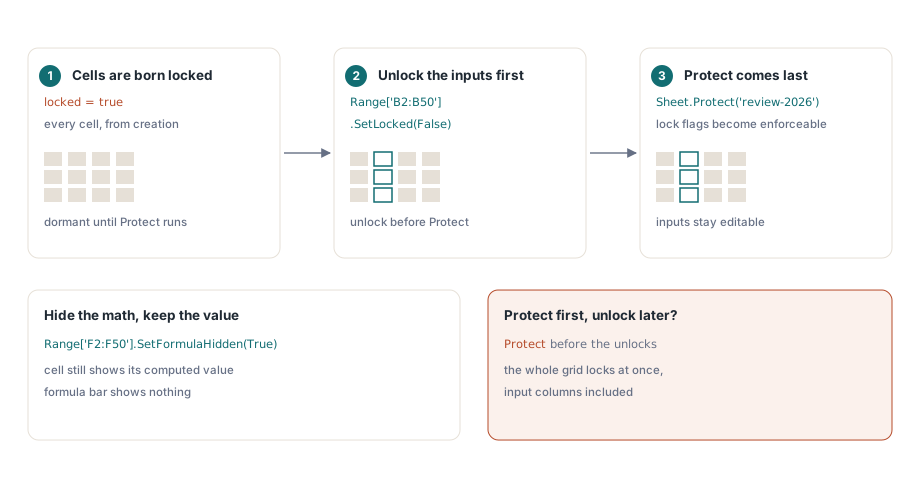
Every cell is born locked
ECMA-376 defines locked as part of a cell's formatting record, not as a property of protection itself, and it defaults to true. Sheet protection is merely the switch that makes the flag enforceable. So the entire grid carries a lock flag from the moment it exists, dormant, and the call to Protect activates all of them at once. The fix is to set the order deliberately: build the layout, explicitly unlock the ranges users must edit, and protect last
Book := TXLSXWorkbook.Create;
try
  Sheet := Book.Sheets.Add('Timesheet');
  // ... header row, name column, and rate formulas written here ...
  Sheet.Range['B2:B50'].SetLocked(False);         // staff type hours here
  Sheet.Range['F2:F50'].SetFormulaHidden(True);   // keep the rate math private
  Sheet.Protect('review-2026');                   // now the lock flags bite
  Book.SaveAs('timesheet.xlsx');
finally
  Book.Free;
end;
SetFormulaHidden does something separate and easy to overlook: while protection is active, the cell still shows its computed value, but the formula bar shows nothing. That matters when a formula embeds billing rates, margins, or scoring weights you would rather not hand to every recipient who clicks on a total. On the XLS facade the same intent is expressed per range through IXLSRange.Locked and FormulaHidden. The worksheet there also carries fifteen Allow* flags (AllowSort, AllowAutoFilter, AllowFormatCells, and the rest), so a protected sheet can still be sorted and filtered rather than frozen into a sealed exhibit
What the protection password actually protects
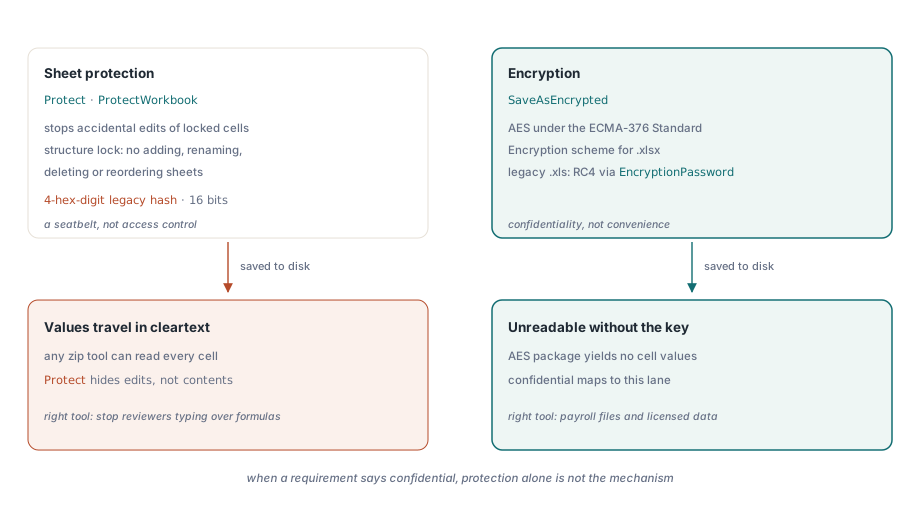
Both formats store the sheet and workbook protection password as a 4-hex-digit legacy hash. Sixteen bits means countless strings collide with any given password, and removal tools are one search away. Treat protection as a seatbelt against accidental edits, not as access control. It is the right tool for stopping reviewers from typing over the formula column and the wrong tool for anything that involves the word confidential
One level up, ProtectWorkbook on the XLSX facade locks workbook structure, which prevents adding, renaming, deleting, or reordering sheets. Set it whenever the sheet list is itself a contract with a downstream parser that indexes sheets by name or position. A renamed sheet breaks the import on the other side just as surely as a deleted column does. The XLS facade mirrors the layering with TXLSWorkbook.Protect at workbook level and per-sheet Protect calls, plus an isProtected property for code that needs to inspect an inherited file before it modifies anything
When the requirement is real confidentiality, the mechanism changes entirely. SaveAsEncrypted produces an AES-encrypted package under the ECMA-376 Standard Encryption scheme, covered in depth in the AES-protected XLSX output guide, and the legacy XLS facade writes and reads RC4-encrypted .xls files through EncryptionPassword and the password overload of Open. The difference is not academic. A protected sheet travels in cleartext, so any zip tool can read its cell values, whereas an encrypted package is unreadable without the password. An audit line that says "the payroll file must be protected" almost always means encryption, whatever vocabulary it happens to use
Page setup is part of the document contract
Print behavior is invisible on screen, which is why it ships broken so often. The moment a customer prints the workbook, or exports it to PDF for an auditor, margins, scaling, and repeated titles turn into functional requirements that nobody tested. On the XLSX facade these settings hang directly off the worksheet:
Sheet.PageLandscape := True;
Sheet.PaperSize := xlsxPaperA4;
Sheet.SetPageMargins(0.5, 0.5, 0.75, 0.75, 0.3, 0.3);
Sheet.CenterHeader := 'Monthly Timesheet';
Sheet.RightFooter := 'Page &P of &N';
Sheet.PrintArea := '$A$1:$F$60';     // bare reference: no sheet name here
Sheet.PrintTitleRows := '$1:$1';     // header row repeats on every page
Sheet.FitToWidth := 1;
Sheet.FitToHeight := 0;              // grow downward as the data grows
Sheet.PrintGridlines := False;
Two of those lines hide traps. The header and footer strings use Excel's formatting codes: &P for the current page, &N for the total count, with &L, &C, and &R to address the three sections explicitly. The other trap is PrintArea, which takes a bare cell reference on purpose. HotXLS stores it unqualified and prefixes the sheet name when it writes the file, so passing 'Timesheet!$A$1:$F$60' yourself produces a doubly-qualified, malformed reference. The same caution applies one layer down: print areas and print titles are persisted as the built-in defined names _xlnm.Print_Area and _xlnm.Print_Titles, so never add _xlnm.* entries through DefinedNames by hand, or the two mechanisms will fight over the same slot
Scaling that survives production data volumes
The combination FitToWidth := 1 with FitToHeight := 0 reads as "always fit the columns across one page, then take as many pages down as the data needs," and it is the correct default for any report whose row count varies. The trap is tuning a fixed percentage or a fit-to-page pair against a thirty-row test file: feed the same settings six hundred production rows and the output either explodes into dozens of clipped pages or shrinks below legibility. Scale width, let length grow, and repeat the header row through PrintTitleRows so page seventeen is still readable on its own
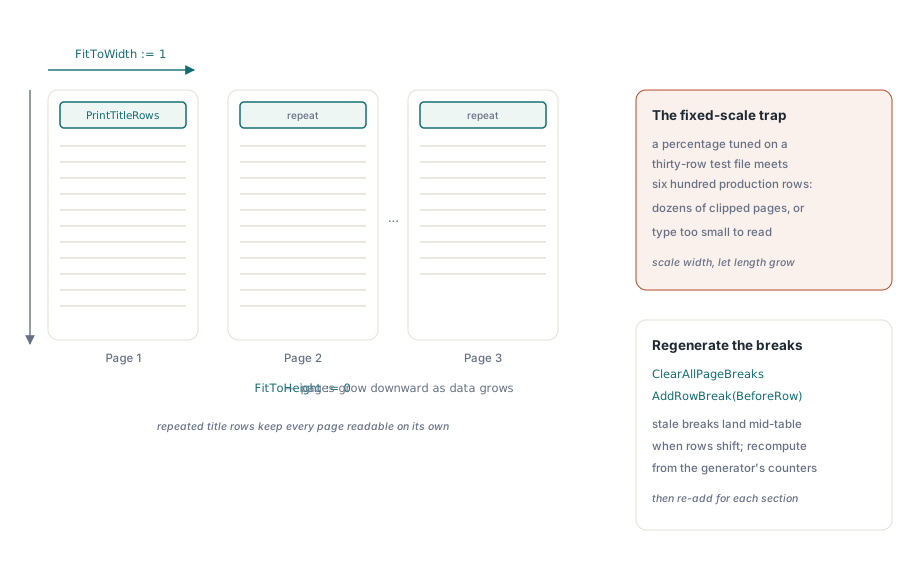
Manual breaks follow the same regeneration discipline as everything else in a generated workbook. AddRowBreak(BeforeRow) starts a new page before a section boundary, but when the generator reruns and the rows shift, a stale break lands mid-table. Call ClearAllPageBreaks first, then re-add breaks computed from the generator's own row counters instead of patching old positions. On the XLS facade the equivalent controls live on Sheet.PageSetup (orientation, paper size, margins, header and footer strings, fit-to-pages), with RepeatRows and RepeatColumns covering the print titles
Checking the result before a customer does
Protection and print bugs share one property: they are trivial to verify by hand and almost never verified. Open the generated file in Excel and spend ninety seconds on it. Type into an input cell and confirm it accepts the keystroke; type into a locked cell and confirm the protection prompt appears; check that a hidden formula leaves the formula bar blank. Then run Print Preview against a production-sized dataset, not a thirty-row sample, and read off the page count, the repeating title row, and the footer numbering. The preview is the step that pays for itself, because print geometry depends on settings with no on-screen rendering, and short of a physical printer it is the only place a scaling mistake ever becomes visible
One last setting rounds out the review. FreezePane(ACol, ARow) keeps the header block in view while a reviewer scrolls. That is screen behavior rather than print behavior, but a reviewer judges the whole deliverable at once. And a workbook that starts life as a designer-maintained layout gets most of this for free: the template report generation workflow keeps page setup in the template, where a human tuned it against a real printer, and leaves code to fill the data and re-apply protection once the layout settles
HotXLS is a native Object Pascal spreadsheet library for Delphi and C++Builder; the complete protection and page-setup API reference is on the HotXLS Delphi Component product page