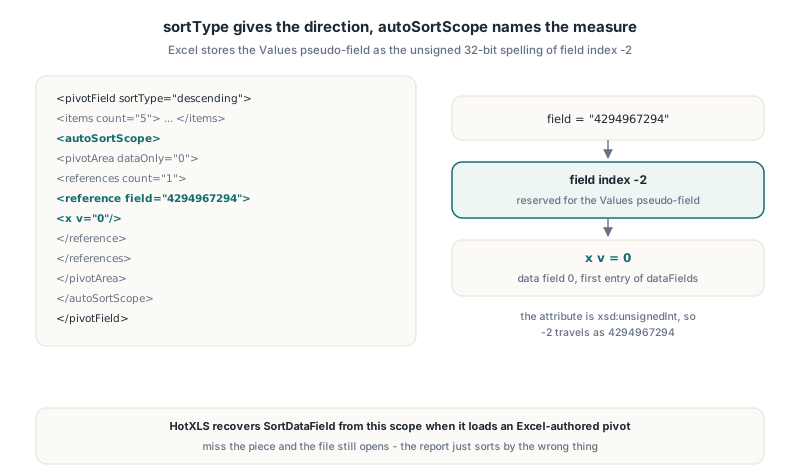
HotXLS sorts PivotTable items by value in Delphi through two properties on TXLSPivotField: SortType picks ascending or descending, and SortDataField names the zero-based data field whose totals drive the order. When HotXLS opens an Excel-authored XLSX, it recovers that data field from the autoSortScope element, where Excel stores the Values field as field="4294967294", the unsigned spelling of -2
Sorting by value is the request every sales report eventually gets: "show me the regions from biggest to smallest". In the Excel UI it is two clicks. In the file format it is an attribute, a nested pivot area, a reserved field index and a selected data field ordinal, and a reader that misses any one of those pieces still opens the file without complaint. It just sorts by the wrong thing
Where does Excel store a sort-by-value measure?
Excel stores the sort measure only inside autoSortScope, not on the field itself. The sortType attribute on <pivotField> (an ECMA-376 Part 1 ST_FieldSortType value: manual, ascending or descending) says which direction to sort. Which measure to sort by lives in a child <autoSortScope>, which wraps a <pivotArea> whose data-axis reference selects one data field
<pivotField axis="axisRow" showAll="0" sortType="descending">
  <items count="5"> ... </items>
  <autoSortScope>
    <pivotArea dataOnly="0" outlineLevel="all" fieldPosition="0">
      <references count="1">
        <reference field="4294967294" count="1" selected="0">
          <x v="0"/>
        </reference>
      </references>
    </pivotArea>
  </autoSortScope>
</pivotField>
The reference element normally points at a pivot field by index. Field index -2 is reserved in the PivotTable part of ECMA-376 for the Values pseudo-field, the one Excel shows as "Values" when two or more measures sit on an axis. The attribute is typed as an unsigned 32-bit integer, so -2 goes over the wire as 4294967294. The <x v="0"/> under it selects data field 0, the first entry in <dataFields>. There is also a rankBy attribute on <pivotField>, but in the files we compared Excel left it out and relied on the scope alone
Why did the sort measure come back as -1?
The HotXLS reader originally lost the sort measure because 4294967294 does not fit in a signed 32-bit integer. The attribute helper is a thin wrapper over StrToIntDef, and an out-of-range value silently returns the default, so the data-axis test never matched, SortDataField stayed at -1, and the field kept only sortType="descending" with no measure attached
The failure was quiet in the worst way. A descending field without a measure still sorts, just by item label in reverse, so a report that Excel ordered by total came back from HotXLS as the item order reversed. Nothing raised an exception and the numbers in every cell were correct. Only the row order was wrong, and only for files that Excel had authored
The fix in lxPivotXml.pas compares the raw attribute token as a string before any integer conversion. If rankBy already set a measure, it wins; otherwise a reference whose field token is exactly '4294967294' resolves SortDataField from its selected x value. The evaluation side needed no change: the comparator already finalized per-member totals on the row and column axes, handled descending order and broke ties. The data was simply never reaching it
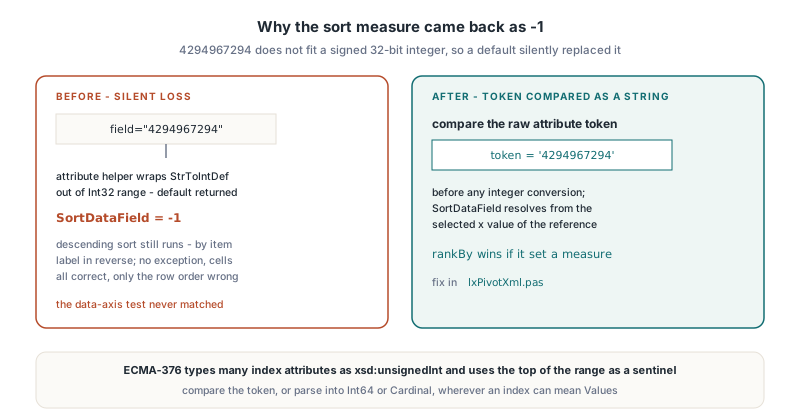
The general lesson applies to any OOXML reader written in Delphi. ECMA-376 types several index attributes as xsd:unsignedInt and then uses the top of the range as a sentinel, so a signed reader with a default fallback turns a reserved value into "attribute missing". Compare the token, or parse into Int64 or Cardinal, wherever a field index can mean Values
Sorting pivot items by a measure from Delphi code
To sort a HotXLS pivot field by value, set SortType to xlpfstAscending or xlpfstDescending and set SortDataField to the zero-based index of the measure in the table's DataFields list. With SortType = xlpfstManual, which is the default, SortDataField is ignored and items keep their cache or programmatic order
uses
  SysUtils, lxHandleX, lxPivot;

var
  Book: TXLSXWorkbook;
  Data, Report: TXLSXWorksheet;
  Pivot: TXLSPivotTable;
  Region: TXLSPivotField;
begin
  Book := TXLSXWorkbook.Create;
  try
    Data := Book.Sheets.Add('Data');
    Data.Cells[1, 1].Value := 'Region';
    Data.Cells[1, 2].Value := 'Product';
    Data.Cells[1, 3].Value := 'Units';
    // ... fill rows 2..41 ...
    Report := Book.Sheets.Add('Report');

    Pivot := Report.AddPivotTable('Data!A1:C41', 3, 1, 'UnitsByRegion');
    Region := Pivot.AddRowField('Region');
    Pivot.AddDataFieldByName('Units', xlpaSum);   // data field 0

    Region.SortType := xlpfstDescending;  // biggest region first
    Region.SortDataField := 0;            // sort by Sum of Units
    Region.AutoSortScope := '0';          // also emit Excel's own autoSortScope

    if Book.MaterializeNativePivotTable(Pivot) <> 1 then
      raise Exception.Create('Pivot layout was rejected');
    Book.SaveAs('units-by-region.xlsx');
  finally
    Book.Free;
  end;
end;
Two details deserve a note. The HotXLS writer emits SortDataField as rankBy, and when AutoSortScope is not empty it also writes an autoSortScope block with the 4294967294 data-axis reference, putting the property string into the x v slot. On load, AutoSortScope receives that same x v token, so for value sorts the property holds the data field ordinal as text. Setting it to '0' therefore produces a file that carries the measure in both places, which is the closest match to what Excel itself writes. MaterializeNativePivotTable then stages the sorted grid and its layout metadata together and returns 1 on success or -1 with a diagnostic
Item rows aren't the only thing that gets sorted. Column fields go through the same comparator, using per-column totals instead of per-row totals, so a column field with SortType = xlpfstDescending and a valid SortDataField orders its columns by value in exactly the same way
Inspecting the sort an Excel workbook already carries
For Excel-authored files, HotXLS fills SortType, SortDataField and AutoSortScope while loading the pivot definition, so you can audit or change a report's sort without rebuilding the table. The snippet below lists every field that sorts by a measure and names the measure by its DisplayName
var
  Book: TXLSXWorkbook;
  Pivot: TXLSPivotTable;
  Field: TXLSPivotField;
  I: Integer;
begin
  Book := TXLSXWorkbook.Create;
  try
    Book.Open('sales-report.xlsx');
    Pivot := Book.Sheets.SheetByName('Report').PivotTables[0];
    for I := 0 to Pivot.FieldCount - 1 do
    begin
      Field := Pivot.Fields[I];
      if (Field.SortType <> xlpfstManual) and (Field.SortDataField >= 0) then
        Writeln(Field.Name, ' sorted by ',
          Pivot.DataFields[Field.SortDataField].DisplayName);
    end;

    // flip the Region sort to ascending and rebuild the existing grid
    Field := Pivot.FindFieldByName('Region');
    if Field <> nil then
      Field.SortType := xlpfstAscending;
    if Book.MaterializeNativePivotTable(Pivot, True) <> 1 then
      raise Exception.Create('Could not re-materialize the pivot');
    Book.SaveAs('sales-report-asc.xlsx');
  finally
    Book.Free;
  end;
end;
The second argument of MaterializeNativePivotTable tells HotXLS to adopt the pivot's existing output range instead of treating it as a collision. The same pattern appears in the guide to Show Values As rank and running totals in HotXLS, where sort order matters because running totals accumulate in display order
How does HotXLS break ties when two items have the same value?
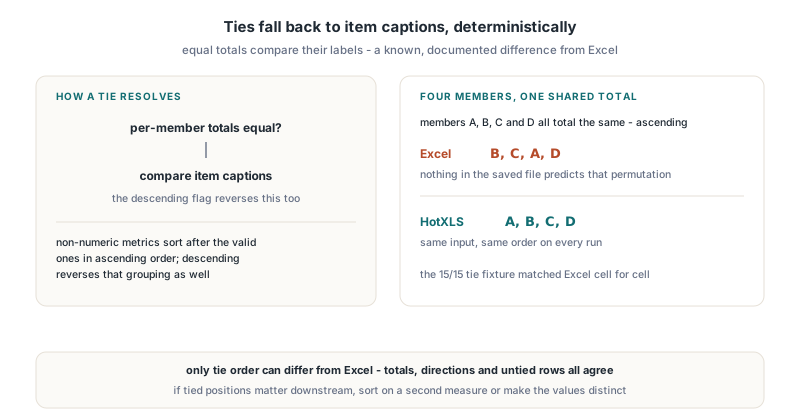
HotXLS breaks ties by item label, deterministically, which is a known difference from Excel. When two members have identical totals, the comparator falls back to comparing their captions, and the descending flag reverses that comparison too. Items whose metric is not a valid number sort after the valid ones in ascending order, and the descending flag reverses the whole comparison, that grouping included
Excel does not promise any tie order at all. In a test fixture where four members, A, B, C and D, all had the same total, an ascending sort in Excel produced B, C, A, D. Nothing in the saved metadata predicts that permutation; it is a byproduct of an unstable sort, and it can differ between files. HotXLS returns A, B, C, D for the same input. Our verification for that case checks the member set and the per-member values rather than the sequence, and the descending fixture with a 15/15 tie matched Excel cell for cell. If your downstream code depends on the exact position of tied rows, sort on a second measure or make the values distinct
Collapsed members and the innermost field
Collapsed members materialize in HotXLS as one aggregate row per collapsed item. When Excel hides an item's details, it writes sd="0" on that <item>; HotXLS exposes it as TXLSPivotItem.IsDetailHidden. The collapsed item renders with its plain label, replaces its whole subtree, and the collapse applies to that item under every parent, while enclosing blocks keep their own subtotals
var
  Category: TXLSPivotField;
begin
  // Pivot has Category (outer) and Product (inner) on rows
  Category := Pivot.FindFieldByName('Category');
  if (Category <> nil) and (Category.ItemCount > 0) then
    Category.Items[0].IsDetailHidden := True;   // collapse the first category
  if Book.MaterializeNativePivotTable(Pivot, True) <> 1 then
    raise Exception.Create('Collapse was rejected');
end;
Collapsing interacts with sorting in a predictable way: a collapsed row is still a member of its field, so it takes its position from its total like any other item. The innermost field is different. It has no inner level, so it has nothing to collapse and, since an earlier fix, HotXLS never renders a subtotal row for it either, even when its defaultSubtotal flag is set. Excel behaves the same on single-field and multilevel axes, and before that change HotXLS could emit a phantom Total row under the innermost field. For the field-level attributes involved here, the HotXLS walkthrough of CT_PivotField schema validity covers what the schema requires on <pivotField> and its items
Pitfalls when checking against Excel automation
When you cross-check a HotXLS sort against Excel through COM automation, call AutoSort with the measure's localized caption, spelled exactly as Excel shows it. On a Chinese-language Excel the default caption for a summed Units field is '求和项:Units'; passing 'Sum of Units' on that machine raises no error and changes nothing. The same script that works on an English Excel silently becomes a no-op elsewhere, so read the caption from the data field instead of hard-coding it
PivotField.SortTypecould not be read back through COM in the Excel build we tested, so verify the sort from the saved XML or the rendered cells instead- In that build, putting a manual-group parent field on the same axis outside the sorted field suppressed member sorting by value; sorted rendering beneath manual-group parents is not verified
- Writes to
PivotField.OutlineandPivotField.LayoutFormwere rejected in that build as well, so set an outline layout for a fixture throughPivotTable.RowAxisLayoutinstead
None of those quirks change the file format, but they decide whether a regression test proves anything. A test that calls AutoSort with the wrong caption passes against a pivot that was never sorted
FAQ
What does field 4294967294 mean in a PivotTable XML file?
Field 4294967294 is the unsigned 32-bit encoding of field index -2, which ECMA-376 reserves for the Values pseudo-field. Inside autoSortScope it marks a data-axis reference, and its x child selects which data field the items are sorted by
Does HotXLS sort pivot items by value without Excel installed?
Yes. HotXLS evaluates the sort itself when it materializes the pivot grid, using the per-member totals of the chosen data field, and writes sortType, rankBy and optionally autoSortScope so Excel keeps the same order after a refresh. Only tie order among equal values can differ from Excel
Why are my pivot items sorted alphabetically instead of by value?
Usually because the field has a sort direction but no measure. Check that SortType is not xlpfstManual and that SortDataField is between 0 and DataFieldCount - 1; with -1, HotXLS orders items by label in the requested direction
Value sorting, collapsed members and the rest of the native pivot pipeline ship in HotXLS, the Delphi spreadsheet component for XLS and XLSX, which reads, edits and writes Excel workbooks without Excel installed. If you are building the pivot from scratch first, the HotXLS tutorial on building and refreshing pivot tables covers caches, fields and refresh before you get to ordering them