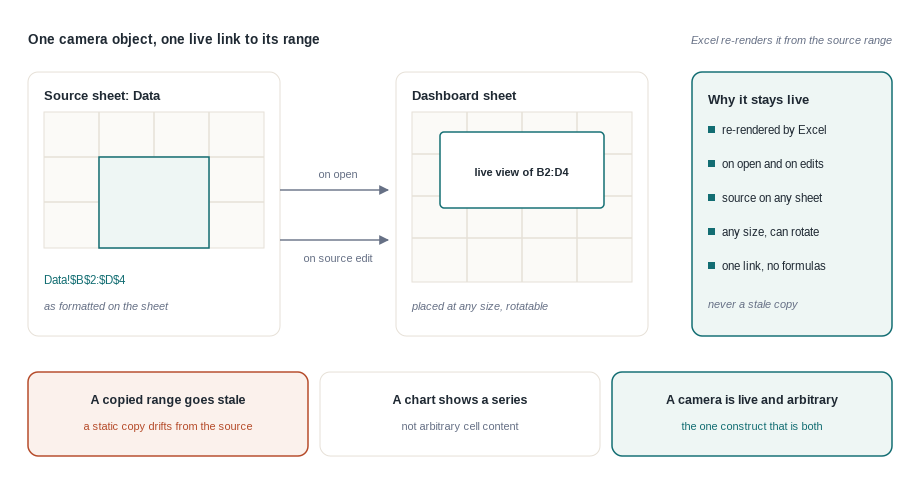
In a workbook built with Excel's Camera tool, a number edited on the Data sheet shows up a moment later in a picture on the Dashboard sheet, borders, merged headers and conditional colors included. Inside the package, that picture points at an ordinary image part, just as a logo would. Yet an empty metafile in that image part changes nothing on screen: Excel still paints the full, current table, because the picture is redrawn from the linked cell range every time the workbook opens and every time the source changes
That behavior is what makes a camera picture worth generating from code. A pasted copy of a range goes stale the moment someone edits the source, a chart cannot show arbitrary formatted cells, and a linked picture made by hand in Excel cannot be produced by a nightly report job. The camera object is the one construct that is both live and free-form, and it is hidden well enough that most Excel users have never seen the button, since it is not on the ribbon by default
Where the camera link lives in an XLSX file
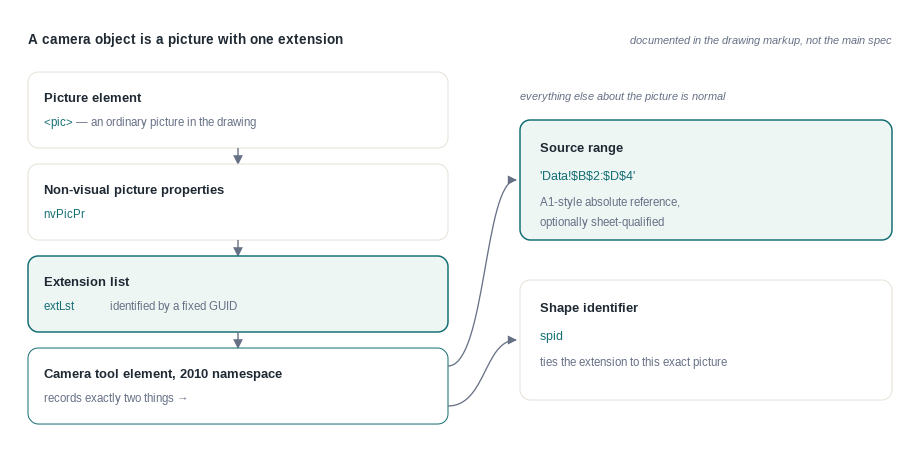
The camera link is not in the main spreadsheet schema of ECMA-376 at all. It is documented in Microsoft's drawing extensions specification, [MS-ODRAWXML], under the Camera Tool heading, and knowing that saves an afternoon of searching SpreadsheetML for an element that is not there
Structurally, a camera is a normal xdr:pic element inside a drawing anchor. Its non-visual picture properties (xdr:cNvPicPr) carry an extension list, and the extension identified by the URI 84589F7E-364E-4c9e-8A38-B11213B215E9 holds a single a14:cameraTool element from the Office 2010 drawing namespace. That element has two attributes: cellRange, the source range as an A1-style absolute reference that may be sheet-qualified, and spid, a shape identifier. Blip, anchor, size, rotation and effects are exactly what any other picture would have
One detail matters when reading files from other producers. The a14 prefix is only a namespace alias; Excel happens to use it, but a tool that declares the same namespace under another prefix writes an equally valid file. HotXLS matches the element by its local name cameraTool when it loads a drawing, so the prefix a producer chose never decides whether a camera is recognized
Creating a camera object with AddCamera
TXLSXWorksheet.AddCamera places a camera picture on a worksheet and returns the new TXLSXImage. It has two overloads. The text form takes the source reference exactly as it will be stored, which is the one to use for a cross-sheet source such as a table on a Data sheet. The coordinate form takes four 1-based source coordinates on the same sheet, swaps the corners if you pass them reversed, raises an exception for a row or column below 1, and builds the absolute reference ($B$2:$D$4) for you
uses
  lxHandleX;

var
  Book: TXLSXWorkbook;
  Dashboard: TXLSXWorksheet;
  Cam: TXLSXImage;
begin
  Book := TXLSXWorkbook.Create;
  try
    if Book.Open('reporting.xlsx') <> 1 then
      Exit;
    // Sheets[] is 1-based; looking the sheet up by name avoids the question
    Dashboard := Book.Sheets.SheetByName('Dashboard');
    if Dashboard = nil then
      Exit;

    // Live view of Data!$B$2:$D$4, top-left corner in B10 (row 10, column 2)
    Cam := Dashboard.AddCamera('Data!$B$2:$D$4', 10, 2, 20, 6);
    Cam.Name := 'Revenue snapshot';
    Cam.AltText := 'Live copy of the revenue table on the Data sheet';

    // The starting box is 4 columns x 64 px by 10 rows x 20 px;
    // give the picture its real size instead
    Cam.WidthCM := 12.5;
    Cam.HeightCM := 6.0;

    Book.SaveAs('reporting-dashboard.xlsx');
  finally
    Book.Free;
  end;
end;
The four placement arguments catch people out. The picture's top-left corner goes into the cell at AFromRow, AFromCol, but the size is computed from the differences: AToCol - AFromCol columns at Excel's stock 64 pixels and AToRow - AFromRow rows at 20 pixels. Passing 10, 2, 20, 6 therefore gives a box 256 by 200 pixels, which covers B through E and rows 10 to 19, and ends at the edge of F20 instead of including it. Columns that are not at the default width make that box even less exact, which is why the example sets WidthCM and HeightCM straight away. WidthInch, WidthPt and the raw WidthEMU are there as well, along with Rotation in degrees
Why is the embedded image blank?
Every picture in an XLSX package needs an image part, and a camera is no exception. Excel ignores that part when it opens the file: it re-renders the linked range and paints the result. The embedded bytes are only a display cache for software that does not implement camera objects
So AddCamera does not rasterize anything. It writes a minimal Enhanced Metafile (EMF) as the image part, a header record and an end-of-file record, 108 bytes in total, sized to the starting placement box. The package is structurally complete, no rendering engine is involved, and there is no cached image that could disagree with what Excel shows. We prefer this to a rendered snapshot: a cache that Excel throws away on every open is not worth a rendering pass per picture, and a stale cache is harder to notice than an empty one
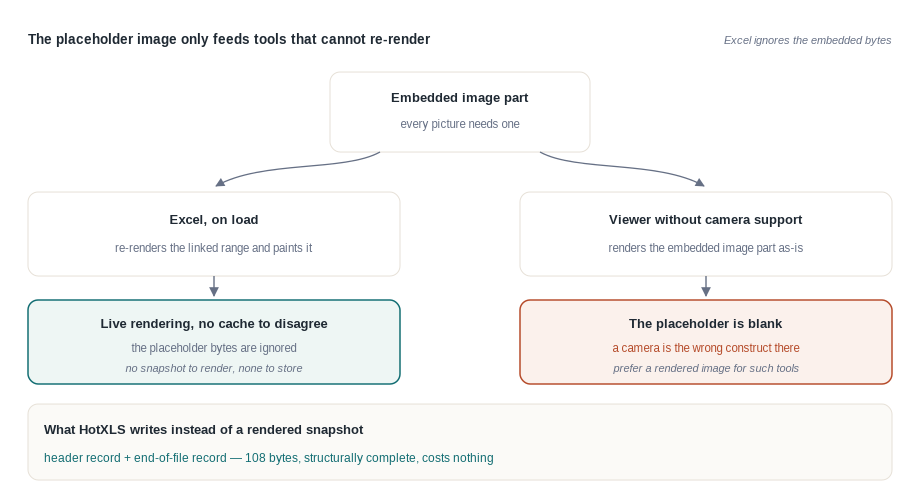
The cost is visible in exactly one place. A viewer that renders XLSX but does not implement camera objects paints the placeholder, and the placeholder is blank. If you can produce your own preview of the block, assign it to Cam.Data with Cam.Format := xlsxImagePng; the cameraTool element is written from CameraRange whatever the image bytes are, so Excel keeps re-rendering the live range while a viewer without camera support has your preview to paint. If the main audience is not Excel at all, skip the camera and embed a rendered image of the range
The unit trap in a metafile header
Anyone who builds their own metafile cache runs into a units mismatch. Drawing geometry in Open XML is measured in English Metric Units: 914,400 EMU to the inch, 360,000 to the centimeter. An EMF header records its frame in hundredths of a millimeter, and one hundredth of a millimeter is 360 EMU, so the conversion is a single division by 360
The tempting route goes through pixels: divide EMU by 9,525 to get pixels at 96 DPI, then multiply by 2,540. That produces a frame exactly 96 times too large, and nothing rejects it. The package is valid, the anchor still places the picture correctly, and only the declared frame of the metafile is wrong. The EMU model and its rounding behavior are covered in image geometry, EMU units and scaling
The range string is stored as written
The text overload of AddCamera rejects an empty or whitespace-only string and otherwise stores ASourceRange verbatim as the cellRange attribute. It does not parse the reference, so a typo in a sheet name reaches the file unchanged. Excel itself writes absolute references, and that is the form to pass: 'Data!$B$2:$D$4', with the dollar signs. A sheet name containing spaces takes the same single quotes a formula would need, as in '''Q3 Data''!$A$1:$E$12' in Delphi source. A reference without a sheet name points at the sheet that holds the picture, and that is what the coordinate overload produces
The CameraRange property on TXLSXImage carries the same string and is writable. Assigning a new reference repoints an existing camera; assigning an empty string turns it back into an ordinary picture. For a camera that AddCamera created, that ordinary picture is the 108-byte blank metafile, which is rarely what anyone wanted
Keeping cameras intact through open, edit and save
Opening and saving a workbook keeps its camera objects, including the extension element and its range reference. For most projects this matters more than creating cameras. The typical workbook with camera pictures was built in Excel by an analyst, and a program that opens it to refresh the data must not hand back a dashboard of frozen pictures. CameraRange is non-empty exactly when a picture is a camera, so the same property tells you which pictures in a workbook you did not create are live
// List every camera in the workbook and the range it shows
for S := 1 to Book.Sheets.Count do
begin
  Sheet := Book.Sheets[S];
  for I := 0 to Sheet.Images.Count - 1 do
    if Sheet.Images[I].CameraRange <> '' then
      Writeln(Format('%s, picture %d -> %s',
        [Sheet.Name, I, Sheet.Images[I].CameraRange]));
end;
Run that before and after a save-and-reopen cycle and compare the two lists. The same cameras must point at the same ranges; when a generated dashboard is part of a build, that comparison is the regression test. General picture and drawing handling, including the anchor model that positions them, is covered in charts, images and drawings
The camera link is a feature of the XLSX drawing format. When the same workbook might also be saved as XLSB, ask for a conversion report first. GetConversionReport lists a sheet whose pictures include a camera under the Pictures feature with xlsConversionUnsupported fidelity, before any file is written
uses
  lxHandleX, lxDiagnostics;

var
  Report: TXLSConversionReport;
  I: Integer;
begin
  Report := Book.GetConversionReport(xlsConversionExcelBinaryWorkbook);
  try
    for I := 0 to Report.Count - 1 do
      if Report[I].Fidelity = xlsConversionUnsupported then
        Writeln(Format('%s on sheet %s: %s',
          [Report[I].Feature, Report[I].SheetName, Report[I].Message]));
  finally
    Report.Free;  // the caller owns the report
  end;
end;
A dashboard built around camera pictures belongs in .xlsx. An XLSB save runs the same conversion check before it writes anything, and a single unsupported entry makes it refuse the save, so no binary copy is produced at all. Reading the report first lets a batch job pick the format while there is still time, instead of finding out from a refused XLSB save at the end of the batch
When a camera beats the alternatives
Use a camera when the same live table has to appear on several sheets at different sizes, when a print layout needs a region of one sheet composed next to regions of others, or when a summary block should follow edits made elsewhere without a formula wired to every cell. Three cameras pointing at one source table are three anchors and one string each. Rebuilding that table with formulas means a formula per cell plus a copy of all its formatting
For a handful of cells, plain cross-sheet formulas are simpler and every spreadsheet tool understands them. A chart is the right choice when the data really is a series and not a formatted block. A rendered image wins when the workbook will be read by tools other than Excel, or when the snapshot must not change after delivery. An archived month-end report should not be live, and a camera in it will happily show whatever the source cells say next quarter
One layout point decides how good the result looks. A camera shows its source range exactly as formatted: merged cells, conditional formats, column widths. A clean dashboard block therefore starts with formatting the source range as if it were the finished output, the same discipline described in merged cells and report template layout
Camera pictures, the rest of the drawing layer and the XLSX package writer underneath them are part of one native library for Delphi and C++Builder. Licensing and the full feature list are on the HotXLS Delphi spreadsheet component page