You drop a 600×400 pixel logo into the header of a generated invoice, it looks right on your 96-DPI development monitor, and a week later a customer on a high-DPI laptop reports it printing the size of a postage stamp. The pixels never changed. What changed is the assumption that a pixel count means a physical size, and in OOXML it does not. A spreadsheet image carries its dimensions in EMU, and until you reason in EMU—or in the real-world units that map cleanly onto it—your layout is at the mercy of whatever DPI the rendering machine happens to assume
HotXLS is a native VCL spreadsheet component for Delphi and C++Builder that reads and writes XLS and XLSX without Excel or any COM dependency. As of v2.91.0 the XLSX image object stops making you do the unit arithmetic by hand: alongside the raw EMU it exposes width and height in centimeters, inches, and points, plus a Scale method that resizes by a percentage with optional aspect-ratio locking. This article is about what EMU actually is, why DrawingML chose it, and how to use the new geometry surface to place pictures by physical size instead of by a pixel count you cannot trust
What an EMU is and why DrawingML uses one
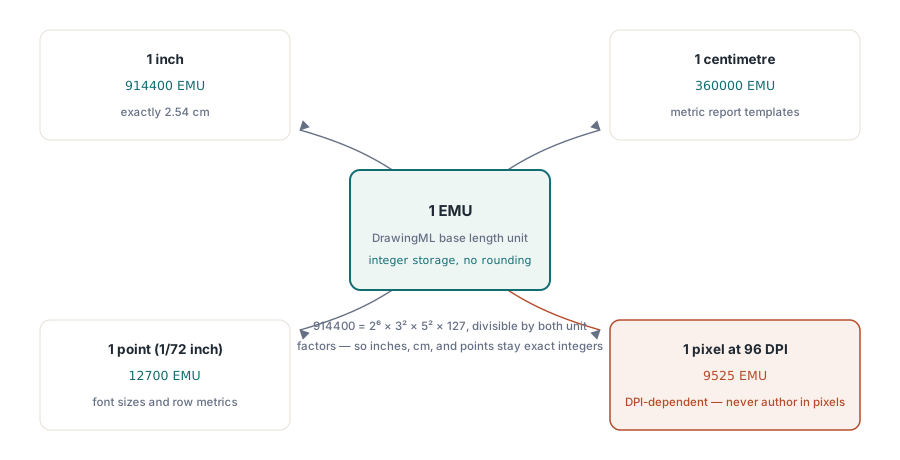
EMU stands for English Metric Unit, and it is the base length unit of DrawingML, the drawing layer shared across the whole Office Open XML family (ECMA-376, Part 1, §20). One EMU is defined so that there are exactly 914400 EMU per inch and 360000 EMU per centimeter. Those two constants are the entire reason the unit exists. 914400 is divisible by 2, 3, 4, 5, 6, 8, 9, 10, 12, and many more; it factors as 26 × 32 × 52 × 127. Because 1 inch = 2.54 cm exactly, picking a unit divisible by both 360000 and a clean fraction of 914400 lets the format express inches, centimeters, and points as integers with no rounding at the unit boundary. Where a floating-point "1.27 cm" would drift, EMU stores 457200 and stays exact
The other unit that matters here is the point. A typographic point is 1/72 inch, so there are 12700 EMU per point (914400 / 72). Points are how Excel itself thinks about row heights, font sizes, and margins under the hood, which is why exposing image geometry in points is useful when you want a picture to line up with text metrics rather than with a printed ruler. HotXLS encodes all four relationships as unit constants in the library:
const
  XlsxEmuPerInch  = 914400;  // 1 inch
  XlsxEmuPerCm    = 360000;  // 1 centimetre
  XlsxEmuPerPoint = 12700;   // 1 point (1/72 inch)
  XlsxEmuPerPixel = 9525;    // 1 pixel at 96 DPI (914400 / 96)
That last line is the crux of the postage-stamp bug. A pixel only has a physical size once you fix a DPI, and 9525 EMU is the size of a pixel at 96 DPI specifically. Excel's default rendering DPI is 96, so a 100-pixel image lands at 100 × 9525 = 952500 EMU ≈ 2.54 cm on a default setup—but nothing in the file guarantees the consumer uses 96. Author in real units and that ambiguity disappears: 4 cm is 4 cm whether the screen is 96 or 220 DPI
The TXLSXImage geometry surface
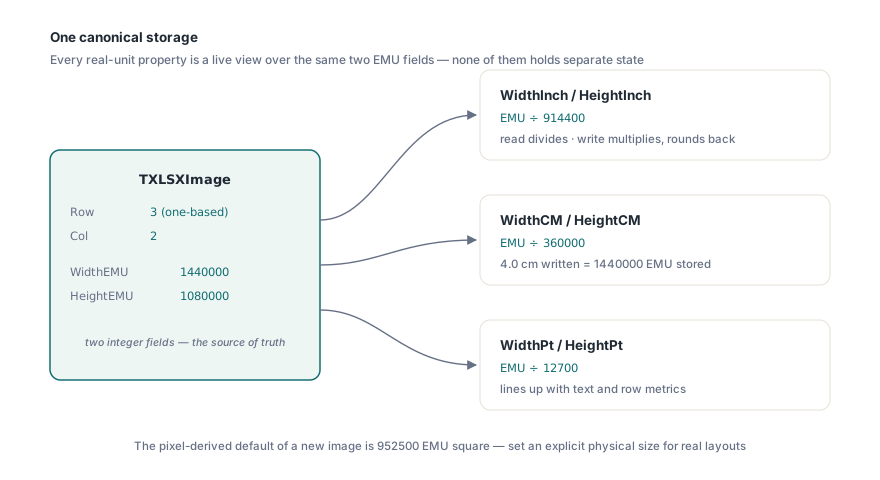
An embedded picture in HotXLS is a TXLSXImage. Its canonical storage is two integer fields, WidthEMU and HeightEMU, anchored at a one-based Row and Col (the top-left cell the image hangs from). The real-unit properties are computed views over those EMU fields, not separate state—reading WidthCM divides the EMU by 360000, and writing it multiplies and rounds back. So every dimension you set is just a different spelling of the same underlying EMU value:
WidthInch/HeightInch— EMU ÷ 914400WidthCM/HeightCM— EMU ÷ 360000WidthPt/HeightPt— EMU ÷ 12700WidthEMU/HeightEMU— the integer source of truth
You add an image with AddImage(ARow, ACol, AData, AFormat), passing the raw encoded bytes and a TXLSXImageFormat (xlsxImagePng, xlsxImageJpeg, xlsxImageGif, or xlsxImageBmp); it returns the zero-based index into the worksheet's Images collection. There is also AddImageFromFile(ARow, ACol, AFileName), which infers the format from the file extension. Note the index base: AddImage returns zero-based and Images[] is zero-based, which is a deliberate contrast with the one-based Cells[Row, Col] grid, so do not assume the two agree
var
  Sheet: TXLSXWorksheet;
  Img: TXLSXImage;
  Idx: Integer;
begin
  Sheet := Workbook.Sheets.Add('Images');

  // Anchor a PNG at row 3, column 2; AddImage returns a 0-based index.
  Idx := Sheet.AddImage(3, 2, LogoBytes, xlsxImagePng);

  Img := Sheet.Images[Idx];
  Img.WidthCM := 4.0;    // 4 cm wide  -> 1440000 EMU
  Img.HeightCM := 3.0;   // 3 cm tall  -> 1080000 EMU

  // Same geometry, read back in other units.
  // Img.WidthPt  is now 113.39 pt, Img.WidthInch is 1.5748 in.
end;
A freshly created image defaults to 100×100 pixels, i.e. 952500 EMU square, roughly a 2.54 cm box at 96 DPI. That default exists so an image is visible even if you forget to size it, but for any real layout you should set an explicit physical size rather than rely on the pixel-derived default
Scaling, and the aspect-ratio flag
When you want to resize relative to the current dimensions instead of to an absolute target—say, shrink a chart image to 60% of whatever it imported at—use Scale:
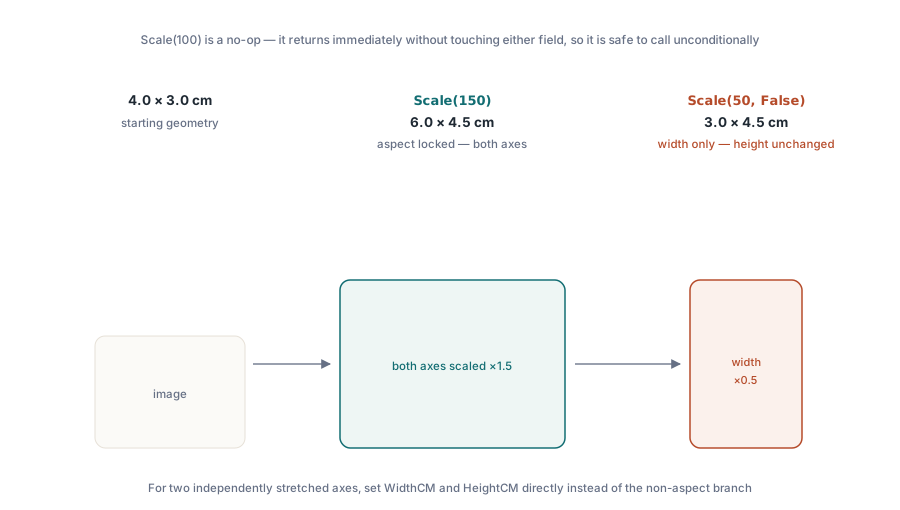
procedure Scale(APercent: Double; AKeepAspect: Boolean = True);APercent is a percentage where 100 means unchanged, 150 enlarges by half, 50 halves. With AKeepAspect at its default True, both width and height multiply by the same factor, so the proportions hold and a 4×3 cm image becomes 6×4.5 cm after Scale(150). Pass False and only the width scales—the height is left exactly as it was. That asymmetry is intentional: when you want to stretch one axis independently, the right tool is the explicit WidthCM/HeightCM setters, and the non-aspect branch of Scale is there for the narrower case of adjusting width alone. It is easy to read Scale(150, False) as "stretch both freely" and get a surprise, so reach for the setters when you genuinely mean two independent dimensions
Img.WidthCM := 4.0;
Img.HeightCM := 3.0;

Img.Scale(150);          // aspect locked: now 6.0 x 4.5 cm
Img.Scale(100);          // no-op, returns immediately

Img.Scale(50, False);    // width only: 3.0 cm wide, height unchanged at 4.5 cm
One small behavior to know: Scale(100) short-circuits and returns without touching either field, so it is safe to call unconditionally in a loop where the percentage might be 100. And because the geometry is stored as integer EMU, every setter rounds. Round-tripping through fractional centimeters can therefore drift by a fraction of an EMU—far below anything visible, but worth knowing if you ever assert exact equality in a test. For pixel-perfect control, set WidthEMU and HeightEMU directly and skip the unit conversion entirely
Reading geometry back out
The image collection is queryable, which matters when you load an existing workbook and need to inspect or adjust what is already there rather than what you just added. Images.Count enumerates every picture on the sheet, Images[i] indexes them zero-based, and FindAt(ARow, ACol) returns the image anchored at a specific cell—or nil if none is. There is also IndexOfCell for the index rather than the object, and DeleteAt / DeleteInRange for removal
var
  i: Integer;
  Img: TXLSXImage;
begin
  for i := 0 to Sheet.Images.Count - 1 do
  begin
    Img := Sheet.Images[i];
    Writeln(Format('[%d] R%dC%d  %.2f x %.2f cm  (%d x %d EMU)',
      [i, Img.Row, Img.Col, Img.WidthCM, Img.HeightCM,
       Img.WidthEMU, Img.HeightEMU]));
  end;

  Img := Sheet.Images.FindAt(3, 2);   // nil-check before use
  if Img <> nil then
    Img.Scale(80);
end;
Because the real-unit properties are live views, a picture imported at some EMU size from another tool reports its geometry in centimeters immediately—no conversion step on your part. This pairs naturally with the broader drawing model; if you are placing charts and shapes as well as raster images, the companion guide on HotXLS charts, images, and Excel drawings in Delphi covers the anchor model those objects share
Metric page-setup margins
The same EMU-versus-real-units tension shows up one level out, at the page. OOXML and Excel store print margins in inches, which is awkward if your report templates are specified in millimeters like most of the world outside the US. v2.91.0 adds centimeter wrappers over the inch margins: MarginLeftCM, MarginRightCM, MarginTopCM, MarginBottomCM, MarginHeaderCM, and MarginFooterCM. Each is a thin convenience over the corresponding inch property, converting at the exact 1 inch = 2.54 cm ratio
Sheet.MarginLeftCM := 2.0;     // 2 cm  == 0.7874 inch
Sheet.MarginRightCM := 2.0;
Sheet.MarginTopCM := 2.5;
Sheet.MarginBottomCM := 2.5;
Sheet.MarginHeaderCM := 1.0;
Sheet.MarginFooterCM := 1.0;
The inch properties (MarginLeft and friends) remain the canonical storage, so you can mix the two—set a top margin in centimeters and read it back in inches, or vice versa—and the file written to disk is identical either way. The conversion is a plain multiply by 2.54, no rounding to a coarse grid, so 2 cm stays 2 cm to full double precision. This is the same metric-convenience philosophy as the image geometry: the format speaks imperial under the hood, and the library lets you author in whichever unit your specification is written in. For laying out the surrounding report—titles, metadata blocks, totals—see merged cells and report template layout in HotXLS, which uses these margins together with merged ranges and a print area
A note on what the geometry does and does not guarantee
The geometry properties control the declared size of the image in the file—the size a conforming consumer will render it at. They do not resample the image bytes; a 50×50 pixel PNG sized to 8 cm will scale up and look blocky, exactly as it would in Excel. Sizing is a layout operation, not an image-processing one, so feed the picture enough source resolution for the physical size you intend. The library also does not re-encode formats: the bytes you pass to AddImage are stored and written through as-is, with the TXLSXImageFormat you declare. Pass JPEG bytes but tag them xlsxImagePng and you will produce a file Excel cannot open, so let AddImageFromFile infer the format from the extension when you can
None of this is exotic once you internalize the one idea underneath it: in OOXML, physical size is the real quantity and pixels are a derived, DPI-dependent shadow of it. Author images and margins in centimeters, inches, or points, let HotXLS map them onto exact EMU, and your invoices and reports print the same size on every machine that opens them
The image geometry, scaling, and metric-margin APIs described here ship with the HotXLS Delphi spreadsheet component, which reads and writes XLS and XLSX from Delphi and C++Builder with no Excel install required