An annotation is not page content. When you call TextOut or draw a rectangle, the marks become part of the page's content stream, baked into the bytes a renderer paints. An annotation is a separate dictionary that hangs off the page through its /Annots array, with its own rectangle, its own appearance, and its own life cycle. A reader can open it, move it, hide it, or strip it without touching a single glyph of the underlying page. That separation is the whole reason annotations exist, and it is also the source of the two things that surprise people first: where an annotation lands, and what it looks like once a particular viewer gets hold of it
HotPDF exposes the ISO 32000 annotation subtypes through a family of AddXxxAnnotation calls on the page object. They all share the same shape: a rectangle that fixes the annotation on the page in PDF user space, some payload (text, a stamp name, a pair of points), and a color. Get the rectangle right and most of the work is done. The rest is knowing which subtypes carry their own appearance and which lean on the viewer to draw them
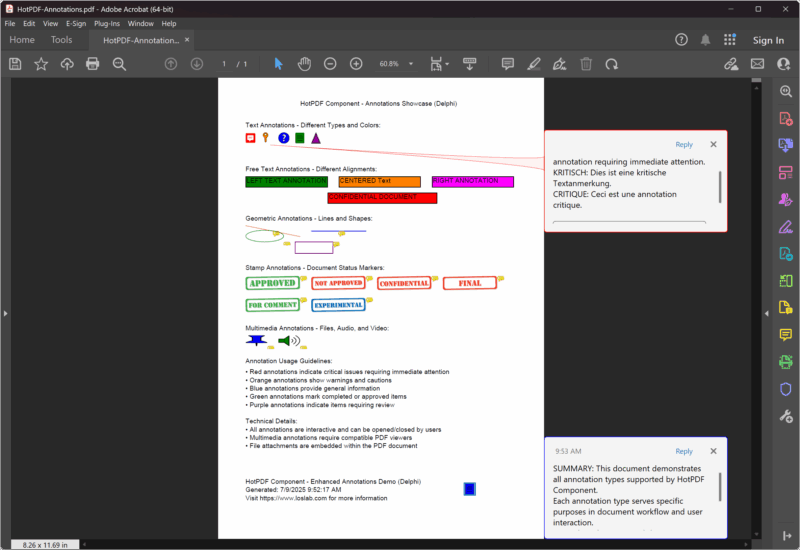
The rectangle is the annotation, not the text
Every annotation call takes a TRect, and that rectangle means something different from the coordinates you pass to TextOut. For a text note it is the clickable hotspot, the small region where the note icon sits and where a click pops the comment open. For a square or free text box it is the visible extent of the markup. For a stamp it is the box the stamp art is scaled into. The numbers are PDF user-space points, measured from the bottom-left corner of the page with Y increasing upward, the same convention the rest of HotPDF uses
A text note is the lightest subtype. You give it the body text, a rectangle for the icon, a flag for whether it opens by default, an icon name, and a color
Pdf.CurrentPage.AddTextAnnotation(
  'Reviewer: confirm the totals on this line before sign-off.',
  Rect(120, 700, 140, 720),   // icon hotspot, ~20pt square
  False,                      // closed until the reader clicks it
  taComment,                  // bubble icon
  clBlue);
The rectangle here is deliberately small, around twenty points on a side, because a text note is only an icon until someone clicks it. Make the rectangle large and you do not get a large note; you get an oversized click target with the icon pinned to one corner. The Open flag controls whether the popup is showing when the document loads. Set a handful of notes True and they stack on top of each other and on top of the content, so reserve that for the one note you actually want the reader to see immediately
The icon name comes from THPDFTextAnnotationType, which maps to the standard note icons: taComment, taKey, taNote, taHelp, taParagraph, taNewParagraph, and taInsert. The icon is the only thing the type changes. It does not alter the behavior, and it is worth knowing that not every viewer draws all seven; the safe ones across old and new readers are taComment, taNote, and taHelp
Free text writes onto the page, but stays an annotation
A free text annotation looks like content because the text is visible without a click, sitting in its rectangle like a caption. It is still an annotation, with all the separability that implies, which is exactly what you want for a review stamp or a draft label that someone should be able to remove later. The signature swaps the icon and open flag for a justification value
Pdf.CurrentPage.AddFreeTextAnnotation(
  'DRAFT - not for distribution',
  Rect(200, 210, 400, 235),   // the box the text is laid into
  ftCenter,                   // ftLeftJust / ftCenter / ftRightJust
  clRed);
Here the rectangle matters more than it does for a text note, because the text wraps and aligns inside it. Size the box too short and the text clips at the bottom edge; too narrow and it wraps in places you did not intend. The justification comes from THPDFFreeTextAnnotationJust and only has the three values. Because free text is a markup annotation, a reader who opens the file in an editor can select it, move it, or delete it as a unit, which is the difference that decides whether you reach for free text or just draw the words with TextOut. If the label has to be permanent, draw it. If it is editorial and meant to come off, make it an annotation
Geometric and line markups for pointing at things
Squares, circles, and lines are the markup you use to point at a region rather than describe it in words. AddCircleSquareAnnotation covers the two box shapes through a THPDFCSAnnotationType of csCircle or csSquare, with the rectangle giving the bounds of the shape
// A box drawn around a figure that needs attention
Pdf.CurrentPage.AddCircleSquareAnnotation(
  'Check this region against the source data',
  Rect(50, 300, 120, 360),
  csSquare,
  clGreen);

// A line, given two points rather than a rectangle
var
  StartPt, EndPt: THPDFCurrPoint;
begin
  StartPt.X := 130; StartPt.Y := 360;
  EndPt.X   := 250; EndPt.Y   := 320;
  Pdf.CurrentPage.AddLineAnnotation(
    'Points from the note to the figure',
    StartPt, EndPt,
    clBlue);
end;
Notice that the line annotation breaks the rectangle pattern: it takes two THPDFCurrPoint records, a begin and an end, because a line is defined by its endpoints, not by a bounding box. The color sets the stroke. If you want arrowheads, HotPDF has overloads of AddLineAnnotation that accept line-ending styles, but the plain three-argument form draws a bare line, which is usually what a callout wants
Text-markup subtypes work on a region you have already laid out. AddHighlightAnnotation takes a rectangle, optional contents, and a color that defaults to yellow, and tints the area the way a highlighter pen would. It is meant to sit over real text, so the rectangle should match the bounds of the words you drew, which means you generally compute it from the same coordinates you passed to TextOut rather than guessing
Stamps depend on the viewer to render them
A stamp annotation is the one most likely to look different from one reader to the next, and the reason is worth understanding. AddStampAnnotation names a standard stamp through THPDFStampAnnotationType, with values like satApproved, satConfidential, satFinal, satDraft, and satForComment
Pdf.CurrentPage.AddStampAnnotation(
  'Approved for release on review',
  Rect(50, 400, 200, 440),
  satApproved,
  clGreen);
The stamp name is a request. PDF defines the set of standard stamp names but not the artwork behind them, so each viewer ships its own rendering of "APPROVED" or "CONFIDENTIAL," and a few render nothing at all for names they do not recognize. The rectangle controls the box the art scales into, and the color is a hint the viewer may or may not honor. If a stamp has to look identical everywhere, the dependable route is not a standard stamp at all: draw the mark yourself with TextOut and the drawing calls, or place it as a free text annotation whose appearance you control. Reach for the standard stamp when you want the viewer's familiar look and can tolerate the variation
File attachments follow the same rectangle-plus-payload shape. AddFileAttachmentAnnotation takes the description, the path of the file to embed, a rectangle for the paperclip icon, and a color. The file rides inside the PDF, and the icon is the handle a reader uses to extract it
How annotations differ from AcroForm fields
The confusion that costs the most time is treating an annotation as if it were a form field. Both attach to the page through /Annots, and a form field is in fact a special annotation subtype (a widget), which is why they look related. They are not interchangeable. A form field holds a value, has a name, participates in tab order, and can be submitted, reset, or scripted; you create those with the AddTextField, AddCheckBox, and AddPushButton calls, not the annotation calls on this page. A markup annotation holds a comment or a shape, has no value to submit, and is the wrong tool the moment you need to collect input
The practical test is simple. If a user is meant to type, choose, or click and have the document remember it, you want an AcroForm field. If you are leaving a note, marking a region, or stamping a status that travels with the file but is not data, you want an annotation. Mixing them up produces documents that look right and behave wrong: a "field" nobody can fill, or a comment that vanishes when a form is reset. The interactive side, with field types, validation, and submit actions, is its own subject covered in the AcroForm fields and actions walkthrough
Putting a page together
The pieces compose the way the rest of HotPDF does. Set document properties, call BeginDoc, draw whatever page content you need with the text and graphics calls, add annotations on top, and close with EndDoc. Annotations attach to CurrentPage, so after an AddPage they land on the new page, and a note you meant for page one will quietly appear on page two if you add it after the break
Pdf := THotPDF.Create(nil);
try
  Pdf.FileName := 'annotated.pdf';
  Pdf.Compression := cmFlateDecode;
  Pdf.FontEmbedding := True;
  Pdf.BeginDoc;

  Pdf.CurrentPage.SetFont('Arial', [], 11);
  Pdf.CurrentPage.TextOut(50, 740, 0, 'Quarterly figures, draft for review');

  Pdf.CurrentPage.AddTextAnnotation(
    'Confirm the totals before sign-off.',
    Rect(50, 720, 70, 740), False, taComment, clBlue);
  Pdf.CurrentPage.AddFreeTextAnnotation(
    'DRAFT', Rect(450, 720, 540, 745), ftCenter, clRed);
  Pdf.CurrentPage.AddStampAnnotation(
    'For comment', Rect(50, 660, 180, 695), satForComment, clGreen);

  Pdf.EndDoc;
finally
  Pdf.Free;
end;
One last reflex worth building when output looks wrong: open the file in more than one viewer before you decide the code is broken. Stamps and the rarer note icons are the usual culprits, and because the annotation is a request to the reader rather than painted pixels, a difference between Acrobat and a lightweight viewer is often the spec working as designed, not a bug in your call
The annotation calls shown here are part of the HotPDF Delphi Component for Delphi and C++Builder