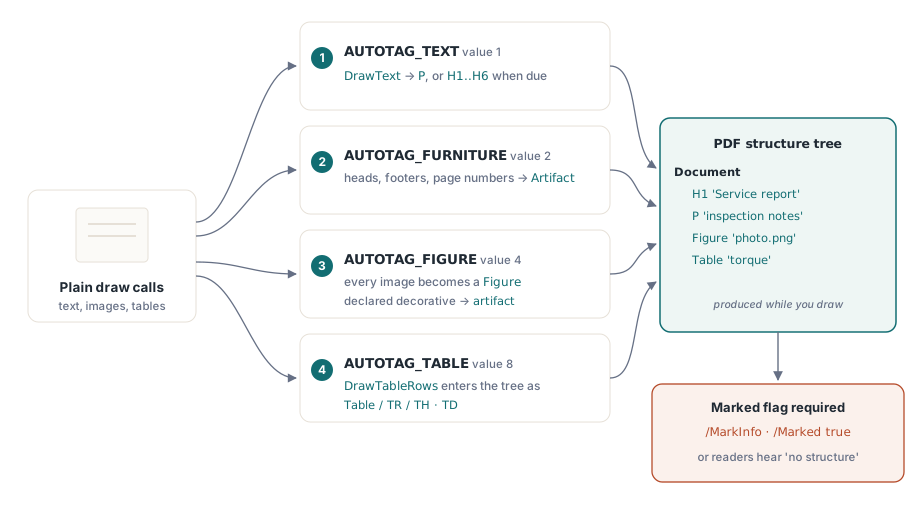
PDF Library for Delphi can tag a document while it is being drawn. Turn on SetAutoTagMode and ordinary DrawText calls become paragraphs, text drawn straight after RegisterHeading becomes a heading of that level, running headers and footers become artifacts a reader skips, images become figures, and DrawTableRows carries the table, its rows and its cells into the structure tree
The alternative — and until recently the only option — was wrapping every drawing call in BeginTag and EndTag by hand. That works, and for documents with unusual structure it is still the right tool. For the ordinary report, invoice or statement, it means the accessibility of the output depends on nobody ever forgetting a pair, across every code path that draws anything
What the mode bits cover
SetAutoTagMode takes a bit mask and returns the mode previously in force. AUTOTAG_TEXT (1) tags text as a paragraph, or as a heading when one is due. AUTOTAG_FURNITURE (2) marks running headers, footers and page numbers as artifacts. AUTOTAG_FIGURE (4) turns a drawn image into a figure, or into an artifact when it was declared decorative. AUTOTAG_TABLE (8) carries drawn tables into the structure tree. AUTOTAG_DEFAULT is 15, which is all four
Turning the mode on also marks the document as tagged, and that step is less cosmetic than it sounds. A reader takes a document to be untagged unless the catalog says otherwise (ISO 32000-1 §14.7.1), so a file carrying a complete structure tree with no /MarkInfo declaration is announced by assistive technology as having no structure at all. The tree is there; nothing reads it
var
  Lib: TPDFlib;
begin
  Lib := TPDFlib.Create;
  try
    Lib.SetOrigin(1);
    Lib.SetAutoTagMode(AUTOTAG_DEFAULT);   // text + furniture + figures + tables
    Lib.AddStandardFont(4);
    Lib.SetTextSize(18);
    Lib.RegisterHeading(1, 'Annual service report');
    Lib.DrawText(72, 96, 'Annual service report');   // becomes H1
    Lib.SetTextSize(11);
    Lib.DrawText(72, 130, 'Every unit installed before 2024 was inspected.');
    Lib.SaveToFile('report.pdf');
  finally
    Lib.Free;
  end;
end;
How does a heading know which text it belongs to?
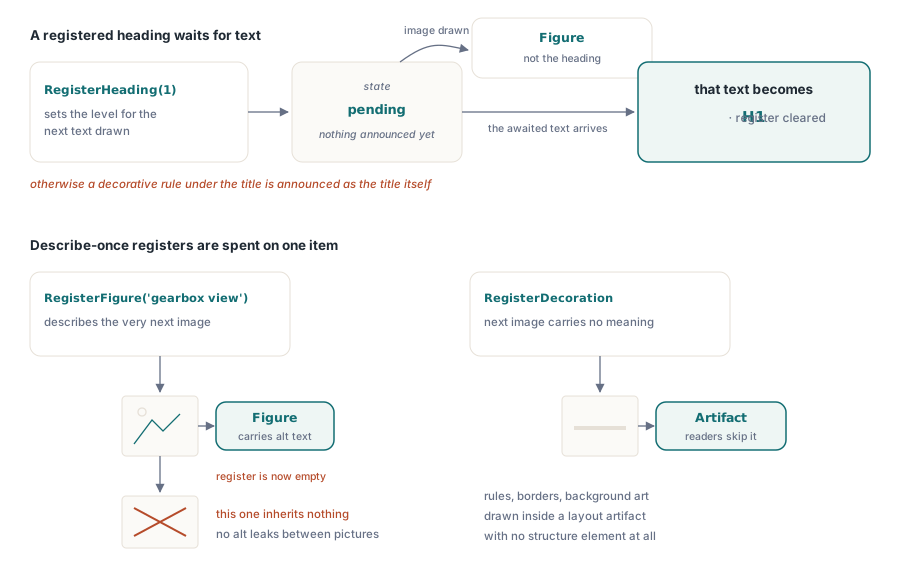
RegisterHeading names the level for the next text drawn, and it waits for text. If an image is drawn in between, the image becomes a figure and the heading stays pending for the text that follows. That behavior is deliberate: the alternative, where the image takes the heading level, produced documents where a decorative rule under a title was announced as the title
The same "spent on one item" rule governs figures. RegisterFigure supplies the description the next image carries, and RegisterDecoration declares the next image a rule, border or background that carries no meaning. Both are consumed by one image, so a later image never inherits a description meant for an earlier one — which is how alt text ends up attached to the wrong picture in hand-tagged code
The description matters more than any other single string in an accessible document. A non-sighted reader gets the description in place of the picture, and that is the whole of what they get. "Chart" is not a description; "Quarterly revenue by region, with the eastern region highest in Q3" is
Lib.RegisterFigure('Exploded view of the gearbox assembly');
Lib.AddImageFromFile('gearbox.png', 0);      // becomes a tagged Figure

Lib.RegisterDecoration;                       // meaningless rule
Lib.AddImageFromFile('divider.png', 0);       // drawn inside a layout artifact
Tables, headers and where the repetition decision lives
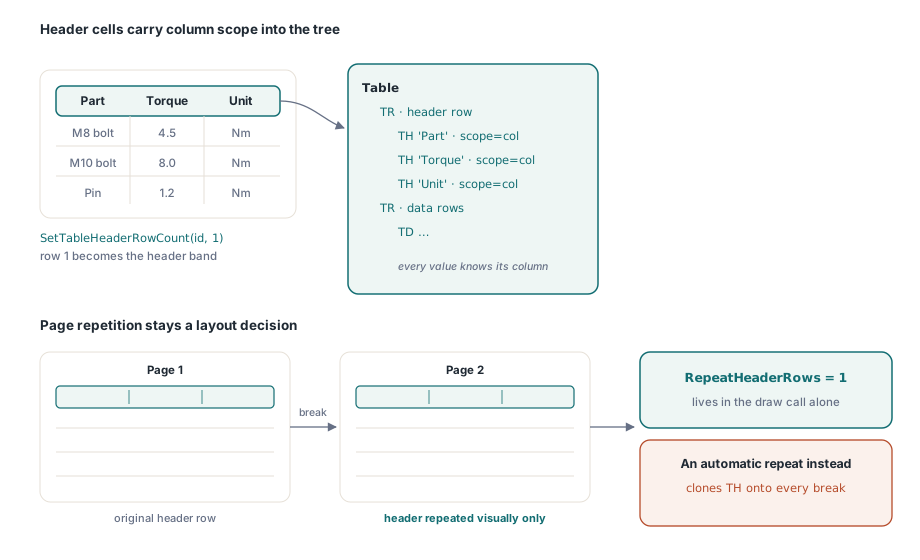
With the table bit on, DrawTableRows carries the table, its rows and its cells into the structure tree, so a reader can say which column a value sits in rather than reading the whole table out as a run of unrelated text. SetTableHeaderRowCount names how many leading rows are headers; those rows are written as header cells carrying a column scope, which is what lets a reader announce the heading of the value the user is on
Header rows named this way stay where they are. Repeating them at the top of each page is a layout decision, and it stays one: DrawTaggedTableRows takes a RepeatHeaderRows argument for exactly that purpose. Keeping the two separate avoids the structure tree acquiring a second copy of the header for every page break, which is what an automatic repeat would produce
var
  TableID: Integer;
begin
  TableID := Lib.CreateTable(40, 3);
  Lib.SetTableHeaderRowCount(TableID, 1);       // row 1 is the header band
  Lib.SetTableCellContent(TableID, 1, 1, 'Part');
  Lib.SetTableCellContent(TableID, 1, 2, 'Torque');
  Lib.SetTableCellContent(TableID, 1, 3, 'Unit');
  // ... fill the data rows ...
  // Draw rows 1..40 into a 600pt band, repeating one header row per page
  Lib.DrawTaggedTableRows(TableID, 72, 150, 600, 1, 40, 1);
end;
Mixing automatic and manual tagging
Automatic tagging stands aside inside a tag opened by hand. Part of a document can be described by your code and the rest left to the library, without the two nesting into each other — which is the arrangement most real documents want. The cover page and the signature block have structure only you understand; the two hundred pages of body text in between do not
Two safety rules keep the output clean. Nothing is tagged inside an artifact, because content marked as an artifact must carry no structure element. And empty text opens no element, so a stray DrawText with an empty string cannot produce a structure element that a reader would announce as blank. Both are the kind of defect that hand-tagged documents accumulate quietly and that a validator reports in bulk months later
What automatic tagging still does not decide for you
Reading order beyond drawing order, semantic roles that are not paragraph, heading, figure or table, and language declarations. Automatic tagging assigns structure in the order content is drawn — if your layout code draws the sidebar before the body, that is the order the tree records. For documents where visual order and reading order genuinely differ, the manual tagging API remains the right tool, and the walkthrough of tagged PDF and accessibility structure covers roles, scopes and header bindings in detail
When the document is finished, validate rather than assume: the notes on PDF/A and PDF/UA preflight show how to get a verdict on the structure you produced, and the walkthrough of dataset-driven report export covers where these calls fit in a report engine that generates its layout from data
PDF Library for Delphi is a native Pascal PDF library for Delphi, C++Builder and Lazarus with no external PDF runtime, so accessible output is produced by the same code that draws the document — see the PDF Library for Delphi product page for the full API and platform list