Excel precision as displayed rounds each stored number to the decimals its number format shows: the format section that matches the sign of the value, two extra decimals per %, three fewer per thousands-scaling comma, rounding half away from zero. HotXLS applies the same rule in both of its Delphi engines when TXLSXWorkbook.FullPrecision or TXLSWorkbook.UseFullPrecision is False. That sounds like a one-liner until a customer reports that your exported invoice totals disagree with Excel by a cent, or that a column of durations in [ss].00 collapsed to zero. Both happened, and both trace back to getting one of those rules wrong. Since v2.384.57 the two engines share a single implementation whose expected values were measured in Excel 16 with Workbook.PrecisionAsDisplayed switched on
What does precision as displayed actually change in a workbook?
Precision as displayed is a single workbook-level flag that tells the calculation engine to store numbers as they look, not as they were computed. In the Excel UI it sits under File, Options, Advanced, "When calculating this workbook", as "Set precision as displayed". On disk it is one bit. A BIFF8 file carries it in the CalcPrecision record ($000E, [MS-XLS] §2.4.35), whose fFullPrec field is 1 for normal full precision and 0 when the option is on. An XLSX package carries it as the fullPrecision attribute of the calcPr element in workbook.xml, defined in ECMA-376 Part 1, where the default is true and fullPrecision="0" switches rounding on
The flag is not a display preference. When you tick the box, Excel warns that data will permanently lose accuracy, and it means it: values are rewritten to their displayed precision, and the digits that were cut off are gone. Clearing the box later does not bring the old digits back. A 0.1234 shown as 12.3% becomes 0.123 for good
HotXLS reads and writes the flag in both formats and exposes it in both engines:
TXLSXWorkbook.FullPrecision: Booleanon the XLSX engine, loaded from and saved tocalcPr/@fullPrecisionTXLSWorkbook.UseFullPrecision: Booleanon the Classic engine (also onIXLSWorkbook), loaded from and saved to the CalcPrecision record- Both default to True, which is the safe, non-destructive mode and the Excel default
Where HotXLS applies the rounding matters. HotXLS rounds at the point where it computes a value: each formula result is rounded to its displayed precision before it is stored as the cell's cached value, during Recalculate and during on-demand evaluation. Constants you assign through Value are stored exactly as given. If your output has to reproduce what Excel stores after the box is ticked, round those constants yourself before you write them, for example with the helper shown later
How does Excel decide how many decimals to keep?
Excel derives the number of kept decimals from the specific format section that displays the value, not from the format string as a whole. The rules below were measured in Excel 16 and are what XlsApplyDisplayedPrecision in lxNumFormat implements for both HotXLS engines
- Pick the section by sign. A two-section format uses the second section for negative values. A format with three or more sections uses the second for negative values and the third for exactly zero. Everything else uses the first section
- Count decimal placeholders. Every
0,#or?after the decimal point in that section adds one kept decimal - Add two per percent sign.
0.0%shows 0.1234 as 12.3%, so the stored value is a hundredth of what you see and keeps three decimals, not one - Subtract three per scaling comma. A comma after the last integer placeholder (
0,,0.0,,0,.0) divides the display by 1000.0.0,shows 12345.678 as 12.3, so Excel keeps one decimal minus three, which is a negative count: the value is rounded to the hundreds and stored as 12300. A comma between integer placeholders, as in#,##0, is plain digit grouping and changes nothing - Leave non-numeric sections alone. General, date and time sections (including elapsed
[h],[mm]and[ss]), scientific, fraction and text sections, and sections without any digit placeholder keep full precision
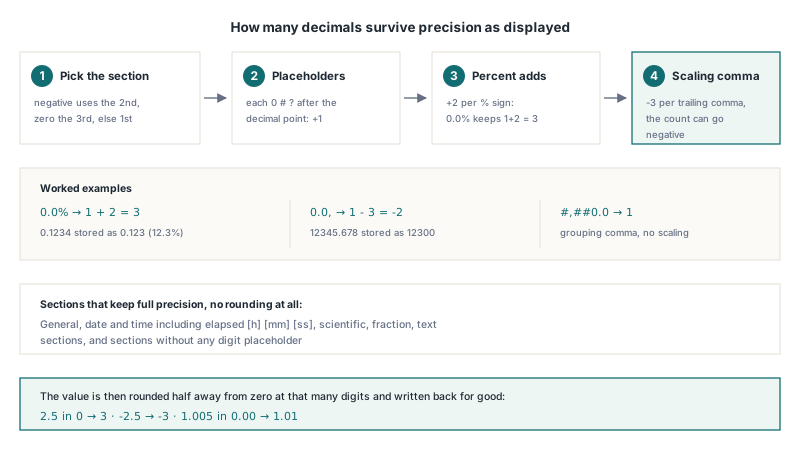
Measured against Excel 16, these are the values both HotXLS engines now store for a formula result in each format:
| Number format | Computed value | Stored value | Rule that applies |
|---|---|---|---|
0.0% | 0.1234 | 0.123 | One decimal plus two for the percent sign |
0 | 2.5 | 3 | Half away from zero, not to even |
0 | -2.5 | -3 | Half away from zero on the negative side too |
0.00;(0.0) | -1.2345 | -1.2 | Negative section shows one decimal |
0.00;(0.0) | 1.2345 | 1.23 | Positive section shows two decimals |
#,##0.0 | 1234.5678 | 1234.6 | Grouping comma, no scaling |
0.0, | 12345.678 | 12300 | One decimal minus three: round to hundreds |
0.0%;(0.00%) | -0.0125 | -0.0125 | Negative section keeps two plus two decimals |
0.00 | 1.005 | 1.01 | Tolerance for binary representation error |
0;-0;0.0 | 0.5 | 1 | Not zero, so the positive section decides |
The last row is a nice trap. The value 0.5 rounds to a whole number, and the zero section never comes into play, because Excel picks the section from the computed value before rounding. One honest limitation on the HotXLS side: sections are chosen by sign only, so a format whose sections carry custom bracket conditions such as [>=1000] is still split by sign. Check such formats against Excel if they matter to you
Why does 1.005 round to 1.01 and not to 1.00?
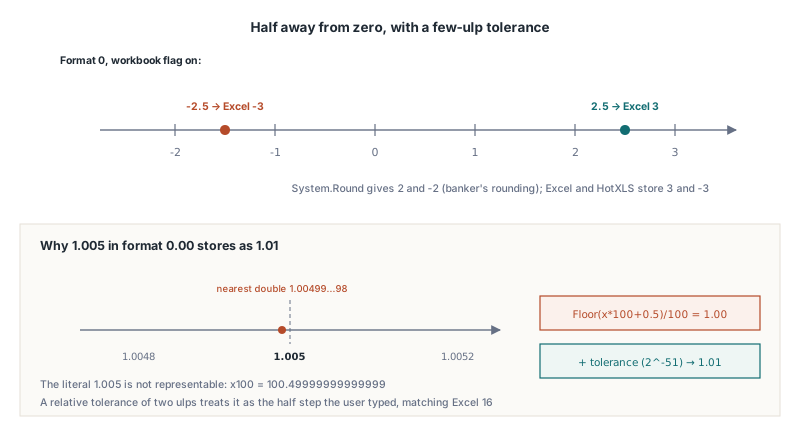
Excel rounds 1.005 in a 0.00 cell to 1.01 even though the double nearest to 1.005 is slightly below the halfway point, and HotXLS matches that with a few-ulp tolerance. The literal 1.005 cannot be represented in binary floating point. The nearest IEEE 754 double is 1.00499999999999989341858963598497211933135986328125, and multiplying by 100 gives 100.49999999999999. A textbook Floor(x * 100 + 0.5) / 100 therefore returns 1.00, which disagrees with the number the user typed, with what Excel shows, and with what Excel stores
Delphi adds its own twist. System.Round rounds ties to even, so Round(2.5) is 2 and Round(3.5) is 4. That is banker's rounding, a sensible default for statistics and the wrong rule here: Excel stores 3 for 2.5 in a 0 cell and -3 for -2.5. The HotXLS implementation works on the absolute value, adds 0.5 plus a relative tolerance of 2-51 times the scaled value (a few ulps at that magnitude, never less than two ulps of 1.0), truncates, scales back and restores the sign. The following function is a self-contained illustration of that principle, not the library code itself, and it handles negative digit counts for scaling commas the same way:
// Principle sketch: round half away from zero to ADigits decimals,
// with a few-ulp tolerance so 1.005 reaches 1.01.
// ADigits < 0 rounds to tens, hundreds, ... ("0.0," gives -2)
function RoundAsDisplayed(AValue: Double; ADigits: Integer): Double;
const
  Tolerance = 4.440892098500626E-16; // 2^-51, two ulps of 1.0
var
  I: Integer;
  Scale, Scaled, Eps: Double;
begin
  Result := AValue;
  if (ADigits < -15) or (ADigits > 14) then
    Exit; // beyond double precision: leave the value alone
  Scale := 1;
  for I := 1 to Abs(ADigits) do
    Scale := Scale * 10;
  if ADigits >= 0 then
  begin
    if Abs(AValue) > 1E300 / Scale then
      Exit; // scaling would overflow
    Scaled := Abs(AValue) * Scale;
  end
  else
    Scaled := Abs(AValue) / Scale;
  Eps := Scaled * Tolerance;
  if Eps < Tolerance then
    Eps := Tolerance;
  Scaled := Int(Scaled + 0.5 + Eps); // half away from zero, not Round()
  if ADigits >= 0 then
    Result := Scaled / Scale
  else
    Result := Scaled * Scale;
  if AValue < 0 then
    Result := -Result;
end;

// RoundAsDisplayed(1.005, 2)      = 1.01   (Floor-based: 1.00)
// RoundAsDisplayed(2.5, 0)        = 3      (Round: 2)
// RoundAsDisplayed(-2.5, 0)       = -3
// RoundAsDisplayed(0.1234, 3)     = 0.123  ("0.0%": 1 + 2 digits)
// RoundAsDisplayed(12345.678, -2) = 12300  ("0.0,": 1 - 3 digits)
The tolerance is a deliberate trade-off. A value that is genuinely two ulps below a half step also rounds up, but at that distance the difference is indistinguishable from representation error, and treating it as a half step is what makes typed decimals behave the way users expect
What went wrong before v2.384.57?
Before v2.384.57 the XLSX engine and the Classic engine each had their own precision-as-displayed code, and each was wrong in a different way. If you produce workbooks with the option on, these are the symptoms to look for in files generated by older builds
XLSX engine: first section only, no percent, banker's rounding
The old XLSX path asked for the decimal count of the format string as a whole, which looked only at the first section and ignored %, then rounded with Round. A 0.1234 in 0.0% was stored as 0.1, which is 10% instead of the 12.3% on screen. A 2.5 in 0 was stored as 2 instead of 3. Negative values in a format such as 0.00;(0.0) were rounded to the positive section's two decimals. Since v2.384.57 the XLSX engine calls the same shared routine as the Classic engine, which also gained scaling-comma support in that release
Classic engine: TRUE became -1
The Classic engine guarded its rounding with VarIsNumeric, and VarIsNumeric returns True for a varBoolean Variant. Converting that Variant with Double(V) yields -1, because a COM-style Boolean True is stored as -1. A formula such as =A1>0 in a cell formatted 0.00 therefore came out of recalculation as the number -1. Since v2.384.57 Boolean results are excluded before any numeric test, and a logical result stays a logical result in both engines
Elapsed-time formats read as colours (v2.384.9)
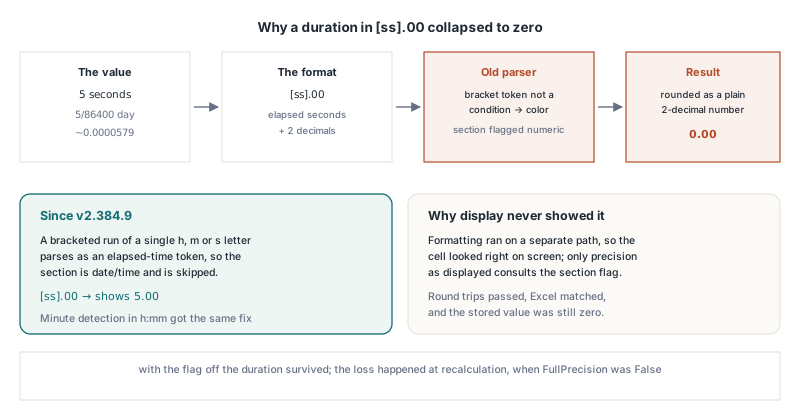
The third bug sat in the number-format model rather than the rounding. The parser classified every bracketed token that was not a condition as a colour, so [h], [mm] and [ss] never marked their section as date/time. Display was unaffected, because formatting runs on a separate path, but precision as displayed relies on that flag to skip time values. A five-second duration is 5/86400 of a day, about 0.0000579, and a format like [ss].00 looked like an ordinary two-decimal number, so with FullPrecision off the duration was rounded to 0.00 days. Since v2.384.9 a bracketed run of a single h, m or s letter is parsed as an elapsed-time token and the section is treated as date/time. The same release fixed minute detection in h:mm, where the colon between the tokens used to hide the hour from the parser
Enabling precision as displayed in HotXLS from Delphi
To get Excel-equivalent stored values, set the flag before the recalculation that should honour it, then read the cached results or save. On the XLSX engine, FullPrecision is a plain flag: changing it does not invalidate results that an earlier Recalculate already stored, so set it right after Create or Open and before the first Recalculate. The example uses formulas because that is where HotXLS applies the rounding:
var
  Wb: TXLSXWorkbook;
  Sh: TXLSXWorksheet;
begin
  Wb := TXLSXWorkbook.Create;
  try
    Sh := Wb.Sheets.Add('Totals');
    Sh.Cells[1, 1].Value := 0.1234;
    Sh.Cells[2, 1].Value := 2.5;
    Sh.Cells[3, 1].Value := 12345.678;

    Sh.Cells[1, 2].Formula := '=A1';
    Sh.Cells[1, 2].NumberFormat := '0.0%';   // shows 12.3%
    Sh.Cells[2, 2].Formula := '=A2';
    Sh.Cells[2, 2].NumberFormat := '0';      // shows 3
    Sh.Cells[3, 2].Formula := '=A3';
    Sh.Cells[3, 2].NumberFormat := '0.0,';   // shows 12.3 (thousands)

    // Must be set before the first Recalculate on the XLSX engine
    Wb.FullPrecision := False;
    Wb.Recalculate;

    // Cached results now match Excel 16: 0.123, 3 and 12300.
    // The constants in column A keep their full precision.
    Assert(Abs(Double(Sh.Cells[1, 2].Value) - 0.123) < 1E-12);
    Assert(Double(Sh.Cells[2, 2].Value) = 3);
    Assert(Double(Sh.Cells[3, 2].Value) = 12300);

    Wb.SaveAs('totals.xlsx'); // writes <calcPr fullPrecision="0"/>
  finally
    Wb.Free;
  end;
end;
The Classic engine behaves the same, with one convenience: assigning TXLSWorkbook.UseFullPrecision marks every formula in the dependency graph dirty, so the next Recalculate re-evaluates the whole workbook under the new rule. Changing a NumberFormat while the option is on also marks the affected formula cells dirty, because the format now decides the stored value. Note that the Classic Recalculate returns the number of formula cells it could not evaluate, so zero means success:
var
  Wb: TXLSWorkbook;
  Sh: TXLSWorksheet;
begin
  Wb := TXLSWorkbook.Create;
  try
    Sh := Wb.Sheets.Add;
    Sh.Range['A1', 'A1'].Value := -1.2345;
    Sh.Range['B1', 'B1'].Formula := '=A1';
    Sh.Range['B1', 'B1'].NumberFormat := '0.00;(0.0)';
    Sh.Range['C1', 'C1'].Formula := '=A1<0';
    Sh.Range['C1', 'C1'].NumberFormat := '0.00';

    Wb.UseFullPrecision := False; // marks every formula dirty
    if Wb.Recalculate <> 0 then
      raise Exception.Create('Some formulas could not be evaluated');

    // B1 = -1.2: the negative section "(0.0)" shows one decimal
    // C1 stays Boolean True (builds before v2.384.57 stored -1)
    Wb.SaveAs('report.xls'); // CalcPrecision record with fFullPrec = 0
  finally
    Wb.Free;
  end;
end;
Both engines also honour the flag that comes in with a file. Open a workbook saved with the option on and FullPrecision or UseFullPrecision is already False, so a Recalculate after loading rounds exactly the way Excel would. If you only need to read the numbers Excel already stored, you can skip recalculation entirely, as described in reading cached formula values without a recalculation. For how serial numbers and date formats interact with the format model that drives the date/time check, see Excel date serials, the 1904 system and numFmt in Delphi
When should you turn precision as displayed on, and when not?
Turn precision as displayed on only when the workbook's stored numbers must equal its displayed numbers, and you accept losing the extra digits forever. The classic legitimate case is a financial schedule where columns of rounded amounts must add up to the rounded total on screen, with no hidden fractions of a cent producing a total that is off by one in the last place. Matching a customer's existing workbook that already has the option set is the other good reason, and HotXLS preserves the flag on round-trip so you do not silently switch them back to full precision
Avoid it in most other situations:
- Engineering and scientific data. Rounding a measurement because someone chose a two-decimal format for a report destroys information that no later format change can restore
- Percentages with coarse formats. A
0%format keeps only two decimals of the stored ratio, so 0.1234 becomes 0.12, and every formula downstream that reads the cell works with 0.12 - Scaled displays. A
0,or0.0,format used to show thousands rounds the stored value to the thousands or hundreds, which is rarely what the person who chose the format intended - Shared templates. The flag is workbook-wide. Anyone who later adds a sheet inherits the behaviour, usually without knowing it is on
If what you really want is rounded results in a few specific cells, write ROUND into those formulas instead. ROUND is explicit, local to the cell, visible to anyone reading the formula, and evaluated by the HotXLS formula engine like any other function, with no workbook-wide side effects
Precision as displayed quick reference
- File flag: CalcPrecision
$000EwithfFullPrec= 0 in BIFF8 ([MS-XLS] §2.4.35),calcPr fullPrecision="0"in XLSX (ECMA-376 Part 1) - HotXLS switches:
TXLSXWorkbook.FullPrecision := FalseandTXLSWorkbook.UseFullPrecision := False, both default True - Section: chosen by the sign of the computed value; third section only for exactly zero
- Digits: decimal placeholders, plus two per
%, minus three per scaling comma; the count can be negative - Rounding: half away from zero with a few-ulp tolerance, so 2.5 gives 3, -2.5 gives -3 and 1.005 gives 1.01
- Skipped: General, date/time and elapsed time, scientific, fraction, text, Boolean and error values
- Scope in HotXLS: formula results as they are computed; constants are stored as assigned
- XLSX engine: set
FullPrecisionbefore the firstRecalculate; the Classic setter re-dirties all formulas itself - Versions: matched to Excel 16 in both engines since v2.384.57; elapsed-time formats protected since v2.384.9
HotXLS reads, writes and calculates XLS and XLSX workbooks natively from Delphi and C++Builder, including the workbook calculation options covered here. Details, editions and the trial download are on the HotXLS Delphi spreadsheet component page