A Delphi export stores account number 123456789012 as a number; a wide Excel column shows 1.23457E+11, while =A1&"" returns all twelve digits. Excel turns numbers into text by two rules, eleven characters for General display and fifteen significant digits inside formulas, so a HotXLS export reads the first from FormattedText and builds the second with the formula engine
How many characters does the General format allow?
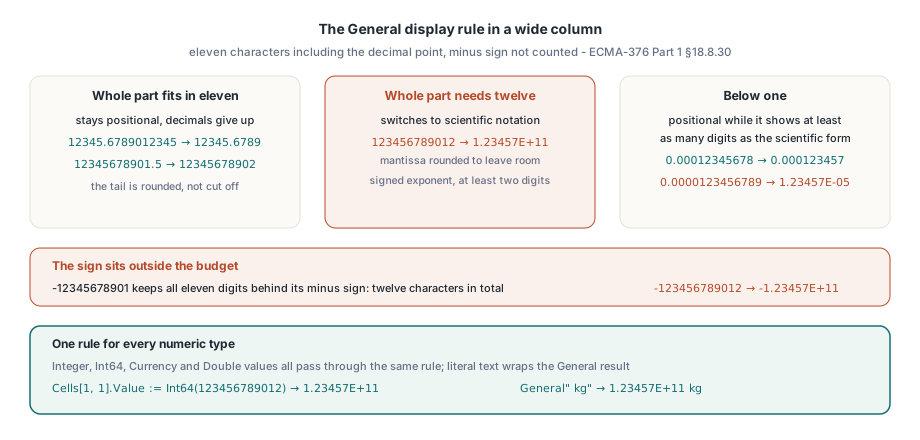
Eleven, with the minus sign left out of the count. ECMA-376 Part 1 §18.8.30 says the application "shall attempt to display the full number up to 11 digits (inc. decimal point)", and its floating point rule puts it more precisely: the "max overall length for cell display is 11, not including negative sign". The standard then sketches four conditions for switching to exponential form and stops there. Rounding is left open. So is the cut-over point for small numbers. The behaviour below is what Excel shows in a wide column, and it is what HotXLS reproduces in a cell's display text and in TEXT(A1, "General"):
- A number whose whole part fits in eleven characters stays in fixed notation and gives up decimals:
12345.6789012345shows as12345.6789, and12345678901.5rounds to12345678902 - A twelve-digit whole part cannot fit, so
123456789012becomes1.23457E+11, the mantissa rounded to leave room for the exponent - A number below 1 keeps fixed notation while that shows at least as many significant digits as the six-digit scientific form:
0.00012345678displays as0.000123457, but0.0000123456789becomes1.23457E-05 - The exponent always carries a sign and at least two digits, so 1020 displays as
1E+20
The sign sits outside the budget. -12345678901 displays with all eleven digits behind its minus sign, twelve characters in total, while -123456789012 becomes -1.23457E+11. The Variant type you assign does not change the result. Excel holds every numeric cell value as a double, and HotXLS sends Integer, Int64, Currency and Double values through the same eleven-character rule, so Cells[1, 1].Value := Int64(123456789012) also displays as 1.23457E+11. The rule carries into custom formats too: literal text in a section is added around the General result, so General" kg" shows the same number as 1.23457E+11 kg. Formats with empty or literal-only sections follow their own rules and can hide the number altogether
One more limit sits outside any library. The standard adds that "the optimal method of display is based on the available cell width", and in a default-width column Excel squeezes further, down to 1.2E+11 or a row of # signs, depending on the font metrics of the machine showing the sheet. A server generating files has no column on screen, so HotXLS leaves that last step to whoever draws the cell. Widen the column before you compare. Otherwise you are measuring Excel's width fallback against the General rule, and the two will disagree on any value longer than the column
Formula text keeps fifteen significant digits
Once a number becomes text inside a formula — the & operator, CONCAT, TEXTJOIN, LEN, LEFT — a different rule takes over. ECMA-376 §18.17 defines the formula grammar but no number-to-text format for this step, so Excel's output is the only reference. Excel rounds to fifteen significant digits and writes them in plain positional notation as long as that takes at most twenty characters besides the sign. Hence =1/3&"" returns 0.333333333333333, fifteen threes. =1E+19&"" returns 10000000000000000000, and =1E-18&"" returns 0.000000000000000001. Past twenty characters the text switches to scientific notation with the same signed, two-digit exponent the grid uses: 1E+20, 1.23456789012345E-05. The separator is always a full stop. HotXLS evaluates formulas without consulting the regional settings of the machine running your program, so a lookup key built with & comes out identical on an English and a German server
Formula text has one corner where Excel itself depends on the machine. CHAR and CODE map numbers above 127 through the ANSI code page of the computer running Excel, so =CHAR(128) is the euro sign on a Western European Windows installation and a different character under other code pages. A Delphi service cannot know which code page the eventual reader uses. HotXLS evaluates those codes as Windows-1252, the Western European code page, on every machine, so =CHAR(150) gives an en dash on any server. If your workbooks are meant for another code page, compute those characters in Delphi and store them as text
FloatToStr follows neither rule
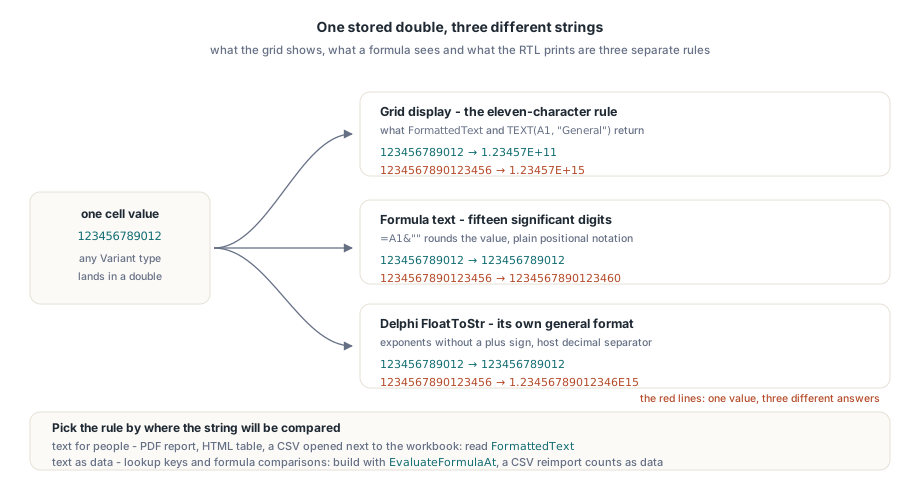
| Value | General display / TEXT | Formula text (&"") | Delphi FloatToStr |
|---|---|---|---|
| 123456789012 | 1.23457E+11 | 123456789012 | 123456789012 |
| 1234567890123456 | 1.23457E+15 | 1234567890123460 | 1.23456789012346E15 |
| 1/3 | 0.333333333 | 0.333333333333333 | 0.333333333333333 |
| 1E20 | 1E+20 | 1E+20 | 1E20 |
| 0.000001 | 0.000001 | 0.000001 | 1E-6 |
| 0.00000123456789 | 1.23457E-06 | 0.00000123456789 | 1.23456789E-6 |
The last column explains the drift. FloatToStr uses Delphi's general format with fifteen digits, writes exponents without a plus sign or zero padding, and switches to exponential notation at its own thresholds: below 0.00001, or once the whole part needs more than fifteen digits. It also takes its decimal separator from the host's FormatSettings. It is a fine function for log files. It reproduces neither of Excel's rules, and one helper asked to serve both display and formula text will be wrong on every row where those rules disagree — four of the six rows above
Which text should an export or a lookup key use?
Pick the rule by asking where the string will be compared. Text for people — a PDF report, an HTML table, a CSV someone opens next to the workbook — should match the grid, so read the cell's display text. Text used as data should follow the formula rule: a concatenated key, a value compared with something an Excel formula produced, a lookup string. A CSV that will be loaded back into Excel or a database counts as data, too. Writing 1.23457E+11 into such a file throws away five digits of the account number for good, because the importer parses what it reads and cannot recover the original. The first example prints all three strings side by side. The samples are Doubles, but an Int64 or Currency value displays the same way:
uses
  SysUtils, Variants, lxHandleX;

procedure CompareNumberTexts;
const
  Samples: array[0..5] of Double =
    (123456789012.0, 1234567890123456.0, 1 / 3, 1E20, 0.000001,
     0.00000123456789);
var
  Book: TXLSXWorkbook;
  Sheet: TXLSXWorksheet;
  I: Integer;
begin
  Book := TXLSXWorkbook.Create;
  try
    Sheet := Book.Sheets.Add('Numbers');
    for I := 0 to High(Samples) do
    begin
      Sheet.Cells[1, 1].Value := Samples[I];       // General format by default
      Writeln(Format('%-22s %-22s %s', [
        string(Sheet.Cells[1, 1].FormattedText),  // what the grid shows
        VarToStr(Sheet.Calculate('A1&""')),         // what a formula sees
        FloatToStr(Samples[I])]));                // the RTL's own idea
    end;
  finally
    Book.Free;
  end;
end;
Each printed line should match the corresponding row of the table. Only the separators move. On a German host the display column and the FloatToStr column switch to a decimal comma, as Excel's grid does on that machine, while the formula column keeps its full stop. The second example puts the choice into an exporter that writes report text the way Excel displays it and key columns the way Excel formulas build them:
uses
  SysUtils, Classes, Variants, lxHandleX, lxCalc;

// Report text as shown in Excel, plus a locale-independent key column
procedure ExportInvoiceLines(Sheet: TXLSXWorksheet; FirstRow, LastRow: Integer;
  Output: TStrings);
var
  Row: Integer;
  Shown, Key: string;
begin
  for Row := FirstRow to LastRow do
  begin
    Shown := Sheet.Cells[Row, 3].FormattedText;           // amount, as displayed
    Key := VarToStr(Sheet.EvaluateFormulaAt(Row, 6,
      Format('A%d&"-"&C%d', [Row, Row])).Value);       // invoice-amount key
    Output.Add(Format('%s;%s', [Shown, Key]));
  end;
end;
EvaluateFormulaAt evaluates a formula as if it sat in the given cell without storing it, so the key comes from the same rule Excel applies to a key column inside the workbook. If the amount carries a currency or thousands format, FormattedText applies that format, and the General rule governs only cells without one. Feeding the rounded display value back into calculation is a different switch in Excel, precision as displayed, and it rewrites the stored double itself, so keep it out of an export that only needs text
What happens to an ID longer than fifteen digits?
It loses its tail the moment it turns into text. A double holds every integer up to 253, about 9.007 × 10¹⁵, so the sixteen-digit customer number 1234567890123456 survives intact in the cell and in the file, where seventeen significant digits are enough for a lossless XLSX double round trip. The text is another story. The General rule shows 1.23457E+15, and the formula rule rounds to fifteen significant digits and pads with a zero, so =A1&"" returns 1234567890123460 — a different customer. Excel also keeps only fifteen significant digits of a number typed into a cell, so a user who retypes the value lands on 1234567890123450. One customer ends up with three numbers: 1234567890123456 in the cell, 1234567890123460 in a formula key and 1234567890123450 after retyping
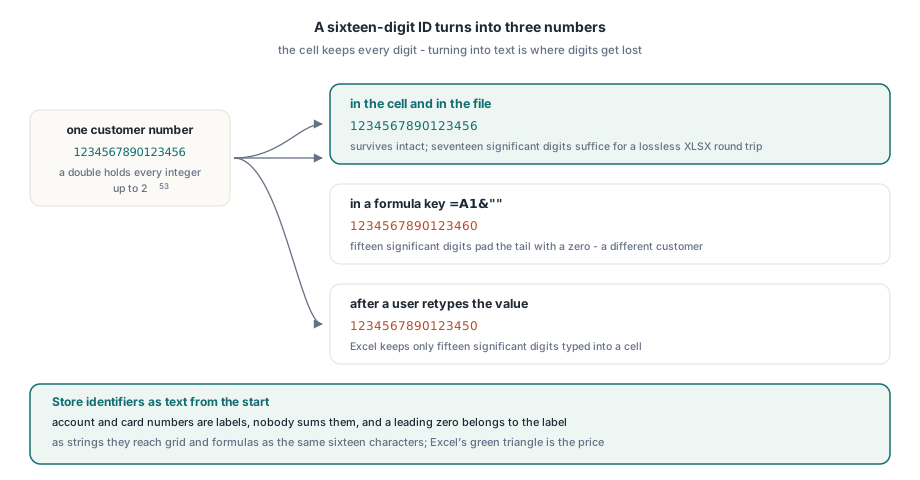
Store identifiers as text from the start. Account numbers, card numbers and order IDs are labels written in digits; nobody sums them, and a leading zero belongs to the label. Assigned as strings, they reach the grid and every formula as the same sixteen characters, and a lookup against them can never drift. Excel flags such cells with a small green triangle for numbers stored as text, a fair price for a key that keeps its last digit:
// Identifiers go in as text; amounts stay numeric
procedure WriteCustomerRow(Sheet: TXLSXWorksheet; Row: Integer;
  const CustomerNo: string; Balance: Currency);
begin
  Sheet.Cells[Row, 1].Value := WideString(CustomerNo); // '1234567890123456' stays whole
  Sheet.Cells[Row, 2].Value := Balance;                // shown by the General rule
end;
Before touching the exporter, open one workbook it produced in Excel, widen the account-number column and put =A1&"" beside it. If your downstream system compares against the left string, ask the HotXLS Delphi Excel component for FormattedText; if it compares against the right one, build the text with EvaluateFormulaAt