A daily-sales sheet keeps eight amounts in C2:C9 and a total in C10 that reads =SUM(C2:C9). A report job adds a ninth day by inserting a row at row 10, directly under the last amount, and writes 1500 into C10. The total, now sitting in C11, still reads =SUM(C2:C9) and ignores the new figure. Excel does the same when a user inserts that row by hand. Formula references follow the cells they name, and a range grows only when the inserted rows land below its first row and no lower than its last row
That one rule explains most of the surprises people hit when a program edits worksheet structure. References above the edit point stay put. References at or below it move by the number of rows inserted or deleted, and a range is stretched or shrunk only by edits that fall inside it. Anything that writes spreadsheets for Excel users has to reproduce those mechanics exactly. In the daily-sales sheet the insert lands one row past C9, so the range keeps its eight cells and only the total's own address changes, from C10 to C11
How InsertRows and DeleteRows rewrite formulas in HotXLS
The HotXLS XLSX engine applies this rule inside the structural-edit methods of TXLSXWorksheet: InsertRows(BeforeRow, Count), DeleteRows(StartRow, Count), InsertCols(BeforeCol, Count) and DeleteCols(StartCol, Count). Each call moves the cells and rewrites formula text in the same pass. There is no flag to switch it on. A Count of zero or less does nothing, and a start index below 1 is treated as 1
The rewrite reaches further than the cells on the edited sheet. Every formula in the workbook that names the edited sheet is adjusted, along with chart series ranges, internal hyperlink targets and defined names. Range-shaped settings move with the grid too: merged areas, conditional formats, data validation, table ranges, the autofilter range, the print area and frozen panes. Conditional formats have their own wrinkle, because a rule anchored to its first cell may have to be split in two, and the article on anchored conditional format partitioning walks through those cases. InsertCols also copies the left neighbour's explicit width onto the new columns, which matches what Excel's Insert Sheet Columns command does
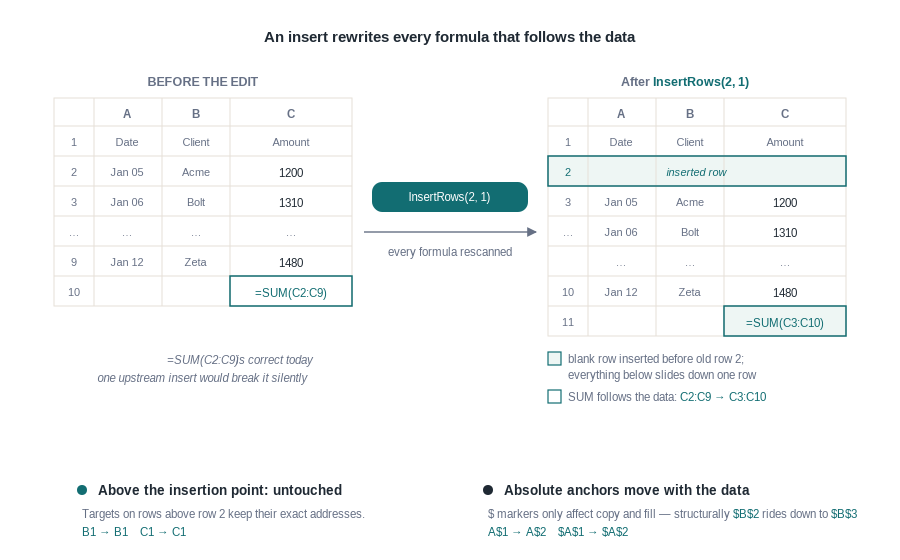
Back to the opening sheet. Inserting at row 2, as in the figure, moves both ends of the range and the total stays correct. Appending under the last amount is the case that goes wrong, and the cleanest fix for a template is a blank spacer row inside the summed range. With the total written as =SUM(C2:C10) and row 10 left empty, every insert at row 10 lands inside the range:
uses
  SysUtils, Variants, lxCalc, lxHandleX;   // lxOk is declared in lxCalc

var
  Book: TXLSXWorkbook;
  Sheet: TXLSXWorksheet;
begin
  Book := TXLSXWorkbook.Create;
  try
    if Book.Open('daily-sales.xlsx') <> lxOk then
      Exit;
    Sheet := Book.Sheets[1];          // the Sheets indexer is 1-based

    // C2..C9 hold amounts, row 10 is an empty spacer,
    // C11 holds =SUM(C2:C10)
    Sheet.InsertRows(10, 1);          // the new row lands inside C2:C10
    Sheet.Cells[10, 1].Value := 'Jan 13';
    Sheet.Cells[10, 3].Value := 1500;

    // The total moved to C12 and its range grew to C2:C11
    Writeln(Sheet.Cells[12, 3].Formula);

    if Book.Recalculate = lxOk then
      Writeln(VarToStr(Sheet.Cells[12, 3].Value));
    Book.SaveAs('daily-sales-out.xlsx');
  finally
    Book.Free;
  end;
end;
When the program builds the whole sheet itself, there is a simpler answer: write the totals last, after every row is in place. Templates are different. People edit them by hand too, and nobody controls the order of operations. A spacer at the end of each block costs one visible empty row, and every append then grows the total, whether the row comes from code or from a user right-clicking row 10 in Excel and choosing Insert
Why does $B$2 move when a row is inserted?
The dollar signs in $B$2 decide what happens when a formula is copied or filled into another cell. They play no part in a structural edit. Insert a row above row 2 and Excel rewrites $B$2 to $B$3, markers intact, because the value the formula depends on now physically lives in row 3. Mixed forms follow the same logic: inserting one row at row 2 turns A$3 into A$4 and leaves $A1 alone, since row 1 sits above the edit point
HotXLS shifts relative, absolute and mixed references the same way and writes each $ back exactly where it was. The two corners of a range keep their own markers, so $A$2:A9 becomes $A$3:A10 after that insert. Anchored references are usually the important ones. Take a tax rate in $B$2 used on every invoice line: after one row is inserted at row 2, the line formula =C5*$B$2 moves to row 6 and reads =C6*$B$3, still pointing at the rate
Deleting rows: unchanged, slid up, or #REF!
A single-cell reference meets one of three fates when rows are deleted. Above the deleted block it is unchanged. Below the block it slides up by the number of deleted rows. Inside the block it has nothing left to point at, and HotXLS rewrites the whole reference as #REF!, which is what Excel writes in the same situation
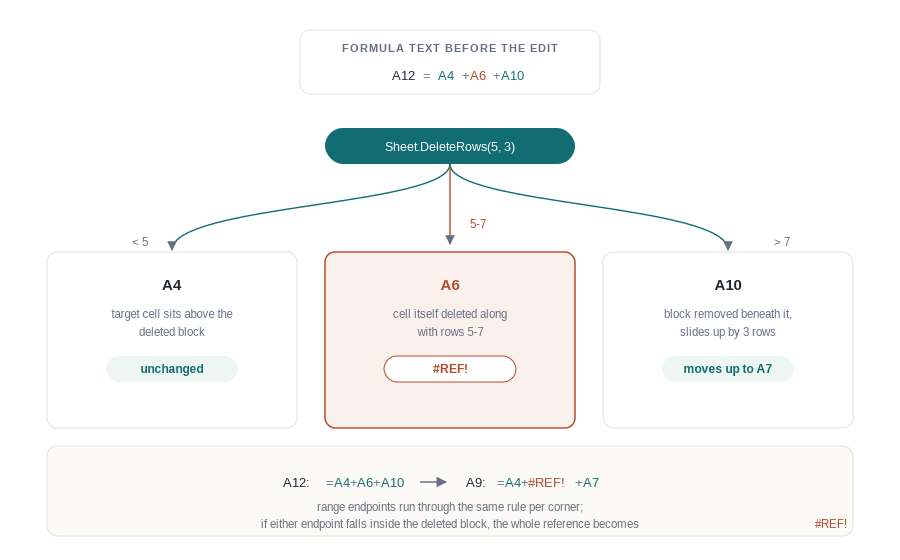
Ranges get a gentler treatment. Each corner is shifted on its own, and when one corner falls inside the deleted block it is pulled to the edge of the surviving cells, so the range shrinks instead of breaking. Only a range that lies wholly inside the deleted rows becomes #REF!. A range that shrinks to a single cell is written back in single-cell form:
// A12 holds  =A4+A6+A10
// B22 holds  =SUM(B2:B20)
// D22 holds  =SUM(B6:B12)
// E22 holds  =SUM(B5:B7)
// F22 holds  =SUM(B6:B8)
Sheet.DeleteRows(5, 3);          // remove rows 5..7
// A9 : =A4+#REF!+A7     A6 was inside the block, A10 slid up by 3
// B19: =SUM(B2:B17)     the range lost three rows from its middle
// D19: =SUM(B5:B9)      the top corner was cut, the range starts at row 5
// E19: =SUM(#REF!)      every cell of the range was deleted
// F19: =SUM(B5)         only old row 8 survives

// E1 holds  =B1*$C$1
Sheet.DeleteCols(3, 1);          // remove column C
// D1 : =B1*#REF!        the $ markers do not protect a deleted cell
The #REF! outcome is the right trade. A formula that quietly retargeted to a neighbouring cell after its real input vanished would return a plausible number. Nobody would look twice. #REF! spreads through every dependent formula and shows up in the first glance at the output. The same three fates apply on the column axis, and also at the far edge of the grid: an insert that would push a reference past row 1,048,576 or column XFD turns that reference into #REF!, and cells pushed off the sheet are dropped
What a text rewrite has to leave alone
Formula text is a small language, and a regular expression that hunts for letter-digit pairs will damage it in at least four places. HotXLS reads references by token boundaries, and the cases below are the ones a hand-rolled shifter usually gets wrong:
- Text inside string literals is copied as is, so
="See A1"&B2keeps its message and onlyB2moves - A letter-digit run followed by an opening parenthesis is a function name, so
LOG10(B2)never becomesLOG11(B3)after an insert at row 2 - Sheet names that look like cells are read as qualifiers: in
Q1!B2, onlyB2is a candidate, and only if the sheet called Q1 is the one being edited - Structured table references such as
Table1[Amount]are not cell references at all; they keep working because the table's own range moves with the edit
Whole-column references such as A:A and whole-row references such as 1:1 are left as written by every structural edit, so rewrite them as bounded ranges first if they must follow an inserted column or row. The rewrite works on A1 notation. Formulas held as R1C1 text are not touched, so convert them to A1 before restructuring a sheet, as covered in the companion article on R1C1 formula notation in Delphi
Tables have one more rule worth knowing. Deleting the row that holds a table's headers removes the table, and every structured reference to it becomes #REF!. Deleting only the totals row keeps the table and simply switches its totals row off
Cross-sheet formulas, defined names and array formulas
A structural edit on one sheet rewrites formulas on every other sheet that qualify a reference with the edited sheet's name, quoted or bare. Unqualified references on those other sheets point at their own sheet, so they stay as they are. The same scoping applies to defined names: a workbook-level name moves only the references qualified with the edited sheet, while a name scoped to the edited sheet also moves its unqualified ones
Partial edits through a legacy array formula, the kind entered with Ctrl+Shift+Enter and stored over a fixed block of cells, are refused. Excel refuses the same edit with its "You can't change part of an array" message, and HotXLS raises an exception before any cell has been shifted. Moving the whole block, or deleting every row it covers, goes through:
var
  Summary: TXLSXWorksheet;
begin
  // Sheet is Book.Sheets[1], named Data
  Summary := Book.Sheets[2];
  // Summary!B1 holds  =SUM(Data!C2:C9)
  // Data!D2:D4 holds the array formula {=B2:B4*C2:C4}
  Sheet.Range['D2:D4'].SetArrayFormula('=B2:B4*C2:C4');

  Sheet.InsertRows(2, 1);           // whole array moves to D3:D5
  Writeln(Summary.Cells[1, 2].Formula);   // =SUM(Data!C3:C10)

  try
    Sheet.InsertRows(4, 1);         // row 4 cuts through D3:D5
  except
    on E: Exception do
      Writeln(E.Message);  // Cannot insert rows through part of a CSE array formula
  end;
end;
Deleting or renaming a whole worksheet is handled at the workbook level. Book.Sheets.DeleteByName turns every reference to the deleted sheet into #REF!, in cell formulas, defined names, conditional formatting, data validation and chart series alike, and drops names that were scoped to that sheet. The sheet qualifier and the cell or range behind it collapse together, the form Excel writes to disk: =Sheet2!A1+1 becomes =#REF!+1, and =SUM(Sheet2!A1:B2) becomes =SUM(#REF!). A rename rewrites the qualifier to the new name. The interplay between names and cross-sheet formulas has more corners, covered in the article on defined names and cross-sheet formulas
Recalculate after the last structural edit
The rewrite changes formula text; it does not recompute anything. Cached results stored next to each formula still describe the old layout, and any reader that trusts the cache without recalculating will see the old totals. Each structural edit marks the workbook's dependency graph as stale, so the next Recalculate rebuilds it from the rewritten references, which is what the incremental recalculation engine and its dependency graph rely on to evaluate only the affected cells
Do all inserts and deletes first, call Book.Recalculate once, then save. Recalculating after every single InsertRows in a loop throws the graph away and rebuilds it each time. If the save path lives far from the editing code, set Book.RecalcBeforeSave := xrmIfDirty instead. The default is xrmManual, which never recalculates on save, and xrmIfDirty recalculates exactly when a structural edit has left the graph stale. A rewritten formula that now contains #REF! then evaluates to the error value before the file is written
The HotXLS Delphi Excel Component applies this reference adjustment in its XLSX engine for Delphi and C++Builder projects, and the product page lists the full worksheet editing API, from the row and column methods used here to range, table and recalculation members