Embedding a PDF reading panel in a Delphi business application does not require writing a rendering loop, a scroll engine, or a zoom model. losLab PDF Library ships TPDFlibViewer, a VCL control that opens a document with one call and brings text selection, panning, marquee zoom, snapshots, region highlighting, full-text search highlighting, annotation interaction and printing as built-in behaviour. This article walks the five steps that turn an empty form into a working viewer: drop the control, wire the ready-made actions, add search highlighting, handle annotation clicks, and print
Why use a viewer control instead of writing a rendering loop?
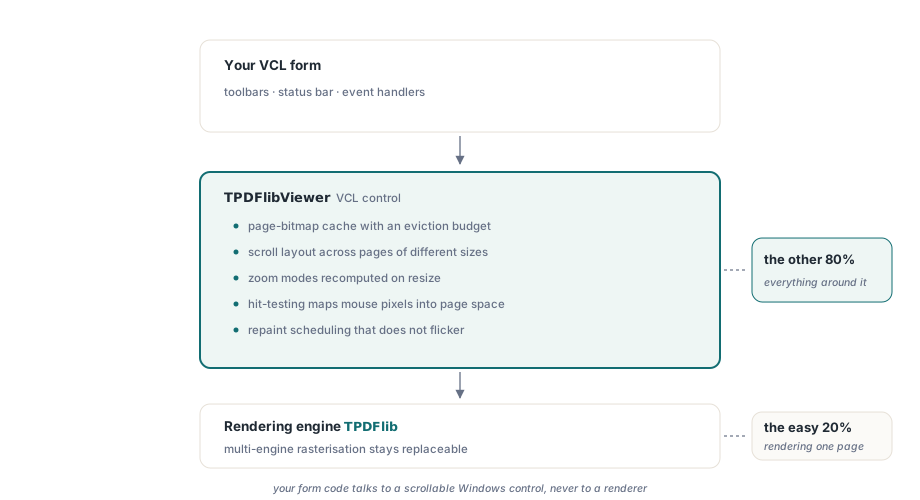
The layering argument comes first, because it explains what you are actually buying. Rendering a page to a bitmap is the easy 20 percent; the other 80 percent is everything wrapped around it: a page-bitmap cache with an eviction budget, scroll layout across pages of different sizes, zoom modes that recompute on resize, hit-testing that maps a mouse pixel back into page coordinates at any zoom and rotation, and repaint scheduling that does not flicker. TPDFlibViewer owns all of that and delegates the raster work to the same engine described in the multi-engine rendering article, so the control layer and the rendering layer stay separately replaceable. Your form code talks to a scrollable Windows control, not to a renderer
How do you embed a PDF viewer in a Delphi application?
TPDFlibViewer.LoadFromFile opens a document through the control's own internal TPDFlib instance and returns 1 on success, so the minimal viewer is a constructor call, a Parent assignment and one load. If you already hold a TPDFlib instance elsewhere in the application, AttachLibrary displays its selected document instead, with ownership staying on your side
uses PDFlibViewer;

procedure TMainForm.FormCreate(Sender: TObject);
begin
  FViewer := TPDFlibViewer.Create(Self);
  FViewer.Parent := Self;
  FViewer.Align := alClient;
  if FViewer.LoadFromFile('quarterly-report.pdf', '') = 1 then
    FViewer.ViewerMode := vmHand;  // pan by dragging; a plain click still follows links
end;
The ViewerMode property selects what the mouse does, from five values: vmSelect is the default text-selection tool, vmHand pans by dragging with a grab cursor while a plain click still follows links, vmZoom is a marquee zoom that magnifies the dragged band to fill the viewport, vmSnapshot captures a dragged region to the clipboard (with an OnSnapshot event and a SnapshotToClipboard switch), and vmHighlight paints persistent translucent region highlights. The highlight tool is worth a note on coordinates: regions are stored in page user space, not client pixels, so AddHighlightRegion marks survive zooming, view rotation and page navigation without any bookkeeping on your side. In a rotated view the drag direction can even run against the page axes, which yields a negative width or height after the inverse rotation mapping — the control normalises the rectangle for you
How do you wire a PDF toolbar in Delphi without glue code?
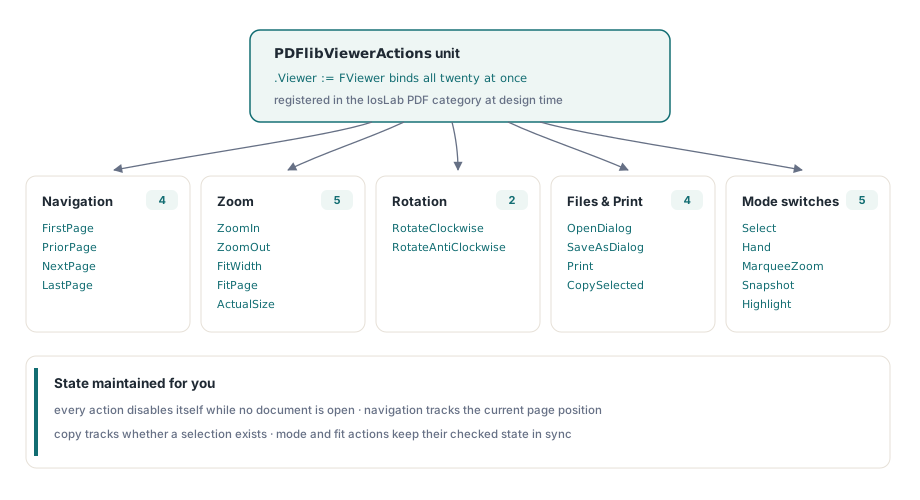
The PDFlibViewerActions unit removes the toolbar glue entirely. It provides twenty ready-made TAction descendants covering page navigation (TPDFlibViewerFirstPage, TPDFlibViewerPriorPage, TPDFlibViewerNextPage, TPDFlibViewerLastPage), zoom (TPDFlibViewerZoomIn, TPDFlibViewerZoomOut, TPDFlibViewerFitWidth, TPDFlibViewerFitPage, TPDFlibViewerActualSize), view rotation (TPDFlibViewerRotateClockwise, TPDFlibViewerRotateAntiClockwise), printing, file open and save-as dialogs, copy selected text, and one switch action per mouse tool (TPDFlibViewerSelectMode, TPDFlibViewerHandMode, TPDFlibViewerMarqueeZoomMode, TPDFlibViewerSnapshotMode, TPDFlibViewerHighlightMode). Each action points at a control through its published Viewer property and maintains its own state: every action disables itself while no document is open, the navigation actions track the page position, copy tracks whether a selection exists, and the mode and fit actions keep their checked state in sync with the active tool and zoom mode. At design time they all register in the losLab PDF category of the Action List editor; at runtime the same classes are three lines each
uses System.Actions, Vcl.ActnList, PDFlibViewer, PDFlibViewerActions;

procedure TMainForm.BuildToolbar;
var
  NextPage: TPDFlibViewerNextPage;
  FitWidth: TPDFlibViewerFitWidth;
  HandMode: TPDFlibViewerHandMode;
begin
  NextPage := TPDFlibViewerNextPage.Create(Self);
  NextPage.ActionList := ActionList1;
  NextPage.Viewer := FViewer;
  btnNext.Action := NextPage;

  FitWidth := TPDFlibViewerFitWidth.Create(Self);
  FitWidth.ActionList := ActionList1;
  FitWidth.Viewer := FViewer;
  btnFitWidth.Action := FitWidth;

  HandMode := TPDFlibViewerHandMode.Create(Self);
  HandMode.ActionList := ActionList1;
  HandMode.Viewer := FViewer;
  btnHand.Action := HandMode;
end;
One unit-scope trap is worth knowing if you build your own action registration on top of this pattern. RegisterActions is declared in System.Actions, not in Vcl.ActnList, and the compiler error you get with only Vcl.ActnList in the uses clause is actively misleading: the [TAction1, TAction2, ...] class-array literal falls back to being parsed as a set, producing a chain of E2010 Incompatible types: 'Integer' and 'class of ...' errors that look like a type mismatch in your action classes. The fix is a single uses entry, but the diagnostic points everywhere except at it. For zoom toolbars, TPDFlibViewer.EffectiveZoomPercent reports the zoom actually in effect — including the computed factor in fit-width and fit-page modes — so a zoom-in step can build on the real current magnification rather than on the last value you assigned
Search-hit highlighting and the coordinate flip behind it
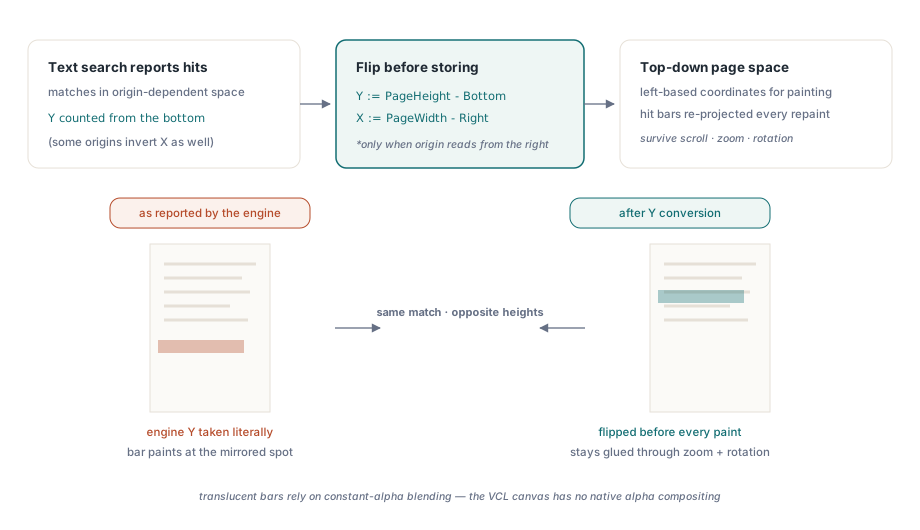
HighlightSearchHits searches the whole document for a query and paints a translucent bar over every match, returning the hit count; ClearSearchHighlights, SearchHighlightCount and the SearchHighlightColor property complete the surface. Because the hit rectangles are stored in page space and re-projected on every paint, the bars stay glued to their text while the user scrolls, zooms and rotates the view. If you use the companion TPDFlibSearchPanel, its RunSearch paints the same bars in the attached viewer automatically through the HighlightInView property, which is on by default
procedure TMainForm.btnSearchClick(Sender: TObject);
var
  Hits: Integer;
begin
  FViewer.SearchHighlightColor := clYellow;
  Hits := FViewer.HighlightSearchHits(edtQuery.Text, False);  // case-insensitive
  StatusBar1.SimpleText := Format('%d matches', [Hits]);
end;
The subtle part, and the reason to prefer the built-in path over rolling your own from raw search results, is the coordinate-system conversion. The text engine reports match rectangles in coordinates that depend on the library's Origin setting: with Origin 0 or 3 the Y axis runs bottom-up as in native PDF user space, and with Origin 2 or 3 the X axis is measured from the right edge. The viewer's overlay works in top-down, left-based page space, so each hit rectangle must be flipped (Y = PageHeight - Bottom, and where applicable X = PageWidth - Right) before it is stored — taking the reported top edge at face value under the default origin paints the highlight at the vertically mirrored position on the page. TPDFlibViewer performs this conversion per the active origin when it records each hit, then applies the forward rotation mapping at paint time, which is why the bars land correctly at every angle. The translucency itself uses the Windows AlphaBlend API with a constant source alpha, since the VCL canvas has no native alpha compositing. The underlying text search and geometry APIs are covered in depth in the text search and page element enumeration article
Annotation clicks, hints and attachment export
TPDFlibViewer treats annotations as first-class interactive objects. Clicking a non-link annotation fires OnAnnotClick with the page number, the 1-based annotation index and the subtype string; AnnotAtPagePoint exposes the same hit test programmatically and skips Popup companion annotations so you always get the annotation the user actually sees. Hovering an annotation shows its Contents text as the control's hint through the AnnotHints switch, which is on by default and cooperates with the standard VCL ShowHint property. For FileAttachment annotations, SaveAnnotAttachmentToFile writes the embedded file to disk and returns 1 on success, which completes a click-to-save workflow in a handful of lines
procedure TMainForm.ViewerAnnotClick(Sender: TObject; APage, AnnotIndex: Integer;
  const Subtype: WideString);
begin
  if Subtype = 'FileAttachment' then
    if FViewer.SaveAnnotAttachmentToFile(APage, AnnotIndex,
        'C:\Temp\attached-invoice.xml') = 1 then
      StatusBar1.SimpleText := 'Attachment saved';
end;
Printing and the boundaries you should plan for
Printing needs no separate integration. PrintDoc shows the standard Windows print dialog — printer choice, page range, copies, collation — and hands the job to the library's printing engine, while PrintDoc(False) sends the whole document to the default printer with no UI at all. PrintDocRange goes fully programmatic with an explicit printer name, start and end page, copy count and collation flag, which is the right entry point for batch or server-triggered print jobs driven from the same viewer instance
Two boundaries deserve honest mention. First, TPDFlibViewer is a Windows VCL control; the viewer layer is excluded from NOVCL builds, so console services and non-VCL targets should use the underlying TPDFlib rendering API directly. Second, headless use is deliberately supported but bounded: CaptureRegion renders any client region — pages plus highlights — into a caller-owned bitmap and works on an unparented control without a window handle, because the paint path avoids VCL calls that would force handle creation. That makes pixel-level verification in automated tests practical, but anything that genuinely needs a message loop, such as the interactive mouse tools, still belongs in a real UI session. On the performance side, the control keeps a memory page cache with a configurable budget via SetCacheLimit, and can persist rendered pages across sessions; the viewer disk page cache article covers that layer and its per-monitor DPI behaviour in detail
Five steps, then: place the control and call LoadFromFile, attach the ready-made actions from PDFlibViewerActions, call HighlightSearchHits for in-page search, handle OnAnnotClick for annotation workflows, and expose PrintDoc. Every piece shown here ships in the standard losLab PDF Library for Delphi, where the viewer control, the action classes and the rendering engine install together