Gerar um relatório resume-se a colocar três coisas numa página e conseguir que se entendam sobre onde ficam: texto em coordenadas conhecidas, fontes que se representam no servidor tal como no seu computador, e imagens dimensionadas para caber. Tudo o resto que uma biblioteca de relatórios faz está arrumado à volta destas três. O HotPDF, a biblioteca de geração de PDF da losLab para Delphi e C++Builder, dá-lhe cada uma delas como chamada direta sobre o objeto de página, e o único atrito verdadeiro é o sistema de coordenadas por baixo, que corre ao contrário da tela VCL a que está habituado. Resolva primeiro essa orientação e o resto do trabalho de layout deixa de lutar consigo
Colocação de texto e a origem no canto inferior esquerdo
O primeiro relatório de quase toda a gente sai ao contrário. O título aterra perto da margem inferior e cada linha seguinte sobe em direção ao topo. Nada está avariado. O espaço do utilizador do PDF, definido na ISO 32000-1 §8.3, coloca a origem no canto inferior esquerdo com o Y a crescer para cima, o que é a imagem espelhada da tela GDI, onde o Y cresce para baixo a partir do canto superior esquerdo. Cinco minutos gastos a fazer as pazes com isso poupam um layout que de outro modo teria de reescrever quando os números deixassem de fazer sentido
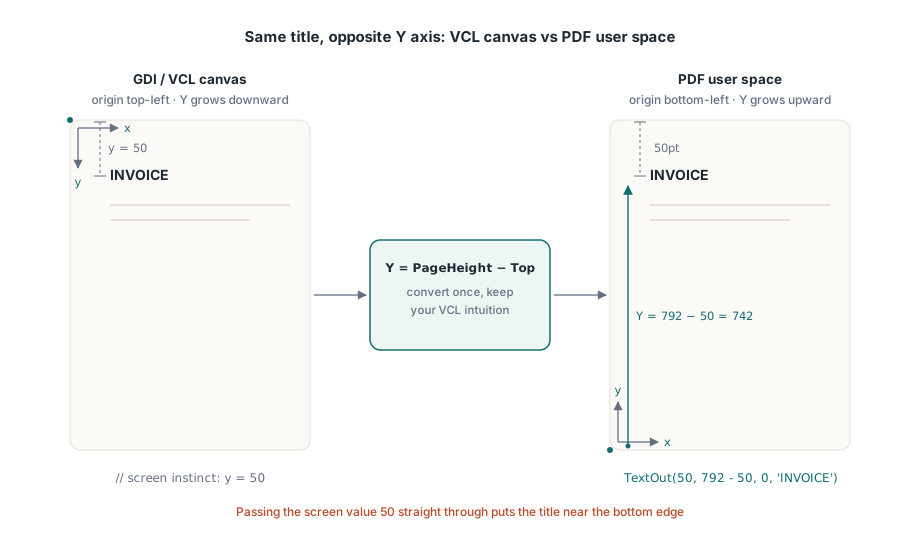
A chamada central do objeto de página é TextOut(X, Y, Angle, Text). X e Y localizam o texto em pontos a partir do canto inferior esquerdo, e Angle roda-o em graus, que é como se desenha um carimbo diagonal DRAFT ou COPY sem qualquer suporte especial. O truque que permite manter a intuição treinada na VCL é exprimir o Y como a altura da página menos a distância que quer ao topo:
var
  Pdf: THotPDF;
begin
  Pdf := THotPDF.Create(nil);
  try
    Pdf.FileName := 'invoice-0001.pdf';
    Pdf.BeginDoc;
    Pdf.CurrentPage.SetFont('Arial', [fsBold], 16);
    Pdf.CurrentPage.TextOut(50, 792 - 50, 0, 'INVOICE');       // 50pt do topo de uma Letter
    Pdf.CurrentPage.SetFont('Arial', [], 10);
    Pdf.CurrentPage.TextOut(50, 792 - 70, 0, 'Date: 2026-06-11');
    Pdf.CurrentPage.TextOut(300, 400, 45, 'COPY');              // carimbo rodado
    Pdf.AddPage;                                                // CurrentPage aponta agora para aqui
    Pdf.CurrentPage.SetFont('Arial', [], 10);                   // o estado da fonte não transita
    Pdf.CurrentPage.TextOut(50, 742, 0, 'Page 2 detail rows');
    Pdf.EndDoc;
  finally
    Pdf.Free;
  end;
end;
Os dois comportamentos com estado dessa listagem são responsáveis pela maioria dos erros que só aparecem na página dois. O AddPage volta a apontar CurrentPage para a página que acabou de criar, pelo que uma referência de página guardada antes deixa de desenhar onde espera. A seleção de fonte é também por página e não por documento. Se saltar o SetFont depois de um AddPage, o primeiro TextOut na página nova recai no valor por omissão com que a página começou, e não na fonte de título a negrito que definiu três páginas antes. O hábito seguro é tratar "iniciar uma página nova" e "restabelecer o estado do texto" como um único passo inseparável no ciclo do relatório
Fontes que existem no servidor, não apenas no seu computador
A maioria dos problemas de fontes são, na verdade, problemas de instalação disfarçados. A sua máquina de desenvolvimento tem a fonte corporativa instalada, o relatório fica bem no seu ecrã e segue para produção. O servidor de produção corre a tarefa com uma conta de serviço que nunca teve essa fonte instalada, o motor de representação substitui em silêncio o que consegue encontrar, e a primeira notícia que alguém tem disto é um cliente a perguntar porque mudou o timbre. A saída é deixar de confiar na pasta de fontes do sistema operativo e carregar a fonte a partir de um ficheiro que o seu instalador coloca em disco. A chamada de registo Unicode do HotPDF recebe um caminho e faz exatamente isso:
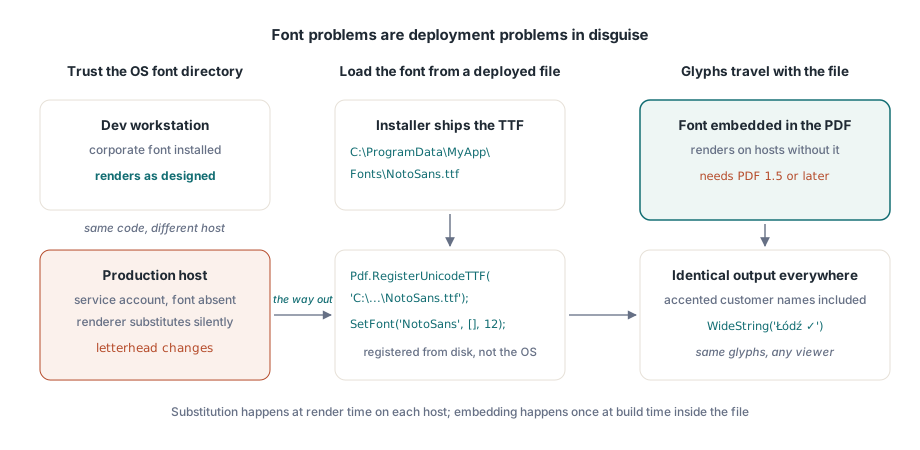
Pdf.RegisterUnicodeTTF('C:\ProgramData\MyApp\Fonts\NotoSans.ttf');
Pdf.CurrentPage.SetFont('NotoSans', [], 12);
Pdf.CurrentPage.TextOut(50, 700, 0, WideString('Łódź - Ünïcode test ✓'));
O TextOut aceita diretamente uma WideString, o que importa mais do que parece à primeira vista. Um nome de cliente com acento, uma rua alemã, uma cidade polaca: não são casos extremos, são o conteúdo normal de uma tabela de clientes, e passam pela mesma chamada que os rótulos ASCII que escreve à mão, desde que a fonte registada contenha mesmo os glifos. Há uma restrição de versão que anda a par das fontes incorporadas: o documento tem de ser PDF 1.5 ou posterior, por isso, se um requisito sem relação o estiver a prender a uma versão mais antiga, é essa a peça que vai falhar em silêncio. As escritas da direita para a esquerda, como o árabe e o hebraico, precisam de composição verdadeira e não de uma simples consulta de glifos, e isso tem um pipeline próprio; veja o nosso artigo sobre composição de texto de escritas complexas com o HotPDF
Quando nenhuma fonte instalada consegue exprimir o que precisa, pense em caracteres MICR num cheque ou num conjunto de símbolos proprietário, as fontes Type 3 preenchem a lacuna. Define-se cada glifo como um pequeno fluxo de conteúdo através de RegisterType3Font e AddType3Glyph. É um canto especializado da API e raramente lhe pegará, mas é bem mais limpo do que espalhar centenas de minúsculos bitmaps de símbolos por uma página
Imagens: os argumentos do meio são uma largura e uma altura, não um canto
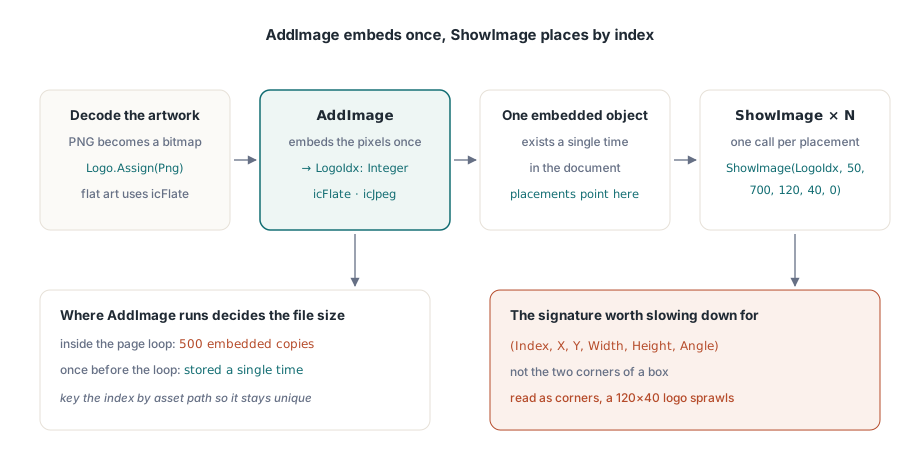
O tratamento de imagens divide-se em dois passos, e mantê-los separados é a questão toda. O AddImage recebe um TBitmap ou um TJPEGImage, incorpora-o uma vez, e devolve um índice. As ilustrações PNG têm de ser descodificadas para um bitmap antes de lá chegarem. O ShowImage desenha depois esse índice onde e quantas vezes quiser. A ordem dos argumentos do ShowImage é o único ponto em que vale a pena abrandar para ler:
var
  Png: TPngImage;
  Logo: TBitmap;
  LogoIdx: Integer;
begin
  Png := TPngImage.Create;
  Logo := TBitmap.Create;
  try
    Png.LoadFromFile('brand-logo.png');
    Logo.Assign(Png);                       // descodifica o PNG para um bitmap
    LogoIdx := Pdf.AddImage(Logo, icFlate); // sem perdas para arte de cor lisa
  finally
    Logo.Free;
    Png.Free;
  end;
  // (Index, X, Y, Width, Height, Angle): não (X1, Y1, X2, Y2)
  Pdf.CurrentPage.ShowImage(LogoIdx, 50, 700, 120, 40, 0);
end;
Os dois números depois da posição são uma largura e uma altura. Não são as coordenadas do canto oposto, e o último argumento é um ângulo de rotação em graus. Leia a assinatura como uma caixa X1/Y1/X2/Y2 e um logótipo de 120 por 40 colocado em (50, 700) passa a estender-se dali até (120, 40), espalhando-se por quase toda a página. O resultado torna o erro óbvio enquanto o código-fonte parece perfeitamente razoável, e é isso que faz perder uma tarde. O KeepImageAspectRatio tem True por omissão, pelo que uma caixa com as proporções erradas coloca barras à volta da imagem em vez de a distorcer; passe-o a False apenas quando quiser mesmo esticar
A separação entre registar e colocar compensa em tiragens longas. Como o AddImage incorpora os píxeis uma só vez e cada ShowImage com esse índice aponta de volta ao mesmo objeto incorporado, é o sítio onde chama AddImage que decide o tamanho do ficheiro. Chame-o dentro do ciclo de páginas de um extrato de 500 páginas e o mesmo logótipo é incorporado 500 vezes. Chame-o uma vez antes do ciclo, guarde o índice, e o logótipo é armazenado uma única vez. Um pequeno dicionário indexado pelo caminho do recurso chega para garantir que cada imagem distinta é registada exatamente uma vez
A escolha do codec é a outra alavanca de tamanho. O conteúdo fotográfico, anexos digitalizados e afins, pertence ao JPEG: passe icJpeg ao AddImage e baixe JpegQuality para cerca de 85, já que a propriedade começa em 100 e a diferença a 85 é invisível numa página impressa. As ilustrações de cor lisa, como logótipos, gráficos e desenhos de linha, pertencem ao icFlate, onde a compressão sem perdas já é compacta e o JPEG espalharia halos visíveis à volta das arestas vivas. Uma tiragem de extratos que empurre uma fotografia de qualidade máxima para cada página pode inchar até aos gigabytes; o mesmo conteúdo em JPEG 85 fica em cerca de um décimo do tamanho, e nenhum leitor nota
Filetes, caixas e sombreados com primitivas de caminho
A linha horizontal por baixo do cabeçalho de uma tabela e a caixa cinzenta atrás de um valor de totais não precisam de ser imagens. Desenhe-as como vetores e ficam nítidas em qualquer ampliação, imprimem com nitidez e quase nada acrescentam ao ficheiro. O HotPDF segue o mesmo modelo que os fluxos de conteúdo PDF em bruto usam: construir um caminho e depois chamar um operador que o pinta
// Filete horizontal por baixo do cabeçalho da tabela
Pdf.CurrentPage.SetLineWidth(0.75);
Pdf.CurrentPage.MoveTo(50, 660);
Pdf.CurrentPage.LineTo(545, 660);
Pdf.CurrentPage.Stroke;

// Caixa de totais sombreada: X, Y, largura, altura
Pdf.CurrentPage.SetRGBFillColor(RGB(235, 235, 235));
Pdf.CurrentPage.Rectangle(395, 120, 150, 40);
Pdf.CurrentPage.Fill;
A ordem não é opcional: definir o estado de pintura, construir o caminho, e só depois chamar Stroke ou Fill. Um caminho que constrói mas nunca pinta não contribui em nada para a página, o que é quase sempre a resposta quando um filete "não aparece". O SetRGBFillColor recebe um único TColor, pelo que as constantes VCL familiares como clNavy e clBlack encaixam diretamente, e o Rectangle usa os mesmos argumentos de largura e altura da colocação de imagens em vez de dois cantos. Uma advertência sobre linhas finas: qualquer coisa abaixo de cerca de meio ponto pode ficar elegante num monitor e depois desaparecer numa impressora de escritório a 600 dpi, pelo que 0,75pt é um mínimo razoável para qualquer filete que tenha de sobreviver à impressão
Paginação contra dados reais, não dados de exemplo
Há um detalhe a acertar antes de o layout assentar: as colunas numéricas devem ser alinhadas pela margem direita, e a forma de o fazer é medir a largura representada de cada valor e posicioná-lo recuado a partir do limite da coluna, não encher a cadeia de caracteres com espaços à esquerda. O enchimento com espaços só alinha numa fonte monoespaçada, e ninguém compõe um relatório financeiro numa fonte monoespaçada. Passe primeiro os valores pelas rotinas do Delphi sensíveis à região, como FormatFloat, para que o separador de milhares cuja largura mede seja o mesmo que a região do cliente vai realmente apresentar
O perigo da paginação está em escrevê-la contra o conjunto de dados de demonstração, onde dez linhas curtas cabem numa página e o ciclo nunca tem de quebrar. A produção entrega-lhe um cliente cujo nome de empresa tem 140 caracteres e um extrato com 4000 linhas, e agora o ciclo tem de quebrar corretamente sempre. O padrão que aguenta é um único cursor Y que se desloca para baixo à medida que subtrai a altura de cada linha, e uma verificação que inicia uma página nova assim que o cursor cruzasse a margem inferior. Para baixo aqui significa Y a diminuir, que é o único sítio onde a origem no canto inferior esquerdo continua a ser contraintuitiva. Mantenha tudo isso numa rotina que também volte a emitir o SetFont e redesenhe o cabeçalho corrente na página nova, e os erros de página a mais ou a menos nunca ganham terreno. Quando os mesmos relatórios têm ainda de cumprir regras de arquivo ou de acessibilidade, as escolhas que faz precisamente aqui, que fontes incorpora, se a saída é etiquetada, que espaços de cor usa, são as que essas normas fiscalizam; o guia de PDF/A, PDF/X e PDF/UA do HotPDF vale a pena ler antes de o modelo endurecer
Todas as chamadas aqui mostradas, o posicionamento de texto, o registo de fontes, a incorporação de imagens e o desenho de caminhos, fazem parte do HotPDF Delphi Component para Delphi e C++Builder, cuja referência documenta toda a API de saída a par das funcionalidades de formulários, cifragem e assinatura junto às quais reside