HotPDF Komponent Delphi TextOut Przykład — styl czcionki i zestaw znaków
To kompleksowe Komponent HotPDF Przykład TextOut demonstruje zaawansowaną obsługę czcionek, obsługę zestawów znaków, skalowanie tekstu, dostosowywanie odstępów i tryby renderowania. Przykład generuje szczegółowe demonstracje czcionek i zestawów znaków z praktycznymi przykładami generowania PDF w aplikacjach Delphi.
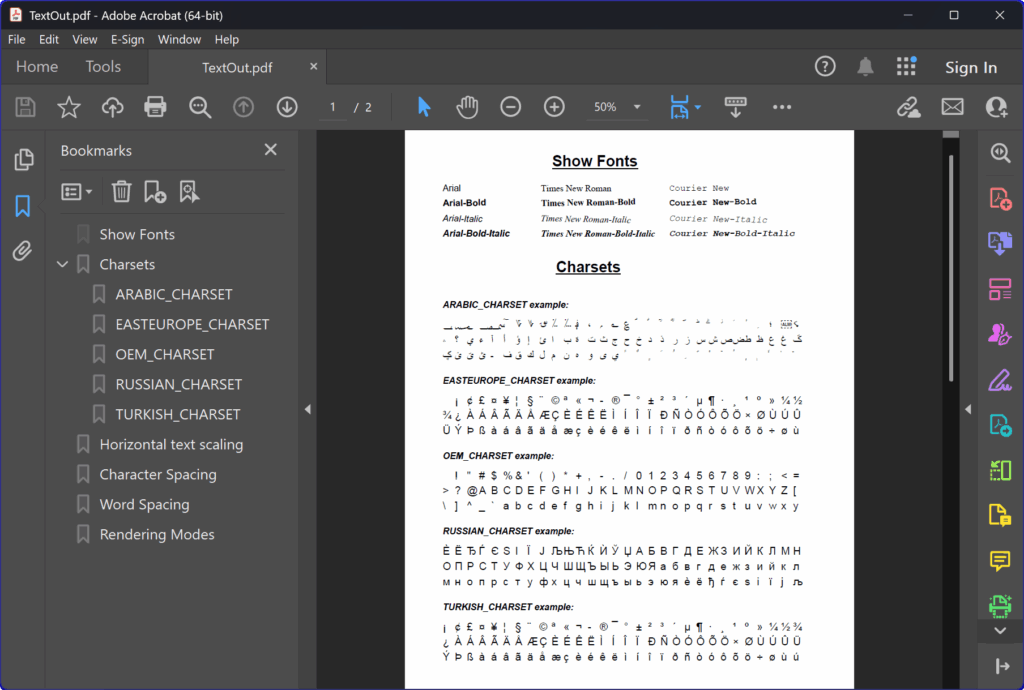
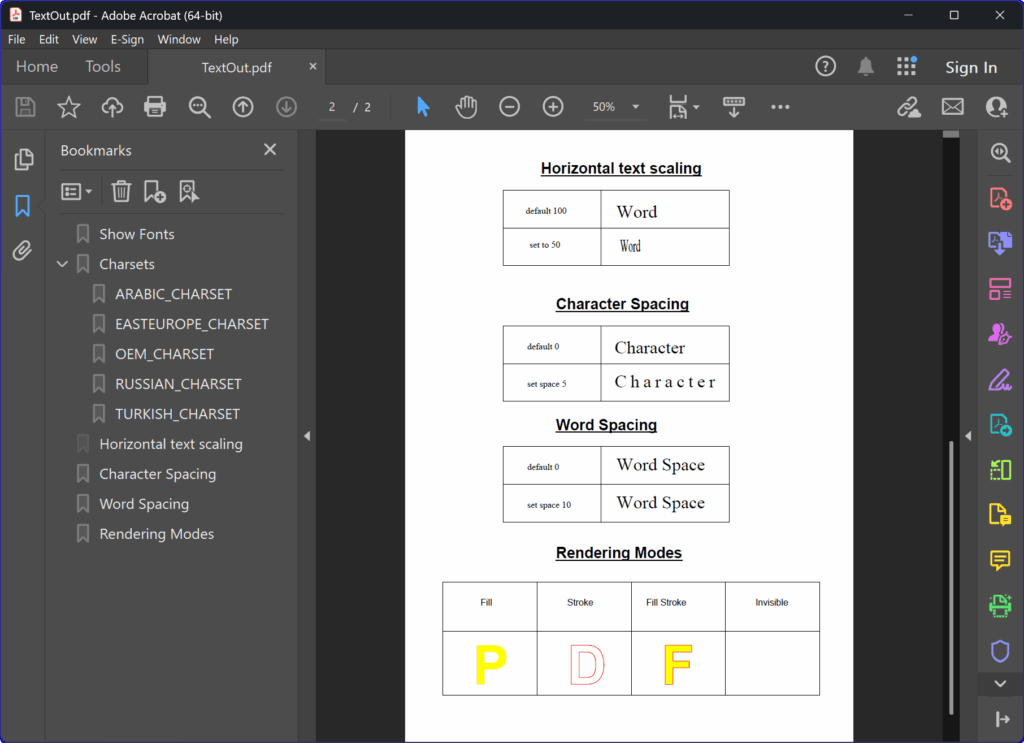
Zademonstrowano najważniejsze funkcje
- Obsługa rodziny czcionek: Arial, Times New Roman, Courier New w różnych stylach
- Obsługa zestawu znaków: Zestawy znaków arabskich, wschodnioeuropejskich, OEM, rosyjskich i tureckich
- Skalowanie tekstu: Pozioma kompresja i rozszerzanie tekstu
- Odstępy między znakami: Dostosowanie odstępów między znakami w celu poprawy czytelności
- Odstępy między wyrazami: Dostosowywanie odstępów między słowami w celu lepszego układu tekstu
- Tryby renderowania: Wypełnienie, obrys, wypełnienie+obrys i niewidoczne renderowanie tekstu
📝 Ważna uwaga
ShowCharset służy wyłącznie do technicznego zademonstrowania wyświetlania znaków z zestawu znaków za pomocą kodów znaków. W przypadku zwykłego wyświetlania tekstu można po prostu użyć TextOut, aby bezpośrednio wyświetlić żądany ciąg znaków bez konieczności podawania jakichkolwiek kodów znaków.
Procedura ShowCharset w tym przykładzie została specjalnie zaprojektowana w celu pokazania, w jaki sposób różne kodowania znaków renderują poszczególne znaki na podstawie ich kodów Unicode/ASCII. W rzeczywistych aplikacjach po prostu użyj metody TextOut bezpośrednio z ciągami tekstowymi.
Implementacja techniczna
Ten przykład przedstawia wszechstronne możliwości wyjściowego tekstu komponentu HotPDF, w tym:
- Osadzanie czcionek w celu zapewnienia spójnego wyświetlania na wielu platformach
- Obsługa znaków Unicode w tekście międzynarodowym
- Zaawansowane pozycjonowanie i obracanie tekstu
- PDF generowanie konspektu/zakładki do nawigacji
- Tworzenie wielostronicowych dokumentów z automatycznym zarządzaniem stronami
|
1 2 3 4 5 6 7 8 9 10 11 12 13 14 15 16 17 18 19 20 21 22 23 24 25 26 27 28 29 30 31 32 33 34 35 36 37 38 39 40 41 42 43 44 45 46 47 48 49 50 51 52 53 54 55 56 57 58 59 60 61 62 63 64 65 66 67 68 69 70 71 72 73 74 75 76 77 78 79 80 81 82 83 84 85 86 87 88 89 90 91 92 93 94 95 96 97 98 99 100 101 102 103 104 105 106 107 108 109 110 111 112 113 114 115 116 117 118 119 120 121 122 123 124 125 126 127 128 129 130 131 132 133 134 135 136 137 138 139 140 141 142 143 144 145 146 147 148 149 150 151 152 153 154 155 156 157 158 159 160 161 162 163 164 165 166 167 168 169 170 171 172 173 174 175 176 177 178 179 180 181 182 183 184 185 186 187 188 189 190 191 192 193 194 195 196 197 198 199 200 201 202 203 204 205 206 207 208 209 210 211 212 213 214 215 216 217 218 219 220 221 222 223 224 225 226 227 228 229 230 231 232 233 234 235 236 237 238 239 240 241 242 243 244 245 246 247 248 249 250 251 252 253 254 255 256 257 258 259 260 261 262 263 264 265 266 267 268 269 270 271 272 273 274 275 276 277 278 279 280 281 282 283 284 285 286 287 288 289 290 291 292 293 294 295 296 297 298 299 300 301 302 303 304 305 306 307 308 309 310 311 312 313 314 315 316 317 318 319 320 321 322 323 324 325 326 327 328 329 330 331 332 333 334 335 336 337 338 339 340 341 342 343 344 345 346 347 348 349 350 351 352 353 354 355 356 357 358 359 360 361 362 363 364 365 366 367 368 369 370 371 372 373 374 375 376 377 378 379 380 381 382 383 384 385 386 387 388 389 390 391 392 393 394 395 396 397 398 399 400 401 402 403 404 405 406 407 408 409 410 411 412 413 414 415 416 417 418 419 420 421 422 423 424 425 426 427 428 429 430 431 432 433 434 435 436 437 438 439 440 441 442 443 444 445 446 447 448 449 450 451 452 453 454 455 456 457 458 459 460 461 462 463 464 465 466 467 468 469 470 471 472 473 474 475 476 477 478 479 480 481 482 483 484 485 |
{***************************************************************} // HotPDF PDF Component - Text Styling & Charset Demonstration // Copyright(c)2007-2025, https://www.loslab.com {***************************************************************} program TextOut; {$APPTYPE CONSOLE} {$I ..\..\..\Lib\HotPDF.inc} uses {$IFDEF XE2+} WinApi.Windows, System.SysUtils, System.Classes, Vcl.Graphics, {$ELSE} Windows, SysUtils, Classes, Graphics, {$ENDIF} HPDFDoc; // Global variables for PDF document and outline management var HotPDF: THotPDF; // Main HotPDF component instance OutlineRoot: THPDFDocOutlineObject; // Root outline object for document navigation CurrnetOutline: THPDFDocOutlineObject; // Current outline object for nested structure { ==================================================================== ShowFontGroup - Displays a font family with different styles ==================================================================== PURPOSE: Demonstrates how to display the same font in different styles (normal, bold, italic, bold-italic) with various text rotation angles. PARAMETERS: @param FontGroup: String - Name of the font family to display (e.g., 'Arial') @param Position: Integer - X coordinate for text placement FUNCTIONALITY: 1. Displays font name in normal style at base position 2. Shows bold version with positive rotation (+1 degree) 3. Shows italic version with negative rotation (-1 degree) 4. Shows bold-italic combination in normal orientation LAYOUT: Each font style is displayed 20 pixels below the previous one } procedure ShowFontGroup(FontGroup: AnsiString; Position: Integer); begin // procedure SetFont ( FontName: AnsiString; FontStyle: TFontStyles; ASize: Single; FontCharset: TFontCharset; IsVertiacal: Boolean); // Display normal font style HotPDF.CurrentPage.SetFont(FontGroup, [], 12); // Set font without any style modifiers // procedure TextOut ( X, Y: Single; Angle: Extended; Text: WideString); HotPDF.CurrentPage.TextOut(Position, 70, 0, WideString(FontGroup)); // Display at base Y position (70) // Display bold font style with slight positive rotation HotPDF.CurrentPage.SetFont(FontGroup, [fsBold], 12); // Apply bold style HotPDF.CurrentPage.TextOut(Position, 90, 1, WideString(FontGroup + '-Bold')); // +1 degree rotation, Y+20 // Display italic font style with slight negative rotation HotPDF.CurrentPage.SetFont(FontGroup, [fsItalic], 12); // Apply italic style HotPDF.CurrentPage.TextOut(Position, 110, - 1, WideString(FontGroup + '-Italic')); // -1 degree rotation, Y+40 // Display bold-italic combination without rotation HotPDF.CurrentPage.SetFont(FontGroup, [fsBold, fsItalic], 12); // Apply both bold and italic HotPDF.CurrentPage.TextOut(Position, 130, 0, WideString(FontGroup + '-Bold-Italic')); // Normal orientation, Y+60 end; { ==================================================================== ShowCharset - Displays characters for a specific character set ==================================================================== PURPOSE: Demonstrates proper character display for different character encodings PARAMETERS: @param FontCharset: TFontCharset - Windows character set identifier @param First: Integer - Starting Unicode/ASCII character code @param Last: Integer - Ending Unicode/ASCII character code (inclusive) @param Y1: Integer - Y coordinate for charset name display @param Y2: Integer - Y coordinate for character grid display CHARACTER RANGES: Each charset displays characters from specific Unicode/ASCII ranges: - ARABIC_CHARSET: Unicode 1536-1625 (Arabic block characters) - EASTEUROPE_CHARSET: Unicode 160-249 (Latin-1 Supplement) - OEM_CHARSET: ASCII 32-121 (printable ASCII characters) - RUSSIAN_CHARSET: Unicode 1024-1113 (Cyrillic block characters) - TURKISH_CHARSET: Unicode 161-255 (printable Latin extended) DISPLAY LAYOUT: Characters are arranged in 3 rows with 30 characters per row: - Row 1: Characters 0-29, starting at X=50 - Row 2: Characters 30-59, starting at X=50, Y+20 - Row 3: Characters 60-89, starting at X=50, Y+40 - Character spacing: 16 pixels horizontally, 20 pixels vertically } procedure ShowCharset(FontCharset: TFontCharset; First, Last: Integer; Y1, Y2: Integer); var i: Integer; // Loop counter for character iteration CSName: AnsiString; // Character set name for display XPos, YPos: Integer; // Position variables CharCode: Integer; // Character code to display CharCount: Integer; // Number of characters to display Row: Integer; // Current row (1, 2, or 3) CharInRow: Integer; // Character position within current row begin // Character set configuration with descriptive names case FontCharset of ARABIC_CHARSET: CSName := 'ARABIC_CHARSET'; EASTEUROPE_CHARSET: CSName := 'EASTEUROPE_CHARSET'; OEM_CHARSET: CSName := 'OEM_CHARSET'; RUSSIAN_CHARSET: CSName := 'RUSSIAN_CHARSET'; TURKISH_CHARSET: CSName := 'TURKISH_CHARSET'; else CSName := 'DEFAULT_CHARSET'; end; // Set character count to display 90 characters (30 per row × 3 rows) CharCount := 90; if Last - First + 1 < CharCount then CharCount := Last - First + 1; // Display character set header HotPDF.CurrentPage.SetFont('Arial', [fsBold, fsItalic], 12); HotPDF.CurrentPage.TextOut(50, Y1, 0, WideString(CSName + ' example: ')); // Set the appropriate font for character display with charset specification HotPDF.CurrentPage.SetFont('Arial', [], 14, FontCharset); // Display characters in 3-row layout without indentation for i := 0 to CharCount - 1 do begin // Determine row and position within row if i < 30 then begin // First row: 30 characters, aligned with title (x=50) Row := 1; CharInRow := i; XPos := 50 + CharInRow * 16; YPos := Y2; end else if i < 60 then begin // Second row: 30 characters, aligned with title (x=50) Row := 2; CharInRow := i - 30; XPos := 50 + CharInRow * 16; YPos := Y2 + 20; // 20 pixels below first row end else begin // Third row: remaining characters, aligned with title (x=50) Row := 3; CharInRow := i - 60; XPos := 50 + CharInRow * 16; YPos := Y2 + 40; // 40 pixels below first row end; // Calculate character code CharCode := First + i; try // Use WideString conversion for all characters HotPDF.CurrentPage.TextOut(XPos, YPos, 0, WideString(WideChar(CharCode))); except // If any error occurs, display a fallback character HotPDF.CurrentPage.TextOut(XPos, YPos, 0, WideString('?')); end; end; end; { ==================================================================== ShowTable - Draws a demonstration table structure ==================================================================== PURPOSE: Creates a simple table structure for demonstrating text formatting effects. Used in text scaling, character spacing, and word spacing sections. PARAMETERS: @param X: Integer - Left edge X coordinate @param Y: Integer - Top edge Y coordinate STRUCTURE: Creates a 300x100 pixel table divided into: - Upper cell: 300x50 pixels - Lower cell: 300x50 pixels - Vertical divider: 130 pixels from left edge All lines are drawn with stroke operation for visibility } procedure ShowTable(X, Y: Integer); begin // Draw upper table cell (300x50 rectangle) HotPDF.CurrentPage.Rectangle(X, Y, 300, 50); HotPDF.CurrentPage.Stroke; // Draw lower table cell (300x50 rectangle, offset by 50 pixels down) HotPDF.CurrentPage.Rectangle(X, Y + 50, 300, 50); HotPDF.CurrentPage.Stroke; // Draw vertical divider line through both cells HotPDF.CurrentPage.MoveTo(X + 130, Y); // Start at top of upper cell HotPDF.CurrentPage.LineTo(X + 130, Y + 100); // Draw to bottom of lower cell HotPDF.CurrentPage.Stroke; end; { ==================================================================== MAIN PROGRAM EXECUTION ==================================================================== This is the main program body that demonstrates all HotPDF text output capabilities. The program is structured in sections, each demonstrating a specific aspect of text handling: 1. FONT GROUPS - Shows different font families and styles 2. CHARACTER SETS - Demonstrates character encoding handling 3. TEXT SCALING - Shows horizontal text scaling effects 4. CHARACTER SPACING - Demonstrates character spacing adjustments 5. WORD SPACING - Shows word spacing modifications 6. RENDERING MODES - Displays different text rendering effects Each section includes appropriate headers, navigation outlines, and practical examples with before/after comparisons where applicable. } begin // Initialize HotPDF component HotPDF := THotPDF.Create(nil); try // Configure PDF document properties for optimal text display HotPDF.AutoLaunch := true; // Automatically open PDF after creation HotPDF.FontEmbedding := true; // Enable font embedding for consistent character display across systems HotPDF.StandardFontEmulation := false; // Disable font emulation to prevent character mapping issues HotPDF.FileName := 'TextOut.pdf'; // Set output filename HotPDF.PageLayout := plOneColumn; // Configure viewer to display one column // Begin PDF document creation HotPDF.BeginDoc(true); // Create PDF with compression enabled OutlineRoot := HotPDF.OutlineRoot; // Initialize document outline navigation // ==================================================================== // SECTION 1: FONT GROUPS DEMONSTRATION // ==================================================================== // This section demonstrates how different font families appear with // various style combinations (normal, bold, italic, bold-italic) // Create section header with enhanced formatting HotPDF.CurrentPage.SetFont('Arial', [fsBold, fsUnderline], 20); HotPDF.CurrentPage.TextOut(195, 30, 0, WideString('Show Fonts')); // Add navigation outline entry for this section OutlineRoot.AddChild('Show Fonts', 195, 30); // Links to coordinates // Display three major font families commonly available across systems ShowFontGroup('Arial', 50); // Sans-serif font at X=50 ShowFontGroup('Times New Roman', 180); // Serif font at X=180 ShowFontGroup('Courier New', 350); // Monospace font at X=350 // ==================================================================== // SECTION 2: CHARACTER SETS DEMONSTRATION // ==================================================================== // This section demonstrates proper handling of different Windows character encodings // Create section header HotPDF.CurrentPage.SetFont('Arial', [fsBold, fsUnderline], 20); HotPDF.CurrentPage.TextOut(200, 170, 0, WideString('Charsets')); // Create outline group for character sets with expandable structure // OutlineRoot.AddChild: Creates a new bookmark/outline entry in the PDF navigation tree // Parameters: ('Title', X-coordinate, Y-coordinate) // - 'Charsets': Display text shown in the PDF outline/bookmark panel // - 250: X-coordinate (horizontal position) where clicking will navigate to // - 170: Y-coordinate (vertical position) where clicking will navigate to CurrnetOutline := OutlineRoot.AddChild('Charsets', 250, 170); CurrnetOutline.Opened := true; // Expand this outline section by default CurrnetOutline.AddChild('ARABIC_CHARSET', 50, 225); // Arabic charset: Unicode range U+0600-U+0659 (90 characters) // Range: 1536-1625 (Arabic block including letters, punctuation, numbers, and diacritics) // Displays 90 Arabic characters in 3 rows of 30 characters each // Used for: Arabic, Persian, Urdu, Pashto, Kurdish and other RTL scripts // procedure ShowCharset(FontCharset: TFontCharset; First, Last: Integer; Y1, Y2: Integer); // First is the code of the first character, outputs sequentially to the Last character // Y1 is the title Y coordinate, and Y2 is the starting character Y coordinate ShowCharset(ARABIC_CHARSET, 1536, 1625, 225, 250); CurrnetOutline.AddChild('EASTEUROPE_CHARSET', 50, 325); // Eastern European charset: Unicode range U+00A0-U+00F9 (90 characters) // Range: 160-249 (Latin-1 Supplement with accented characters and symbols) // Displays 90 extended Latin characters in 3 rows of 30 characters each // Used for: French, German, Spanish, Portuguese, Italian, Dutch, Nordic languages // ShowCharset is just for demonstrating the display of characters from character set through character codes // for regular text display, you only need to use TextOut to directly show the required string ShowCharset(EASTEUROPE_CHARSET, 160, 249, 325, 350); CurrnetOutline.AddChild('OEM_CHARSET', 50, 425); // OEM charset: ASCII range 32-121 (90 characters) // Range: 32-121 (printable ASCII including space, symbols, numbers, and letters) // Displays 90 ASCII characters in 3 rows of 30 characters each // Used for: DOS applications, console output, legacy systems ShowCharset(OEM_CHARSET, 32, 121, 425, 450); CurrnetOutline.AddChild('RUSSIAN_CHARSET', 50, 525); // Russian charset: Unicode range U+0400-U+0459 (90 characters) // Range: 1024-1113 (Cyrillic block including Russian, Ukrainian, Bulgarian letters) // Displays 90 Cyrillic characters in 3 rows of 30 characters each // Used for: Russian, Bulgarian, Serbian (Cyrillic), Macedonian, Ukrainian, Belarusian ShowCharset(RUSSIAN_CHARSET, 1024, 1113, 525, 550); CurrnetOutline.AddChild('TURKISH_CHARSET', 50, 625); // Turkish charset: Unicode range U+00A1-U+00FF (95 characters) // Range: 161-255 (printable Latin-1 Supplement, avoiding control characters 128-160) // Displays 90 characters in 3 rows of 30 characters each (first 90 of 95 available) // Includes Turkish specials: Ç(199), ç(231), Ğ(208), ğ(240), İ(221), ı(253), Ö(214), ö(246), Ş(222), ş(254), Ü(220), ü(252) // Used for: Turkish language with its unique characters and European symbols ShowCharset(TURKISH_CHARSET, 161, 255, 625, 650); // ==================================================================== // SECTION 3: TEXT SCALING DEMONSTRATION // ==================================================================== // This section shows how horizontal text scaling affects text appearance // Scaling modifies the width of characters while maintaining height // Start new page for advanced text formatting demonstrations HotPDF.AddPage; HotPDF.CurrentPage.SetFont('Arial', [fsBold, fsUnderline], 20); OutlineRoot.AddChild('Horizontal text scaling', 180, 40); // Add to main outline navigation HotPDF.CurrentPage.TextOut(180, 40, 0, WideString('Horizontal text scaling')); // Create comparison table structure ShowTable(130, 80); // Add descriptive labels for the comparison HotPDF.CurrentPage.SetFont('Times New Roman', [], 12); HotPDF.CurrentPage.TextOut(160, 100, 0, WideString('default 100')); // Normal scaling label HotPDF.CurrentPage.TextOut(165, 145, 0, WideString('set to 50')); // Compressed scaling label // Demonstrate normal text scaling (100% - default) HotPDF.CurrentPage.SetFont('Times New Roman', [], 24); HotPDF.CurrentPage.TextOut(280, 95, 0, WideString('Word')); // Demonstrate compressed text scaling (50% width) HotPDF.CurrentPage.SetHorizontalScaling(50); // Compress text to 50% width HotPDF.CurrentPage.TextOut(285, 140, 0, WideString('Word')); HotPDF.CurrentPage.SetHorizontalScaling(100); // Reset to normal scaling // ==================================================================== // SECTION 4: CHARACTER SPACING DEMONSTRATION // ==================================================================== // This section demonstrates how character spacing affects text readability // Character spacing adds uniform space between individual characters HotPDF.CurrentPage.SetFont('Arial', [fsBold, fsUnderline], 20); OutlineRoot.AddChild('Character Spacing', 200, 220); HotPDF.CurrentPage.TextOut(200, 220, 0, WideString('Character Spacing')); // Create comparison table ShowTable(130, 260); // Add descriptive labels HotPDF.CurrentPage.SetFont('Times New Roman', [], 12); HotPDF.CurrentPage.TextOut(162, 280, 0, WideString('default 0')); // Normal spacing label HotPDF.CurrentPage.TextOut(162, 330, 0, WideString('set space 5')); // Expanded spacing label // Demonstrate normal character spacing (0 - default) HotPDF.CurrentPage.SetFont('Times New Roman', [], 24); HotPDF.CurrentPage.TextOut(278, 275, 0, WideString('Character')); // Demonstrate expanded character spacing (+5 units between characters) HotPDF.CurrentPage.SetCharacterSpacing(5); // Add 5 units between each character HotPDF.CurrentPage.TextOut(278, 320, 0, WideString('Character')); HotPDF.CurrentPage.SetCharacterSpacing(0); // Reset to normal spacing // ==================================================================== // SECTION 5: WORD SPACING DEMONSTRATION // ==================================================================== // This section demonstrates how word spacing affects text layout // Word spacing adds space specifically between words (at space characters) HotPDF.CurrentPage.SetFont('Arial', [fsBold, fsUnderline], 20); OutlineRoot.AddChild('Word Spacing', 200, 380); HotPDF.CurrentPage.TextOut(200, 380, 0, WideString('Word Spacing')); // Create comparison table ShowTable(130, 420); // Add descriptive labels HotPDF.CurrentPage.SetFont('Times New Roman', [], 12); HotPDF.CurrentPage.TextOut(162, 440, 0, WideString('default 0')); // Normal word spacing label HotPDF.CurrentPage.TextOut(162, 490, 0, WideString('set space 10')); // Expanded word spacing label // Demonstrate normal word spacing (0 - default) HotPDF.CurrentPage.SetFont('Times New Roman', [], 24); HotPDF.CurrentPage.TextOut(280, 430, 0, WideString('Word Space')); // Demonstrate expanded word spacing (+10 units between words) HotPDF.CurrentPage.SetWordSpacing(10); // Add 10 units between words HotPDF.CurrentPage.TextOut(280, 480, 0, WideString('Word Space')); HotPDF.CurrentPage.SetWordSpacing(0); // Reset to normal spacing // ==================================================================== // SECTION 6: TEXT RENDERING MODES DEMONSTRATION // ==================================================================== // This section demonstrates different text rendering effects available in PDF // Text can be filled, stroked, both, or invisible (for advanced effects) HotPDF.CurrentPage.SetFont('Arial', [fsBold, fsUnderline], 20); OutlineRoot.AddChild('Rendering Modes', 200, 550); HotPDF.CurrentPage.TextOut(200, 550, 0, WideString('Rendering Modes')); // Create a complex table structure for rendering mode comparison // Main table outline (500x150 pixels) HotPDF.CurrentPage.Rectangle(50, 600, 500, 150); HotPDF.CurrentPage.Stroke; // Vertical dividers creating 4 columns of equal width HotPDF.CurrentPage.MoveTo(175, 600); // First divider HotPDF.CurrentPage.LineTo(175, 750); HotPDF.CurrentPage.Stroke; HotPDF.CurrentPage.MoveTo(300, 600); // Second divider HotPDF.CurrentPage.LineTo(300, 750); HotPDF.CurrentPage.Stroke; HotPDF.CurrentPage.MoveTo(425, 600); // Third divider HotPDF.CurrentPage.LineTo(425, 750); HotPDF.CurrentPage.Stroke; // Horizontal divider separating header from content HotPDF.CurrentPage.MoveTo(50, 665); HotPDF.CurrentPage.LineTo(550, 665); HotPDF.CurrentPage.Stroke; // Add column headers describing each rendering mode HotPDF.CurrentPage.SetFont('Arial', [], 12); HotPDF.CurrentPage.TextOut(100, 620, 0, WideString('Fill')); // Fill mode - solid colored text HotPDF.CurrentPage.TextOut(215, 620, 0, WideString('Stroke')); // Stroke mode - outlined text HotPDF.CurrentPage.TextOut(320, 620, 0, WideString('Fill Stroke')); // Combined mode - filled with outline HotPDF.CurrentPage.TextOut(465, 620, 0, WideString('Invisible')); // Invisible mode - for special effects // Configure colors for dramatic rendering effect demonstration HotPDF.CurrentPage.SetFont('Arial', [fsBold], 72); // Large font for clear visibility HotPDF.CurrentPage.SetRGBStrokeColor(clRed); // Red outline color HotPDF.CurrentPage.SetRGBFillColor(clYellow); // Yellow fill color // Demonstrate Fill rendering mode - solid colored text HotPDF.CurrentPage.SetTextRenderingMode(trFill); HotPDF.CurrentPage.TextOut(90, 670, 0, WideString('P')); // Demonstrate Stroke rendering mode - outlined text only HotPDF.CurrentPage.SetTextRenderingMode(trStroke); HotPDF.CurrentPage.TextOut(215, 670, 0, WideString('D')); // Demonstrate Fill+Stroke rendering mode - filled text with colored outline HotPDF.CurrentPage.SetTextRenderingMode(trFillThenStroke); HotPDF.CurrentPage.TextOut(340, 670, 0, WideString('F')); // Demonstrate Invisible rendering mode - text is present but not visible // (useful for searchable text over images, or advanced layout techniques) HotPDF.CurrentPage.SetTextRenderingMode(trInvisible); HotPDF.CurrentPage.TextOut(475, 670, 0, WideString('X')); // Reset to default rendering mode for any subsequent text HotPDF.CurrentPage.SetTextRenderingMode(trFillThenStroke); // Finalize and save the PDF document HotPDF.EndDoc; finally // Ensure proper cleanup of HotPDF component HotPDF.Free; end; end. |