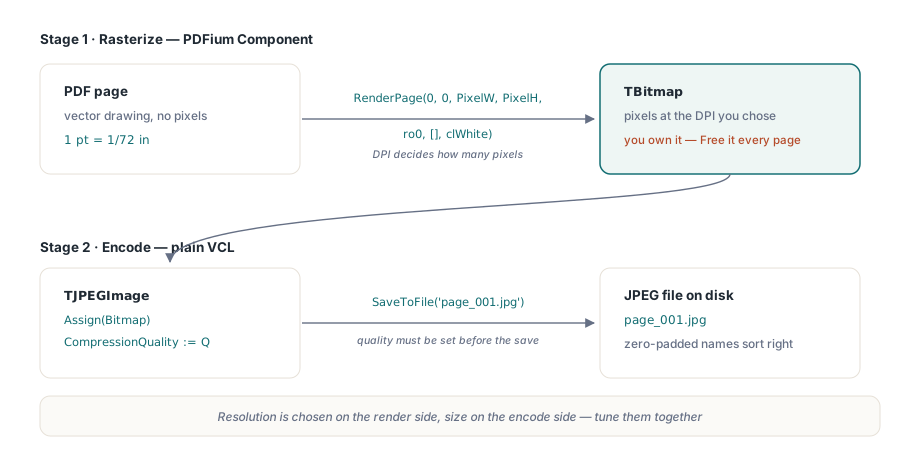
Renderizar una página PDF a JPEG consta de dos operaciones que la gente suele ejecutar juntas y luego depurar por separado. Primero, rasteriza la página en un mapa de bits (bitmap) de píxeles a una resolución que usted elige. Luego, entrega ese mapa de bits a un codificador JPEG y elige una calidad. PDFium Component es dueño de la primera mitad a través de RenderPage; la segunda mitad es VCL puro, TJPEGImage de Vcl.Imaging.jpeg. La unión entre ambos es donde se toman las decisiones interesantes, porque la resolución que elige en el lado del renderizado y la calidad que elige en el lado de la codificación se compensan entre sí y contra el tamaño del archivo, de formas en las que es fácil equivocarse
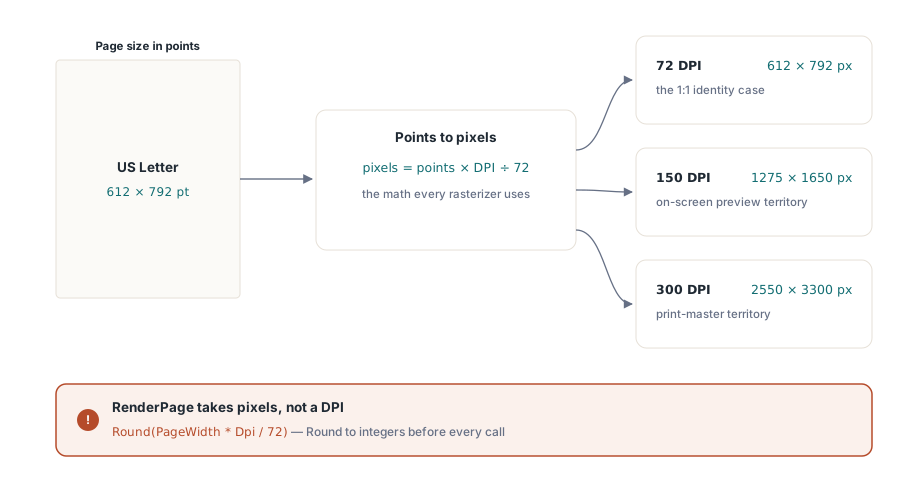
Lo que hay que internalizar antes que cualquier código: una página PDF no tiene píxeles. Se describe en puntos, donde un punto equivale a 1/72 de pulgada, y la página es un dibujo vectorial medido en esos puntos. Cuando le pide a PDFium que renderice, está eligiendo sobre cuántos píxeles proyectar ese dibujo, y esa elección es el DPI. Si hace mal los cálculos, renderizará una miniatura borrosa cuando quería un máster de impresión, o asignará un mapa de bits de 200 megapíxeles para algo destinado a ser una vista previa de 120 píxeles
De DPI a dimensiones en píxeles
RenderPage necesita píxeles enteros (integer) de ancho (Width) y alto (Height), no un DPI. Así que el primer trabajo es la conversión. Una página reporta su tamaño en puntos a través de PageWidth y PageHeight (ambos Double), y la conversión es la misma que utiliza cualquier rasterizador: los píxeles son iguales a los puntos multiplicados por el DPI de destino divididos por 72. Una página tamaño Carta de EE. UU. mide 612 por 792 puntos. A 150 DPI eso se convierte en 1275 por 1650 píxeles; a 72 DPI se mantiene en 612 por 792, un píxel por punto, que es el caso que la gente olvida y que es simplemente la identidad
// Pdf.PageNumber ya debe apuntar a la página que desea.
PixelW := Round(Pdf.PageWidth  * Dpi / 72);
PixelH := Round(Pdf.PageHeight * Dpi / 72);
Bitmap := Pdf.RenderPage(0, 0, PixelW, PixelH, ro0, [], clWhite);
// ... usar Bitmap ...
Bitmap.Free;   // la forma de función RenderPage le transfiere la propiedad (ownership)
Dos detalles en esas cuatro líneas deciden si el código es correcto. El primero es que la forma de función de RenderPage devuelve un TBitmap que le pertenece a usted. PDFium lo asignó y se retiró; si no lo libera (Free) en cada iteración, un lote (batch) de un par de cientos de páginas filtrará unos cientos de mapas de bits y el proceso se hinchará hasta que algo falle. El segundo es el argumento de color (Color), aquí clWhite. Las páginas PDF generalmente se dibujan asumiendo un sustrato blanco opaco, y una página con transparencia renderizada sobre el color de fondo incorrecto produce bordes turbios o halos oscuros. El blanco es el valor predeterminado correcto para casi cualquier documento; el parámetro existe para los raros casos donde no lo es
Los valores 0, 0 son los desplazamientos Left y Top dentro de la página, en el espacio de coordenadas escaladas, y los deja en cero a menos que esté recortando. ro0 es la rotación: déjelo en cero y PDFium respetará la rotación que la página ya declare en su entrada /Rotate, por lo que una página creada en formato horizontal sale en formato horizontal sin que usted tenga que hacer nada
Codificar el mapa de bits como JPEG
Una vez que el mapa de bits existe, el JPEG es la parte fácil, y es Delphi puro. TJPEGImage.Assign copia el mapa de bits, CompressionQuality establece la calidad en una escala de 1 a 100, y SaveToFile escribe el archivo. La única regla de orden es que la calidad se debe establecer antes de guardar, porque rige la codificación que desencadena SaveToFile
uses
  Vcl.Graphics, Vcl.Imaging.jpeg, PDFium;

procedure SavePageAsJpeg(Pdf: TPdf; PageNumber, Dpi, Quality: Integer;
  const FileName: string);
var
  Bitmap: TBitmap;
  Jpeg: TJPEGImage;
begin
  Pdf.PageNumber := PageNumber;
  Bitmap := Pdf.RenderPage(0, 0,
    Round(Pdf.PageWidth  * Dpi / 72),
    Round(Pdf.PageHeight * Dpi / 72),
    ro0, [], clWhite);
  try
    Jpeg := TJPEGImage.Create;
    try
      Jpeg.Assign(Bitmap);
      Jpeg.CompressionQuality := Quality;   // 1..100
      Jpeg.SaveToFile(FileName);
    finally
      Jpeg.Free;
    end;
  finally
    Bitmap.Free;
  end;
end;
Ese try/finally anidado parece muy quisquilloso para un ayudante de una sola página, y es exactamente el correcto para un proceso por lotes. El bloque interior libera el codificador, el bloque exterior libera el mapa de bits, y si cualquiera de los dos se activa debido a una excepción, aún libera lo que posee. Si los colapsa en uno solo, una excepción durante la codificación puede dejar el mapa de bits abandonado. Durante un proceso largo, esa es la diferencia entre un convertidor que termina y uno que muere en la página 300 con un archivo corrupto y un cuadro de diálogo de memoria insuficiente
Elegir el DPI y la calidad juntos
Las dos perillas no son independientes del propósito de la salida, y el error común es subir ambas por precaución. Una miniatura web renderizada a 300 DPI y guardada con calidad 95 ocupa cientos de kilobytes fingiendo ser una imagen de 120 píxeles; el navegador desechará casi todo en la reducción de escala. Haga coincidir la resolución con los píxeles que la salida realmente necesita, luego elija una calidad que sobreviva a la compresión con pérdida del JPEG sin artefactos visibles
| Salida | DPI | Calidad JPEG |
|---|---|---|
| Miniatura de lista | 72 | 60-70 |
| Vista previa en pantalla | 96-150 | 80-85 |
| Visualización de alto detalle | 200-300 | 85-95 |
| Máster de impresión | 300-600 | 90-100 |
Vale la pena dar una palabra de advertencia solo sobre la calidad del JPEG. No es un dial lineal. El salto de 70 a 85 compra una mejora visual real por un modesto aumento del archivo; el salto de 95 a 100 casi duplica el archivo por una diferencia que casi nadie puede ver, porque la calidad 100 aún no es sin pérdida, simplemente deja de descartar demasiado. Para las páginas con mucho texto, la compresión basada en bloques del JPEG difumina los bordes nítidos de los glifos produciendo un leve efecto de repique (ringing), por lo que una calidad por debajo de 80 hace que el texto parezca escaneado en lo que debería ser una salida nítida. Si las páginas son en su mayoría texto y puede cambiar de formato, PNG renderiza ese texto sin el efecto de repique; el JPEG se gana su lugar en contenido fotográfico y mixto, donde su compresión es genuinamente menor
Miniaturas más rápidas y más pequeñas
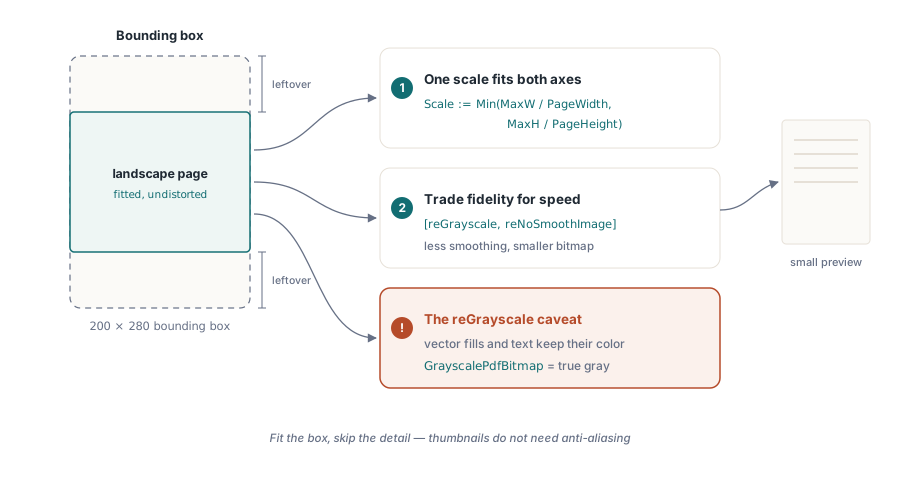
Cuando el objetivo es una miniatura en lugar de una reproducción fiel, puede decirle al renderizador que haga menos trabajo. El parámetro Options toma un conjunto de banderas (flags) TRenderOption, y unas pocas de ellas cambian fidelidad por velocidad exactamente de la manera que necesita una vista previa pequeña. reGrayscale descarta el color, lo que renderiza más rápido y produce un mapa de bits más pequeño para codificar. reNoSmoothImage y reNoSmoothPath omiten el suavizado (anti-aliasing) que de todas formas es invisible a escala de miniatura
function RenderThumbnail(Pdf: TPdf; PageNumber, MaxW, MaxH: Integer): TBitmap;
var
  Scale: Double;
begin
  Pdf.PageNumber := PageNumber;
  // Ajustar la página dentro de MaxW x MaxH manteniendo la relación de aspecto.
  Scale := Min(MaxW / Pdf.PageWidth, MaxH / Pdf.PageHeight);
  Result := Pdf.RenderPage(0, 0,
    Round(Pdf.PageWidth  * Scale),
    Round(Pdf.PageHeight * Scale),
    ro0, [reGrayscale, reNoSmoothImage], clWhite);
end;
El caso de la miniatura también muestra la forma más limpia de pensar en el tamaño. En lugar de pasar por el DPI, calcule un factor de escala único que ajuste la página dentro de un cuadro delimitador (bounding box) y preserve la relación de aspecto, que es lo que hace el método Min de las dos proporciones. Tanto una página en vertical como una en horizontal terminan dentro de la misma caja sin distorsión, y usted nunca tiene que razonar sobre qué DPI corresponde a "encajar en 200 por 280". Una advertencia con reGrayscale: convierte el contenido de imágenes rasterizadas a gris, pero los rellenos vectoriales y el texto mantienen sus valores de color en el motor, por lo que una página que es en su mayoría arte vectorial puede volver menos monocromática de lo que el nombre de la bandera sugiere. Para un verdadero resultado completo en escala de grises, convertir el mapa de bits renderizado con GrayscalePdfBitmap es el camino confiable
Procesamiento por lotes de un documento completo
Juntar todo para un documento completo es un bucle sobre PageCount, moviendo PageNumber de a una página a la vez. Las páginas se basan en 1: la página uno es PageNumber := 1, y el bucle se ejecuta hasta PageCount inclusive, no PageCount - 1. La otra cosa que el procesamiento por lotes debe respetar es el contrato de carga silenciosa. Establecer Active := True nunca lanza excepción ante un archivo dañado o una contraseña incorrecta; simplemente deja Active en False. Verifíquelo antes de renderizar una sola página, o el primer RenderPage funcionará en contra de un documento que nunca se abrió
procedure ExportAllPages(const PdfPath, OutDir: string; Dpi, Quality: Integer);
var
  Pdf: TPdf;
  I, Digits: Integer;
begin
  Pdf := TPdf.Create(nil);
  try
    Pdf.FileName := PdfPath;
    Pdf.Active := True;
    if not Pdf.Active then
      raise Exception.Create('Could not open ' + PdfPath);

    Digits := Length(IntToStr(Pdf.PageCount));   // rellenar con ceros para un orden correcto de archivos
    for I := 1 to Pdf.PageCount do
      SavePageAsJpeg(Pdf, I, Dpi, Quality,
        Format('%s\page_%.*d.jpg', [OutDir, Digits, I]));
  finally
    Pdf.Active := False;
    Pdf.Free;
  end;
end;
El relleno de ceros a través de Digits es una pequeña cosa que ahorra una tarde más adelante. Si nombra a los archivos page_1.jpg hasta page_10.jpg, cualquier herramienta que los ordene como cadenas pondrá a page_10 justo después de page_1, revolviendo el orden. Rellenar hasta el ancho del número de página más alto, para que un documento de 300 páginas genere un page_001.jpg, mantiene el orden léxico y el orden de página idénticos en todos lados de ahí en adelante
Para documentos lo suficientemente grandes como para que la conversión demore un tiempo considerable, ejecútela fuera del hilo (thread) de la interfaz de usuario, o procese mensajes entre páginas para que la aplicación siga respondiendo, y ofrézcale al usuario una manera de detenerse. Si está renderizando páginas muy grandes y desea una cancelación que actúe en medio de la página y no solo entre páginas, PDFium Component cuenta con una ruta de renderizado progresivo con un token de cancelación; es un mecanismo más pesado que el que requiere la mayoría de exportaciones por lotes, pero está ahí para cuando una sola página a 600 DPI es en sí misma lo suficientemente lenta como para bloquear
Un último emparejamiento que vale la pena saber. Rasterizar una página descarta su capa de texto: el JPEG es de píxeles, y las palabras en él ya no son seleccionables ni buscables. Cuando necesita tanto una imagen como el texto subyacente, renderice para la imagen y extraiga el texto por separado, lo cual aborda el artículo complementario sobre extraer texto de documentos PDF con PDFium Component. Las sobrecargas de RenderPage y las opciones de renderizado que se muestran aquí son parte de PDFium Component para Delphi y C++Builder