Two documents open at once, same page number, each in its own scrollable panel: that is the core of a comparison viewer. PDFium Component delivers this through a straightforward object model where TPdf owns the file and TPdfView owns the display. One document, one TPdf, one TPdfView. You want three panels, you have three pairs. The hard parts are not the API calls; they are the layout arithmetic when the window resizes and the page-sync logic when you decide which view should follow which
Form Layout
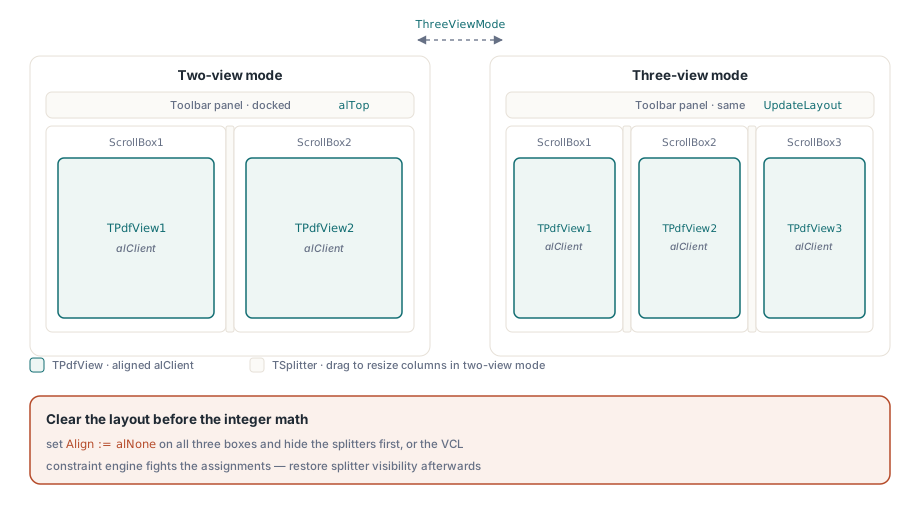
The VCL form holds three TScrollBox containers side by side, each with a TPdfView inside and aligned to alClient so it fills the box. Two TSplitter components sit between the boxes so the user can adjust column widths at runtime. A toolbar above the panels carries the open buttons, zoom controls, and the two-view / three-view toggle
Three-view mode is a boolean the form tracks internally. When it flips, you recalculate widths and show or hide the third column. The simplest approach is to clear all Align properties, hide the splitters, then set absolute positions:
procedure TFormMain.UpdateLayout;
var
  TotalWidth: Integer;
begin
  TotalWidth := ClientWidth;

  if ThreeViewMode then
  begin
    ScrollBox3.Visible := True;
    ScrollBox1.Left   := 0;
    ScrollBox1.Width  := TotalWidth div 3;
    ScrollBox2.Left   := ScrollBox1.Width;
    ScrollBox2.Width  := TotalWidth div 3;
    ScrollBox3.Left   := ScrollBox2.Left + ScrollBox2.Width;
    ScrollBox3.Width  := TotalWidth - ScrollBox3.Left;
    // Apply the same (ClientHeight - toolbar height) to all three Height values
  end
  else
  begin
    ScrollBox3.Visible := False;
    ScrollBox1.Left   := 0;
    ScrollBox1.Width  := TotalWidth div 2;
    ScrollBox2.Left   := ScrollBox1.Width;
    ScrollBox2.Width  := TotalWidth - ScrollBox2.Left;
  end;
end;
Setting Align := alNone on all three boxes before the integer arithmetic avoids the VCL constraint engine fighting your assignments. Restore splitter visibility after positioning if you want drag-to-resize in two-view mode
The height of each scroll box is the client area minus the toolbar panel height. Because the toolbar is docked at the top with alTop, ClientHeight - PanelButtons.Height gives you the usable vertical space. Assign this to all three boxes inside the same UpdateLayout call so there is never a frame where one box is taller than the others and causes a layout flicker
Opening a Document
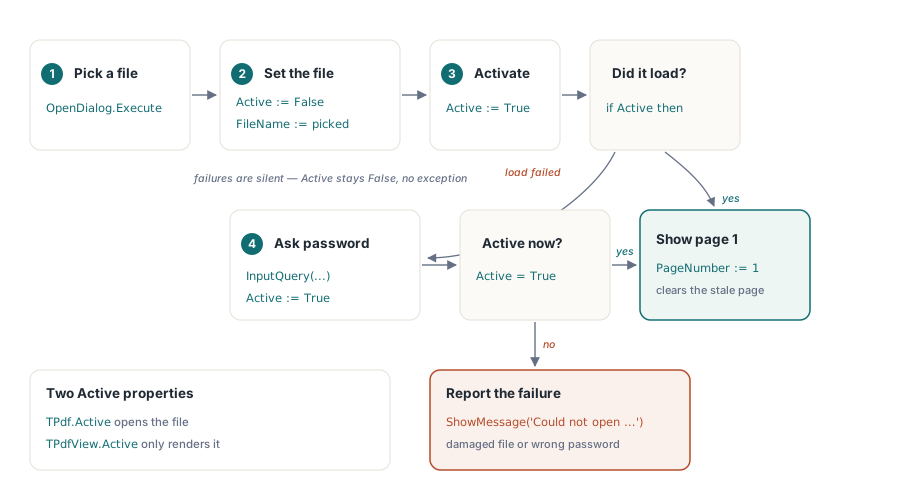
Each panel pair needs its own open procedure. The pattern is short: deactivate the component, set the filename, activate, then check Active; if it stayed False, prompt for a password and retry. Note that TPdfView.Active is what controls rendering, but TPdf.Active is what actually opens the file; they are independent. Setting PdfView.Active := True when its linked TPdf is not yet active is harmless but displays nothing
procedure TFormMain.OpenPdfFile(PdfComponent: TPdf;
  PdfViewComponent: TPdfView);
var
  Password: string;
begin
  if not OpenDialog.Execute then
    Exit;

  PdfComponent.Active   := False;
  PdfComponent.FileName := OpenDialog.FileName;
  PdfComponent.Password := '';
  PdfComponent.Active   := True;

  // Load failures are silent: Active stays False instead of raising.
  if not PdfComponent.Active then
  begin
    // Most likely a password-protected file; give the user one retry.
    if InputQuery('Password', 'Enter document password:', Password) then
    begin
      PdfComponent.Password := Password;
      PdfComponent.Active   := True;
    end;
  end;

  if not PdfComponent.Active then
  begin
    ShowMessage('Could not open ' + OpenDialog.FileName +
      ' (damaged file or wrong password)');
    Exit;
  end;

  PdfViewComponent.PageNumber := 1;
  SetActivePdfView(PdfViewComponent);
end;
Always check PdfComponent.Active after the assignment; a damaged file or wrong password causes the load to fail silently without raising an exception in the default path. Setting PdfViewComponent.PageNumber := 1 explicitly after a successful open avoids a stale page number from the previous document
The message dialog at the end is intentional: you want corrupted or unsupported files to surface immediately rather than being swallowed as a quiet blank panel. A user who sees nothing has no idea whether the file loaded and is simply empty, or whether the component rejected it. Reporting the failure keeps the error visible
Active Panel Tracking
When the user clicks inside a panel, that panel becomes active. The form tracks a private FActivePdfView: TPdfView field. Visual feedback is a border color change on the containing TScrollBox: set it to clHighlight for the active one and clWindow for the others. Wire this to each TPdfView.OnClick and to the open procedure so focus follows the document you just opened
Some operations apply to all visible panels rather than just the active one. A boolean FAllViewsMode on the form drives that branch. When it is true, zoom changes and page navigation fan out to every panel that has an active document:
procedure TFormMain.ApplyZoomToAll(NewZoom: Double);
begin
  if PdfView1.Active then PdfView1.Zoom := NewZoom;
  if PdfView2.Active then PdfView2.Zoom := NewZoom;
  if ThreeViewMode and PdfView3.Active then PdfView3.Zoom := NewZoom;
end;
Synchronized Page Navigation
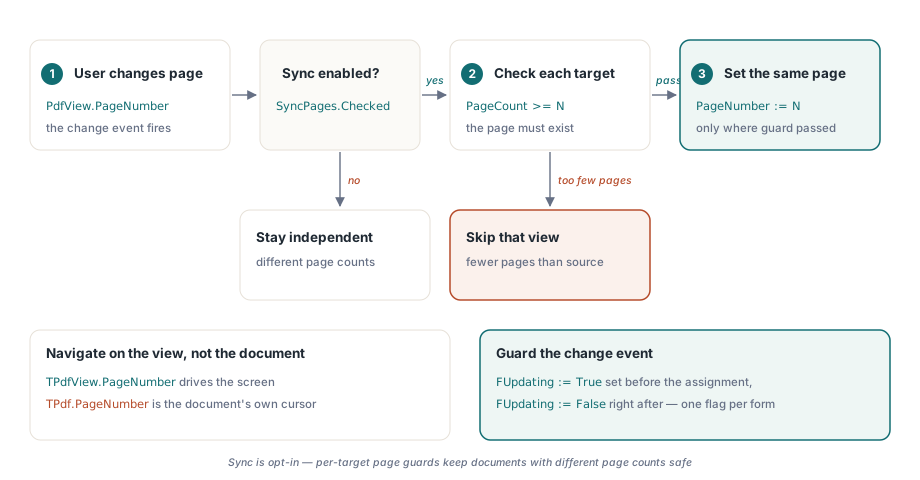
Synchronized navigation is optional but useful for document revision workflows where both files cover the same page range. The logic belongs in an event handler that fires after the user navigates one view. When a source view changes its PageNumber, the handler propagates that number to the other views, subject to one guard: the target view must have at least that many pages, otherwise skip
The PageNumber on TPdfView and on TPdf are independent. TPdf.PageNumber tracks which page the document component considers current; TPdfView.PageNumber tracks what is displayed on screen. For navigation purposes you want the view property, not the document property
A checkbox labeled something like "Sync pages" gives the user control. When it is unchecked, each panel navigates independently and the handler exits immediately. That independence is important for use cases where the two documents have different page counts, or where the user wants to find the equivalent passage in a translation that starts on a different page. Forcing sync always would make the tool harder to use than a simple two-window desktop arrangement
One thing to watch: setting PdfView.PageNumber programmatically inside the sync handler will itself trigger the change event on that view. Guard against infinite recursion with a boolean flag that you set before the assignment and clear immediately after. The flag is per-form, not per-view, because all three views share the same handler
Zoom Per Panel
Each TPdfView carries its own Zoom property, a Double in percent where Zoom := 100 means actual size (100%). Setting it overrides any active FitMode. For a fit-to-width button on the active panel, read the fit zoom from PdfView.PageWidthZoom[PdfView.PageNumber] and assign it. For fit-to-page, use PageZoom[PageNumber]. Both are array properties indexed by 1-based page number, so guard against a zero page number before accessing them
When you export the current page to an image, read the rotation from the view but call RenderPage on the TPdf component, not the view. The bitmap form of TPdf.RenderPage takes explicit pixel dimensions plus a TRotation value and a TRenderOptions set. The function variant returns a caller-owned TBitmap that you free yourself after saving:
procedure TFormMain.SaveActiveViewAsImage;
var
  Pdf: TPdf;
  Bmp: TBitmap;
  Jpeg: TJpegImage;
begin
  if not Assigned(FActivePdfView) or not FActivePdfView.Active then
    Exit;

  Pdf := FActivePdfView.Pdf;
  Pdf.PageNumber := FActivePdfView.PageNumber;

  Bmp := Pdf.RenderPage(
    0, 0,
    Round(Pdf.PageWidth * 2),
    Round(Pdf.PageHeight * 2),
    FActivePdfView.Rotation, [], clWhite);
  try
    if SavePictureDialog.Execute then
    begin
      Jpeg := TJpegImage.Create;
      try
        Jpeg.Assign(Bmp);
        Jpeg.CompressionQuality := 90;
        Jpeg.SaveToFile(SavePictureDialog.FileName);
      finally
        Jpeg.Free;
      end;
    end;
  finally
    Bmp.Free;
  end;
end;
The 2x multiplier on width and height gives sharper output for documents with fine text. The try/finally around the bitmap free is not optional; a TSaveDialog cancel still hits the finally block, and you want the bitmap released regardless of what the user did
DLL Requirements
PDFium Component wraps the native pdfium library. A 32-bit host process needs pdfium32.dll; a 64-bit host needs pdfium64.dll. Variants with the V8 JavaScript engine add the v8 suffix and weigh roughly 23-27 MB versus the 5-6 MB standard builds. For a comparison viewer that disables form filling (Pdf.FormFill := False), the standard non-V8 build is sufficient and keeps the distribution smaller
Place the DLL in the same directory as the executable, or in any directory on the system PATH. The component loads it on demand when the first TPdf is activated, so a missing DLL surfaces at that point rather than at application start. If you ship an installer, the most reliable approach is to copy the DLL into the application folder during installation rather than relying on a system directory that an administrator may later clean up
The V8 builds are primarily useful when you need to interact with PDF JavaScript actions, for example to trigger calculation fields or submit handlers. A passive comparison viewer has no reason to run JavaScript; setting Pdf.FormFill := False before Active := True skips the form-fill environment entirely, which also means no JS engine is initialized even if the standard build is used. That is the correct default for a read-only viewer regardless of which DLL variant you ship
For further details on the PDFium Component and its full API, visit the Delphi PDFium Component product page