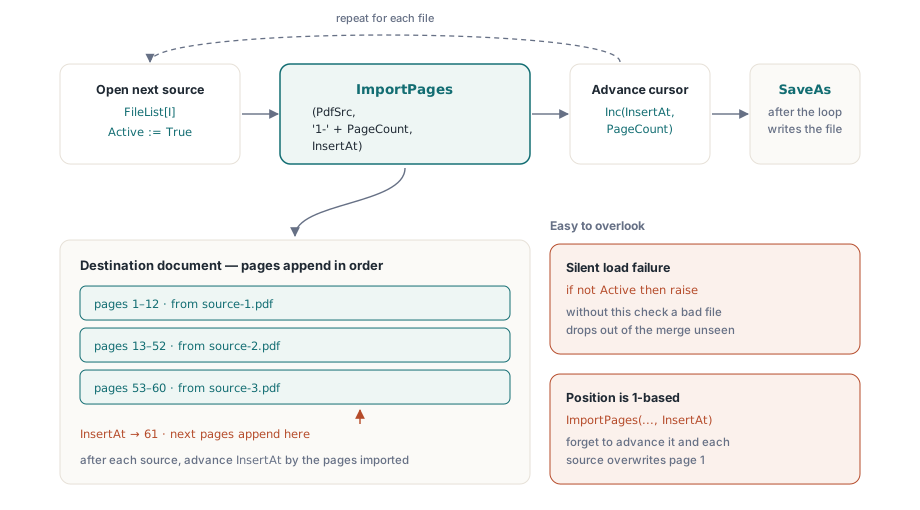
PDFium Component exposes PDF merging through a single method: ImportPages. The pattern is always the same: create an empty destination document, open each source file, call ImportPages to copy the pages across, close the source, and repeat. When the loop finishes, SaveAs writes the result to disk. There is no special merge mode, no configuration to flip. The complexity lives in the edge cases, and there are a few that bite without warning
The core loop
Two TPdf instances are all you need. One holds the destination document, created empty with CreateDocument. The other opens each source file in turn. Below is a procedure that takes a list of file paths and writes the merged output to a single path:
procedure MergeFiles(const FileList: TStrings; const OutputPath: string);
var
  PdfDest, PdfSrc: TPdf;
  InsertAt, I: Integer;
begin
  PdfDest := TPdf.Create(nil);
  PdfSrc  := TPdf.Create(nil);
  try
    PdfDest.CreateDocument;
    InsertAt := 1;  // ImportPages uses 1-based destination position

    for I := 0 to FileList.Count - 1 do
    begin
      PdfSrc.FileName := FileList[I];
      PdfSrc.Active   := True;

      if not PdfSrc.Active then
        raise Exception.CreateFmt('Cannot open: %s', [FileList[I]]);

      PdfDest.ImportPages(
        PdfSrc,
        '1-' + IntToStr(PdfSrc.PageCount),  // full document range
        InsertAt);

      Inc(InsertAt, PdfSrc.PageCount);
      PdfSrc.Active := False;
    end;

    PdfDest.SaveAs(OutputPath);
  finally
    PdfSrc.Free;
    PdfDest.Free;
  end;
end;
Two things in that code are easy to overlook on a first read. The first is how PDFium reports load failures. Active := True never raises an exception: if the file is missing, damaged, or password-protected, PDFium catches the error internally and leaves Active as False. Without the explicit check on line 10, a bad file would silently drop out of the merge with no indication in the output. The final PDF would have fewer pages than expected and you would not know which file was the culprit
The second is the InsertAt counter. The third argument to ImportPages is the 1-based position in the destination where the first imported page lands. Starting at 1 puts the first source document at the beginning of an otherwise empty file. After each source, the counter advances by PdfSrc.PageCount, so the next batch of pages appends after the last one. Forget to increment it and every subsequent source overwrites pages at position 1, giving you the last document in the list and nothing else
Selective page ranges
You do not have to take every page from a source. The range string passed as the second argument follows a simple comma-and-hyphen format: "1-3" takes pages 1 through 3, "2,4,6" picks three specific pages, and "1-" means page 1 to the end of the document. Ranges can be combined in a single string, so "1-3,5,7-" skips pages 4 and 6. One subtlety matters here: the numbers always refer to pages in the source document, starting at 1, regardless of where those pages end up in the destination. If you want pages 40 through 50 out of a 200-page catalog, the range string is "40-50", not a position relative to what is already in the destination
// Extract cover plus a three-page executive summary from a long report
PdfSrc.FileName := 'annual-report.pdf';
PdfSrc.Active   := True;
if PdfSrc.Active then
begin
  // Page 1 is the cover; pages 3-5 are the summary
  PdfDest.ImportPages(PdfSrc, '1,3-5', InsertAt);
  Inc(InsertAt, 4);  // 1 cover + 3 summary pages = 4 pages added
  PdfSrc.Active := False;
end;
When computing the increment to InsertAt, count the pages you actually imported, not the page count of the source. If you pass '1,3-5' you imported 4 pages, so advance by 4. Advancing by PdfSrc.PageCount would leave a gap of blank destination positions and place the next source document further into the file than intended
What ImportPages preserves and what it does not
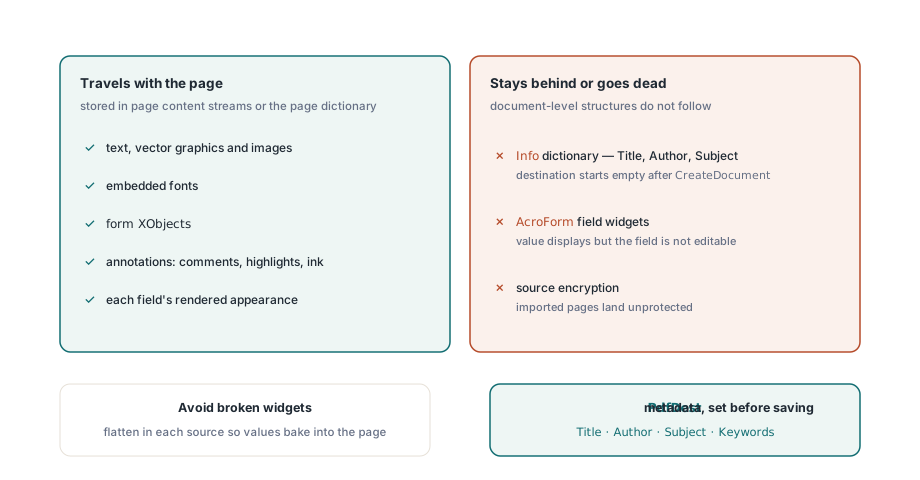
Pages copied by ImportPages carry their visible content intact. Text, vector graphics, raster images, embedded fonts, and form XObjects all transfer as part of the page content streams. Page-level annotations, including comments, highlights, and ink strokes, come across too, because they are stored inside the page dictionary rather than at the document level
Document-level metadata is a different story. The title, author, subject, and keyword strings in the source's Info dictionary stay behind. The destination document starts with empty metadata after CreateDocument, so if the merged output needs those fields populated you have to assign them to PdfDest directly before calling SaveAs. The Title, Author, Subject, Keywords, and Creator properties on TPdf take plain strings and write into the Info dictionary on save
Interactive form fields are more complicated. AcroForm field definitions live in a document-level dictionary rather than inside individual page streams. When ImportPages copies a page that contains form fields, the visual appearance of those fields transfers because it is rendered into the page content stream, but the field widgets that make them interactive are part of the AcroForm structure and do not follow. In a typical merge, a text field from a source document will display the value it had at the time of import, but it will not be editable in the merged file. If you need the fields to remain fillable, flatten them in each source document before importing: that bakes the current values into the content stream and removes the interactive overlay, giving you a clean visual result without broken widgets in the output
Encrypted source files
Password-protected source documents open the same way as unencrypted ones, with one extra property to set first. Assign the password to PdfSrc.Password before flipping Active := True, and PDFium will use it during the open:
PdfSrc.Password := 'user-password';
PdfSrc.FileName := 'protected.pdf';
PdfSrc.Active   := True;
if not PdfSrc.Active then
  raise Exception.Create('Wrong password or file cannot be opened');

PdfDest.ImportPages(PdfSrc, '1-' + IntToStr(PdfSrc.PageCount), InsertAt);
Inc(InsertAt, PdfSrc.PageCount);
PdfSrc.Active := False;
A wrong password causes the same silent Active = False outcome as a missing file, so the explicit check is just as necessary here. The encryption does not transfer to the destination: pages imported from a protected source land in the destination as unprotected content. If the merged output also needs encryption, configure it on PdfDest before calling SaveAs
Saving the result
SaveAs on TPdf accepts either a file path or a TStream. For most merges, the file overload is what you want:
PdfDest.SaveAs('merged-output.pdf');The optional second argument is a TSaveOption that controls the save mode. The default, saNone, writes an incremental update if the document was loaded from a file or a complete rewrite if it was created fresh. Since a destination built with CreateDocument is always fresh, the output will be a compact single-revision file. The third argument, TPdfVersion, lets you pin the PDF version header when you have downstream consumers that require a specific version; leaving it at pvUnknown lets PDFium choose based on the content
The ImportPages and SaveAs methods shown here are part of the PDFium Component for Delphi and C++Builder