PDF text extraction looks simple until you hit a document where the text layer is absent, corrupted, or split across dozens of tiny character runs with no meaningful order. PDFium Component gives you two entry points: the Character[] array for raw, index-based access to every glyph on a page, and ReadablePageContent for a structured view that reconstructs paragraphs and headings from the PDF’s tag tree or heuristic analysis. Neither one is always the right choice, so understanding what each exposes matters
![Diagram of one PDF page flowing into two Delphi extraction paths: a raw Character[] glyph walk that follows content-stream order and a structured ReadablePageContent that rebuilds paragraphs and reading order](../../assets/media/PdfTextExtractionTwoPaths.svg)
Opening the document and the silent-failure trap
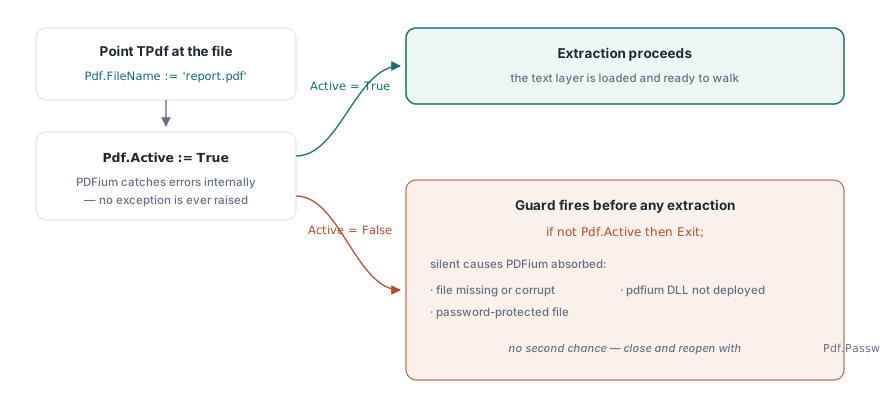
TPdf opens a file by setting FileName and flipping Active := True. The critical detail: Active := True never raises an exception. If the file is missing, password-protected, or corrupt, PDFium catches the error internally and Active simply stays False. That means every extraction loop must guard against this:
Pdf := TPdf.Create(nil);
try
  Pdf.FileName := 'report.pdf';
  Pdf.Active := True;
  if not Pdf.Active then
  begin
    ShowMessage('Could not open PDF (damaged or wrong password)');
    Exit;
  end;
  // extraction follows here
finally
  Pdf.Active := False;
  Pdf.Free;
end;
Password-protected files need Pdf.Password := '...' set before Active := True. There is no second chance: once Active fails, you close and reopen with the correct password
Page-by-page extraction with Character[]
The lowest-level approach walks every character on each page. Set Pdf.PageNumber to load the text layer for that page, then iterate CharacterCount entries using the Character[] property. Two flags on each entry are worth checking: CharacterGenerated[i] marks synthetic glyphs inserted by the renderer (soft hyphens at line breaks, for example) that have no real Unicode value, and CharacterMapError[i] signals that PDFium could not map the glyph to a code point, which happens with font encodings that lack a ToUnicode table
procedure ExtractAllText(Pdf: TPdf; Output: TStrings);
var
  Page, I: Integer;
  Line: string;
  Ch: WideChar;
begin
  for Page := 1 to Pdf.PageCount do
  begin
    Pdf.PageNumber := Page;
    Line := '';
    for I := 0 to Pdf.CharacterCount - 1 do
    begin
      if Pdf.CharacterGenerated[I] or Pdf.CharacterMapError[I] then
        Continue;
      Ch := Pdf.Character[I];
      if Ch = #13 then
        Ch := #10;   // normalize CR to LF
      Line := Line + Ch;
    end;
    Output.Add(Line);
  end;
end;
The result is a flat string of Unicode code points in the order PDFium enumerates them, which is the order they appear in the content stream, not necessarily left-to-right reading order. For most Latin-script documents produced by standard office tools this is fine. For scanned PDFs that were OCR’d with unusual glyph sequences, or for right-to-left text, the ordering can be wrong. That is when ReadablePageContent becomes more useful
Structured extraction with ReadablePageContent
ReadablePageContent goes one level up: it returns a TPdfReadableContent record whose Fragments array carries tagged content fragments, each with a Kind that identifies paragraphs, headings, list items, table cells, and so on. When the PDF carries a structure tree (check Pdf.IsTagged), the source is rosStructure and the reading order is authoritative. For untagged files, PDFium falls back to rosHeuristic, which groups characters by their bounding boxes into plausible reading units but cannot guarantee accuracy
procedure ExtractStructured(Pdf: TPdf; Output: TStrings);
var
  Page: Integer;
  Content: TPdfReadableContent;
  Fragment: TPdfContentFragment;
begin
  for Page := 1 to Pdf.PageCount do
  begin
    Content := Pdf.ReadablePageContent(Page);
    for Fragment in Content.Fragments do
    begin
      case Fragment.Kind of
        cfHeading   : Output.Add('# ' + Fragment.Text);
        cfParagraph : Output.Add(Fragment.Text);
        cfListItem  : Output.Add('- ' + Fragment.Text);
      else
        Output.Add(Fragment.Text);
      end;
    end;
  end;
end;
If Content.Source = rosHeuristic and your output looks garbled, the document’s text layer probably was not written with reading order in mind. At that point the only reliable fix is re-exporting from the source application with proper tagging, or running a post-processing step that sorts character origins by Y then X
What CharacterOrigin and CharacterRectangle give you
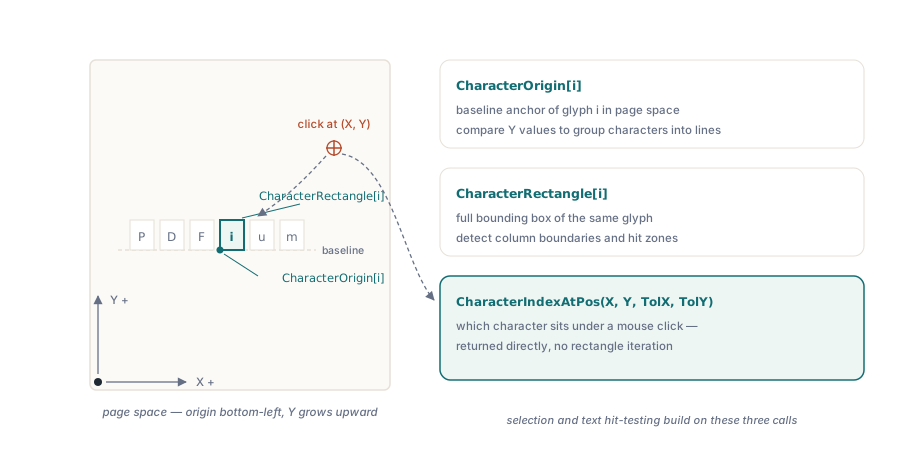
Both properties return the position of a character in page space (points, origin at the bottom-left corner, Y increasing upward). CharacterOrigin[i] is the glyph’s baseline anchor point; CharacterRectangle[i] is the full bounding box. These are the building blocks for anything beyond plain text: detecting column boundaries, grouping characters into lines by comparing Y coordinates within a tolerance, or building a hit-test map for text selection in a viewer. If you need to find which character sits under a mouse click, CharacterIndexAtPos(X, Y, ToleranceX, ToleranceY) does that lookup directly without you having to iterate rectangles
Getting the DLL in place
PDFium Component delegates all PDF parsing to a native DLL, either pdfium32.dll or pdfium64.dll depending on your target platform. The component ships a CopyDlls.bat script that copies the right file to the Windows system directory. Running it as Administrator once on a development machine is enough; for deployment you copy the DLL alongside the application executable instead. The V8-enabled variants (pdfium32v8.dll, pdfium64v8.dll) are considerably larger and only necessary if your PDFs contain JavaScript that must execute. For pure text extraction, the standard build is the right choice
If the DLL is absent at runtime, Active := True will fail silently just as it does for a missing file, because the component catches the load error internally. Always test on a clean machine before shipping
Using FontSize[] alongside Character[] for layout analysis
Beyond plain text, the character-level API exposes FontSize[i], which returns the rendered point size of each glyph. Combined with CharacterOrigin[i] and CharacterRectangle[i], this lets you distinguish body text from headings without relying on the structure tree. A character run where the font size jumps above a threshold is almost certainly a heading in an untagged document. The same technique applies to detecting captions (small text below an image bounding box) or footnotes (small text near the bottom of the page). None of this requires rendering; all three properties read directly from the text layer that PDFium builds during Active := True
One nuance: FontSize[i] reflects the size after the page’s CTM (current transformation matrix) is applied, so a document where the author scaled the entire page will report sizes proportionally adjusted. If you are comparing sizes across pages with different page dimensions, normalize against each page’s MediaBox height before making threshold decisions
Writing the output to a file
Delphi’s TStringList handles UTF-8 output cleanly since XE. Set WriteBOM := False if you need a BOM-free file (many downstream consumers choke on a leading BOM):
var
  Lines: TStringList;
begin
  Lines := TStringList.Create;
  try
    ExtractAllText(Pdf, Lines);
    Lines.WriteBOM := False;
    Lines.SaveToFile('output.txt', TEncoding.UTF8);
  finally
    Lines.Free;
  end;
end;
For very large documents where memory is a concern, write directly to a TStreamWriter with TEncoding.UTF8 inside the page loop instead of accumulating everything into a list first
The Character[], CharacterCount, CharacterOrigin[], CharacterRectangle[], ReadablePageContent, and CharacterIndexAtPos APIs shown here are part of the PDFium Component for Delphi and C++Builder