PDF hyperlinks are URI annotations: a rectangle covering some page area that, when clicked, tells the viewer to open a URL. The annotation and the text beneath it are completely independent objects. HotPDF's PrintHyperlink bundles both into one call, drawing the text and computing the annotation rectangle from the rendered text metrics. That convenience hides a detail worth understanding before you write production code. It is also not the whole story: AddURILink places a clickable area over content you drew yourself, and AddGoToLink handles internal navigation — both covered below
How PrintHyperlink works
PrintHyperlink lives on THPDFPage and takes four arguments: X and Y coordinates (in points, top-left origin, Y increasing downward, with Y marking the top edge of the label), the label string to draw, and the URL target. Internally it calls TextOut in the current hyperlink color, then immediately computes the annotation rectangle from TextWidth and TextHeight at the current font metrics. That means font and size have to be set before the call, and they must not change between drawing the label and placing the annotation, because both are resolved in the same call
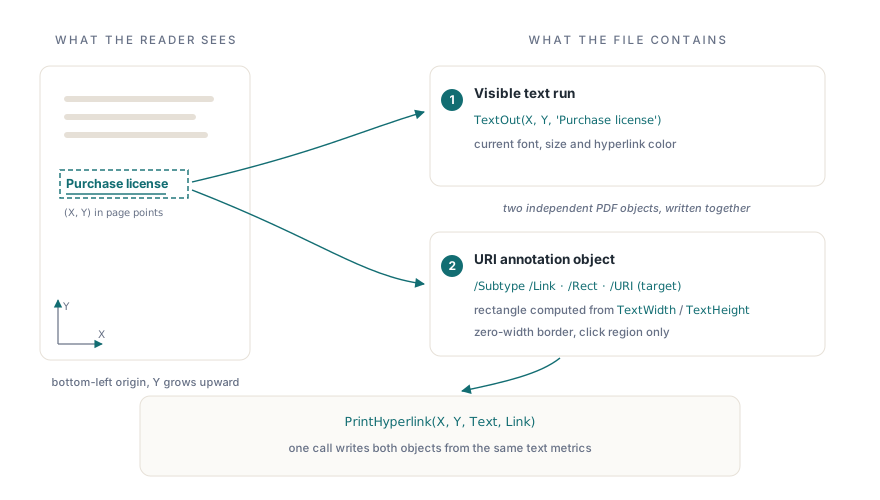
The default color is clBlue. SetRGBHyperlinkColor changes it for subsequent calls only; it does not retroactively update annotations already written. If you need different colors for different link groups on the same page, call SetRGBHyperlinkColor before each group and reset it afterward
Here is a minimal document that writes three links with two different colors:
procedure CreateLinkedReport(const FileName: string);
var
  Pdf: THotPDF;
begin
  Pdf := THotPDF.Create(nil);
  try
    Pdf.FileName := FileName;
    Pdf.BeginDoc;

    Pdf.CurrentPage.SetFont('Arial', [], 11);

    // Default blue for informational links
    Pdf.CurrentPage.TextOut(50, 50, 0, 'Reference links:');
    Pdf.CurrentPage.PrintHyperlink(50, 80, 'Product page', 'https://www.loslab.com/en-us/pdf-library/delphi-pdf-component.html');
    Pdf.CurrentPage.PrintHyperlink(50, 105, 'Online manual', 'https://www.loslab.com/en-us/pdf-library/delphi-pdf-component.html');

    // Red for the action link
    Pdf.CurrentPage.SetRGBHyperlinkColor(clRed);
    Pdf.CurrentPage.PrintHyperlink(50, 140, 'Purchase license', 'https://www.loslab.com/en-us/buy-hotpdf-fastspring.html');
    Pdf.CurrentPage.SetRGBHyperlinkColor(clBlue);  // restore default

    Pdf.EndDoc;
  finally
    Pdf.Free;
  end;
end;
The coordinate trap
HotPDF page drawing calls use a top-left origin with Y growing downward, in points (1/72 inch), and convert to bottom-up PDF user space only when they write the page. An A4 page is 595 x 842 pt; a US Letter page is 612 x 792 pt. Y=50 sits near the top of either page, and Y=750 is near the bottom margin of an A4 page. Anyone porting code from raw PDF coordinates, where Y grows upward from the bottom edge, assumes the opposite and places the first link line near the foot of the page
The annotation rectangle that PrintHyperlink computes uses the same coordinate system. If you later rotate the page, scale it, or change the page size without recalculating your X/Y values, the visible text and the clickable rectangle will drift apart. The link "works" in the sense that clicking somewhere near the text triggers the URL, but the hot zone no longer matches what the reader sees. Test on the actual page size and zoom level you ship, not just on the development machine at 100%
One case where the drift is guaranteed: if you call PrintHyperlink with coordinates appropriate for an A4 page and then switch to a custom narrow-format page without adjusting the X/Y values, the annotation can end up off the page entirely. The annotation object is still written into the PDF; most viewers clip it silently, so the link simply disappears without any error
Label text versus URL target
The Text and Link arguments are independent. You can draw "Download invoice PDF" while the target is a fully qualified HTTPS URL with query parameters. That separation is deliberate; the visible label should be human-readable and the URL can be long or generated dynamically
What creates problems is when the label is the raw URL itself, especially a long one. If the URL wraps visually across two lines but the annotation rectangle was computed for a single-line string, only the first line is clickable. PrintHyperlink does not handle multi-line flow; keep the label short enough to fit on one line at the current font size and page width, use a short descriptive label with the full URL as the target, or apply the per-line workaround shown in the next section
For documents that will be archived or distributed without an active internet connection, also consider whether the URL itself should appear in printed form somewhere in the document body, not just as annotation metadata. A reader printing the PDF on paper gets nothing from a URI annotation
Working around the multi-line limitation
When a link label genuinely has to span more than one line — a long URL printed verbatim, or a wrapped sentence that should be clickable end to end — the fix is to stop treating it as one link and treat it as one link per line. Each PrintHyperlink call computes its rectangle from the text it draws, so several calls sharing the same Link target produce several correctly sized annotations that all open the same URL. The reader cannot tell the difference; every line responds to a click
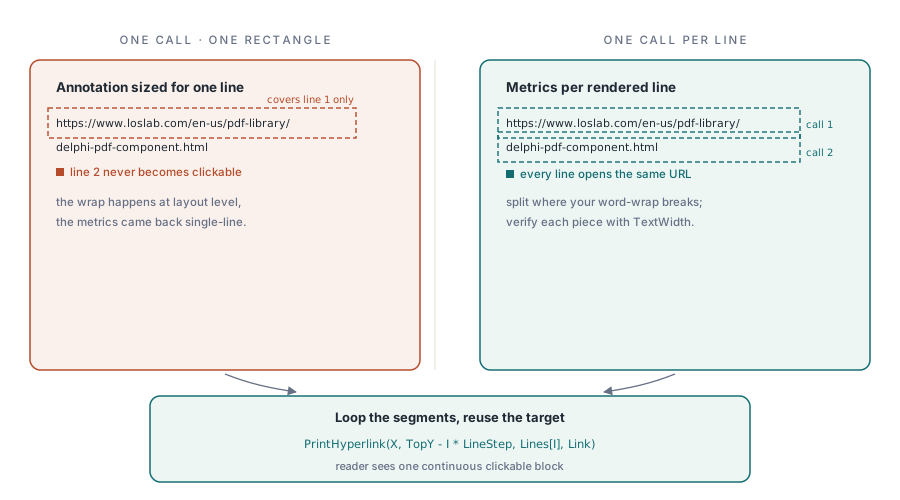
procedure PrintWrappedHyperlink(Page: THPDFPage; X, TopY, LineStep: Single;
  const Lines: array of AnsiString; const Link: AnsiString);
var
  I: Integer;
begin
  for I := 0 to High(Lines) do
    Page.PrintHyperlink(X, TopY + I * LineStep, Lines[I], Link);
end;

// Usage: break the label at the positions where your layout wraps it
Pdf.CurrentPage.SetFont('Arial', [], 10);
PrintWrappedHyperlink(Pdf.CurrentPage, 50, 400, 14,
  ['https://www.loslab.com/en-us/pdf-library/',
   'delphi-pdf-component.html'],
  'https://www.loslab.com/en-us/pdf-library/delphi-pdf-component.html');
Splitting the string is your responsibility: break it at the same positions where it would visually wrap at the current font and column width, using TextWidth to test each candidate line. The alternative is to draw the wrapped text yourself with plain TextOut calls and then lay one AddURILink rectangle over each line — the better route when the text is already produced by your own word-wrap logic, which brings us to that function
AddURILink: clickable areas over anything you drew
PrintHyperlink is a convenience wrapper: it draws its own label and derives the rectangle from that label's metrics. AddURILink is the lower-level half exposed directly:
function AddURILink(Rectangle: TRect; const URL: AnsiString;
  const Description: AnsiString = ''): THPDFDictionaryObject;
It writes only the annotation — no text is drawn and no color changes. The Rectangle is interpreted in the same top-left coordinate space as your drawing calls, so Top is the smaller Y exactly as in a VCL TRect, and you can reuse the exact X/Y values you passed to TextOut or an image call. That makes it the right tool whenever the visible content already exists: an image hotspot, a table cell, a block of text drawn earlier, or one line of a wrapped paragraph as in the workaround above. The annotation carries a zero-width border, so nothing visible changes; the clickable region is exactly the rectangle you specify
The function returns the annotation dictionary as a THPDFDictionaryObject. Most callers discard the result, but keeping it lets you adjust the annotation's entries before the document is written
Two compliance details are built in. In PDF/A modes the annotation's print flag is set as those standards require. Under PDFUACompliance the Description parameter must be a non-empty string — it becomes the annotation's /Contents entry, which is what assistive technology announces for the link — and the call raises an exception rather than silently emitting a non-conforming file. PrintHyperlink predates that rule and attaches no description, so for PDF/UA output draw the label with TextOut and place the annotation with AddURILink plus a meaningful description
The decision rule is simple: use PrintHyperlink when the link is a short piece of text you have not drawn yet; use AddURILink when the clickable region is defined by content you draw or measure yourself
Internal navigation with AddGoToLink
External URLs are only half of what link annotations do. The other half is navigation inside the document — a table of contents that jumps to chapters, cross-references between sections. HotPDF exposes this through AddGoToLink:
procedure AddGoToLink(Rectangle: TRect; TargetPageIndex: Integer;
  YPos: Single = -1; const Description: AnsiString = '');
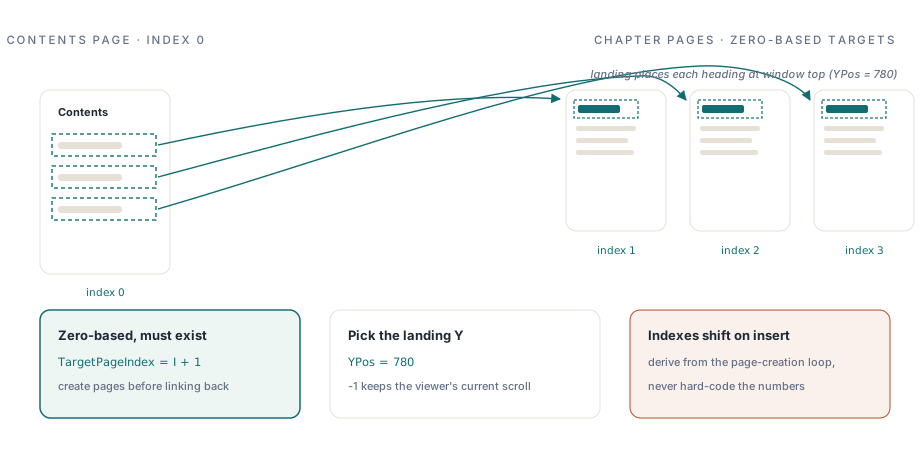
Three semantics are worth stating precisely, since none are guessable from the signature. TargetPageIndex is zero-based: the first page of the document is page 0, matching CurrentPageNumber. A negative index makes the procedure return without adding an annotation — no exception, no link, no warning. In a new document a target page that does not exist yet is not an error: the link is held and resolved when EndDoc runs, so a table of contents can point forward to pages added later. If that page never appears, the annotation is still written but loses its action, a rectangle that does nothing when clicked, again without a warning; in a loaded document the target must already exist. Creating the pages first and then switching back, as the example below does, keeps every link checkable at the moment you add it
YPos selects the vertical position on the target page, in the same coordinate space as your drawing calls. The default of -1 (any negative value) writes a null destination coordinate, telling the viewer to keep its current vertical position when it lands on the target page. Pass a non-negative value and the viewer scrolls so that position sits at the top of the window — use the Y coordinate of the heading you are linking to. Zoom is always left unchanged. As with AddURILink, Description must be non-empty under PDFUACompliance and becomes the link's alternate text
procedure BuildLinkedTOC(const FileName: string);
const
  Chapters: array[0..2] of string =
    ('Introduction', 'Installation', 'API Reference');
var
  Pdf: THotPDF;
  I, Y: Integer;
begin
  Pdf := THotPDF.Create(nil);
  try
    Pdf.FileName := FileName;
    Pdf.BeginDoc;                        // page 0 becomes the TOC page

    // Create the chapter pages first so the link targets exist
    for I := 0 to High(Chapters) do
    begin
      Pdf.AddPage;                       // pages 1..3
      Pdf.CurrentPage.SetFont('Arial', [fsBold], 14);
      Pdf.CurrentPage.TextOut(50, 50, 0, Chapters[I]);
    end;

    // Switch back to page 0 and draw the TOC entries with their links
    Pdf.CurrentPageNumber := 0;
    Pdf.CurrentPage.SetFont('Arial', [fsBold], 16);
    Pdf.CurrentPage.TextOut(50, 40, 0, 'Contents');
    Pdf.CurrentPage.SetFont('Arial', [], 11);

    Y := 80;
    for I := 0 to High(Chapters) do
    begin
      Pdf.CurrentPage.TextOut(70, Y, 0, Chapters[I]);
      Pdf.CurrentPage.AddGoToLink(
        Rect(70, Y - 3, 300, Y + 14),    // covers the entry with padding
        I + 1,                           // zero-based: chapters are pages 1..3
        50,                              // land with the heading at the top
        AnsiString('Go to ' + Chapters[I]));
      Y := Y + 25;
    end;

    Pdf.EndDoc;
  finally
    Pdf.Free;
  end;
end;
Each entry gets a rectangle wider than the text so the whole row responds to the pointer, and every link lands with the chapter heading (drawn at Y=50) at the top of the window. If you later insert a page before the chapters, every TargetPageIndex shifts by one; compute indexes from your page-creation loop rather than hard-coding them
A complete document-generation example
The pattern below shows a more realistic scenario: generating a short report with a header section, body text, and a footer row of links, all from code rather than from a form with TEdit fields:
procedure GenerateProductSheet(
  const FileName, ProductName, ProductURL, SupportURL: string);
var
  Pdf: THotPDF;
begin
  Pdf := THotPDF.Create(nil);
  try
    Pdf.FileName := FileName;
    Pdf.Compression := cmFlateDecode;
    Pdf.BeginDoc;

    // Header
    Pdf.CurrentPage.SetFont('Arial', [fsBold], 16);
    Pdf.CurrentPage.TextOut(50, 50, 0, WideString(ProductName));

    // Body paragraph placeholder
    Pdf.CurrentPage.SetFont('Arial', [], 11);
    Pdf.CurrentPage.TextOut(50, 90, 0, 'See the links below for full documentation.');

    // Footer links
    Pdf.CurrentPage.SetFont('Arial', [], 10);
    Pdf.CurrentPage.TextOut(50, 750, 0, 'Links:');
    Pdf.CurrentPage.PrintHyperlink(50, 770, 'Product page', ProductURL);
    Pdf.CurrentPage.PrintHyperlink(200, 770, 'Support', SupportURL);

    Pdf.EndDoc;
  finally
    Pdf.Free;
  end;
end;
Notice that SetFont is called before each group of text calls. The font does not persist across AddPage, and if you forget to set it before PrintHyperlink on a new page, the annotation rectangle will be computed against whatever the page's default metrics are, which may differ from what you expect
Where annotation handling varies across viewers
PDF URI annotations are defined in ISO 32000-1 §12.6.4.7, and every conforming viewer should follow them. In practice, a few behaviors differ by viewer. Adobe Acrobat shows a security prompt on first click for URLs not in the trusted domains list; many browsers and lightweight readers do not. Some enterprise PDF viewers in locked-down environments disable URI annotations entirely by policy, so a click does nothing, with no visible error. Mobile PDF apps vary in whether they open links inside the app's web view or hand off to the system browser
None of these are bugs you can fix from the generation side; they are viewer policy decisions. What you can do is write link labels that make the URL visible in the document body as well, so a reader in a restricted environment can still copy the address manually. The annotation is the convenience; the text is the fallback
One further detail worth knowing: PDF URI annotations do not carry any visual underline by default. The underline you see in most viewers is drawn by the viewer itself based on the annotation type, not by a glyph in the content stream. If you need a physical underline that survives printing to a non-interactive renderer or PDF-to-image conversion, draw it explicitly with LineTo and Stroke at the appropriate Y offset below the text baseline. That is a separate drawing operation, not something PrintHyperlink handles for you
The hyperlink API shown here is part of the HotPDF Delphi Component for Delphi and C++Builder