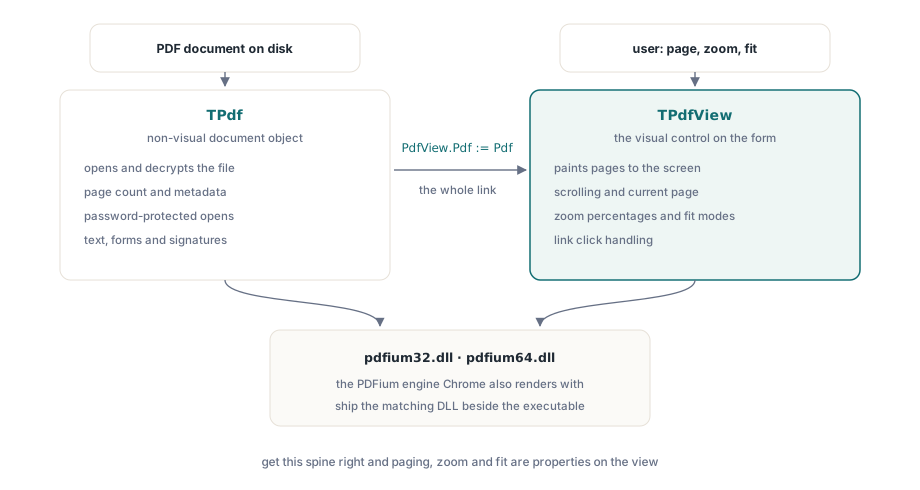
A PDF viewer in Delphi comes down to two components and the wiring between them. TPdf owns the document: it opens the file, decrypts it, and answers questions about page count and metadata. TPdfView is the visual control that paints pages on screen and handles scrolling, zoom, and the page the user is currently looking at. PDFium Component wraps the same rendering engine that ships inside Chrome, so the glyphs, anti-aliasing, and color you get on the canvas match what your users already see in their browser. The work is not in the rendering. It is in connecting the document object to the view, loading without crashing on a damaged or password-protected file, and giving the user the handful of controls that make a viewer feel finished: turn the page, change the zoom, fit the page to the window
This walks through that assembly in the order you actually build it. Everything here renders a single page at a time, which is what most document workflows want. If you need pages stacked in one continuously scrolling column, that is a different layout decision and not the path here
Wiring TPdf to TPdfView
Drop a TPdf and a TPdfView on the form, then tell the view which document to display. That single assignment is the whole link between the non-visual document and the control that paints it
procedure TFormMain.FormCreate(Sender: TObject);
begin
  // Pdf and PdfView were dropped at design time.
  PdfView.Pdf := Pdf;                 // the view paints whatever this document holds
  PdfView.FitMode := pfmFitWidth;     // start the user at a sensible zoom
end;
Before any of this runs, the PDFium native library has to be on the machine. PDFium Component calls into pdfium32.dll or pdfium64.dll depending on your target platform, and the document simply refuses to open if the DLL cannot be found. Ship the matching DLL beside your executable, or place it where the system loader will find it. The V8-enabled builds exist only for PDFs that carry JavaScript you want to execute, which a plain viewer does not, so reach for the standard DLL unless you have a concrete reason not to
Loading a document without trusting the input
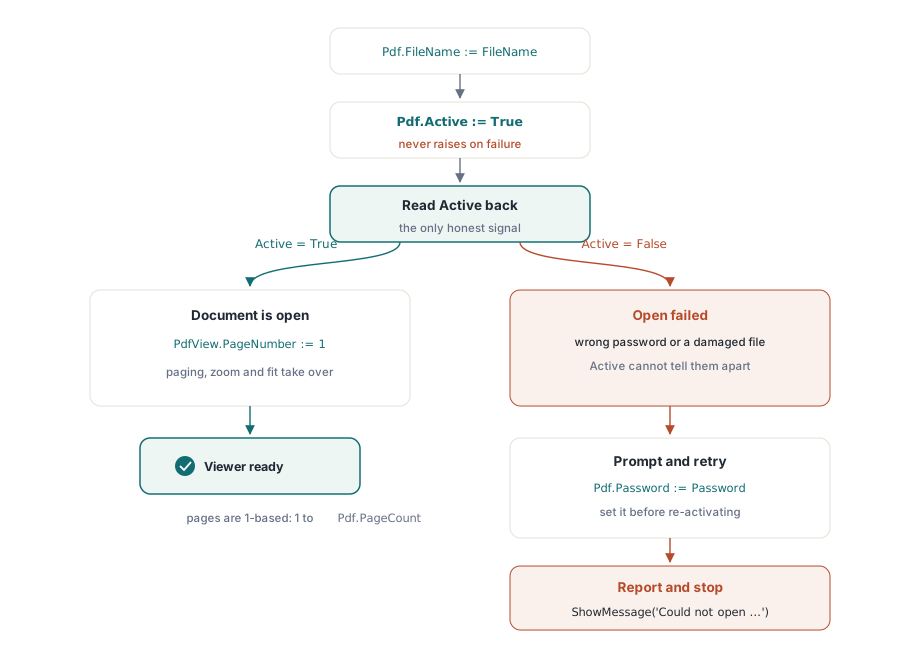
The instinct is to wrap the load in a try/except and treat a thrown exception as failure. That instinct is wrong here, and getting it wrong produces a viewer that looks fine until someone hands it a broken file. Setting Active := True does not raise on a load failure. PDFium Component catches the internal error and leaves Active sitting at False, so the only honest way to know whether the document opened is to read the property back after you set it
procedure TFormMain.OpenDocument(const FileName: string);
begin
  Pdf.FileName := FileName;
  Pdf.Active := True;                 // never raises; failure leaves Active = False
  if not Pdf.Active then
  begin
    ShowMessage('Could not open ' + FileName);
    Exit;
  end;
  PdfView.PageNumber := 1;            // the view tracks its own current page
  UpdatePageLabel;
end;
Two things deserve attention. The first is that PageNumber exists on both objects and the two are independent. Pdf.PageNumber is the document's notion of a current page; PdfView.PageNumber is the page the control actually displays, and it is the one you set to move the user through the file. Setting one does not move the other, so a viewer always drives the view's property. The second is the 1-based indexing: pages run from 1 to Pdf.PageCount, not from 0, which catches anyone used to zero-based arrays
Handling an encrypted file
Encrypted documents fold into the same load path. If the open password is set before activation, the document decrypts as it opens; if it is wrong or missing, Active stays False exactly as it does for a corrupt file. So the recovery is to prompt for a password and try the activation again
procedure TFormMain.OpenWithPassword(const FileName: string);
var
  Password: string;
begin
  Pdf.FileName := FileName;
  Pdf.Active := True;
  if not Pdf.Active then
  begin
    if InputQuery('Password required', 'Password:', Password) then
    begin
      Pdf.Password := Password;       // must be set before Active := True
      Pdf.Active := True;
    end;
    if not Pdf.Active then
    begin
      ShowMessage('Unable to open the document.');
      Exit;
    end;
  end;
  PdfView.PageNumber := 1;
end;
Because the failure is silent for both a bad password and a damaged file, you cannot tell the two apart from Active alone. In practice that is acceptable for a viewer: the user either supplies the right password or learns the file will not open, and the message reads the same either way
Paging through the document
With the document open, navigation is arithmetic on PdfView.PageNumber bounded by Pdf.PageCount. The only real work is clamping, so the buttons never push the page out of range and the first and last buttons stay disabled at the ends of the file
procedure TFormMain.GoToPage(NewPage: Integer);
begin
  if not Pdf.Active then
    Exit;
  if NewPage < 1 then
    NewPage := 1
  else if NewPage > Pdf.PageCount then
    NewPage := Pdf.PageCount;
  PdfView.PageNumber := NewPage;
  UpdatePageLabel;
end;

// the four navigation buttons reduce to one call each
procedure TFormMain.FirstClick(Sender: TObject);  begin GoToPage(1); end;
procedure TFormMain.PrevClick(Sender: TObject);   begin GoToPage(PdfView.PageNumber - 1); end;
procedure TFormMain.NextClick(Sender: TObject);   begin GoToPage(PdfView.PageNumber + 1); end;
procedure TFormMain.LastClick(Sender: TObject);   begin GoToPage(Pdf.PageCount); end;
A "go to page N" text box is the same GoToPage call fed from a parsed integer, and the clamp covers the case where the user types 9999 into a ten-page file. Keep UpdatePageLabel as the single place that writes "Page 3 of 12" so the readout never drifts out of sync with what the view shows
Zoom: explicit percentages and fit modes
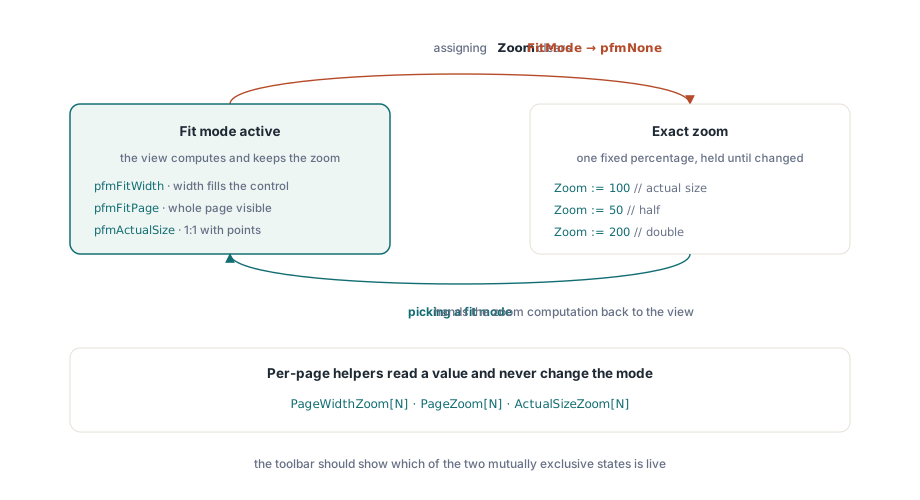
Zoom on TPdfView arrives in two flavors that interact, and understanding the interaction is the difference between a zoom control that behaves and one that fights the user. The direct route is the Zoom property, a percentage where 100 means actual size. The other route is FitMode, which tells the view to compute the zoom for you and keep recomputing it as the window resizes
// fixed magnifications
PdfView.Zoom := 100;     // actual size
PdfView.Zoom := 50;      // half
PdfView.Zoom := 200;     // double

// let the view size the page to the window, and keep it sized on resize
PdfView.FitMode := pfmFitWidth;   // page width fills the control
PdfView.FitMode := pfmFitPage;    // whole page visible
PdfView.FitMode := pfmActualSize; // 1:1 with the document's points
Here is the part that trips people up. Assigning Zoom directly resets FitMode to pfmNone. That is correct behavior, not a bug: the moment the user picks an exact 150%, the view can no longer also be honoring "fit to width," because the two requests conflict. The consequence for your UI is that a zoom-in button and a fit-to-page button are mutually exclusive states, and the toolbar should make the active mode visible. When the user clicks fit-to-page, set FitMode; when they click a numeric zoom, set Zoom and let it clear the fit mode on its own
If you would rather compute the fit value yourself, perhaps to seed a zoom slider with the current fit percentage, the per-page helpers give you the numbers without changing the mode. PageWidthZoom[N], PageZoom[N], and ActualSizeZoom[N] return the percentage that would fit page N to width, fit it whole, or render it at actual size
// seed a zoom readout from the fit-to-width value of the current page
var
  FitPercent: Double;
begin
  FitPercent := PdfView.PageWidthZoom[PdfView.PageNumber];
  ZoomEdit.Text := Format('%.0f%%', [FitPercent]);
end;
What a finished viewer actually needs
The viewer above is a few dozen lines, and it already does the job a document workflow needs: open a file, survive a bad one, show a page, move between pages, and change the magnification by hand or by fit. PDFium does the hard parts silently. Embedded fonts resolve, annotations and form fields paint where the document places them, and the page you see matches the one a Chrome user would see, because it is the same engine drawing both
From this base the additions are incremental rather than structural. Text selection and search read from the same text layer PDFium already builds; metadata such as Pdf.Title and Pdf.Author is one property read away; rotation and grayscale are render options you pass when you draw a page to a bitmap. None of those change the spine you have here, which is the document object, the view, and the load-then-navigate flow connecting them. Get that spine right and the rest is decoration
The TPdf and TPdfView components used throughout are part of PDFium Component for Delphi and C++Builder, which carries the full viewer reference on its product page