A PDF that arrives at a production boundary — a print queue, an archive, a customer upload portal — should be audited before anything renders it. The file might carry a Launch action wired to start an external program, images too coarse to survive printing, an encryption dictionary that forbids the very print job it was submitted for, or a PDF/A label it does not live up to. Inspecting a document against rules like these before it enters a workflow is called preflighting, and the PDFium C API gives Delphi everything needed to implement the checks directly, without rendering a single page
This article builds the checks themselves: four audit classes, each a small routine that appends findings to a shared result list. Interactive elements, resource metrics, security state, and standards markers all get working code, including the arithmetic. If what you need is the machinery around the checks — batch folder loops, JSON and HTML report files, per-file isolation — the PDFium Component ships a ready-made preflight engine, and the batch preflight CLI article covers that plumbing. The two deliberately share one exit-code vocabulary, so an auditor written here slots straight under that batch driver
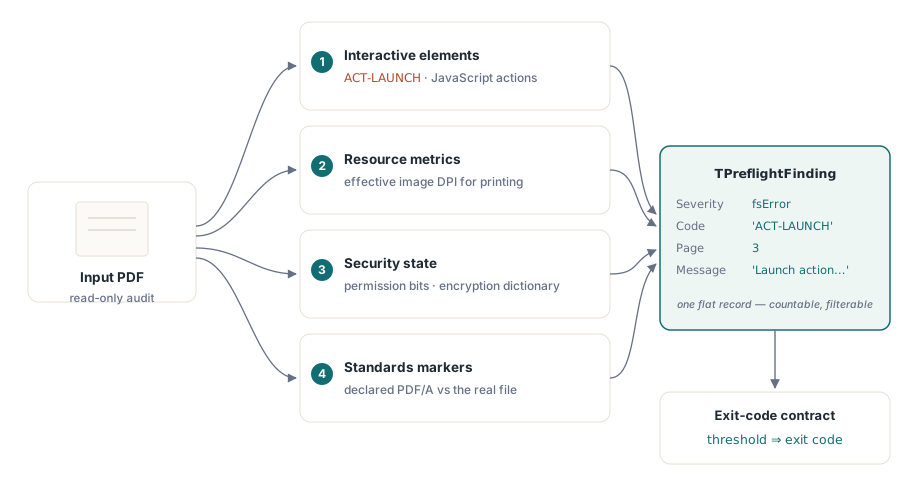
The finding record and the exit-code contract
Every check writes into one flat record type, because the alternative, each check printing its own prose, cannot be counted, filtered, or thresholded afterward. Four fields are enough
uses
  System.SysUtils, System.Math, System.IOUtils,
  System.Generics.Collections, pdfium_lib;

type
  TFindingSeverity = (fsInfo, fsWarning, fsError);

  TPreflightFinding = record
    Severity: TFindingSeverity;
    Code: string;       // stable machine key, e.g. 'ACT-LAUNCH'
    Page: Integer;      // 1-based; 0 means document level
    Message: string;    // for humans; free to reword between releases
  end;

  TFindings = TList<TPreflightFinding>;

procedure Add(Findings: TFindings; Severity: TFindingSeverity;
  const Code: string; Page: Integer; const Msg: string);
var
  F: TPreflightFinding;
begin
  F.Severity := Severity;
  F.Code := Code;
  F.Page := Page;
  F.Message := Msg;
  Findings.Add(F);
end;
Downstream tooling keys on Code, never on Message text, which is free to change. The process exit code follows the same three-value contract as the batch article: 0 means the file produced no findings, 1 means findings exist, and 2 means the audit itself could not run because the file failed to parse or demands a password. Keeping code 2 separate matters. A folder of corrupt scans is a broken scanner upstream, not a sudden compliance collapse, and folding the two together sends someone chasing the wrong problem
Interactive elements: scripts, launch targets, external links
PDFium classifies every action it finds by an integer type, and the constants from fpdf_doc.h are worth pinning down precisely, because miscopied values make a scanner silently blind. The real enumeration is PDFACTION_UNSUPPORTED = 0, PDFACTION_GOTO = 1, PDFACTION_REMOTEGOTO = 2, PDFACTION_URI = 3, PDFACTION_LAUNCH = 4, and PDFACTION_EMBEDDEDGOTO = 5. Note what is absent: there is no JavaScript member. Document-level scripts are not link actions and never show up through FPDFAction_GetType; they are enumerated by a separate family of calls. An auditor that tests action types against an imagined JavaScript constant compiles, runs, and finds nothing, forever
const
  PDFACTION_GOTO         = 1;   // in-document jump: harmless
  PDFACTION_REMOTEGOTO   = 2;   // jump into another local file
  PDFACTION_URI          = 3;   // opens an external URL
  PDFACTION_LAUNCH       = 4;   // starts an external program
  PDFACTION_EMBEDDEDGOTO = 5;   // jump into an embedded file

function ActionTarget(Doc: FPDF_DOCUMENT; Action: FPDF_ACTION;
  AType: ULONG): string;
var
  Buf: array[0..2047] of AnsiChar;
begin
  FillChar(Buf, SizeOf(Buf), 0);
  if AType = PDFACTION_URI then
    FPDFAction_GetURIPath(Doc, Action, @Buf, SizeOf(Buf))
  else
    FPDFAction_GetFilePath(Action, @Buf, SizeOf(Buf));
  Result := string(UTF8String(PAnsiChar(@Buf)));
end;

procedure AuditPageActions(Doc: FPDF_DOCUMENT; Page: FPDF_PAGE;
  PageNo: Integer; Findings: TFindings);
var
  StartPos: Integer;
  Link: FPDF_LINK;
  Action: FPDF_ACTION;
  AType: ULONG;
begin
  StartPos := 0;
  while FPDFLink_Enumerate(Page, @StartPos, @Link) <> 0 do
  begin
    Action := FPDFLink_GetAction(Link);
    if Action = nil then
      Continue;                 // destination-only link, nothing to flag
    AType := FPDFAction_GetType(Action);
    case AType of
      PDFACTION_LAUNCH:
        Add(Findings, fsError, 'ACT-LAUNCH', PageNo,
          'Launch action targets "' + ActionTarget(Doc, Action, AType) + '"');
      PDFACTION_URI:
        Add(Findings, fsWarning, 'ACT-URI', PageNo,
          'link opens ' + ActionTarget(Doc, Action, AType));
      PDFACTION_REMOTEGOTO, PDFACTION_EMBEDDEDGOTO:
        Add(Findings, fsWarning, 'ACT-XFILE', PageNo,
          'cross-file destination "' + ActionTarget(Doc, Action, AType) + '"');
    end;                        // PDFACTION_GOTO stays silent by design
  end;
end;

procedure AuditDocumentBehaviors(Doc: FPDF_DOCUMENT; Findings: TFindings);
var
  N: Integer;
begin
  N := FPDFDoc_GetJavaScriptActionCount(Doc);
  if N > 0 then
    Add(Findings, fsError, 'JS-DOC', 0,
      Format('%d document-level JavaScript action(s) run on open', [N]));
  N := FPDFDoc_GetAttachmentCount(Doc);
  if N > 0 then
    Add(Findings, fsWarning, 'ATT-EMB', 0,
      Format('%d embedded file attachment(s)', [N]));
end;
The severity split encodes policy. A Launch action is an error because starting an arbitrary program is the most dangerous thing a click in a PDF can do, and no invoice needs it. External URIs are warnings: common in legitimate documents, but a reviewer should see the target without clicking, since the visible link text and the actual destination need not agree. In-document GoTo jumps are structure, not behavior, and stay out of the report entirely — a preflight that cries wolf on every table-of-contents entry trains people to ignore it. For reading the script bodies behind the JavaScript count, and for signature MDP levels and XFA detection, the security-risk auditing article walks the same surface through the component's object wrapper
Resource metrics: effective image DPI
An image inside a PDF has no DPI of its own. It has pixels, and the page places those pixels into a rectangle measured in points, where 72 points make an inch. Resolution only exists as the ratio of the two, which is why the same 600 by 400 photo is razor sharp as a thumbnail and a blurry mess as a full-page hero. The audit therefore needs both numbers for every image: source pixel dimensions from the image metadata, and the placed rectangle from the object bounds
procedure AuditPageImages(Page: FPDF_PAGE; PageNo: Integer;
  Findings: TFindings);
var
  I, ObjCount: Integer;
  Obj: FPDF_PAGEOBJECT;
  Meta: FPDF_IMAGEOBJ_METADATA;
  L, B, R, T: Single;
  WidthPt, HeightPt, DpiX, DpiY, EffDpi: Double;
begin
  ObjCount := FPDFPage_CountObjects(Page);
  for I := 0 to ObjCount - 1 do
  begin
    Obj := FPDFPage_GetObject(Page, I);
    if FPDFPageObj_GetType(Obj) <> FPDF_PAGEOBJ_IMAGE then
      Continue;
    if FPDFImageObj_GetImageMetadata(Obj, Page, @Meta) = 0 then
      Continue;
    if FPDFPageObj_GetBounds(Obj, @L, @B, @R, @T) = 0 then
      Continue;

    WidthPt  := R - L;              // placed size on the page, in points
    HeightPt := T - B;
    if (WidthPt <= 0) or (HeightPt <= 0) or
       (Meta.Width = 0) or (Meta.Height = 0) then
      Continue;

    // 72 points = 1 inch, so placed inches = points / 72, and
    // effective DPI = source pixels / placed inches.
    DpiX := Meta.Width  / (WidthPt  / 72.0);
    DpiY := Meta.Height / (HeightPt / 72.0);
    EffDpi := Min(DpiX, DpiY);      // the worse axis decides print quality

    if EffDpi < 150.0 then
      Add(Findings, fsWarning, 'IMG-LOWRES', PageNo,
        Format('image %dx%d px placed at %.1fx%.1f pt = %.0f DPI effective',
          [Meta.Width, Meta.Height, WidthPt, HeightPt, EffDpi]))
    else if EffDpi > 600.0 then
      Add(Findings, fsInfo, 'IMG-BLOAT', PageNo,
        Format('image is %.0f DPI at placed size; resampling would ' +
          'shrink the file with no visible loss', [EffDpi]));
  end;
end;
The thresholds are policy, not physics: 150 DPI is a floor below which office printing visibly pixelates, 300 is the usual commercial target, and anything above 600 buys no visible quality while inflating file size, which is why it reports as informational bloat rather than a defect. One honest caveat: FPDFPageObj_GetBounds returns the axis-aligned box, so for an image placed with rotation the computed figure underestimates the true density. The FPDF_IMAGEOBJ_METADATA struct also carries horizontal_dpi and vertical_dpi fields that PDFium derives from the full transform matrix, and comparing the two results is a cheap way to spot rotated placements. The same points-to-pixels arithmetic drives rendering in the opposite direction, covered in the JPEG export article
Security state: encryption and permission bits
PDF encryption defines two passwords with different jobs. The user password gates decryption: without it the file will not open at all, and FPDF_LoadDocument returns nil with FPDF_GetLastError reporting FPDF_ERR_PASSWORD. The owner password gates permissions: a file protected only by an owner password opens with no credentials but carries restriction bits that a conforming reader must honor. The load attempt itself is therefore the first security probe, and the distinction decides the exit code — a user-password file is unauditable (code 2), while an owner-password file audits normally and merely accumulates findings
const
  FPDF_ERR_PASSWORD = 4;

function AuditSecurity(const FileName: string;
  Findings: TFindings): FPDF_DOCUMENT;
var
  Perms: ULONG;
  Revision: Integer;
begin
  Result := FPDF_LoadDocument(PAnsiChar(AnsiString(FileName)), nil);
  if Result = nil then
  begin
    if FPDF_GetLastError() = FPDF_ERR_PASSWORD then
      Add(Findings, fsError, 'SEC-USERPW', 0,
        'user (open) password required; audit cannot proceed')
    else
      Add(Findings, fsError, 'DOC-BROKEN', 0, 'file failed to parse');
    Exit;
  end;

  Revision := FPDF_GetSecurityHandlerRevision(Result);
  if Revision >= 0 then       // -1 means the file is not encrypted
  begin
    // Opened with an empty password yet encrypted: owner-password-only.
    // Anyone may read it, but the permission bits restrict what a
    // conforming reader lets them do. Unencrypted files report all
    // bits set, which is why the revision gate comes first.
    Perms := FPDF_GetDocPermissions(Result);
    Add(Findings, fsInfo, 'SEC-ENC', 0,
      Format('encrypted, security handler revision %d', [Revision]));
    if (Perms and 4) = 0 then      // bit 3: print
      Add(Findings, fsWarning, 'SEC-NOPRINT', 0,
        'printing is not permitted');
    if (Perms and 16) = 0 then     // bit 5: copy / extract content
      Add(Findings, fsInfo, 'SEC-NOCOPY', 0,
        'content extraction is not permitted');
    if (Perms and 2048) = 0 then   // bit 12: high-resolution print
      Add(Findings, fsWarning, 'SEC-LOWPRINT', 0,
        'only low-resolution printing is permitted');
  end;
end;
The masks come from Table 22 of ISO 32000-1, which numbers bits from 1: bit 3 of the /P value is mask 4, bit 5 is 16, bit 12 is 2048. Whether a given finding matters is a routing decision. A print bureau should bounce a SEC-NOPRINT file at intake, where the submitter gets a clear message, rather than at the RIP three hours before a deadline. An archive should treat SEC-ENC itself as a blocker, since encryption and long-term preservation do not mix — a point the standards check is about to make formally
Standards markers: reading a PDF/A claim
A file declares PDF/A conformance in its XMP metadata packet, through the pdfaid:part property (1 through 4) and pdfaid:conformance (the level letter, such as b for visual fidelity or a for full structural tagging). PDFium's C API offers no XMP accessor; FPDF_GetMetaText reads only the Info dictionary, which is not where the identification lives. The escape hatch is a rule in the standard itself: ISO 19005 requires the XMP metadata stream to be stored uncompressed, precisely so tools can find it without a full PDF parser. A raw byte scan is therefore a legitimate claim detector — and a file whose claim hides inside a compressed stream has already violated the standard it claims
function PdfAClaim(const FileName: string): string;
var
  Bytes: TBytes;
  S: RawByteString;
  P, Limit: Integer;
begin
  Result := '';                     // empty = no PDF/A claim present
  Bytes := TFile.ReadAllBytes(FileName);
  if Length(Bytes) = 0 then
    Exit;
  SetString(S, PAnsiChar(@Bytes[0]), Length(Bytes));
  P := Pos('pdfaid:part', S);       // XMP identification schema
  if P = 0 then
    Exit;
  // Handles both <pdfaid:part>2</pdfaid:part> and pdfaid:part="2":
  // take the first digit after the property name.
  Limit := Min(P + 32, Length(S));
  Inc(P, Length('pdfaid:part'));
  while (P <= Limit) and not (S[P] in ['1'..'4']) do
    Inc(P);
  if P <= Limit then
    Result := 'PDF/A-' + Char(S[P]);
end;
The finding this produces is deliberately informational, because a claim is a declaration, not a property of the file. The XMP entry is one line of XML that any producer can write, including a broken one; conformance is the file actually satisfying hundreds of rules about embedded fonts, device-independent color, and forbidden features. Detecting the claim tells you which files to route to real validation, and nothing more. The component's built-in preflight engine performs that validation across PDF/A, PDF/UA, and PDF/X profiles, and the batch CLI article shows how to wire it into a pipeline with reports an auditor can open later
A run against a problem file
The driver strings the checks together: security first, because it decides whether the audit runs at all, then document-level behaviors and the standards claim, then a page loop for actions and images
function AuditFile(const FileName: string; Findings: TFindings): Integer;
var
  Doc: FPDF_DOCUMENT;
  Page: FPDF_PAGE;
  I: Integer;
  Claim: string;
begin
  Doc := AuditSecurity(FileName, Findings);
  if Doc = nil then
    Exit(2);                        // audit failure, not a verdict
  try
    AuditDocumentBehaviors(Doc, Findings);
    Claim := PdfAClaim(FileName);
    if Claim <> '' then
      Add(Findings, fsInfo, 'STD-PDFA', 0,
        Claim + ' conformance claimed (declaration only, not validated)');
    for I := 0 to FPDF_GetPageCount(Doc) - 1 do
    begin
      Page := FPDF_LoadPage(Doc, I);
      if Page = nil then
      begin
        Add(Findings, fsError, 'PAGE-BROKEN', I + 1, 'page failed to parse');
        Continue;
      end;
      try
        AuditPageActions(Doc, Page, I + 1, Findings);
        AuditPageImages(Page, I + 1, Findings);
      finally
        FPDF_ClosePage(Page);
      end;
    end;
  finally
    FPDF_CloseDocument(Doc);
  end;
  if Findings.Count > 0 then
    Result := 1
  else
    Result := 0;
end;
Against a brochure that came back from an outside agency, the output looks like this
> preflight_audit brochure_final.pdf
brochure_final.pdf: 5 finding(s)
  [ERROR]   ACT-LAUNCH   page 3   Launch action targets "..\tools\setup.exe"
  [ERROR]   JS-DOC       doc      2 document-level JavaScript action(s) run on open
  [WARNING] IMG-LOWRES   page 7   image 412x287 px placed at 396.0x275.8 pt = 75 DPI effective
  [WARNING] SEC-NOPRINT  doc      printing is not permitted
  [INFO]    STD-PDFA     doc      PDF/A-2 conformance claimed (declaration only, not validated)
exit code 1
Each line is actionable on its own, but the combination is the real verdict. This file claims PDF/A-2 while carrying an encryption dictionary and live JavaScript, and PDF/A forbids both outright — so the claim is provably false before any deep validator runs. That is the kind of contradiction a flat findings list surfaces and a boolean pass/fail hides
What this audit cannot tell you
Honesty about scope is what keeps a preflight tool trusted. Everything above reads what the file declares about itself: PDFium parses structure, and this audit inventories it. It does not perform PDF/A validation — no glyph-coverage checks against embedded fonts, no color space analysis against output intents, none of the clause-level rules that separate a claim from conformance; for that you need a dedicated validator such as the component's preflight engine or veraPDF. Permission bits are declarations that conforming readers honor, not cryptographic walls, so SEC-NOPRINT describes intent rather than enforcement. The action scan covers link annotations and document-level scripts; scripts buried in form-field event dictionaries need the form APIs on top. And a signature check, if you extend the audit with one, reports declared intent, not verified cryptography — certificate chain validation is a separate job. A preflight audit is the intake interview, not the trial: its job is to make the routing decision informed, fast, and repeatable
Note: The document, page, annotation, and image object APIs used throughout this audit, together with a high-level Delphi wrapper and a full standards-validation preflight engine, ship with the PDFium Component