A PDF is not just paper. It is a container that can carry scripts that run when the file opens, links that start external programs, links that reach out to web servers, files nested inside files, and a signature that claims the document has not changed since someone vouched for it. When a file arrives from a source you do not control, the safest first move is not to render it. It is to read what the file says about itself and build an inventory of everything it could try to do, so a human can decide whether it belongs in your workflow at all
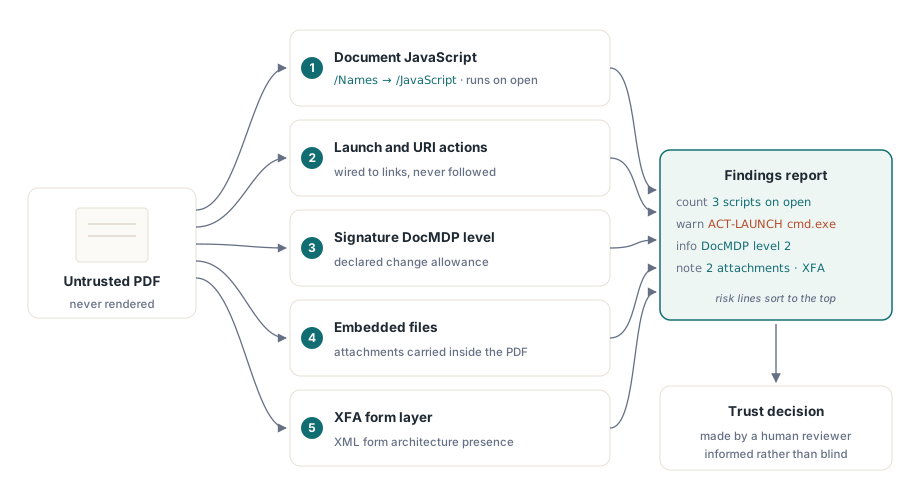
This article walks through a static, read-only audit pass over that risk surface using the PDFium component for Delphi and Lazarus. The audit never paints a page. It parses the document structure, enumerates the parts of the file that carry behaviour, and writes a plain report. It is the difference between asking a stranger to empty their pockets at the door and trusting them because they smiled
What an audit is, and what it is not
Be clear about the boundary. A sandboxed preview renders a file under tight restrictions so a user can look at it without the file touching the rest of the machine. An audit comes before that. It is a render-free inspection whose only output is a description of the threat surface: which scripts exist, which actions are wired to links, whether the file is signed and how tightly, and what is attached. You run it when a document crosses a trust boundary, on intake from email, an upload form, or a partner feed, before any later stage opens it for real
The component loads a document the same way for an audit as for anything else. You set the file name and activate it, which parses the cross-reference data and the document catalogue without rendering a single page. Everything below reads from that loaded, unrendered state
var
  Pdf: TPdf;
begin
  Pdf := TPdf.Create(nil);
  try
    Pdf.FileName := 'Incoming_Invoice.pdf';
    Pdf.Active := True;          // parses structure, renders nothing
    // audit the loaded document here
  finally
    Pdf.Free;
  end;
end;
Document JavaScript in the name tree
The first thing to enumerate is code. A PDF can carry document-level JavaScript: scripts that are not attached to any page or field but to the document itself, stored in the /Names tree under a /JavaScript entry. A conforming viewer runs these on open. That is the mechanism behind a long line of PDF malware, because it lets a file execute logic the instant a user double-clicks it, before they have read a word
An auditor wants two facts about each such script: that it exists, and what it contains. The component exposes the count and lets you read each action as a record holding the script's name and its full body. Reading the body matters. A script named Doc.0 tells you nothing, but its text might call app.launchURL or assemble a string and pass it somewhere it should not go. Pulling the source out so a reviewer can read it is the whole point of flagging a file that runs code on open
var
  I: Integer;
  Action: TPdfJavaScriptAction;
begin
  if Pdf.JavaScriptActionCount > 0 then
    WriteLn('WARNING: document runs ', Pdf.JavaScriptActionCount,
            ' script(s) on open');
  for I := 0 to Pdf.JavaScriptActionCount - 1 do
  begin
    Action := Pdf.JavaScriptAction[I];
    WriteLn('  script "', Action.Name, '":');
    WriteLn(Action.Script);   // full body, for a human to read
  end;
end;
A file with zero document scripts is not automatically safe, because page and field scripts exist too, but a file with document scripts always deserves a second look. The presence count alone is a useful gate, and the body is what turns a gate into a judgement
Launch and URI actions
The next behaviour to inventory lives on links and annotations. Two action types matter most to an auditor. A Launch action starts an external program or opens a local file when the link is triggered. A URI action opens a web target. A reviewer looking at a suspect document should be able to see, without clicking anything, that a button on page three is wired to launch cmd.exe or to open a URL that does not match the brand on the page
The component classifies the links it finds and exposes the action type and the target path for each, so an audit can list every Launch and URI action with its destination. This is reporting, not execution. The auditor reads the action out of the structure and writes it down. It never follows it
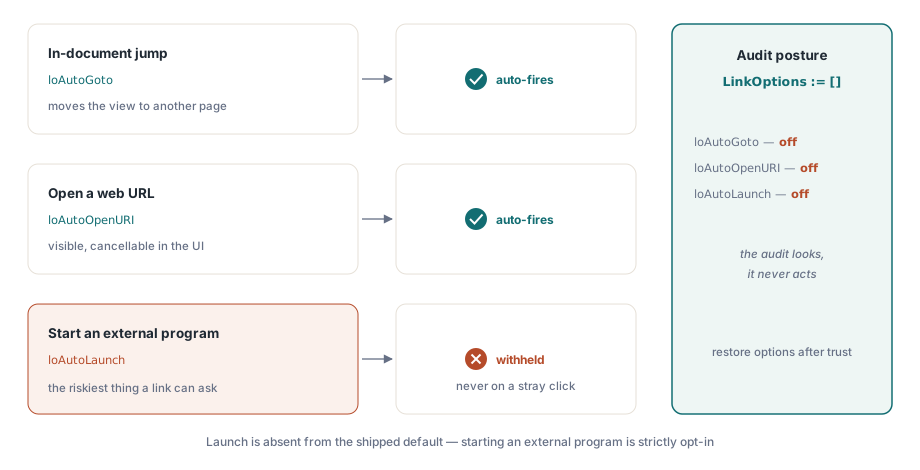
The viewer control that renders documents is the place where following an action would happen, and its default posture is deliberately cautious. The TPdfView control has a LinkOptions set that decides which link types fire automatically on a click. Its default is [loAutoGoto, loAutoOpenURI], which means in-document jumps and web URLs may open, but loAutoLaunch is absent, so launch actions never run automatically. For an audit workflow you go further and clear the set entirely, so nothing at all auto-fires while you are still deciding whether to trust the file
// Audit posture for the viewer: nothing auto-runs, nothing auto-opens.
View.LinkOptions := [];

// The shipped default already withholds launch:
//   default = [loAutoGoto, loAutoOpenURI]
//   loAutoLaunch is NOT in the default set, so external programs
//   are never started on a stray click out of the box.
The reasoning behind withholding launch by default is simple. A jump within the document is harmless and a URL is visible and cancellable, but starting an arbitrary external program from a click is the single most dangerous thing a PDF link can ask for, so it is off unless you opt in. An auditor opts out of even the safe behaviours, because the job is to look, not to act
The digital signature MDP permission level
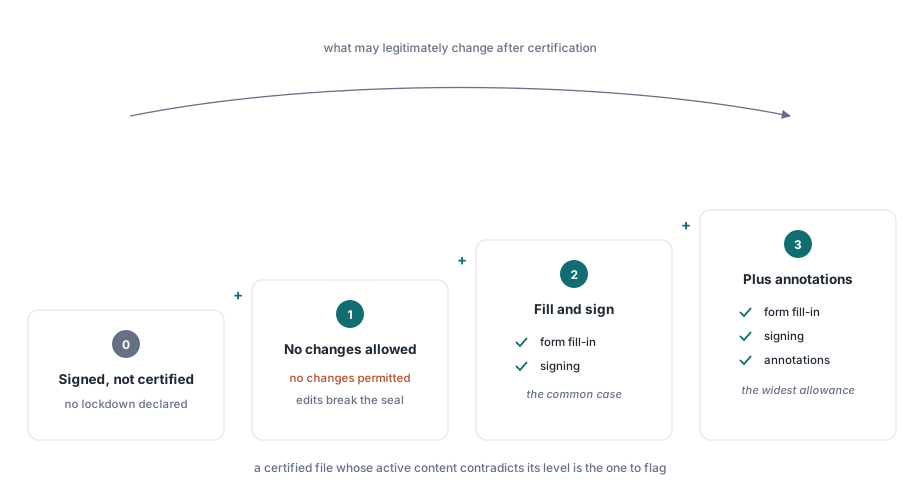
Signatures change the question. A plain signature attests to the bytes at signing time. A certification signature, the kind created with a document modification detection and prevention rule, goes further: it declares what may legitimately change after the document was certified, and a compliant viewer warns if anything outside that allowance has been touched. Reading that permission level tells an auditor whether a file is certified and, if so, how locked down it is meant to be
The MDP permission is an integer with three defined values. A level of 1 means no changes are permitted at all; any modification breaks the certification. A level of 2 permits form filling and signing, the common case for a contract that is meant to be completed and signed but not otherwise altered. A level of 3 additionally permits annotations on top of form filling and signing. Knowing the level lets your intake logic reason about intent: a document certified at level 1 that nonetheless carries form fields or scripts is contradicting itself, and that contradiction is worth flagging
The component reads the count of signatures and exposes each as a record whose Permission field carries that MDP value, populated directly from the underlying FPDFSignatureObj_GetDocMDPPermission call. A permission of zero means the signature is not a certification (DocMDP) signature, so there is no document-level lockdown to report
var
  I: Integer;
  Sig: TPdfSignature;
begin
  if Pdf.SignatureCount = 0 then
    WriteLn('document is not signed')
  else
    for I := 0 to Pdf.SignatureCount - 1 do
    begin
      Sig := Pdf.Signature[I];
      case Sig.Permission of
        1: WriteLn('certified: no changes allowed');
        2: WriteLn('certified: form fill and signing allowed');
        3: WriteLn('certified: form fill, signing and annotations allowed');
      else
        WriteLn('signed, but not a DocMDP certification');
      end;
    end;
end;
An audit does not validate the cryptography of the signature here; verifying the certificate chain is a separate concern. What it reports is the declared intent: this file says it was locked at this level. That is exactly the context a reviewer needs to judge whether later changes, or the mere presence of active content, are consistent with how the author sealed the document
The rest of the surface: embedded files and XFA
Two more items round out a complete inventory. Embedded files are whole documents carried inside the PDF as attachments, and they are a classic delivery vehicle, because a benign-looking report can ship an executable or a second malicious PDF in its attachment tree. The component exposes the attachment count and the name of each attachment, so the audit can list what is riding along without extracting or opening any of it
XFA presence is the other flag. An XFA form replaces the static AcroForm with an XML-based form architecture that brings its own rendering and scripting model, a larger and more complex surface than a plain form. You do not need to process the XFA to note that it is there; its mere presence is a signal that the file carries a richer interactive layer worth a closer look. The component reports it as a single boolean
var
  I: Integer;
begin
  if Pdf.XFA then
    WriteLn('NOTE: document contains an XFA form layer');

  if Pdf.AttachmentCount > 0 then
  begin
    WriteLn('embedded files: ', Pdf.AttachmentCount);
    for I := 0 to Pdf.AttachmentCount - 1 do
      WriteLn('  - ', Pdf.AttachmentName[I]);
  end;
end;
One read-only routine that writes a report
Put the pieces together and the audit is a single procedure that loads a document, enumerates its scripts and their bodies, lists its Launch and URI targets, reports the signature MDP level, notes attachments and XFA, and writes the findings to a log. It renders nothing, so it is cheap and it cannot be tricked into displaying hostile page content. The output is a flat, human-readable record that a reviewer or a downstream rule can act on
The shape that works well in practice is to collect each finding as a line, prefix the genuinely risky ones so they sort to the top of a review queue, and persist the whole thing next to the file. A document with no scripts, no launch actions, no attachments, no XFA, and either no signature or a coherent certification passes quietly. A document that trips several flags at once is the one a person should see before any later stage opens it. The audit does not make the trust decision for you. It makes sure the decision is informed rather than blind
Once a file clears the audit and you do need to look at it, do so under restriction rather than in a default viewer. The approach in our walkthrough on building a secure PDF preview in Delphi shows how to keep link auto-handling and active content from acting during a controlled look. To fold this enumeration into a full intake pipeline with reviewer tooling, see the PDF intake and review workbench article. Both build on the same read-only, render-free foundation and ship as part of the PDFium Component for Delphi and C++Builder, alongside the rendering, text, form, and signature APIs covered elsewhere on this blog