Every visible character in a PDF carries a reference to the font that drew it, and PDFium Component lets you follow that reference back to the font object and read what it knows. The unit of access is the character rather than the document: you pick a character by its index in the page text, then ask for the family name, the base name, the weight, the italic angle and whether the underlying face is genuinely carried inside the file. That last property is what most analyses are really after, because an embedded font travels with the document, whilst a non-embedded one is only a promise that the reader's machine happens to have the same typeface installed
The component exposes these through the same TPdf and TPdfView objects you use for rendering and text extraction. There is no separate "font table" object to open. Once a page's text has been parsed the font properties hang off the character index, and you read them a glyph at a time. That design matches how PDF stores the information in the first place: a single page may switch fonts dozens of times over, so the only honest answer to "what font is this document in" is "it depends which character you mean."
Reading the font behind one character
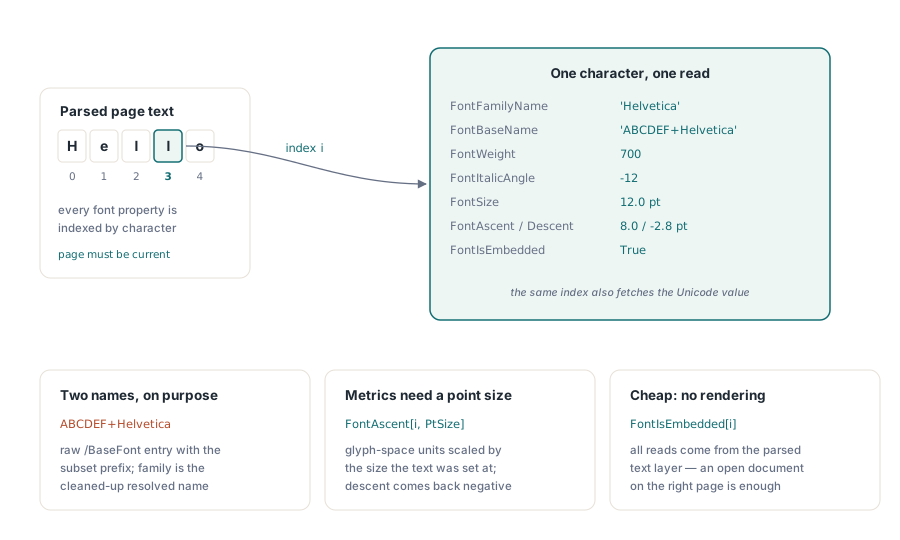
The smallest useful operation is to take a character index and dump everything PDFium can tell you about its font. Every font property on TPdf and TPdfView is indexed by character position, so that index threads through the lot of them. The page must also be the current page for the index to resolve against the right text, which starts to matter the moment you move past page one
procedure DescribeFontAt(Pdf: TPdf; CharIndex: Integer);
var
  Report: TStringList;
  PtSize: Single;
begin
  Report := TStringList.Create;
  try
    PtSize := Pdf.FontSize[CharIndex];

    Report.Add('Character : ' + Pdf.Character[CharIndex]);
    Report.Add('Family    : ' + Pdf.FontFamilyName[CharIndex]);
    Report.Add('Base name : ' + Pdf.FontBaseName[CharIndex]);
    Report.Add('Weight    : ' + IntToStr(Pdf.FontWeight[CharIndex]));
    Report.Add('Italic    : ' + IntToStr(Pdf.FontItalicAngle[CharIndex]) + ' deg');
    Report.Add('Size      : ' + FormatFloat('0.0', PtSize) + ' pt');
    Report.Add('Ascent    : ' + FormatFloat('0.0', Pdf.FontAscent[CharIndex, PtSize]));
    Report.Add('Descent   : ' + FormatFloat('0.0', Pdf.FontDescent[CharIndex, PtSize]));
    Report.Add('Embedded  : ' + BoolToStr(Pdf.FontIsEmbedded[CharIndex], True));

    ShowMessage(Report.Text);
  finally
    Report.Free;
  end;
end;
A couple of the signatures catch out people coming from other libraries. FontAscent and FontDescent take two arguments, the character index and a point size, because PDFium reports those metrics in glyph-space units that only become pixels once you scale them by the size the text was set at. Pass the value you have already read from FontSize[CharIndex] and you get ascent and descent in the same points as the rest of the layout. Descent comes back negative, as it measures below the baseline. The family name and the base name are deliberately separate strings: the base name is the raw /BaseFont entry from the PDF, often carrying a subset prefix such as ABCDEF+, whilst the family name is the tidied-up name the renderer resolves it to
Turning a click into a character index
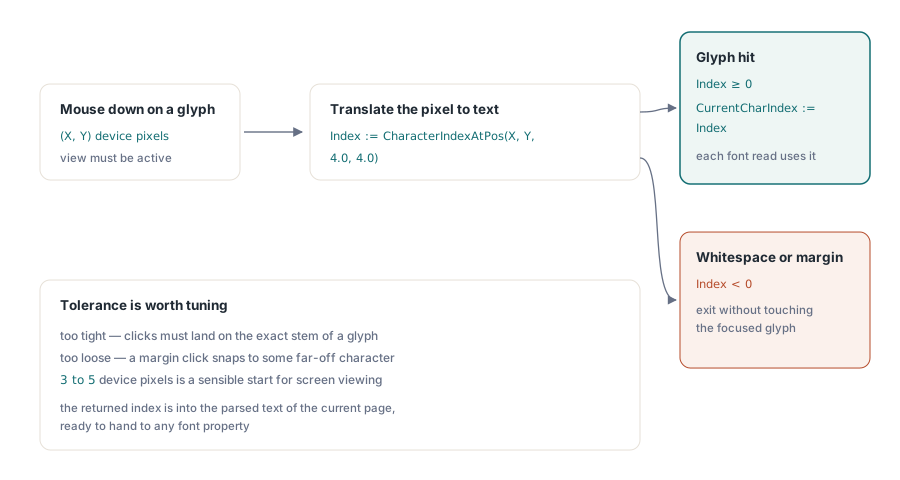
In a viewer you rarely know the index up front. The user clicks a glyph and you have to translate that pixel coordinate into the character underneath it. CharacterIndexAtPos does precisely that, taking the mouse position and a tolerance and handing back the index of the nearest character, or a negative value when the click landed on whitespace or bare page
procedure TfrmMain.PdfViewMouseDown(Sender: TObject; Button: TMouseButton;
  Shift: TShiftState; X, Y: Integer);
var
  Index: Integer;
begin
  if not PdfView.Active then
    Exit;

  // 4 px of slack in each direction so a near-miss still hits the glyph.
  Index := PdfView.CharacterIndexAtPos(X, Y, 4.0, 4.0);
  if Index < 0 then
    Exit;                      // clicked between glyphs; leave the panel alone

  PdfView.CurrentCharIndex := Index;
  DescribeFontAt(PdfView.Pdf, Index);
end;
The tolerance is worth tuning. Too tight and users feel they have to land on the exact stem of a letter; too loose and a click in a margin snaps to some far-off character that has nothing to do with what they meant. Three to five device pixels is a sensible starting point for screen viewing. The returned index is into the parsed text of the current page, the same index space every font property expects, so you can hand it straight to the routine above. Storing it in CurrentCharIndex is optional but convenient: the view keeps that as its notion of the focused glyph, which is handy if other parts of the UI want to read the selection without re-deriving it
Embedding is the property that matters
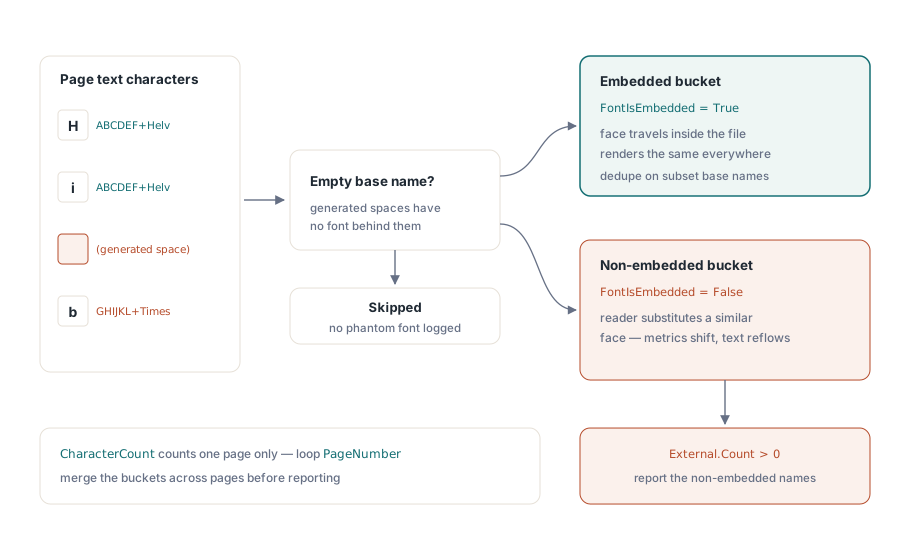
For most real work the single question worth answering is whether each font is embedded. A document whose fonts all ride inside it renders the same on a print bureau's RIP, on a colleague's laptop and on a server with no GUI at all. A document leaning on a non-embedded Helvetica is gambling that every one of those machines has a matching face, and when the gamble fails the reader substitutes something close, the metrics shift and a carefully laid-out form reflows just enough to break. Walking the page text and bucketing fonts by embedding status answers that cheaply
procedure ReportNonEmbeddedFonts(Pdf: TPdf);
var
  Embedded, External: TStringList;
  I: Integer;
  Name: string;
begin
  Embedded := TStringList.Create;
  External := TStringList.Create;
  try
    Embedded.Sorted := True;
    Embedded.Duplicates := dupIgnore;
    External.Sorted := True;
    External.Duplicates := dupIgnore;

    for I := 0 to Pdf.CharacterCount - 1 do
    begin
      Name := Pdf.FontBaseName[I];
      if Name = '' then
        Continue;              // generated spaces and the like have no font
      if Pdf.FontIsEmbedded[I] then
        Embedded.Add(Name)
      else
        External.Add(Name);
    end;

    if External.Count > 0 then
      ShowMessage(IntToStr(External.Count) +
        ' non-embedded font(s):' + sLineBreak + External.Text)
    else
      ShowMessage('All ' + IntToStr(Embedded.Count) +
        ' font(s) on this page are embedded.');
  finally
    Embedded.Free;
    External.Free;
  end;
end;
Two details keep this honest. First, CharacterCount is per page, so a whole-document audit means setting Pdf.PageNumber to each page in turn and running the loop again, merging the results as you go. Second, the text layer contains generated characters such as the spaces a reader infers between words, and those have no font object behind them; the empty-base-name check skips them rather than logging a phantom. The base name is the right key for de-duplication here because the subset prefix it carries distinguishes two different subsets of the same family, which is usually what you want to know
Pulling the embedded face out
When a font is embedded you can read its bytes straight out. FontData hands back the raw font program — the same TrueType or CFF data the PDF carries — which is enough to write a standalone font file or to fingerprint the face against a known library. It returns an empty array when the font is not embedded, so the embedding check and the length check together guard the write
procedure SaveEmbeddedFont(Pdf: TPdf; CharIndex: Integer;
  const OutputFile: string);
var
  Data: TBytes;
  Stream: TFileStream;
begin
  if not Pdf.FontIsEmbedded[CharIndex] then
  begin
    ShowMessage('That glyph''s font is not embedded; nothing to extract.');
    Exit;
  end;

  Data := Pdf.FontData[CharIndex];
  if Length(Data) = 0 then
    Exit;

  Stream := TFileStream.Create(OutputFile, fmCreate);
  try
    Stream.WriteBuffer(Data[0], Length(Data));
  finally
    Stream.Free;
  end;
  ShowMessage('Wrote ' + IntToStr(Length(Data)) + ' bytes.');
end;
The bytes are the embedded subset, not the original retail font, so what comes back usually covers only the glyphs the document actually used. That is exactly right for forensics and verification and a poor fit for reuse; a subset of Times New Roman holding thirty glyphs is not a font you can install and type with. Treat extraction as a way to inspect what shipped rather than as a font-recovery tool. If you need the matching base name to label the output, read FontBaseName[CharIndex] alongside the data and strip the leading subset tag when you want the bare family
Making sense of the weight number
FontWeight returns the numeric weight class, the same 100-to-900 scale CSS uses, where 400 is regular and 700 is bold. PDFium reports whatever the font declares, which is not always a round hundred; a face may announce 350 or 650, and treating anything at or above 600 as "bold enough to matter" holds up better than testing for exactly 700. The italic angle is a companion signal: a non-zero value, usually negative, means the face is an oblique or a true italic design, whilst zero means upright. Together they let you tell a bold-italic run from a regular one without rendering anything, which is just the sort of check a preflight pass or an accessibility audit wants to make in bulk
None of these reads requires a rendered bitmap. They come from the parsed text layer, so an open document on the right page is all the setup you need, which makes font inspection cheap to run across an entire archive. If you are pairing this with text extraction, the same character indices line up with the text you pull out, so a glyph's font and its Unicode value are two reads against one index. The companion article on extracting text from PDF documents with PDFium Component covers that side of the text layer in more depth
The font properties shown here are part of the PDFium Delphi VCL Component