Mastering PDF Annotations with HotPDF Component
PDF annotations are one of the most powerful features for creating interactive and collaborative documents. They allow users to add comments, highlights, stamps, and multimedia content directly to PDF files without modifying the original document structure. This comprehensive guide explores how to implement various types of PDF annotations using the HotPDF Component, covering everything from basic text annotations to advanced multimedia attachments.
Understanding PDF Annotations: More Than Just Comments
PDF annotations are objects that can be added to PDF pages to provide additional information, interactivity, or visual enhancements. Unlike regular page content, annotations are stored as separate objects that can be shown or hidden, edited, or removed without affecting the underlying document structure. This makes them ideal for:
- Document Review: Adding comments, notes, and feedback
- Form Enhancement: Creating interactive elements and help text
- Multimedia Integration: Embedding audio, video, and file attachments
- Visual Marking: Highlighting important sections with stamps and shapes
- Collaborative Workflows: Enabling multiple users to contribute without conflicts
Quick Start: Simple Text Annotation Example
Let’s start with a basic text annotation example to understand the core concepts of PDF annotations:
|
1 2 3 4 5 6 7 8 9 10 11 12 13 14 15 16 17 18 19 20 21 22 23 24 25 26 27 28 29 30 31 32 33 34 35 36 37 38 39 40 41 42 43 44 45 46 47 48 49 50 51 |
program SimpleAnnotation; {$I ..\..\..\Lib\HotPDF.inc} {$APPTYPE CONSOLE} uses {$IFDEF XE2+} System.Classes, System.SysUtils, Vcl.Graphics, {$ELSE} Classes, SysUtils, Graphics, {$ENDIF} HPDFDoc; var HotPDF: THotPDF; begin HotPDF := THotPDF.Create(nil); try // Configure PDF basic properties HotPDF.FileName := 'SimpleAnnotation.pdf'; HotPDF.Title := 'Simple Annotation Demo'; HotPDF.Author := 'HotPDF Component'; // Set font embedding for consistent display HotPDF.FontEmbedding := True; HotPDF.BeginDoc; // Set font HotPDF.CurrentPage.SetFont('Arial', [], 12, 0, False); // Add page content HotPDF.CurrentPage.TextOut(120, 65, 0, 'Click the annotation icon:'); // Add multilingual text annotations HotPDF.CurrentPage.AddTextAnnotation( 'This is a text annotation.' + #13#10 + 'Dies ist eine Textanmerkung.' + #13#10 + 'Ceci est une annotation textuelle.' + #13#10 + 'This is a text annotation.', Rect(120, 80, 140, 100), True, taComment, clBlue ); HotPDF.EndDoc; finally HotPDF.Free; end; end. |
This simple example demonstrates several core concepts of PDF annotations:
- Position Targeting: The
Rect(120, 80, 140, 100)parameter defines the clickable area of the annotation - Multi-language Support: Content includes English, German, French, and Chinese text
- Visibility Control: The
Trueparameter makes the annotation initially open - Annotation Type:
taCommentcreates a standard comment annotation - Visual Customization:
clBluesets the colour of the annotation - Font Embedding:
FontEmbedding := Trueensures consistent display across viewers
Complete Annotation Types Reference
The HotPDF component supports comprehensive annotation types, each optimised for specific use cases:
1. Text Annotations
Text annotations are the most commonly used type, providing various display styles:
|
1 2 3 4 5 6 7 8 9 10 11 12 13 14 15 16 17 18 19 20 21 22 23 24 25 26 27 28 29 30 31 32 33 34 35 36 37 38 39 40 41 42 43 44 45 46 47 48 49 50 51 52 53 54 55 |
// Available text annotation type enumeration THPDFTextAnnotationType = ( taComment, // Standard comment bubble taKey, // Key symbol for important notes taNote, // Note icon for general information taHelp, // Help icon for help text taNewParagraph, // New paragraph marker taParagraph, // Paragraph marker taInsert // Content insertion marker ); // Usage examples for different types procedure AddTextAnnotationExamples(PDF: THotPDF); begin WriteLn('Adding text annotations...'); // Section header text PDF.CurrentPage.TextOut(50, 80, 0, 'Text Annotations - Different Types and Colours:'); // Critical annotation with multilingual content PDF.CurrentPage.AddTextAnnotation( 'CRITICAL: This is a critical comment annotation requiring immediate attention.' + #13#10 + 'KRITISCH: Dies ist eine kritische Textanmerkung.' + #13#10 + 'CRITIQUE: Ceci est une annotation critique.', Rect(50, 95, 70, 115), True, taComment, clRed ); // Key point annotation PDF.CurrentPage.AddTextAnnotation( 'KEY POINT: Important information marker' + #13#10 + 'This annotation uses the key icon for emphasis.', Rect(80, 100, 100, 120), False, taKey, $0080FF // Orange ); // Help annotation PDF.CurrentPage.AddTextAnnotation( 'HELP: Click for additional assistance' + #13#10 + 'This help annotation provides user guidance.', Rect(110, 100, 130, 120), False, taHelp, clBlue ); // General note annotation PDF.CurrentPage.AddTextAnnotation( 'NOTE: General information annotation' + #13#10 + 'Standard note for supplementary information.', Rect(140, 100, 160, 120), False, taNote, clGreen ); // Insert marker annotation PDF.CurrentPage.AddTextAnnotation( 'INSERT: Content insertion marker' + #13#10 + 'Indicates where new content should be added.', Rect(170, 100, 190, 120), False, taInsert, $800080 // Purple ); end; |
2. Free Text Annotations
Free text annotations display text directly on the page without requiring user interaction:
|
1 2 3 4 5 6 7 8 9 10 11 12 13 14 15 16 17 18 19 20 21 22 23 24 25 26 27 28 29 30 31 32 33 34 35 36 37 38 39 40 41 42 43 44 45 46 47 |
// Free text alignment options enumeration THPDFFreeTextAnnotationJust = ( ftLeftJust, // Left-aligned text ftCenter, // Centre-aligned text ftRightJust // Right-aligned text ); // Example: Create free text annotations with different alignments procedure AddFreeTextAnnotationExamples(PDF: THotPDF); begin WriteLn('Adding free text annotations...'); // Section header PDF.CurrentPage.TextOut(50, 160, 0, 'Free Text Annotations - Different Alignments:'); // Left-justified free text PDF.CurrentPage.AddFreeTextAnnotation( 'LEFT TEXT ANNOTATION', Rect(50, 180, 200, 200), ftLeftJust, $008000 // Green ); // Centre-justified free text PDF.CurrentPage.AddFreeTextAnnotation( 'CENTRED Text', Rect(220, 180, 370, 200), ftCenter, $0080FF // Orange ); // Right-justified free text PDF.CurrentPage.AddFreeTextAnnotation( 'RIGHT ANNOTATION', Rect(390, 180, 540, 200), ftRightJust, clFuchsia // Fuchsia ); // Document status annotation PDF.CurrentPage.AddFreeTextAnnotation( 'CONFIDENTIAL DOCUMENT', Rect(200, 210, 400, 230), ftCenter, clRed ); end; |
3. Geometric Annotations
Line and shape annotations provide visual emphasis and marking functionality:
|
1 2 3 4 5 6 7 8 9 10 11 12 13 14 15 16 17 18 19 20 21 22 23 24 25 26 27 28 29 30 31 32 33 34 35 36 37 38 39 40 41 42 43 44 45 46 47 48 49 50 51 52 53 54 55 |
// Line and shape annotation examples procedure AddGeometricAnnotationExamples(PDF: THotPDF); var StartPoint, EndPoint: THPDFCurrPoint; begin WriteLn('Adding geometric annotations...'); // Section header PDF.CurrentPage.TextOut(50, 250, 0, 'Geometric Annotations - Lines and Shapes:'); // Line annotation - diagonal StartPoint.X := 50; StartPoint.Y := 270; EndPoint.X := 150; EndPoint.Y := 290; PDF.CurrentPage.AddLineAnnotation( 'Diagonal line pointing to important content', StartPoint, EndPoint, $0080FF // Orange ); // Line annotation - horizontal StartPoint.X := 170; StartPoint.Y := 280; EndPoint.X := 270; EndPoint.Y := 280; PDF.CurrentPage.AddLineAnnotation( 'Horizontal line for emphasis', StartPoint, EndPoint, clBlue ); // Circle annotation PDF.CurrentPage.AddCircleSquareAnnotation( 'Circle highlighting important area', Rect(50, 300, 120, 320), csCircle, clGreen ); // Square annotation PDF.CurrentPage.AddCircleSquareAnnotation( 'Square frame for emphasis', Rect(140, 300, 210, 320), csSquare, $800080 // Purple ); end; // Circle and square annotation types THPDFCSAnnotationType = (csCircle, csSquare); |
4. Stamp Annotations
Stamp annotations provide predefined visual markers for document status and workflow:
|
1 2 3 4 5 6 7 8 9 10 11 12 13 14 15 16 17 18 19 20 21 22 23 24 25 26 27 28 29 30 31 32 33 34 35 36 37 38 39 40 41 42 43 44 45 46 47 48 49 50 51 52 53 54 55 56 57 58 59 60 61 62 63 64 65 66 67 68 69 |
// Available stamp type enumeration THPDFStampAnnotationType = ( satApproved, // Green "Approved" stamp satExperimental, // "Experimental" marker satNotApproved, // Red "Not Approved" stamp satAsIs, // "As Is" status satExpired, // "Expired" warning satNotForPublicRelease, // Confidential marker satConfidential, // "Confidential" stamp satFinal, // "Final" marker satSold, // "Sold" status satDepartmental, // Department-specific marker satForComment, // "For Comment" review stamp satTopSecret // "Top Secret" classification ); // Example: Add various stamp annotations procedure AddStampAnnotationExamples(PDF: THotPDF); begin WriteLn('Adding stamp annotations...'); // Section header PDF.CurrentPage.TextOut(50, 340, 0, 'Stamp Annotations - Document Status Markers:'); // Approval stamps PDF.CurrentPage.AddStampAnnotation( 'Document approved for release', Rect(50, 360, 150, 390), satApproved, clGreen ); PDF.CurrentPage.AddStampAnnotation( 'Document rejected - requires revision', Rect(170, 360, 270, 390), satNotApproved, clRed ); // Security stamps PDF.CurrentPage.AddStampAnnotation( 'Confidential information marker', Rect(290, 360, 390, 390), satConfidential, clRed ); PDF.CurrentPage.AddStampAnnotation( 'Final version stamp', Rect(410, 360, 510, 390), satFinal, clBlue ); // Workflow stamps PDF.CurrentPage.AddStampAnnotation( 'For comment and review', Rect(50, 400, 150, 430), satForComment, $800080 // Purple ); PDF.CurrentPage.AddStampAnnotation( 'Experimental version', Rect(170, 400, 270, 430), satExperimental, $0080FF // Orange ); end; |
Multimedia Annotations: Beyond Text Interaction
Modern PDF workflows often require multimedia integration. The HotPDF component supports multimedia annotations:
5. File Attachment Annotations
File attachment annotations allow external files to be embedded in PDF documents:
|
1 2 3 4 5 6 7 8 9 10 11 12 13 14 15 16 17 18 19 20 21 22 23 24 25 26 27 28 29 30 31 32 33 34 35 36 37 38 39 40 41 42 43 44 45 46 47 48 49 50 51 |
// File attachment annotation example procedure AddMultimediaAnnotationExamples(PDF: THotPDF); var DemoTextFile, DemoAudioFile: string; DemoContent: TStringList; begin WriteLn('Adding multimedia annotations...'); // Section header PDF.CurrentPage.TextOut(50, 450, 0, 'Multimedia Annotations - Files, Audio, and Video:'); // Create demo text file if it doesn't exist DemoTextFile := 'DemoAttachment.txt'; if not FileExists(DemoTextFile) then begin DemoContent := TStringList.Create; try DemoContent.Add('HotPDF Component Demo Attachment'); DemoContent.Add('================================'); DemoContent.Add('This is a sample text file attached to the PDF document.'); DemoContent.Add('It demonstrates the file attachment annotation capability.'); DemoContent.Add('Created: ' + DateTimeToStr(Now)); DemoContent.SaveToFile(DemoTextFile); finally DemoContent.Free; end; end; // File attachment annotation PDF.CurrentPage.AddFileAttachmentAnnotation( 'Demo text file attachment', DemoTextFile, Rect(50, 470, 90, 490), clBlue ); // Multiple file attachment examples PDF.CurrentPage.AddFileAttachmentAnnotation( 'Legal agreement document', 'Contract.docx', Rect(100, 470, 140, 490), clPurple ); PDF.CurrentPage.AddFileAttachmentAnnotation( 'Reference image for comparison', 'Reference.png', Rect(150, 470, 190, 490), clGreen ); end; |
6. Sound Annotations
Sound annotations allow embedding audio files for voice notes or explanations:
|
1 2 3 4 5 6 7 8 9 10 11 12 13 14 15 16 17 18 19 20 21 22 23 24 25 26 27 28 29 30 31 32 33 34 35 36 37 38 39 40 41 42 |
// Sound annotation example procedure AddSoundAnnotationExample(PDF: THotPDF); var DemoAudioFile: string; begin // Check for existing multimedia files and add annotations DemoAudioFile := 'Music.wav'; if FileExists(DemoAudioFile) then begin PDF.CurrentPage.AddSoundAnnotation( 'Demo audio file - Click to play', DemoAudioFile, Rect(110, 470, 150, 490), clGreen ); end else begin PDF.CurrentPage.AddTextAnnotation( 'Audio file not found: ' + DemoAudioFile, Rect(110, 470, 130, 490), False, taNote, $0080FF // Orange ); end; // Multi-language sound annotation example PDF.CurrentPage.AddSoundAnnotation( 'English narration', 'Narration_EN.mp3', Rect(60, 350, 100, 390), clBlue ); PDF.CurrentPage.AddSoundAnnotation( 'Chinese narration', 'Narration_CN.mp3', Rect(110, 350, 150, 390), clGreen ); end; |
Complete Annotation Example: Enhanced Demo Project
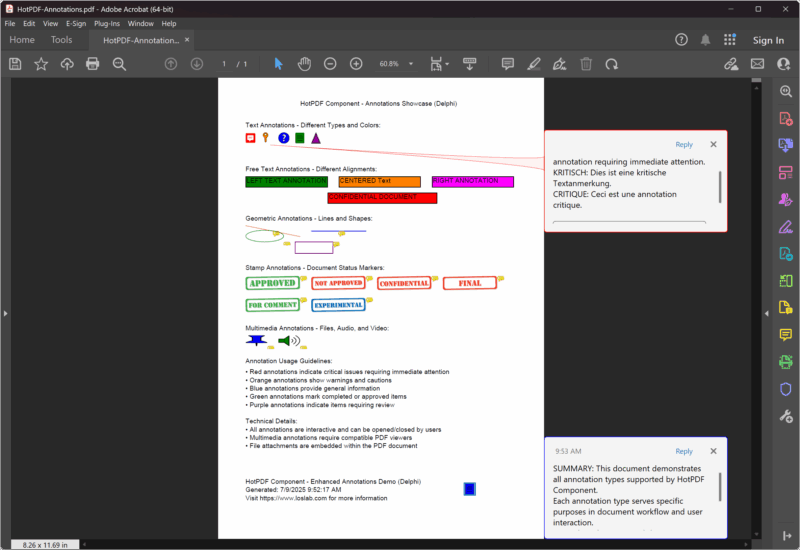
Here’s the complete, updated example that demonstrates all annotation types in a single comprehensive project:
|
1 2 3 4 5 6 7 8 9 10 11 12 13 14 15 16 17 18 19 20 21 22 23 24 25 26 27 28 29 30 31 32 33 34 35 36 37 38 39 40 41 42 43 44 45 46 47 48 49 50 51 52 53 54 55 56 57 58 59 60 61 62 63 64 65 66 67 68 69 70 71 72 73 74 75 76 77 78 79 80 81 82 83 84 85 86 87 88 89 90 91 92 93 94 95 96 97 98 99 100 101 102 103 104 105 106 107 108 109 110 111 112 113 114 115 116 117 118 119 120 121 122 123 124 125 126 127 128 129 |
{***********************************************************} // HotPDF PDF Component - Enhanced Annotations Demo Delphi // Copyright(c)2007-2025, https://www.loslab.com // This demo showcases comprehensive annotation functionality {***********************************************************} program Annotations; {$I ..\..\..\Lib\HotPDF.inc} {$APPTYPE CONSOLE} uses {$IFDEF XE2+} System.Classes, System.SysUtils, Vcl.Graphics, {$ELSE} Classes, SysUtils, Graphics, {$ENDIF} HPDFDoc; var HotPDF: THotPDF; // ... existing code ... procedure AddDocumentationAndFooter(PDF: THotPDF); begin WriteLn('Adding documentation and footer...'); // Documentation section PDF.CurrentPage.TextOut(50, 510, 0, 'Annotation Usage Guidelines:'); PDF.CurrentPage.TextOut(50, 530, 0, '• Red annotations indicate critical issues requiring immediate attention'); PDF.CurrentPage.TextOut(50, 545, 0, '• Orange annotations show warnings and cautions'); PDF.CurrentPage.TextOut(50, 560, 0, '• Blue annotations provide general information'); PDF.CurrentPage.TextOut(50, 575, 0, '• Green annotations mark completed or approved items'); PDF.CurrentPage.TextOut(50, 590, 0, '• Purple annotations indicate items requiring review'); // Technical information PDF.CurrentPage.TextOut(50, 620, 0, 'Technical Details:'); PDF.CurrentPage.TextOut(50, 635, 0, '• All annotations are interactive and can be opened/closed by users'); PDF.CurrentPage.TextOut(50, 650, 0, '• Multimedia annotations require compatible PDF viewers'); PDF.CurrentPage.TextOut(50, 665, 0, '• File attachments are embedded within the PDF document'); // Footer PDF.CurrentPage.TextOut(50, 730, 0, 'HotPDF Component - Enhanced Annotations Demo (Delphi)'); PDF.CurrentPage.TextOut(50, 745, 0, 'Generated: ' + DateTimeToStr(Now)); PDF.CurrentPage.TextOut(50, 760, 0, 'Visit https://www.loslab.com for more information'); // Add a final summary annotation PDF.CurrentPage.AddTextAnnotation( 'SUMMARY: This document demonstrates all annotation types supported by HotPDF Component.' + #13#10 + 'Each annotation type serves specific purposes in document workflow and user interaction.' + #13#10 + 'For technical support and documentation, visit https://www.loslab.com', Rect(450, 740, 470, 760), False, taNote, clBlue ); end; begin WriteLn('HotPDF Enhanced Annotations Demo (Delphi)'); WriteLn('========================================='); WriteLn('Creating comprehensive PDF with all annotation types...'); WriteLn(''); HotPDF := THotPDF.Create(nil); try try // Configure PDF properties HotPDF.FileName := 'HotPDF-Annotations.pdf'; HotPDF.Title := 'HotPDF Annotations Demo (Delphi)'; HotPDF.Author := 'HotPDF Component'; HotPDF.Subject := 'Comprehensive annotation examples'; HotPDF.Keywords := 'PDF, Annotations, HotPDF, Demo, Interactive, Delphi'; // Set font embedding for consistent display HotPDF.FontEmbedding := True; // Enable FlateDecode compression for smaller file sizes HotPDF.Compression := cmFlateDecode; // Set initial zoom to fit page height in window HotPDF.InitialZoom := izFitV; HotPDF.BeginDoc; // Use standard font HotPDF.CurrentPage.SetFont('Arial', [], 12, 0, False); // Add page title HotPDF.CurrentPage.TextOut(150, 40, 0, 'HotPDF Component - Annotations Showcase (Delphi)'); // Add all annotation examples AddTextAnnotationExamples(HotPDF); AddFreeTextAnnotationExamples(HotPDF); AddGeometricAnnotationExamples(HotPDF); AddStampAnnotationExamples(HotPDF); AddMultimediaAnnotationExamples(HotPDF); AddDocumentationAndFooter(HotPDF); HotPDF.EndDoc; WriteLn('Annotations PDF created successfully!'); WriteLn(''); WriteLn('Output file: ' + HotPDF.FileName); WriteLn(''); WriteLn('The PDF contains:'); WriteLn('• Text annotations with different types and colours'); WriteLn('• Free text annotations with various alignments'); WriteLn('• Geometric annotations (lines, circles, squares)'); WriteLn('• Stamp annotations for document workflow'); WriteLn('• Multimedia annotations (file, audio, video)'); WriteLn('• Comprehensive documentation and usage guidelines'); except on E: Exception do begin WriteLn('Error creating PDF: ' + E.Message); ExitCode := 1; end; end; finally HotPDF.Free; end; end. |
Best Practices for PDF Annotations
1. Modern Code Structure and Compatibility
The updated HotPDF component uses modern Delphi coding practices:
|
1 2 3 4 5 6 7 8 9 10 11 12 13 14 15 16 17 18 19 20 21 22 23 24 25 26 27 28 29 30 31 |
// Modern unit structure with conditional compilation uses {$IFDEF XE2+} System.Classes, System.SysUtils, Vcl.Graphics, {$ELSE} Classes, SysUtils, Graphics, {$ENDIF} HPDFDoc; // Enhanced PDF configuration procedure ConfigureModernPDF(PDF: THotPDF); begin // Font embedding for consistent display across viewers PDF.FontEmbedding := True; // FlateDecode compression for smaller file sizes PDF.Compression := cmFlateDecode; // Initial zoom setting for better user experience PDF.InitialZoom := izFitV; // Fit to page height // Complete metadata for better document management PDF.Title := 'Professional PDF with Annotations'; PDF.Author := 'HotPDF Component'; PDF.Subject := 'Comprehensive annotation examples'; PDF.Keywords := 'PDF, Annotations, Interactive, Professional'; end; |
2. Error Handling and Robustness
Implement proper error handling for production applications:
|
1 2 3 4 5 6 7 8 9 10 11 12 13 14 15 16 17 18 19 20 21 22 23 24 25 26 27 28 29 30 31 32 33 34 35 36 37 38 39 40 41 42 43 44 45 46 47 |
// Robust file handling with error checking procedure SafeAddFileAttachment(PDF: THotPDF; const FileName: string; const Description: string); begin if FileExists(FileName) then begin PDF.CurrentPage.AddFileAttachmentAnnotation( Description, FileName, Rect(10, 10, 50, 50), clGreen ); end else begin // Add error annotation instead PDF.CurrentPage.AddTextAnnotation( Format('File not found: %s', [ExtractFileName(FileName)]), Rect(10, 10, 30, 30), True, taKey, clRed ); end; end; // Exception handling in main program begin HotPDF := THotPDF.Create(nil); try try // PDF creation code here HotPDF.BeginDoc; // ... annotation code ... HotPDF.EndDoc; WriteLn('PDF created successfully!'); except on E: Exception do begin WriteLn('Error creating PDF: ' + E.Message); ExitCode := 1; end; end; finally HotPDF.Free; end; end; |
3. Colour Consistency and Visual Design
Use consistent colour schemes for better user experience:
|
1 2 3 4 5 6 7 8 9 10 11 12 13 14 15 16 17 18 19 20 21 22 23 24 25 26 27 28 29 30 31 32 33 34 35 36 37 38 |
// Colour constants for consistent annotation design const ANNOTATION_COLOR_ERROR = clRed; ANNOTATION_COLOR_WARNING = $0080FF; // Orange ANNOTATION_COLOR_INFO = clBlue; ANNOTATION_COLOR_SUCCESS = clGreen; ANNOTATION_COLOR_REVIEW = $800080; // Purple // Consistent colour application procedure AddColorCodedAnnotations(PDF: THotPDF); begin // Error annotation PDF.CurrentPage.AddTextAnnotation( 'ERROR: Critical issue requiring immediate attention', Rect(50, 100, 70, 120), True, taKey, ANNOTATION_COLOR_ERROR ); // Warning annotation PDF.CurrentPage.AddTextAnnotation( 'WARNING: Caution required', Rect(80, 100, 100, 120), False, taComment, ANNOTATION_COLOR_WARNING ); // Information annotation PDF.CurrentPage.AddTextAnnotation( 'INFO: Additional information available', Rect(110, 100, 130, 120), False, taNote, ANNOTATION_COLOR_INFO ); end; |
Performance Optimisation for Large Documents
1. Structured Approach with Procedures
The updated example uses a modular approach for better maintainability:
|
1 2 3 4 5 6 7 8 9 10 11 12 13 14 15 16 17 18 19 20 21 22 23 24 25 26 27 28 29 30 31 32 33 34 35 36 37 38 39 40 41 42 43 44 45 |
// Modular annotation management procedure AddTextAnnotationExamples(PDF: THotPDF); begin WriteLn('Adding text annotations...'); // Text annotation code here end; procedure AddFreeTextAnnotationExamples(PDF: THotPDF); begin WriteLn('Adding free text annotations...'); // Free text annotation code here end; procedure AddGeometricAnnotationExamples(PDF: THotPDF); begin WriteLn('Adding geometric annotations...'); // Geometric annotation code here end; // Main execution with clear structure begin HotPDF := THotPDF.Create(nil); try // Configure PDF HotPDF.FileName := 'HotPDF-Annotations.pdf'; HotPDF.FontEmbedding := True; HotPDF.Compression := cmFlateDecode; HotPDF.InitialZoom := izFitV; HotPDF.BeginDoc; HotPDF.CurrentPage.SetFont('Arial', [], 12, 0, False); // Add all annotation examples in organized manner AddTextAnnotationExamples(HotPDF); AddFreeTextAnnotationExamples(HotPDF); AddGeometricAnnotationExamples(HotPDF); AddStampAnnotationExamples(HotPDF); AddMultimediaAnnotationExamples(HotPDF); AddDocumentationAndFooter(HotPDF); HotPDF.EndDoc; finally HotPDF.Free; end; end; |
2. Memory Management and Resource Cleanup
Proper resource management for reliable operation:
|
1 2 3 4 5 6 7 8 9 10 11 12 13 14 15 16 17 18 19 20 21 22 23 24 25 26 27 28 29 30 31 32 33 34 35 36 37 38 39 |
// Proper resource management procedure CreateAnnotatedPDF; var HotPDF: THotPDF; TempFiles: TStringList; begin HotPDF := THotPDF.Create(nil); TempFiles := TStringList.Create; try try // Create temporary files for demonstration CreateDemoFiles(TempFiles); // Configure and create PDF ConfigurePDF(HotPDF); HotPDF.BeginDoc; // Add annotations AddAllAnnotations(HotPDF, TempFiles); HotPDF.EndDoc; WriteLn('PDF created successfully!'); except on E: Exception do begin WriteLn('Error: ' + E.Message); raise; // Re-raise for proper error handling end; end; finally // Clean up resources TempFiles.Free; HotPDF.Free; // Clean up temporary files CleanupTempFiles; end; end; |
Advanced Features and Modern Enhancements
1. Compression and Optimisation
The updated component includes enhanced compression options:
|
1 2 3 4 |
// Modern compression settings HotPDF.Compression := cmFlateDecode; // Best compression ratio HotPDF.FontEmbedding := True; // Consistent font display HotPDF.InitialZoom := izFitV; // Optimal viewing experience |
2. Enhanced Metadata Support
Complete document metadata for professional documents:
|
1 2 3 4 5 6 7 8 9 10 |
// Complete metadata configuration procedure ConfigureDocumentMetadata(PDF: THotPDF); begin PDF.Title := 'Professional PDF with Annotations'; PDF.Author := 'HotPDF Component'; PDF.Subject := 'Comprehensive annotation examples'; PDF.Keywords := 'PDF, Annotations, HotPDF, Demo, Interactive, Delphi'; PDF.Creator := 'HotPDF Component Demo'; PDF.Producer := 'HotPDF Component v2.x'; end; |
Conclusion
The updated HotPDF Component provides comprehensive support for PDF annotations with modern Delphi coding practices. The enhanced demo project showcases all annotation types with improved code structure, error handling, and resource management.
Key improvements in the updated version:
- Modern Code Structure: Uses conditional compilation for XE2+ compatibility
- Enhanced Error Handling: Robust exception handling and resource cleanup
- Improved Performance: FlateDecode compression and font embedding
- Better Organization: Modular procedures for different annotation types
- Professional Features: Complete metadata support and optimisation settings
- Comprehensive Examples: All annotation types with practical use cases
Whether you’re building document review systems, interactive forms, or multimedia-rich presentations, the updated HotPDF Component provides the tools and examples needed to create professional, feature-rich PDF documents with comprehensive annotation support.
The complete source code is available in the Demo/Delphi/Annotations directory, providing a solid foundation for your PDF annotation projects.