A single A4 page rendered at a comfortable reading zoom is on the order of a few megabytes of 32-bit bitmap. Multiply that by a 400-page contract and the arithmetic stops being abstract: render every page up front and you are asking Windows for well over a gigabyte of bitmaps that the user will look at one screenful at a time. The application either runs out of address space on a 32-bit build or spends its first few seconds frozen while the GPU and the page parser grind through pages nobody has scrolled to yet. A continuous-scroll reader has to feel like one tall ribbon of pages, but it cannot actually hold all of them in memory at once
That tension is the whole problem here. PDFium Component solves it inside TPdfView, so most of the work is choosing the right display mode and understanding what the component is doing on your behalf. The pieces it does not do for you, sizing pages for a reading flow and keeping fast scrolling responsive, are where a little code earns its keep. If you are still assembling the surrounding chrome (toolbar, thumbnails, search box), the feature-rich viewer walkthrough covers that ground; here the subject is the scroll itself
The layout is a display mode, not a panel of bitmaps
The instinct from VCL form work is to reach for a scroll box and stack image controls inside it, one per page. Resist it. That design forces you to own page positioning, scroll math, and the memory question all at once, and you will reinvent every one of them badly. TPdfView already models the document as a continuous run of pages and exposes the layout through its DisplayMode property
Pdf := TPdf.Create(Self);
PdfView := TPdfView.Create(Self);
PdfView.Parent := Self;
PdfView.Align := alClient;
PdfView.Pdf := Pdf;

PdfView.DisplayMode := dmSingleContinuous;   // one page wide, scrolls vertically

Pdf.FileName := 'contract.pdf';
Pdf.Active := True;
if not Pdf.Active then
  ShowMessage('Could not open the document');
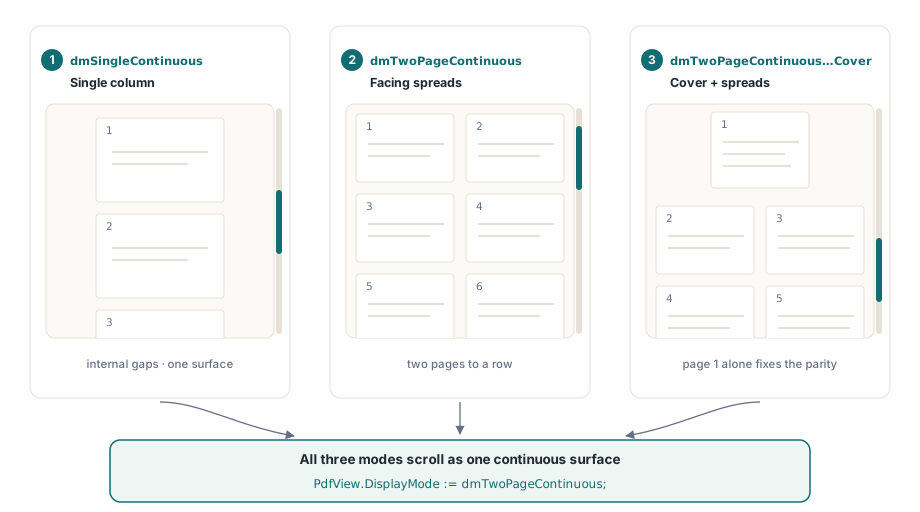
That is the entire continuous-scroll setup. dmSingleContinuous lays the pages out in a single vertical column with the gaps between them handled internally, and the view scrolls through that column as one surface. There is no per-page control to wire up and no scroll handler to write for ordinary navigation. Note the check on Pdf.Active after the assignment: opening a document never raises, so a damaged or password-protected file leaves Active sitting at False with no exception to catch, and a viewer that skips this check renders a blank panel and blames itself
The same property carries the spread modes. dmTwoPageContinuous places pages side by side, two to a row, for the book-style reading some documents want; dmTwoPageContinuousWithCover does the same but lets page one stand alone as a cover so the remaining spreads fall on the natural even-odd boundary. All three scroll continuously. Switching between them is a single assignment, which makes a display-mode combo box trivial to add later
Only the visible pages get rasterised
The reason this scales to a 400-page file is that the column is virtual. TPdfView knows the height of every page from the document's page tree, so it can compute the total scroll extent and the position of each page without rasterising anything. Rasterisation, the expensive step that turns a page's content stream into pixels, happens only for the pages that currently intersect the viewport, plus a small margin so a page is ready by the time it scrolls into view. As you scroll down, pages entering the viewport are rendered and pages leaving it have their bitmaps released. Memory stays proportional to what fits on screen, not to the document length
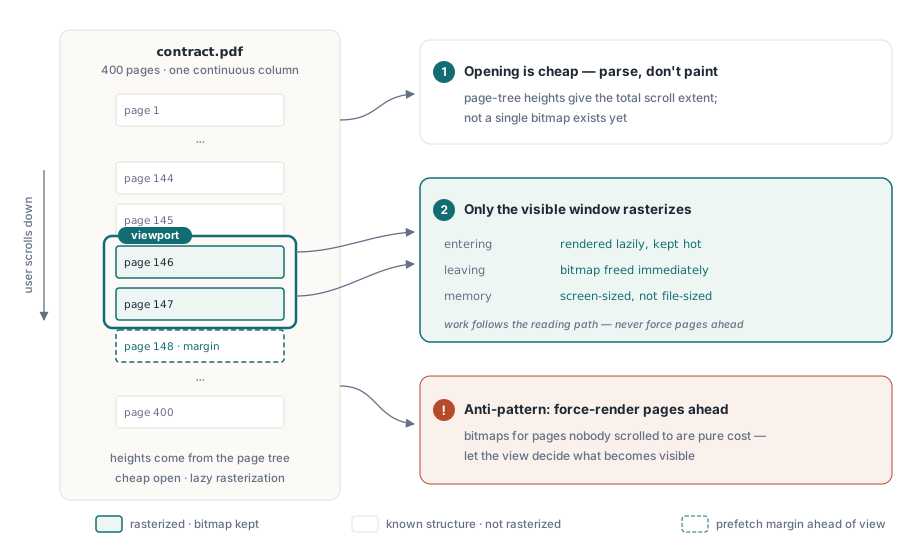
This is worth internalising because it changes how you reason about cost. Opening a 400-page document is cheap: it parses the structure, not the content. The expense is per page and it is paid lazily, at the moment a page is scrolled near. A viewer that feels instant on open and smooth on scroll is not doing less work overall, it is spreading the work across the user's actual reading path and discarding what falls behind. The practical consequence is that you almost never want to force-render pages ahead of the user. Let the view decide what is visible
Size pages to the width, then leave zoom alone
A reading column wants pages sized to the panel width, not pinned to an absolute zoom. FitMode does this and keeps doing it as the window resizes
PdfView.FitMode := pfmFitWidth; // each page fills the column width; height followsWith pfmFitWidth the component recomputes the zoom whenever the view resizes, so the column always fills the available width and the page heights, and therefore the scroll extent, follow from that. There is one trap that catches people: assigning Zoom directly resets FitMode back to pfmNone. That is deliberate, because a manual zoom and an automatic fit are contradictory intentions, but it means a stray PdfView.Zoom := 1.0 somewhere in your code silently turns off fit-to-width and the next resize stops reflowing. If you offer both a zoom control and a fit button, treat them as a mode switch: setting one clears the other, and you decide which wins
For absolute zoom controls that read naturally, the view exposes the fit zooms as values you can apply or display: PageWidthZoom[PageNumber] returns the zoom that would fit that page to the width, and the matching PageZoom fits the whole page. Reading those is how you populate a "Fit Width" / "Fit Page" menu without hard-coding magic percentages that go wrong on landscape or oversized pages
Keep fast scrolling responsive with progressive rendering
The default render path draws a page to completion before it returns. For a single page that is fine. During a flick-scroll through a dense document it is not: each page that flashes past kicks off a full rasterisation, and if the user is scrolling faster than pages can render, those renders pile up and the panel stutters because work is being done for pages that are already off screen by the time it finishes. The fix is to make a render cancellable and abandon it the moment the user moves on
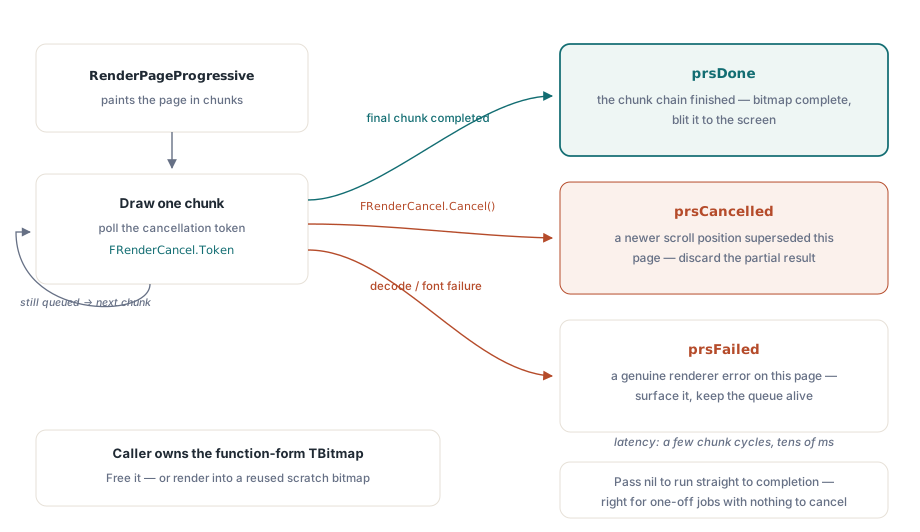
RenderPageProgressive renders in chunks and checks a cancellation token at each chunk boundary, so an in-flight render of a page that just scrolled away can be dropped instead of run to the end
type
  TFormMain = class(TForm)
    // ...
  private
    FRenderCancel: IPdfCancellationTokenSource;
    procedure RenderPageToBitmap(PageNo: Integer; Bmp: TBitmap);
  end;

procedure TFormMain.RenderPageToBitmap(PageNo: Integer; Bmp: TBitmap);
var
  Status: TPdfProgressiveStatus;
begin
  // Cancel whatever was rendering; the old token is now signalled.
  if Assigned(FRenderCancel) then
    FRenderCancel.Cancel;
  FRenderCancel := TPdfCancellationTokenSource.New;

  Pdf.PageNumber := PageNo;
  Status := Pdf.RenderPageProgressive(Bmp, 0, 0, Bmp.Width, Bmp.Height,
    FRenderCancel.Token);

  case Status of
    prsDone:      ;                    // bitmap is complete, paint it
    prsCancelled: Exit;                // superseded, discard this result
    prsFailed:    ShowMessage('Render failed for page ' + IntToStr(PageNo));
  end;
end;
The shape that matters is the return value. prsDone means the bitmap is fully painted and worth blitting to screen; prsCancelled means a newer scroll position superseded this page, so you throw the partial result away rather than show it; prsFailed is a genuine error on that page. Cancellation is polled at chunk boundaries rather than preemptively, so expect tens of milliseconds of latency between calling Cancel and the render actually stopping. That is still far cheaper than letting a stale full-page render block the queue. Passing nil as the token renders straight through to completion, which is the right choice for a one-off render like a print preview where there is nothing to cancel against
When you call the function form of RenderPage instead, the one that returns a fresh TBitmap, remember that the caller owns it and must Free it. In a scroll loop that allocates a bitmap per page, forgetting this is a leak that grows with every page the user passes, which is exactly the unbounded-memory failure the continuous design was supposed to avoid. Render into a reused bitmap where you can
What you are left with
The continuous-scroll reader is mostly the component's to deliver. You pick dmSingleContinuous for the layout, set pfmFitWidth so the column reflows with the window, and check Pdf.Active so a bad file fails loudly. The one piece worth writing yourself is cancellable rendering, because a reader is judged on how it behaves when someone drags the scrollbar to the bottom of a long document and the panel either keeps up or does not. Everything past that, text selection across pages, search highlighting, a bookmark tree, is interface work that sits on top of this scroll surface rather than inside it
The TPdfView, DisplayMode, and RenderPageProgressive APIs shown here are part of the PDFium Component for Delphi and Lazarus