To export an Excel worksheet to PDF from Delphi or C++Builder without Office installed, call SaveAsPDF on a HotXLS worksheet or workbook. HotXLS is a native VCL Excel component, and its worksheet-to-PDF export renders the sheet's used range to a self-contained PDF 1.4 file, mapping Excel column widths and cell display text onto pages sized from the sheet's page setup, A4 when none is set, with automatic multi-page pagination. No copy of Excel and no printer driver takes part in the render
HotXLS treats PDF as a data-presentation format, a sibling of its CSV, TSV, and HTML export paths rather than a pixel-accurate rendering engine. The export reproduces the sheet as a formatted table: the values you see in the grid, the column proportions, cell fills, borders, font emphasis and colours, and on XLSX workbooks the pictures and charts placed on the sheet. The rest of this article walks through how that table becomes pages, which properties control the layout, and how text and fonts end up in the file
How do you convert Excel to PDF in Delphi without Office?
The shortest path is a single call. TXLSWorksheet exposes SaveAsPDF(FileName) and SaveAsPDF(Stream), and TXLSWorkbook exposes the same two overloads that forward to the active sheet. Each returns an Integer, 1 on success and -1 on failure, so you can branch on the result without wrapping the call in exception handling of your own
uses
  lxHandle;

var
  Book: TXLSWorkbook;
begin
  Book := TXLSWorkbook.Create;
  try
    Book.Open('sales-june.xlsx');
    // Render the active sheet's used range straight to report.pdf.
    if Book.SaveAsPDF('report.pdf') = 1 then
      Writeln('PDF written');
  finally
    Book.Free;
  end;
end;
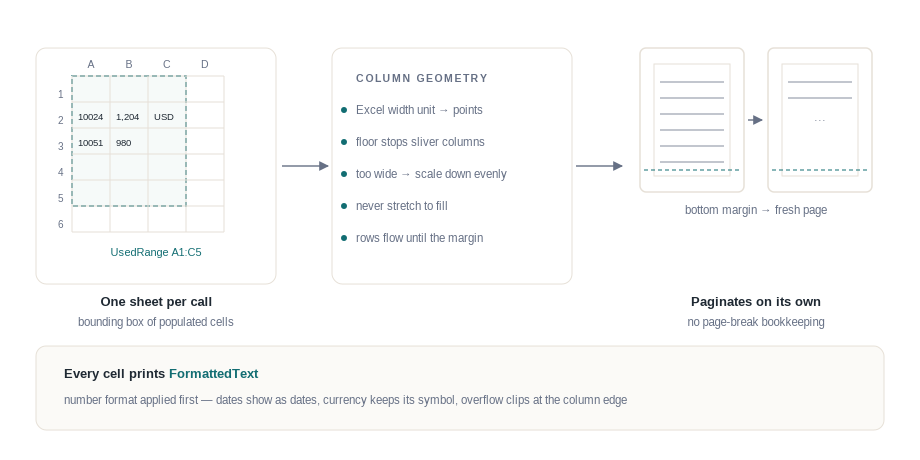
When you call SaveAsPDF on a worksheet, HotXLS exports that sheet's UsedRange, the bounding box of every populated cell. The workbook overload is a convenience that delegates to the active sheet, so a multi-sheet report either loops over the sheets it needs or selects the active sheet before the call. Each call renders one sheet or one range
How does HotXLS turn a used range into PDF pages?
HotXLS walks the used range cell by cell and lays it out as a paginated grid. Column geometry comes straight from Excel: each column width is converted from the Excel width unit to typographic points, with a minimum floor so no column collapses to a sliver. When the columns together are wider than the usable page, HotXLS scales them down uniformly to fit; when they already fit, it leaves them at their natural width rather than stretching them across the sheet
Rows then flow down the page until the next one would cross the bottom margin, at which point HotXLS opens a fresh page and continues, so a thousand-row sheet paginates on its own with no page-break bookkeeping from you. Every cell prints its FormattedText, the display string produced after the number format is applied, so a date shows as the date the sheet shows and a currency cell keeps its thousands separators and symbol. On XLSX sheets, text that overruns its column spills across empty neighbouring cells and stops at the first neighbour that holds content; classic XLS cells clip their text to the cell width
Controlling orientation, margins, and font size
For anything beyond the default layout, drive the exporter directly. TXLSPDFExport is the class behind the one-line helpers, and three of its properties cover the everyday layout: Orientation (xlsPdfPortrait or xlsPdfLandscape, portrait by default), Margin (points, default 40), and FontSize (the default text size in points, 9). One more property decides who wins: UseWorksheetPageSetup defaults to True, so the sheet's own page setup, including paper size, orientation, margins, print area and the print-gridlines flag, drives the layout. Set it to False, as the example below does, when your own values should take over
uses
  lxHandle, lxPDF;

var
  Book: TXLSWorkbook;
  Exporter: TXLSPDFExport;
begin
  Book := TXLSWorkbook.Create;
  try
    Book.Open('wide-ledger.xlsx');
    Exporter := TXLSPDFExport.Create;
    try
      Exporter.UseWorksheetPageSetup := False;  // use the values below, not the sheet's page setup
      Exporter.Orientation := xlsPdfLandscape;  // fit wide sheets on the page
      Exporter.Margin := 28;                     // tighter page margin, in points
      Exporter.FontSize := 8;                    // denser rows
      Exporter.SaveAsPDF(Book.ActiveSheet, 'ledger.pdf');
    finally
      Exporter.Free;
    end;
  finally
    Book.Free;
  end;
end;
TXLSPDFExport also accepts a range instead of a whole sheet through SaveAsPDF(Range: IXLSRange; ...), which is how you export a summary block out of a sheet that also holds scratch calculations. That range overload is the same one the worksheet helper leans on internally, so the layout, scaling, and pagination behave identically whether you hand it a full used range or a hand-picked selection
var
  Book: TXLSWorkbook;
  Exporter: TXLSPDFExport;
  Summary: IXLSRange;
begin
  Book := TXLSWorkbook.Create;
  try
    Book.Open('quarter.xlsx');
    // Export only the summary block, not the scratch columns beside it.
    Summary := Book.Sheets[1].Range['A1', 'F20'];
    Exporter := TXLSPDFExport.Create;
    try
      Exporter.SaveAsPDF(Summary, 'summary.pdf');
    finally
      Exporter.Free;
    end;
  finally
    Book.Free;
  end;
end;
Built-in Helvetica for WinAnsi, an embedded font for everything else
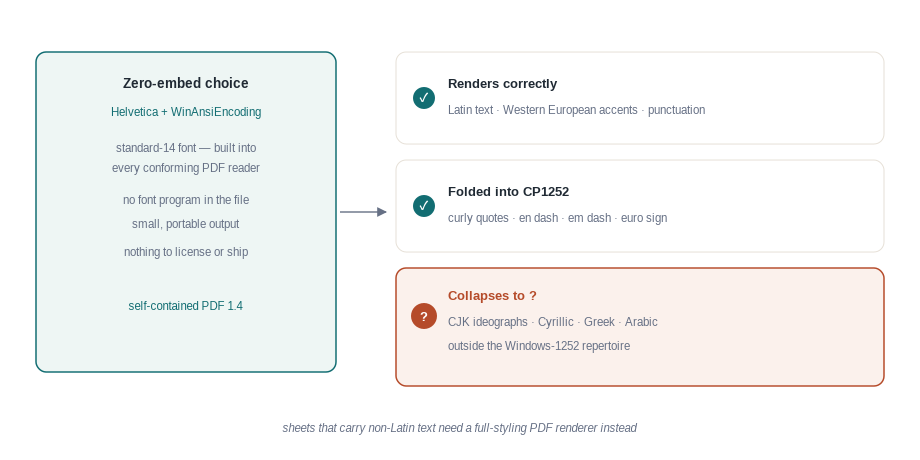
HotXLS writes WinAnsi text with PDF's built-in Helvetica family and the WinAnsiEncoding. Because Helvetica is one of the standard 14 fonts every conforming PDF reader already carries, the exporter embeds no font program for that text: the file stays small and opens anywhere, with nothing to license or ship alongside it
WinAnsiEncoding covers the Windows-1252 set, so Latin text, common punctuation, and the usual Western European accents render correctly, and HotXLS folds a handful of typographic characters, curly quotes, en and em dashes, and the euro sign, into their CP1252 slots. Text outside that range, such as CJK ideographs, Cyrillic, Greek, or Arabic, goes through an embedded TrueType or OpenType font instead: the exporter uses the file named in UnicodeFontFile or, when that is empty, picks a suitable installed font, and by default embeds only the glyphs the document uses. FontEmbedding switches between automatic, subset, full and reference-only embedding, and OnFontEmbed lets the application inspect or override the decision for each font. On a server image with a minimal font set, point UnicodeFontFile at a font that covers the scripts your workbooks carry
What the worksheet-to-PDF export draws
Each page is drawn in layers. Cell fills go down first, then each cell's display text with its font emphasis, colour and alignment, then the per-edge borders, including the runs around merged cells, and then the gridlines when the sheet's page setup asks for them, or always when UseWorksheetPageSetup is False. On XLSX workbooks the charts and pictures anchored on the sheet are painted on top, and ExportSheetBackgroundImages adds the sheet background image when you want it. The result reads as the same table the sheet shows, which is what a report or a data handoff needs
When the goal is a styled, brand-consistent document, the usual pattern is to assemble the numbers in a spreadsheet template first, which the template-driven report generation workflow covers in depth. And because none of this touches COM or a running Excel instance, the pipeline fits the same Office-free automation model HotXLS uses throughout: pure Pascal, deployable on a headless server, with no interop to license or babysit
The self-contained PDF, byte for byte
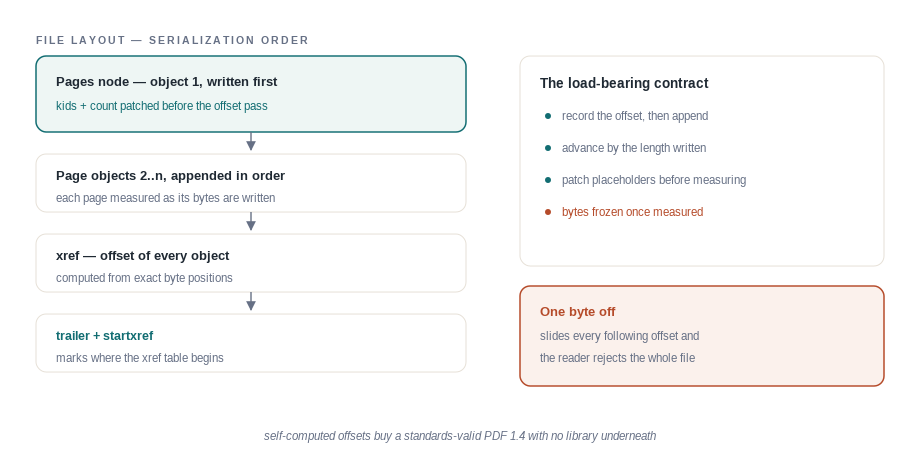
HotXLS builds the PDF file structure by hand and computes its cross-reference table from exact byte offsets, which is the reason the output opens in every reader. As it serializes each object, HotXLS records that object's starting offset before appending its bytes, then advances the running position by the length it just wrote, so the xref table lands precisely on each object and startxref marks where that table begins. A reader that finds those offsets even one byte off rejects the whole file, which makes the self-computed offset the load-bearing contract of the exporter
That contract carries one strict consequence worth knowing. The Pages node is written first as object 1, but its list of child pages is not known until every page has been emitted, so HotXLS reserves it as a placeholder and patches in the final kids and count before the offset pass runs, never after. Once an object's bytes are measured for the xref, they are frozen: changing a single byte afterward would slide every following offset and corrupt the table. It is a small discipline that buys a standards-valid PDF 1.4 with no library underneath it
The SaveAsPDF methods and the TXLSPDFExport class shown here ship with the HotXLS Delphi Excel Component, alongside the CSV, HTML, and RTF exporters and the full worksheet API for Delphi and C++Builder