A dataset is rows and columns; a PDF page is a blank coordinate grid with no notion of either. Bridging that gap is the whole job here. There is no DrawTable call in HotPDF that takes a dataset and hands you a formatted grid. What you get instead are the primitives a grid is made of: TextOut to place a string at a point, SetFont to choose its face, Rectangle and Fill to shade a band, and MoveTo / LineTo / Stroke to draw rules. A working table exporter is the discipline of turning row-and-column thinking into explicit x and y coordinates, and then keeping those coordinates honest when the data runs past the bottom of the page
The example that follows reports customer records, but nothing in the drawing code knows or cares where the rows come from. The original used a legacy TTable; a FireDAC query, an in-memory dataset, or a plain array of records feeds the same routines unchanged. What matters is that you can walk the data one row at a time and read four string fields out of each. Keep the rendering separate from the data source and you can change either side without disturbing the other
Column geometry comes first
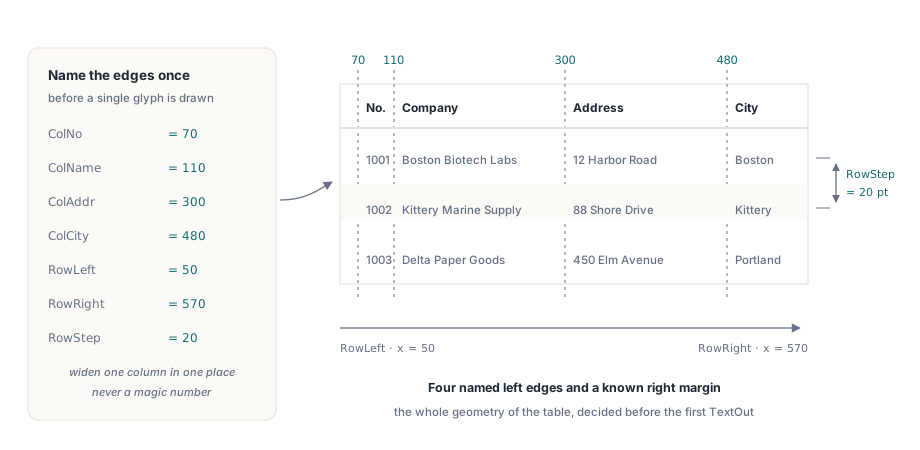
Before a single character is drawn, decide where each column lives. A table has four columns here, so it needs four left edges and a known right margin. Hard-coding a magic number at every TextOut call, the way quick samples tend to, is exactly what makes a table painful to widen later. Name the edges once, in points from the bottom-left origin, and every drawing call refers to them by name:
const
  ColNo   = 70;    // left edge of the "No." column
  ColName = 110;   // company name
  ColAddr = 300;   // street address
  ColCity = 480;   // city
  RowLeft = 50;    // table frame: left rule
  RowRight = 570;  // table frame: right rule
  RowStep = 20;    // vertical distance between baselines

procedure PrintRow(Page: THPDFPage; Y: Single;
  const ANo, AName, AAddr, ACity: string; Shaded: boolean);
begin
  if Shaded then
  begin
    // A shaded band behind the row. Rectangle takes X, Y, Width, Height.
    Page.SetRGBFillColor($00FFF3DD);
    Page.Rectangle(RowLeft, Y - 4, RowRight - RowLeft, RowStep);
    Page.Fill;
    Page.SetRGBFillColor(clBlack);
  end;
  Page.TextOut(ColNo,   Y, 0, ANo);
  Page.TextOut(ColName, Y, 0, AName);
  Page.TextOut(ColAddr, Y, 0, AAddr);
  Page.TextOut(ColCity, Y, 0, ACity);
end;
Two details earn their keep here. The shaded band is drawn first, then the text on top, because painting order is z-order in PDF: fill the rectangle after the text and you bury the row. And the alternating shade is not decoration for its own sake. On a dense report it is the cheapest way to stop the eye from sliding onto the wrong line, which is why the loop later flips a boolean on every row and passes it straight into Shaded
The column positions above are fixed, which is honest for a report whose schema you control. When the data is variable, measure instead of guess. HotPDF exposes text-width measurement on the page object, so the production version of PrintRow can take the longest expected value in each column, measure it once at the chosen font size, and derive the left edges from those widths plus a gutter. The shape of the routine does not change; only the source of the constants does
The header, the rules, and one place that owns them
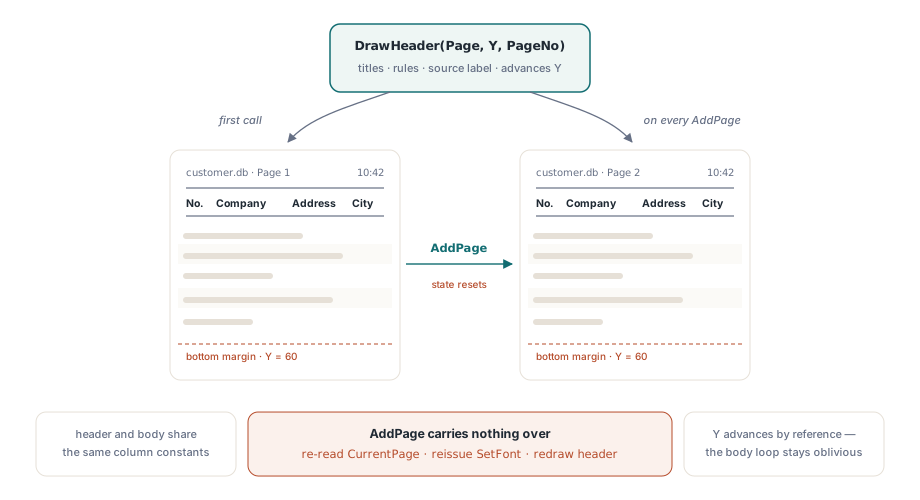
A table that scrolls off a page and resumes on the next one with no column labels is unreadable. The fix is to treat the header as something you redraw, not something you draw once. Put the column titles and the horizontal rules that frame them in a single routine, and call that routine both at the start and again every time you open a new page. Because the header and the body share the same column constants, they line up by construction
procedure DrawHeader(Page: THPDFPage; var Y: Single; PageNo: Integer);
begin
  // Left: source label and page number. Right: generation time.
  Page.SetFont('Arial', [fsItalic], 10);
  Page.TextOut(RowLeft, Y, 0, 'customer.db   Page ' + IntToStr(PageNo));
  Page.TextOut(ColCity, Y, 0, DateTimeToStr(Now));

  // Two horizontal rules that box the column titles.
  Page.MoveTo(RowLeft, Y + 15);
  Page.LineTo(RowRight, Y + 15);
  Page.MoveTo(RowLeft, Y + 45);
  Page.LineTo(RowRight, Y + 45);
  Page.Stroke;

  // The column titles, in a heavier face so they read as headings.
  Page.SetFont('Times New Roman', [fsBold], 12);
  Page.SetRGBFillColor(clNavy);
  PrintRow(Page, Y + 25, 'No.', 'Company', 'Address', 'City', False);
  Page.SetRGBFillColor(clBlack);

  Y := Y + RowStep + 45;  // advance past the boxed header before the first body row
end;
Notice that DrawHeader takes Y by reference and moves it forward. The caller never has to remember how tall the header is; the routine that draws it is the routine that knows. That single ownership rule is what keeps the layout from drifting when you later add a logo or a filter summary to the header band. The body loop stays oblivious. It just keeps drawing rows from wherever Y currently points
The rules themselves are the difference between a list and a table. Vertical column separators are the same idea applied to the x axis: a MoveTo / LineTo / Stroke at each column edge, run from the top rule to the bottom of the last row on the page. The sample keeps to horizontal rules to stay readable, but the production step is mechanical once the column constants exist
The cursor loop owns the page break
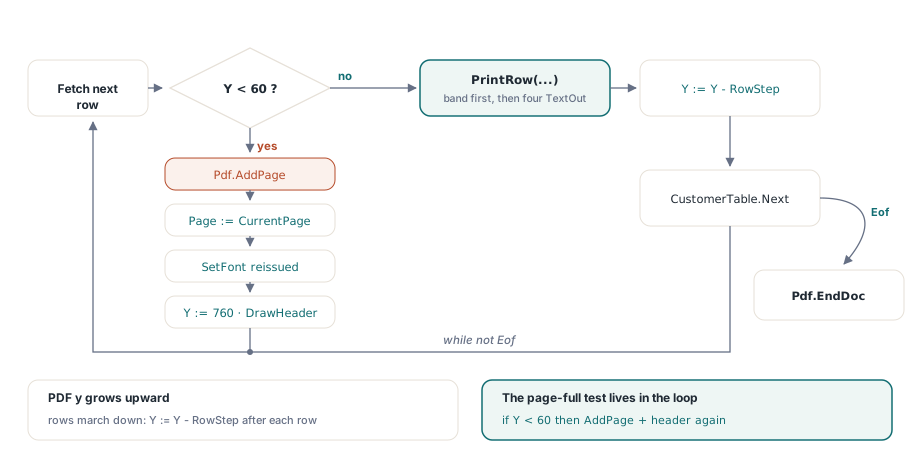
Drawing is the easy half. The half that separates a toy from a report is pagination: knowing, before you draw a row, whether it still fits, and starting a fresh page with a fresh header when it does not. That decision belongs in exactly one place, the loop that walks the data, and nowhere else
var
  Pdf: THotPDF;
  Page: THPDFPage;
  Y: Single;
  PageNo: Integer;
  Shaded: boolean;
begin
  Pdf := THotPDF.Create(nil);
  try
    Pdf.FileName := 'CustomerReport.pdf';
    Pdf.BeginDoc;
    Page := Pdf.CurrentPage;

    // Report title, once, at the top of the first page.
    Page.SetFont('Arial', [fsBold], 24);
    Page.TextOut(200, 800, 0, 'Customer Report');

    PageNo := 1;
    Y := 760;
    DrawHeader(Page, Y, PageNo);
    Shaded := False;

    CustomerTable.First;
    while not CustomerTable.Eof do
    begin
      // Out of room? Open a new page and repeat the header there.
      if Y < 60 then
      begin
        Pdf.AddPage;
        Page := Pdf.CurrentPage;   // AddPage moves CurrentPage forward
        Inc(PageNo);
        Y := 760;
        DrawHeader(Page, Y, PageNo);
      end;

      Shaded := not Shaded;
      Page.SetFont('Arial', [], 10);   // SetFont must be reissued on every new page
      PrintRow(Page, Y,
        VarToStr(CustomerTable['CustNo']),
        VarToStr(CustomerTable['Company']),
        VarToStr(CustomerTable['Addr1']),
        VarToStr(CustomerTable['City']),
        Shaded);

      Y := Y - RowStep;
      CustomerTable.Next;
    end;

    Pdf.EndDoc;
  finally
    Pdf.Free;
  end;
end;
Two coordinate facts drive the whole loop. PDF measures y upward from the bottom-left corner, so the rows march down the page by subtracting RowStep from Y each time, and the page-full test fires when Y drops below the bottom margin rather than above some top. Get the direction backwards and your first row prints off the bottom edge while the loop thinks it has a full page of room
The other fact catches almost everyone once. AddPage creates a new page and repoints CurrentPage to it, but it carries nothing over: not the font, not the fill colour, not the position. That is why Page is re-read from CurrentPage after every AddPage, and why SetFont is reissued before the body rows. Skip the re-read and you keep drawing onto the page you just left behind; skip the font and the new page renders in whatever default the viewer falls back to
The cases that break a table exporter
Most table bugs do not show up on the happy path of a few dozen tidy rows. They live at the edges, and the edges are cheap to test once you know where they are
- Empty datasets. A loop over zero rows produces a page with a header and nothing under it, which at least looks intentional. A blank page with no header looks like a failure. Decide which you want before shipping
- The row that lands exactly on the boundary. Generate a report whose last row sits one step above the margin, then one whose next row is one step below it. Off-by-one pagination hides until the data is exactly the wrong length
- Overlong values. A company name wider than its column will run into the next one. Measure the field and decide on a policy: wrap to a second line, clip, or truncate with an ellipsis. Silence is not a policy
- Null fields. Reading a null straight into
TextOutcan surface as the literal textNullor as a blank, depending on how you convert it. Choose the rendering deliberately rather than letting the variant conversion choose for you
Run the result through more than one viewer before you call it done. Font substitution and clipping behave differently across renderers, and a table that looks square in one PDF reader can show a misaligned column or a clipped city in another. Confirm that the repeated header, the row shading, and the margins survive the move, and that page numbers stay continuous after the data crosses a boundary
Drawing the grid yourself instead of leaning on a visual report designer is more code, and the tradeoff is worth naming plainly: you own every coordinate, which is exactly what you want for server-side batch jobs, invoices, and audit exports that have to render identically on every machine, and exactly the overhead you would rather avoid for a one-off internal listing. For the former, the control pays for itself the first time a report has to look the same in production as it did on your desk
The rules and shaded bands above lean on the same vector and colour primitives covered in the canvas drawing walkthrough, if you want the Rectangle, MoveTo, and LineTo calls treated on their own first. The drawing primitives used here are part of the HotPDF Delphi Component for Delphi and C++Builder