HotPDF has no chart object. There is no TPDFChart, no AddBarSeries, nothing that takes an array of numbers and hands back a rendered graph. What it gives you instead is a page canvas with the same low-level vocabulary every PDF drawing model uses: rectangles, lines, circles, fills, strokes, and text placed at exact coordinates. A chart in a HotPDF document is therefore something you build, not something you request. That sounds like more work than it is. Once you have written the coordinate math once, a bar chart is a loop over rectangles, a line chart is a polyline, and a pie chart is a fan of arcs, and you control every pixel of the result
This matters because the alternative people reach for first, rasterizing a screen chart control to a bitmap and pasting the image into the page, gives you a chart locked to screen resolution that prints fuzzy and bloats the file. Drawing the chart with HotPDF's vector primitives keeps the output crisp at any zoom and any print DPI, because the bars and axes are real PDF path operators, not pixels. The cost is that you own the layout. The mechanics come down to a few moves: the one coordinate flip that catches everyone, a worked bar chart, the polyline trick for line charts, and the arc math for pie slices
The only hard part is the coordinate system
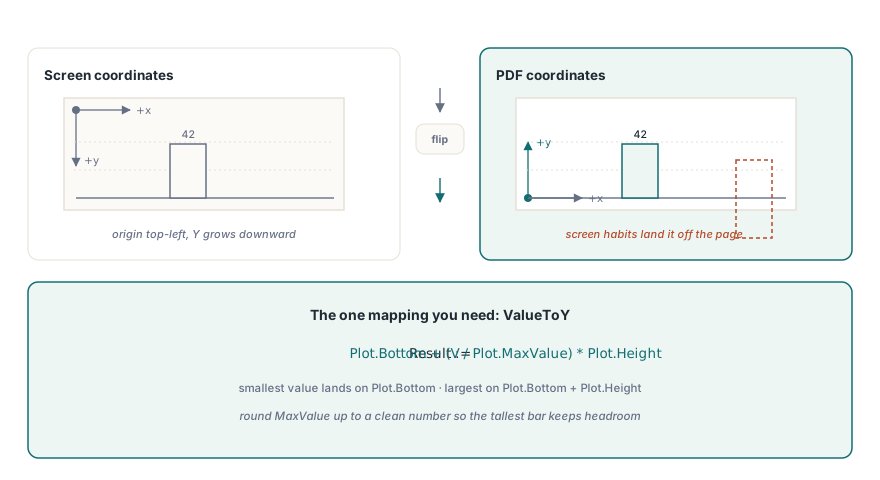
Screen graphics put the origin at the top-left with Y growing downward. PDF does the opposite. The origin sits at the bottom-left corner of the page and Y grows upward, measured in points (1/72 inch). Every drawing call in HotPDF, TextOut, Rectangle, MoveTo, LineTo, Circle, uses that bottom-left, Y-up convention. If you carry over screen-graphics instincts, your first chart draws upside down and runs off the bottom of the page
So the real work in any chart is one mapping: turn a data value into a Y coordinate that respects Y-up. Decide on a plot rectangle, four numbers for the area the chart lives in, then map the smallest value in your data to the bottom edge and the largest to the top. For a bar of value V on a scale that runs from 0 to MaxValue, the bar's top edge is PlotBottom + (V / MaxValue) * PlotHeight, and the bar grows up from PlotBottom. Get that one expression right and everything else is bookkeeping. The helper below holds the plot geometry and does the conversion, so the drawing code never touches raw arithmetic twice:
type
  TPlotArea = record
    Left, Bottom, Width, Height: Single;  // PDF points, bottom-left origin
    MaxValue: Single;                     // top of the value scale
  end;

// Map a data value to its Y coordinate inside the plot, Y growing upward.
function ValueToY(const Plot: TPlotArea; V: Single): Single;
begin
  Result := Plot.Bottom + (V / Plot.MaxValue) * Plot.Height;
end;
One judgement call is hiding in MaxValue. If you set it to the exact largest data point, the tallest bar touches the top edge of the plot and looks clipped. Round it up to a clean number above the maximum, say the next multiple of 10 or 100, so the chart has headroom and the gridline labels read as round figures rather than whatever the data happened to peak at
A bar chart is a loop over rectangles
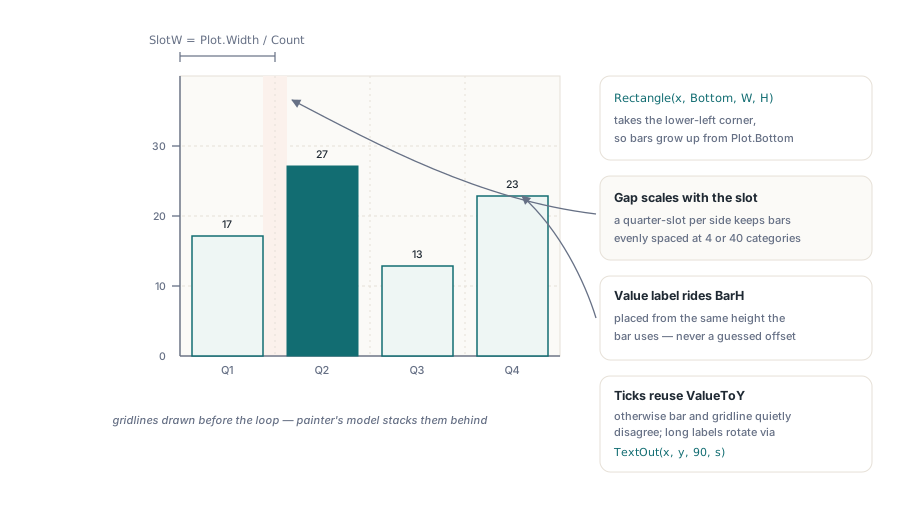
With the mapping settled, a bar chart writes itself. Divide the plot width into one slot per category, leave a gap between bars so they do not touch, and draw each bar as a filled rectangle whose height comes from ValueToY. HotPDF's Rectangle takes the lower-left corner plus a width and a height, which lines up exactly with a bar that grows upward from the baseline. Set the fill colour first, lay down the path, then call Fill to paint it. The category label goes below the baseline, the value above the bar:
procedure DrawBarChart(Page: THPDFPage; const Plot: TPlotArea;
  const Values: array of Single; const Labels: array of string);
var
  I, Count: Integer;
  SlotW, BarW, BarX, BarH, Gap: Single;
begin
  Count := Length(Values);
  SlotW := Plot.Width / Count;
  Gap := SlotW * 0.25;          // quarter-slot gap on each side
  BarW := SlotW - Gap;

  // Baseline (the X axis) along the bottom of the plot.
  Page.SetLineWidth(1.0);
  Page.MoveTo(Plot.Left, Plot.Bottom);
  Page.LineTo(Plot.Left + Plot.Width, Plot.Bottom);
  Page.Stroke;

  Page.SetFont('Arial', [], 9);
  for I := 0 to Count - 1 do
  begin
    BarX := Plot.Left + I * SlotW + Gap / 2;
    BarH := ValueToY(Plot, Values[I]) - Plot.Bottom;

    Page.SetRGBFillColor(RGB(56, 110, 219));
    Page.Rectangle(BarX, Plot.Bottom, BarW, BarH);  // X, Y, Width, Height
    Page.Fill;

    // Category label below the baseline, value above the bar.
    Page.SetRGBFillColor(clBlack);
    Page.TextOut(BarX, Plot.Bottom - 14, 0, Labels[I]);
    Page.TextOut(BarX, Plot.Bottom + BarH + 4, 0,
      FormatFloat('0', Values[I]));
  end;
end;
Two details earn their keep. The Gap is a fraction of the slot rather than a fixed point count, so the bars stay proportionally spaced whether you plot four categories or forty. And the value label is positioned with the same ValueToY-derived height the bar uses, so it always sits just above its own bar instead of floating at a guessed offset. If you want horizontal gridlines behind the bars, draw them before the loop: pick three or four round values, run ValueToY on each, and stroke a faint line across the plot at that Y. Drawing them first puts them behind the bars in the painter's-model stacking PDF uses
Axes, ticks, and labels are just more lines and text
The chart is not finished until a reader can tell what the bars mean, and that is entirely axis work. The vertical axis is one stroked line up the left edge of the plot with a handful of tick marks and their values. Reuse ValueToY so the ticks land at the same scale the bars use, otherwise a bar and its gridline disagree and the chart lies quietly:
procedure DrawValueAxis(Page: THPDFPage; const Plot: TPlotArea;
  TickCount: Integer);
var
  I: Integer;
  TickV, TickY: Single;
begin
  Page.SetLineWidth(1.0);
  Page.MoveTo(Plot.Left, Plot.Bottom);
  Page.LineTo(Plot.Left, Plot.Bottom + Plot.Height);
  Page.Stroke;

  Page.SetFont('Arial', [], 8);
  for I := 0 to TickCount do
  begin
    TickV := (Plot.MaxValue / TickCount) * I;
    TickY := ValueToY(Plot, TickV);
    Page.MoveTo(Plot.Left - 4, TickY);   // short tick outside the axis
    Page.LineTo(Plot.Left, TickY);
    Page.Stroke;
    Page.TextOut(Plot.Left - 30, TickY - 3, 0, FormatFloat('0', TickV));
  end;
end;
Labels are where charts most often break in production, and the failure is always the same: text that fit on screen overruns its space in the PDF. Long category names collide with their neighbors, and localized month names like "septembre" or "Dezember" are wider than the English "Sep" you tested with. There is no autosize to rescue you here, so leave real margin under the baseline, shrink the font a point or two for dense category sets, and if names are genuinely long, rotate them. TextOut takes an angle as its third argument, so passing 90 stands the label on end and buys you room without overlap. Test the layout with your widest expected label, not your shortest, before the export ships
Line charts: one polyline through mapped points
A line chart reuses the entire value mapping and changes only how the points connect. Instead of a rectangle per category, you walk the data once, convert each value to its (X, Y) with ValueToY, and stitch the points together with a single MoveTo followed by LineTo calls, stroked at the end. The first point opens the path; every later point extends it:
procedure DrawLineChart(Page: THPDFPage; const Plot: TPlotArea;
  const Values: array of Single);
var
  I, Count: Integer;
  StepX, X, Y: Single;
begin
  Count := Length(Values);
  if Count < 2 then Exit;
  StepX := Plot.Width / (Count - 1);

  Page.SetLineWidth(1.5);
  Page.SetRGBStrokeColor(RGB(214, 92, 36));
  for I := 0 to Count - 1 do
  begin
    X := Plot.Left + I * StepX;
    Y := ValueToY(Plot, Values[I]);
    if I = 0 then
      Page.MoveTo(X, Y)        // open the path at the first point
    else
      Page.LineTo(X, Y);       // extend it through every later point
  end;
  Page.Stroke;                 // one stroke paints the whole polyline
end;
Note the spacing difference. A bar chart divides the width by the number of bars, because each bar owns a slot. A line chart divides by the number of intervals, Count - 1, because the first and last points sit on the plot edges and the line spans the gaps between them. Mixing those two up is the usual reason a line chart drifts a half-slot off from the bar chart it is meant to overlay. If you want a marker at each data point, drop a small Circle and Fill at every (X, Y) after the polyline is stroked
Pie charts: arcs, or wedges if you keep it simple
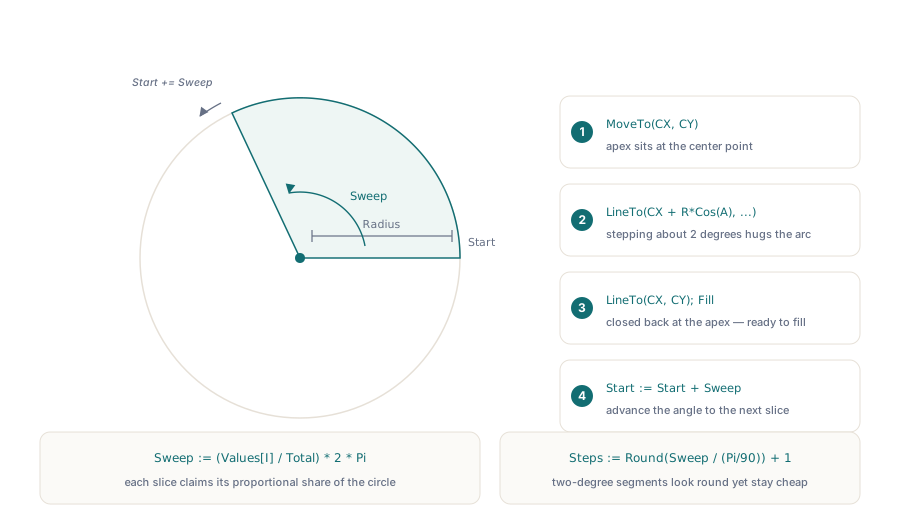
Pie slices are the one shape that needs trigonometry, because a wedge is bounded by two radii and an arc. The honest version sweeps the arc by stepping small line segments along the circumference, which approximates the curve closely enough that no reader can tell. Each slice's sweep angle is its share of the total, (Value / Total) * 2π, and you accumulate the running angle as you go around:
procedure DrawPieChart(Page: THPDFPage; CX, CY, Radius: Single;
  const Values: array of Single; const Colors: array of TColor);
var
  I, Step, Steps: Integer;
  Total, Start, Sweep, A: Single;
begin
  Total := 0;
  for I := 0 to High(Values) do Total := Total + Values[I];
  Start := 0;

  for I := 0 to High(Values) do
  begin
    Sweep := (Values[I] / Total) * 2 * Pi;
    Steps := Round(Sweep / (Pi / 90)) + 1;  // ~2 degrees per segment

    Page.SetRGBFillColor(Colors[I]);
    Page.MoveTo(CX, CY);                     // wedge apex at the center
    for Step := 0 to Steps do
    begin
      A := Start + Sweep * (Step / Steps);
      Page.LineTo(CX + Radius * Cos(A), CY + Radius * Sin(A));
    end;
    Page.LineTo(CX, CY);                      // close back to the center
    Page.Fill;

    Start := Start + Sweep;                   // advance to the next slice
  end;
end;
The centre-out path, apex first, then the arc, then back to the apex, gives a closed wedge that Fill paints solidly. The segment count trades smoothness for path size: roughly two degrees per step looks round at any sensible radius without producing an enormous content stream. If you do not need a true circle, you can skip the trig entirely and render the same data as a single horizontal stacked bar, each segment's width proportional to its share. That is often more legible than a pie anyway, and it is just the bar code with the rectangles laid end to end. Reach for the arc version only when the design calls for an actual circle
None of this depends on any chart library being installed, which is the quiet advantage of drawing the primitives directly. The same canvas drawing calls that place a logo or a signature box build these charts, and the same TextOut that labels a form field labels an axis. Put the plot geometry in a record, map values to Y once, and a bar, line, or pie chart is a short routine over Rectangle, LineTo, and Circle that you can drop into any report. The Rectangle, MoveTo, LineTo, Circle, Fill, Stroke, and TextOut calls used here are part of the HotPDF Delphi Component for Delphi and C++Builder