A PDF form field on its own is just a box that holds a value. What makes a form behave like a small application is the action attached to it: a click that hides a section, pulls saved values back from a file, jumps to the last page, or runs a script that totals a column. None of that lives in the field. It lives in an action dictionary, and ISO 32000-1 organises the whole family in §12.6. This article walks through the actions a Delphi programme reaches for most often and shows how PDF Library for Delphi wires each one to a field or a link
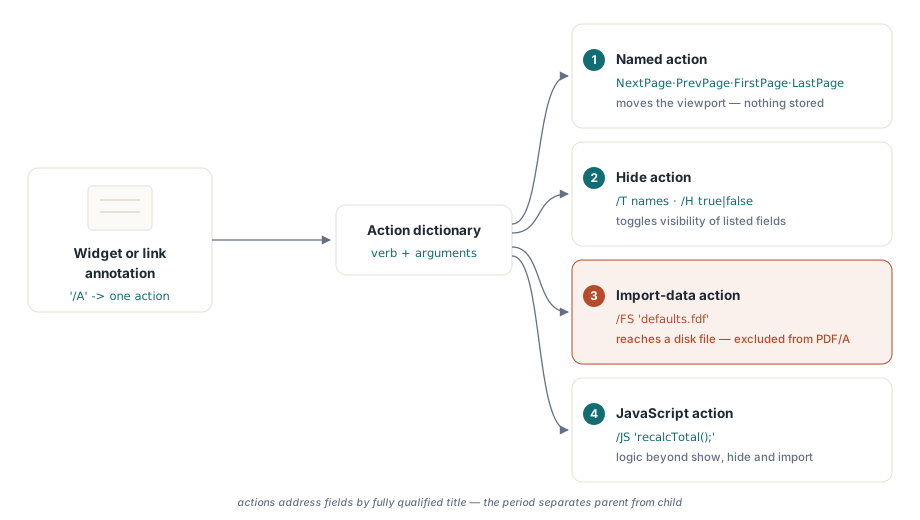
The mental model worth keeping is that a field and an action are separate objects joined by a reference. A widget annotation or a link annotation carries an action in its /A entry. The action names the field it operates on by title, not by index, so the title you give a field is the handle every later action uses to find it. Once that split is clear, the API stops looking like a grab-bag of calls and starts looking like one pattern applied to four kinds of verb
Named actions: navigation without a page number
The simplest actions carry no parameters at all. ISO 32000-1 §12.6.4.11, Table 194, defines named actions: the viewer interprets a symbolic name at runtime instead of following a stored destination. Four names are universally supported, and they are exactly the ones a reader expects from a toolbar: NextPage, PrevPage, FirstPage, and LastPage. Because the destination is relative to whatever page the viewer is currently showing, a Next button built this way works on every page without you computing a target
In PDF Library for Delphi a named action is attached to a hotspot rectangle on the current page. The fourth and fifth integer arguments select the verb and the appearance
// NamedActionType: 0 = NextPage, 1 = PrevPage, 2 = FirstPage, 3 = LastPage
// Options bit 0 (value 1) draws a border around the hotspot
Pdf.AddLinkToNamedAction(500, 560, 60, 18, 0, 1);   // Next
Pdf.AddLinkToNamedAction(40, 560, 60, 18, 1, 1);    // Previous
Pdf.AddLinkToNamedAction(110, 560, 60, 18, 3, 1);   // jump to last page
There is no destination to keep in sync, which is the whole point. A named action survives page insertion and deletion because it never names a page in the first place. Contrast that with an explicit go-to link, which stores a target page index that you have to renumber the moment the document grows
The Hide action and its array gotcha
The Hide action, ISO 32000-1 §12.6.4.10, Table 196, toggles the visibility of one or more fields. It is the cleanest way to build show and hide behaviour without scripting, and it is what you want for a Show details link or for two mutually exclusive panels where revealing one conceals the other. The action carries a target in its /T entry and a boolean /H that decides the direction: hide when true, show when false
The subtlety is entirely in how that target is encoded, and it is the kind of detail that produces a form that works on your machine and fails on a customer's. When the action names a single field, /T is written as one text string. When it names several, /T is written as an array of text strings. Older viewers do not treat a one element array the same way they treat a bare string, so the encoding has to branch on the count: a single name must be emitted as a string, not as an array of length one, if the widest range of readers is to honour it. PDF Library for Delphi makes that decision for you. You pass field names separated by commas, semicolons, or line breaks, and the writer emits a single string for one name and an array for two or more
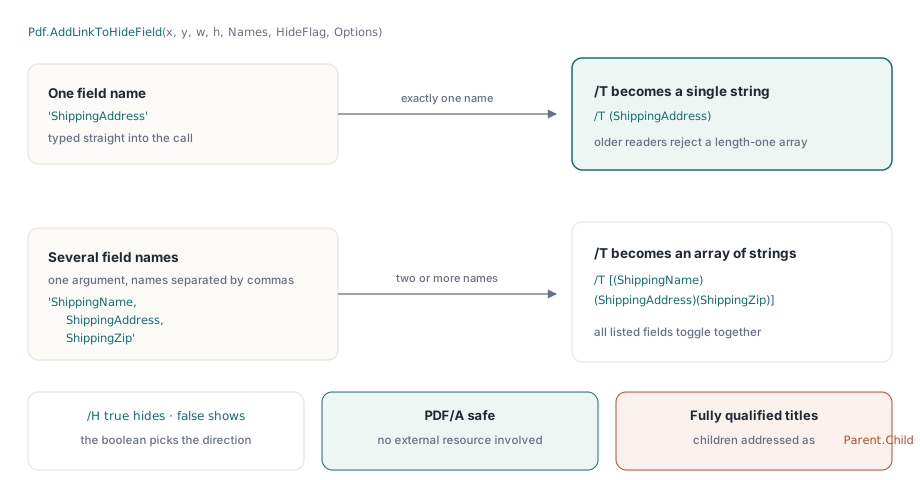
// HideFlag non-zero hides the listed fields (/H true); zero shows them.
// One name -> /T is a text string. Two or more -> /T is an array of strings.
Pdf.AddLinkToHideField(40, 700, 90, 18, 'ShippingAddress', 1, 1);
Pdf.AddLinkToHideField(140, 700, 90, 18,
  'ShippingName,ShippingAddress,ShippingZip', 1, 1);
Because the action references no external resource, it stays compatible with PDF/A. The names you pass are fully qualified field titles, which is why a child field inside a group has to be addressed through its full dotted path rather than its bare leaf name
ImportData: prefilling from FDF
Where the Hide action rearranges what is already on the page, the import-data action brings values in from outside it. ISO 32000-1 §12.6.4.8, Table 198, defines it as an action that populates the AcroForm from a Forms Data Format file on disk. This is the action behind a Reload sample data or Reset to defaults control, where an FDF file ships next to the PDF and holds the canonical field values. The call mirrors the others, taking the hotspot rectangle, the path to the FDF, and an appearance bitmask: Pdf.AddLinkToImportData(40, 660, 120, 18, 'defaults.fdf', 1). The file need not exist when the PDF is built, but it must be present when the user clicks, and any backslashes in the path are rewritten to the PDF-canonical slash form for you
One constraint is worth stating plainly because it is a frequent surprise. An import-data action points at an external file, so it is not permitted in PDF/A. When the document is in PDF/A mode the call returns zero and adds nothing rather than producing a file that fails validation. If your pipeline targets archival output, prefilling has to happen at generation time by writing the field values directly, not by deferring them to a click
JavaScript: global packages and per-action scripts
For logic that goes beyond show, hide, and import, the action family reaches into document-level JavaScript. There are two distinct places a script can live, and the difference matters. A document-level JavaScript package is stored once for the whole file and runs when the document opens, which makes it the right home for function definitions and shared state. A per-action script is attached to one link or field and runs only when that object is activated, which makes it the right home for the one line that calls a function the package already defined
PDF Library for Delphi exposes both. AddGlobalJavaScript stores a named package at the document level; reusing a name replaces whatever was stored under it. AddLinkToJavaScript attaches a script to a hotspot so a click executes it
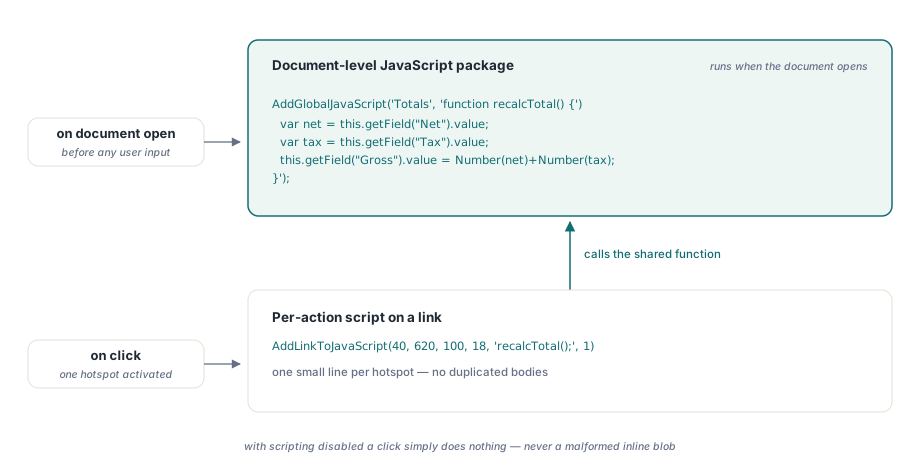
// Document-level package: define a reusable function once.
Pdf.AddGlobalJavaScript('Totals',
  'function recalcTotal() {' +
  '  var net = this.getField("Net").value;' +
  '  var tax = this.getField("Tax").value;' +
  '  this.getField("Gross").value = Number(net) + Number(tax);' +
  '}');

// Per-action script on a link: just call the shared function.
Pdf.AddLinkToJavaScript(40, 620, 100, 18, 'recalcTotal();', 1);
Keeping the function in the global package and the call in the link is not a style preference. It avoids duplicating the same body on every control that needs it, and it means a viewer with scripting disabled simply does nothing on click rather than choking on a malformed inline blob. It also keeps the per-action entries small, which keeps the file readable when you inspect it later
Fields, child fields, and freezing the result
Actions need fields to act on, so it helps to see how a field comes into being. NewFormField creates a field on the current page and returns its index; the integer type selects the kind, where 1 is Text, 2 is Pushbutton, 3 is Checkbox, 4 is Radiobutton, 5 is Choice, 6 is Signature, and 7 is a Parent that owns children but draws nothing itself. The title you pass cannot contain a period, because the period is the separator in the fully qualified names that actions use to address children
Radio groups and hierarchical forms are built by giving a parent field children. NewChildFormField adds a child under a named parent, and for the radio and choice cases AddFormFieldSub adds the individual options and hands back a temporary index you use to position each one. When the interactive phase is over and you want to freeze a field so its current appearance becomes permanent page content, FlattenFormField draws the field onto the page and removes it from the form. After a flatten the indices of later fields shift down by one, which is the one thing to remember if you flatten several fields in a loop
var
  Pdf: TPDFlib;
  FldShip: Integer;
begin
  Pdf := TPDFlib.Create;
  try
    Pdf.SetOrigin(1);          // top-left origin
    Pdf.SetPageSize('A4');
    Pdf.NewPage;

    // A text field the Hide action will target by its title.
    FldShip := Pdf.NewFormField('ShippingAddress', 1);
    Pdf.SetFormFieldBounds(FldShip, 40, 120, 240, 20);
    Pdf.SetFormFieldValue(FldShip, '');

    // Wire a Hide link and a navigation link to this page.
    Pdf.DrawText(40, 110, 'Toggle shipping block:');
    Pdf.AddLinkToHideField(220, 100, 70, 16, 'ShippingAddress', 1, 1);
    Pdf.AddLinkToNamedAction(500, 800, 60, 18, 3, 1);  // Last page

    // A document-level script available to every event in the file.
    Pdf.AddGlobalJavaScript('OnOpen',
      'app.alert("Form ready", 3);');

    // Freeze the field if the output should no longer be editable.
    // Pdf.FlattenFormField(FldShip);

    if Pdf.SaveToFile('form_actions.pdf') <> 1 then
      raise Exception.Create('Save failed');
  finally
    Pdf.Free;
  end;
end;
The flatten call is commented out on purpose. Leave it out and the document ships as a live form whose actions fire in the reader. Enable it and the field is rendered down to static marks, which is what you want when the form has been completed and the result should travel as a fixed record. The same field, the same code, two very different documents depending on whether you freeze it
Choosing the right verb
The four actions divide cleanly by what they touch. A named action moves the viewport and needs no field. A Hide action changes visibility and needs field titles, with the string-versus-array encoding handled for you. An import-data action reaches a file on disk and is therefore off limits in PDF/A. A JavaScript action runs arbitrary logic and is best split between a global package of functions and small per-action calls. Reach for the simplest one that does the job: a Hide action is more portable than a script that sets a hidden flag, and a named action is more durable than a stored page destination because there is no number to maintain
From here, two neighbouring topics finish the picture. If the form is part of an accessible document, the structure tree that screen readers walk is covered in our article on tagged PDF and accessibility structure. When the completed form has to be locked and signed, the workflow is described in the compliance and signing workbench walkthrough. All three build on the same engine, which ships as the PDF library for Delphi alongside the creation, form, and signature APIs covered elsewhere on this blog