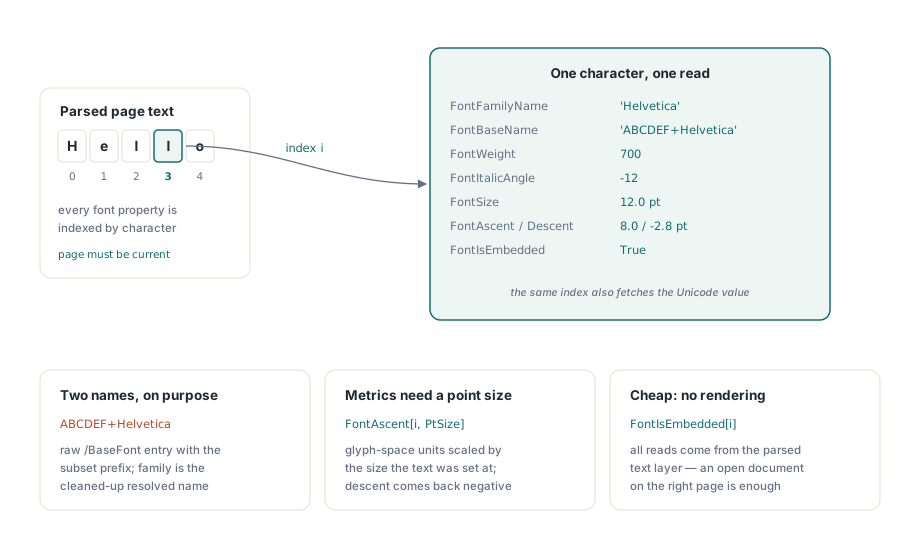
Jedes sichtbare Zeichen in einem PDF trägt eine Referenz auf die Schriftart, die es gezeichnet hat, und mit der PDFium-Komponente können Sie dieser Referenz bis zum Schriftart-Objekt folgen und auslesen, was es weiß. Die Zugriffseinheit ist das Zeichen, nicht das Dokument: Sie wählen ein Zeichen über seinen Index im Seitentext aus und fragen nach dem Familiennamen (Family Name), dem Basisnamen (Base Name), der Strichstärke (Weight), dem Kursivwinkel (Italic Angle) und ob die zugrunde liegende Schrift (Face) tatsächlich in der Datei mitgeliefert wird. Diese letzte Eigenschaft ist diejenige, auf die es bei den meisten Analysen eigentlich ankommt, denn eine eingebettete Schriftart reist mit dem Dokument mit, während eine nicht eingebettete Schriftart lediglich das Versprechen ist, dass auf dem Rechner des Lesers zufällig dieselbe Schriftart installiert ist
Die Komponente stellt diese über dieselben TPdf- und TPdfView-Objekte bereit, die Sie auch für das Rendern und die Textextraktion verwenden. Es gibt kein separates „Font-Table“-Objekt, das geöffnet werden muss. Sobald der Text einer Seite geparst wurde, hängen die Schrifteigenschaften am Zeichenindex, und Sie lesen sie Glyphe für Glyphe aus. Dieses Design entspricht der Art und Weise, wie PDF die Informationen überhaupt speichert: Eine einzige Seite kann die Schriftart dutzende Male wechseln, und die einzig ehrliche Antwort auf die Frage „In welcher Schriftart ist dieses Dokument gehalten?“ lautet „Es kommt darauf an, welches Zeichen Sie meinen.“
Die Schriftart hinter einem Zeichen auslesen
Die kleinste nützliche Operation besteht darin, einen Zeichenindex zu nehmen und alles auszugeben, was PDFium über dessen Schriftart sagen kann. Jede Schrifteigenschaft an TPdf und TPdfView ist über die Zeichenposition indiziert, sodass sich der Index durch alle durchzieht. Damit der Index auf den richtigen Text auflöst, muss die Seite auch die aktuelle Seite (Current Page) sein, was wichtig wird, sobald Sie sich über Seite eins hinausbewegen
procedure DescribeFontAt(Pdf: TPdf; CharIndex: Integer);
var
  Report: TStringList;
  PtSize: Single;
begin
  Report := TStringList.Create;
  try
    PtSize := Pdf.FontSize[CharIndex];

    Report.Add('Character : ' + Pdf.Character[CharIndex]);
    Report.Add('Family    : ' + Pdf.FontFamilyName[CharIndex]);
    Report.Add('Base name : ' + Pdf.FontBaseName[CharIndex]);
    Report.Add('Weight    : ' + IntToStr(Pdf.FontWeight[CharIndex]));
    Report.Add('Italic    : ' + IntToStr(Pdf.FontItalicAngle[CharIndex]) + ' deg');
    Report.Add('Size      : ' + FormatFloat('0.0', PtSize) + ' pt');
    Report.Add('Ascent    : ' + FormatFloat('0.0', Pdf.FontAscent[CharIndex, PtSize]));
    Report.Add('Descent   : ' + FormatFloat('0.0', Pdf.FontDescent[CharIndex, PtSize]));
    Report.Add('Embedded  : ' + BoolToStr(Pdf.FontIsEmbedded[CharIndex], True));

    ShowMessage(Report.Text);
  finally
    Report.Free;
  end;
end;
Einige der Signaturen überraschen Leute, die von anderen Bibliotheken kommen. FontAscent und FontDescent (Ober- und Unterlänge der Schrift) benötigen zwei Argumente, den Zeichenindex und eine Punktgröße, da PDFium diese Metriken in Einheiten des Glyphenraums meldet, die erst dann zu Pixeln werden, wenn man sie mit der Größe skaliert, in der der Text gesetzt wurde. Übergeben Sie den Wert, den Sie bereits von FontSize[CharIndex] gelesen haben, und Sie erhalten Ascent und Descent in denselben Punkten wie das restliche Layout. Descent wird negativ zurückgegeben, da es unterhalb der Grundlinie misst. Der Familienname und der Basisname sind absichtlich getrennte Strings: Der Basisname ist der rohe /BaseFont-Eintrag aus dem PDF, der oft ein Subset-Präfix wie ABCDEF+ trägt, während der Familienname der bereinigte Name ist, in den der Renderer ihn auflöst
Einen Klick in einen Zeichenindex verwandeln
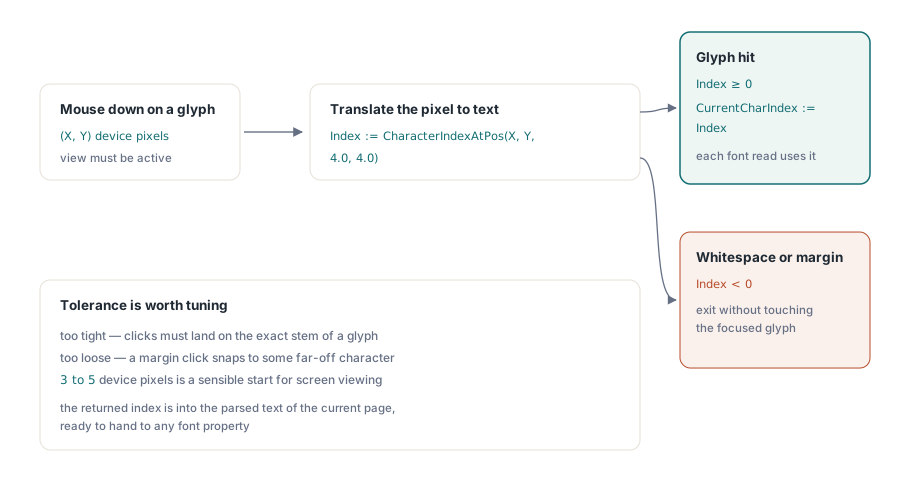
In einem Viewer kennt man den Index selten im Voraus. Der Benutzer klickt auf eine Glyphe und Sie müssen die Pixelkoordinate in das darunterliegende Zeichen übersetzen. CharacterIndexAtPos tut genau das: Es nimmt die Mausposition und eine Toleranz entgegen und gibt den Index des nächstgelegenen Zeichens zurück, oder einen negativen Wert, wenn der Klick auf einer Leerstelle oder einer leeren Seite landete
procedure TfrmMain.PdfViewMouseDown(Sender: TObject; Button: TMouseButton;
  Shift: TShiftState; X, Y: Integer);
var
  Index: Integer;
begin
  if not PdfView.Active then
    Exit;

  // 4 px Toleranz in jede Richtung, sodass ein Beinahe-Treffer die Glyphe noch trifft.
  Index := PdfView.CharacterIndexAtPos(X, Y, 4.0, 4.0);
  if Index < 0 then
    Exit;                      // zwischen Glyphen geklickt; das Panel in Ruhe lassen

  PdfView.CurrentCharIndex := Index;
  DescribeFontAt(PdfView.Pdf, Index);
end;
Es lohnt sich, die Toleranz fein abzustimmen. Zu eng, und die Benutzer haben das Gefühl, sie müssten exakt den Stamm eines Buchstabens treffen; zu weit, und ein Klick am Rand springt zu einem weit entfernten Zeichen, das nichts mit dem gemeinten zu tun hat. Drei bis fünf Gerätepixel (Device Pixels) sind ein vernünftiger Startpunkt für die Bildschirmansicht. Der zurückgegebene Index bezieht sich auf den geparsten Text der aktuellen Seite, also auf denselben Indexraum, den jede Schrifteigenschaft erwartet, weshalb Sie ihn direkt an die obige Routine übergeben können. Ihn in CurrentCharIndex zu speichern ist optional, aber praktisch: Die Ansicht merkt sich dies als ihre Vorstellung der fokussierten Glyphe, was nützlich ist, wenn andere Teile der Benutzeroberfläche die Auswahl lesen möchten, ohne sie neu abzuleiten
Die Einbettung (Embedding) ist die Eigenschaft, auf die es ankommt
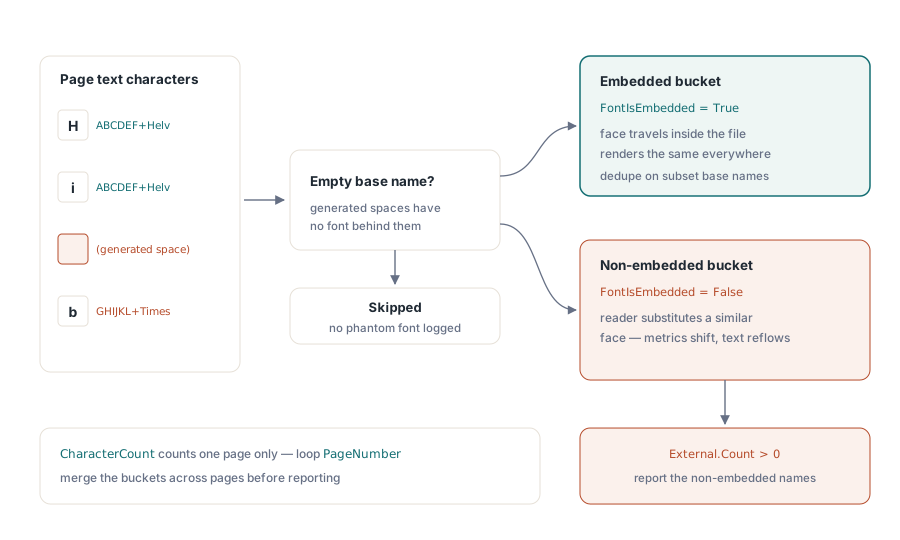
Für die meiste praktische Arbeit ist die einzige Frage, die beantwortet werden muss, ob jede Schriftart eingebettet ist. Ein Dokument, das alle seine Schriftarten in sich trägt, rendert auf dem RIP eines Druckdienstleisters, dem Laptop eines Kollegen und einem Server ganz ohne GUI identisch. Ein Dokument, das sich auf eine nicht eingebettete Helvetica stützt, wettet darauf, dass jeder dieser Rechner eine passende Schrift installiert hat, und wenn die Wette verloren geht, ersetzt der Reader etwas Ähnliches, die Metriken verschieben sich, und ein sorgfältig layoutetes Formular fließt gerade genug neu, um kaputtzugehen. Den Seitentext zu durchlaufen und die Schriftarten nach ihrem Einbettungsstatus zu gruppieren, liefert Ihnen diese Antwort auf billige Weise
procedure ReportNonEmbeddedFonts(Pdf: TPdf);
var
  Embedded, External: TStringList;
  I: Integer;
  Name: string;
begin
  Embedded := TStringList.Create;
  External := TStringList.Create;
  try
    Embedded.Sorted := True;
    Embedded.Duplicates := dupIgnore;
    External.Sorted := True;
    External.Duplicates := dupIgnore;

    for I := 0 to Pdf.CharacterCount - 1 do
    begin
      Name := Pdf.FontBaseName[I];
      if Name = '' then
        Continue;              // erzeugte Leerzeichen und Ähnliches haben keine Schrift
      if Pdf.FontIsEmbedded[I] then
        Embedded.Add(Name)
      else
        External.Add(Name);
    end;

    if External.Count > 0 then
      ShowMessage(IntToStr(External.Count) +
        ' non-embedded font(s):' + sLineBreak + External.Text)
    else
      ShowMessage('All ' + IntToStr(Embedded.Count) +
        ' font(s) on this page are embedded.');
  finally
    Embedded.Free;
    External.Free;
  end;
end;
Zwei Details halten dies verlässlich. Erstens ist CharacterCount seitenbezogen, ein dokumentsweites Audit bedeutet also, Pdf.PageNumber der Reihe nach auf jede Seite zu setzen und die Schleife erneut auszuführen, wobei die Ergebnisse zusammengeführt werden. Zweitens enthält die Textebene generierte Zeichen, wie die Leerzeichen, die ein Reader zwischen Wörtern ableitet, und hinter diesen steht kein Schriftart-Objekt; die Prüfung auf einen leeren Basisnamen überspringt sie, anstatt ein Phantom zu protokollieren. Der Basisname ist hier der richtige Schlüssel für die Deduplizierung, da das Subset-Präfix, das er trägt, zwei verschiedene Subsets derselben Familie unterscheidet, was normalerweise genau das ist, was Sie wissen möchten
Die eingebettete Schriftart herausziehen
Wenn eine Schriftart eingebettet ist, können Sie ihre Bytes direkt auslesen. FontData gibt das rohe Schriftprogramm zurück, dieselben TrueType- oder CFF-Daten, die das PDF mitführt, was ausreicht, um eine eigenständige Schriftdatei zu schreiben oder die Schrift gegen eine bekannte Bibliothek per Fingerprint zu prüfen. Es gibt ein leeres Array zurück, wenn die Schriftart nicht eingebettet ist; Einbettungsprüfung und Längenprüfung zusammen sichern also den Schreibvorgang ab
procedure SaveEmbeddedFont(Pdf: TPdf; CharIndex: Integer;
  const OutputFile: string);
var
  Data: TBytes;
  Stream: TFileStream;
begin
  if not Pdf.FontIsEmbedded[CharIndex] then
  begin
    ShowMessage('That glyph''s font is not embedded; nothing to extract.');
    Exit;
  end;

  Data := Pdf.FontData[CharIndex];
  if Length(Data) = 0 then
    Exit;

  Stream := TFileStream.Create(OutputFile, fmCreate);
  try
    Stream.WriteBuffer(Data[0], Length(Data));
  finally
    Stream.Free;
  end;
  ShowMessage('Wrote ' + IntToStr(Length(Data)) + ' bytes.');
end;
Die Bytes sind das eingebettete Subset, nicht die originale Einzelhandels-Schriftart, weshalb das, was Sie zurückbekommen, normalerweise nur die Glyphen abdeckt, die das Dokument tatsächlich verwendet hat. Für Forensik und Verifikation ist das genau richtig, für die Wiederverwendung hingegen eher ungeeignet; ein Subset von Times New Roman, das dreißig Glyphen enthält, ist keine Schriftart, die man installieren und mit der man tippen kann. Behandeln Sie die Extraktion als eine Möglichkeit, zu inspizieren, was ausgeliefert wurde, nicht als Werkzeug zur Wiederherstellung von Schriftarten. Wenn Sie den passenden Basisnamen zur Benennung der Ausgabe benötigen, lesen Sie FontBaseName[CharIndex] parallel zu den Daten aus und entfernen Sie das führende Subset-Tag, wenn Sie die reine Familie möchten
Die Bedeutung der Strichstärken-Nummer (Weight Number)
FontWeight gibt die numerische Strichstärkenklasse zurück, dieselbe 100-bis-900-Skala, die CSS verwendet, wobei 400 für Regular (normal) und 700 für Bold (fett) steht. PDFium meldet, was auch immer die Schriftart deklariert, was nicht immer glatte Hunderterwerte sind; eine Schrift kann 350 oder 650 ankündigen, und alles bei oder über 600 als „ausreichend fett, um von Bedeutung zu sein“ zu behandeln, bewährt sich besser als strikt auf exakt 700 zu prüfen. Der Kursivwinkel (Italic Angle) ist ein Begleitsignal: Ein Wert ungleich null, meist negativ, bedeutet, dass die Schrift ein schräges (oblique) oder echtes kursives (italic) Design ist, und null bedeutet aufrecht. Zusammen ermöglichen sie es Ihnen, einen fett-kursiven Lauf (Run) von einem normalen zu unterscheiden, ohne etwas zu rendern, was exakt der Art von Prüfung entspricht, die ein Preflight-Durchlauf oder ein Barrierefreiheits-Audit in großen Mengen vornehmen möchte
Keines dieser Ausleseverfahren benötigt ein gerendertes Bitmap. Sie stammen aus der geparsten Textebene, sodass ein geöffnetes Dokument auf der richtigen Seite alles an Setup ist, was Sie benötigen, wodurch die Schriftarteninspektion über ein ganzes Archiv hinweg günstig durchzuführen ist. Wenn Sie dies mit der Textextraktion kombinieren, decken sich dieselben Zeichenindizes mit dem Text, den Sie herausziehen, sodass die Schriftart einer Glyphe und ihr Unicode-Wert zwei Lesevorgänge gegen einen Index darstellen. Der Begleitartikel zur Textextraktion aus PDF-Dokumenten mit der PDFium-Komponente behandelt diese Seite der Textebene tiefergehend
Die hier gezeigten Schrifteigenschaften sind Teil der PDFium Delphi VCL Component